Mirroring puts a copy of the document in Less Annoying CRM. The original stays wherever FolioReady already keeps it, so your document store is unaffected.
Connecting...
Tags:
crm
Less Annoying CRM Integration
Your CRM already holds the client. FolioReady collects the paperwork. Connect the two with a pasted API key and the paperwork goes back where you look for it — collected values written onto the contact's custom fields, a summary of every document posted as a note, and a copy of the documents themselves attached to the contact record.
Why Connect Less Annoying CRM?
One key, no authorization dance
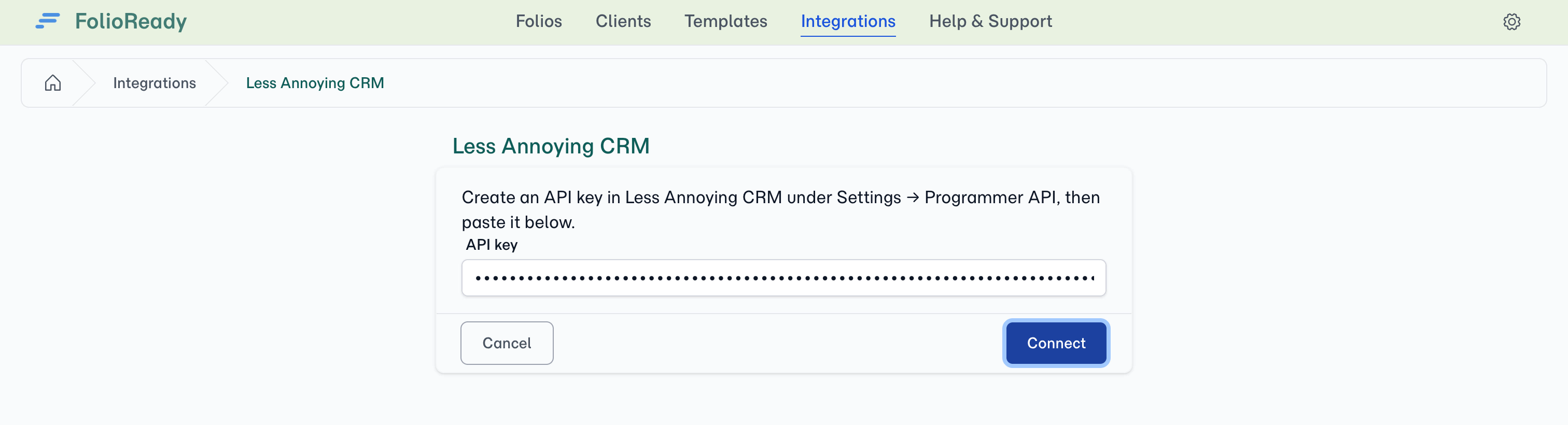
Create an API key in Less Annoying CRM, paste it into FolioReady, and you're connected. No redirect, no consent screen, no admin approval to chase.
Stop retyping contact details
Without the integration, you type names and emails into FolioReady that already exist in your CRM. With the connection, search your contacts and import them in two clicks.
Folio data lives on the contact record
FolioReady writes collected values onto custom fields on the Less Annoying CRM contact. Status, reference numbers, whatever you've mapped — visible on the record your team already opens.
The documents land there too
FolioReady copies each collected document onto the contact as an attachment. Not a link, not a summary — the file itself, alongside everything else you keep on that contact.
A copy, never a move
What You Can Do
Import contacts as FolioReady clients
Search your Less Annoying CRM contacts by name or email and import them as FolioReady clients, with their details pre-filled.
No duplicates
If a client with the same contact ID or email already exists, FolioReady links the existing client instead of creating a second one.
Write folio data onto custom fields
Map any canvas field in the FolioReady template builder to a custom field on the contact. When the client completes the folio, the value is written across.
Post document summaries as notes
FolioReady's AI reads each collected document and writes a short summary. That summary is posted as a note on the contact, so the record carries what arrived and what it said.
Mirror documents onto the contact
Every collected file is uploaded to the contact as an attachment, once FolioReady has finished processing it.
Prerequisites
- A Less Annoying CRM account that can reach Settings → Programmer API
- Manager permission on your FolioReady company
- A FolioReady account on any plan
Connecting Your Account
Step 1: Create the API key
In Less Annoying CRM, open Settings → Programmer API and create a key. Copy it — you'll paste it into FolioReady next.
Step 2: Paste it into FolioReady
- Navigate to Settings > Integrations in FolioReady
- Find Less Annoying CRM and click Connect
- Paste the key into the API key field and press Connect
FolioReady checks the key against Less Annoying CRM straight away. On success the page shows Connected along with the name and email of the account the key belongs to. If the key is wrong or has been revoked, the page says so and nothing is saved.
The key is write-only
Once stored, the key is never shown again — not masked, not partially, not at all. If you need to change it, press Replace key and paste a new one. There's nothing to copy back out, which is exactly the point.
Connecting sets Less Annoying CRM as your CRM service. Imports and folio syncs flow from that point forward.
Choosing What Syncs
Under Settings > Integrations, the Less Annoying CRM connection carries three switches. All three start on:
| Switch | What it does |
|---|---|
| Sync Field Values | Writes collected field values onto the contact's custom fields |
| Sync Document Notes | Posts each document's AI summary as a note on the contact |
| Mirror Documents | Uploads a copy of each collected file to the contact |
Turn any of them off and that kind of write stops; the other two carry on. Turning one back on affects new activity only — nothing is backfilled.
Importing Contacts
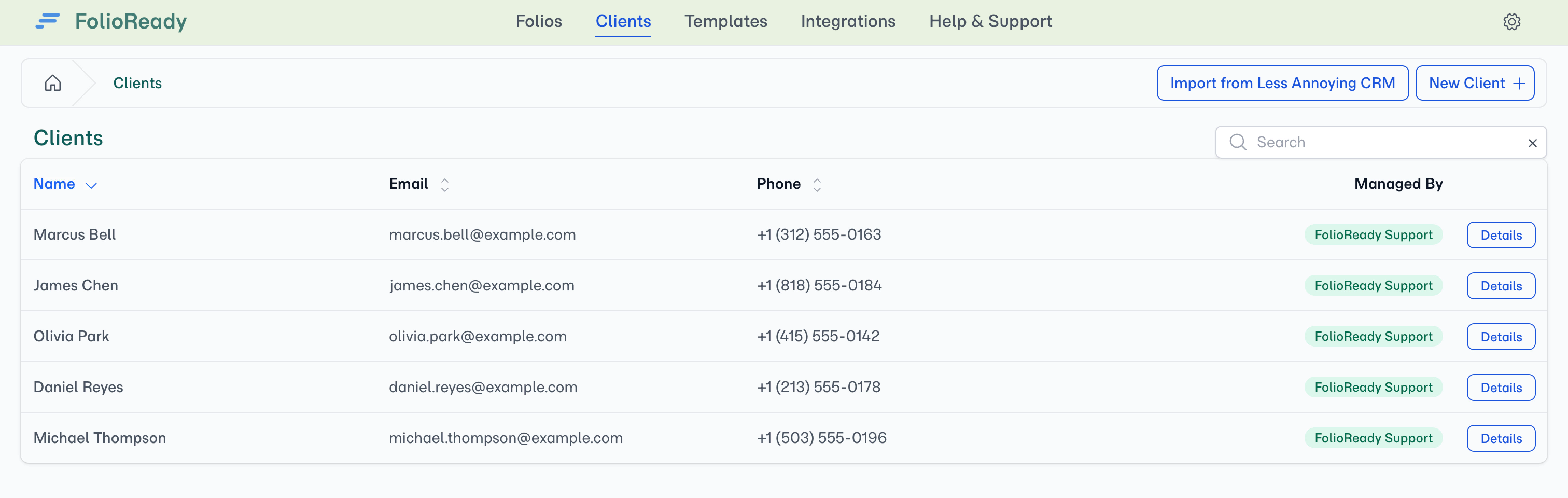
Once connected, an Import from Less Annoying CRM button appears on the Clients page.
Step 1: Find the contact
Click the button to open the import page, then search by name or email.
Step 2: Link them
Press Link to Less Annoying CRM on their row. The contact becomes a FolioReady client with their name and email filled in, and their record opens. Pressing it on someone already in FolioReady opens the client you already have — including a client you added by hand under the same email address, who is linked rather than duplicated.
Sending a Folio to the Contact
Everything FolioReady writes lands on one record: the client's contact.
Open a template in the builder and go to Settings. Document Target starts on No CRM sync, so a new template writes nothing until you choose. Set it to Contact and that template's folios sync — their field values, their document summaries, and their mirrored files all filing against the client's contact record.
No target, no sync
A template left on No CRM sync collects documents perfectly well and sends nothing to Less Annoying CRM — including notes and mirrored files. If you've connected the integration and nothing is arriving, this is the first thing to check.
Mapping Folio Fields to Custom Fields
With the target set to Contact, open the sync settings on any canvas field in the template builder and pick the custom field the value should be written to. FolioReady reads the list of contact custom fields directly from your account, so what you see is what your CRM actually has.
Creating a custom field from FolioReady
If the field you want doesn't exist yet, click Create field. FolioReady creates it on the Contact record type in Less Annoying CRM and selects it for you — no need to leave the builder.
The field type is chosen to match what the canvas field collects:
| What the folio collects | Custom field created |
|---|---|
| A short answer | Text |
| A long answer | Text Area |
| A number | Number |
| A date | Date |
Document Summaries as Notes
When a document arrives and FolioReady's AI has read it, the summary is posted as a note on the contact.
Less Annoying CRM notes are plain text, so FolioReady sends plain text — no stray formatting characters in your CRM. The summary's heading becomes the first line of the note, with the body beneath it, so the note reads cleanly on the record.
Mirroring Documents
With Mirror Documents on, each collected file is uploaded to the contact as an attachment.
Two details worth knowing:
- It waits for processing. The upload happens after FolioReady has finished reading the document, so the file that reaches your CRM is the final one.
- It doesn't need a file store. Mirroring works whether or not you've connected a separate storage integration. Your documents stay where FolioReady keeps them, and Less Annoying CRM receives a copy.
If a single upload fails — an unreachable file, a rejected request — only the mirror is affected. The document itself is untouched in FolioReady.
How It Works
Less Annoying CRM                FolioReady                    Less Annoying CRM
─────────────────                ───────────                   ─────────────────
Search contacts    ◄────────    Import from LACRM
Contact selected   ─────────►    Client created/linked

                                 Template builder:
                                 Target = Contact
                                 Map canvas fields   ─────────►  Read custom fields
                                 Or create a field   ─────────►  Custom field created

                                 Folio completed     ─────────►  Contact custom fields
                                                                 updated

                                 Document read       ─────────►  Note posted on contact
                                                     ─────────►  File attached to contact
All of this runs in the background as events occur. There's no extra step in your workflow and nothing to trigger by hand.
Disconnecting
- Go to Settings > Integrations
- Click Delete Connection on the Less Annoying CRM integration
- Confirm
After disconnecting, no further data reaches Less Annoying CRM. Everything already written stays exactly where it is — custom fields, notes and attached documents are all yours. Disconnecting only stops future sync.
Deleting the key in Less Annoying CRM's Settings → Programmer API has the same practical effect from the CRM's side: FolioReady's writes start failing and the connection is flagged.
Troubleshooting
"Less Annoying CRM rejected that key."
The key was refused. Check that you copied the whole key from Settings → Programmer API with no leading or trailing spaces, and that it hasn't been deleted in Less Annoying CRM. Nothing is saved when a key is refused, so you can simply try again.
"Import from Less Annoying CRM" button not showing
The button only appears when Less Annoying CRM is your company's CRM service. Check Settings > Integrations > Less Annoying CRM — the status should read Available.
Nothing is reaching the CRM
Work down the list:
- The template's Document Target. A template on No CRM sync writes nothing at all. Set it to Contact.
- The switches. Confirm the relevant one — Sync Field Values, Sync Document Notes, Mirror Documents — is on.
- The connection status. If it shows an error, the key has likely been revoked. Press Replace key and paste a new one.
Field mappings are made against a target, so a folio sent before its template had a target set won't sync retroactively.
Documents aren't appearing on the contact
Mirroring runs after the document has been processed, so give it a moment after upload. If it still hasn't arrived, check that Mirror Documents is on and that the folio's template targets the Contact.
Rotating your API key
Create the new key in Less Annoying CRM first, then press Replace key in FolioReady and paste it before deleting the old one. That way there's no window where syncs fail.
Related
- HubSpot Integration — Import HubSpot contacts and write folio data onto Contact and Deal properties
- Pipedrive Integration — Embed FolioReady inside Pipedrive's sidebar and sync contacts bidirectionally
- Attio Integration — Import Attio people and write folio data onto the attributes of any record you file against