If a client with the same HubSpot contact ID or email already exists, FolioReady links the existing client instead of creating a duplicate.
Connecting...
Tags:
crm
HubSpot Integration
Keep your CRM and document collection aligned. When you connect HubSpot, FolioReady imports contacts in two clicks and writes folio data directly onto your HubSpot Contact and Deal records — so your sales and success teams always see the latest status without leaving HubSpot.
Why Connect HubSpot?
Stop retyping contact details
Without the integration, you manually enter names and emails into FolioReady — even though the same contacts already exist in HubSpot. With the connection, search your HubSpot contacts and import them in two clicks.
Folio data lives on the HubSpot record
FolioReady creates custom properties in a dedicated "FolioReady" property group on your HubSpot Contacts and Deals. Your team sees folio status, completion counts, and other collected data right inside HubSpot — no tab switching.
One property group, easy to find
All FolioReady-managed properties are grouped under a single "FolioReady" heading in HubSpot's property settings. Quick to review, quick to clean up if you ever disconnect.
Works across Contacts and Deals
Link a client to a HubSpot Contact for the primary relationship. Optionally link a Deal as well, and status fields sync onto both records.
What You Can Do
Import HubSpot contacts as FolioReady clients
Search your HubSpot contacts by name or email and import them as FolioReady clients. Contact details are pre-filled — no manual data entry.
No duplicates
Write folio data onto HubSpot records
In the FolioReady template builder, assign any canvas field to a HubSpot property. When a folio is completed, FolioReady writes the collected value onto the linked HubSpot Contact or Deal.
You can pick an existing HubSpot property, or click "Create field" to have FolioReady create a new custom property in the "FolioReady" group for you.
Keep your property schema clean
Every property FolioReady creates lives in the "FolioReady" property group. If you ever want to audit or remove them, they're all in one place in HubSpot's property settings.
Prerequisites
- A HubSpot account with Super Admin permissions (required to authorize the app and to create custom properties)
- A FolioReady account on any plan
Connecting Your Account
- Navigate to Settings > Integrations in FolioReady
- Find HubSpot and click Connect
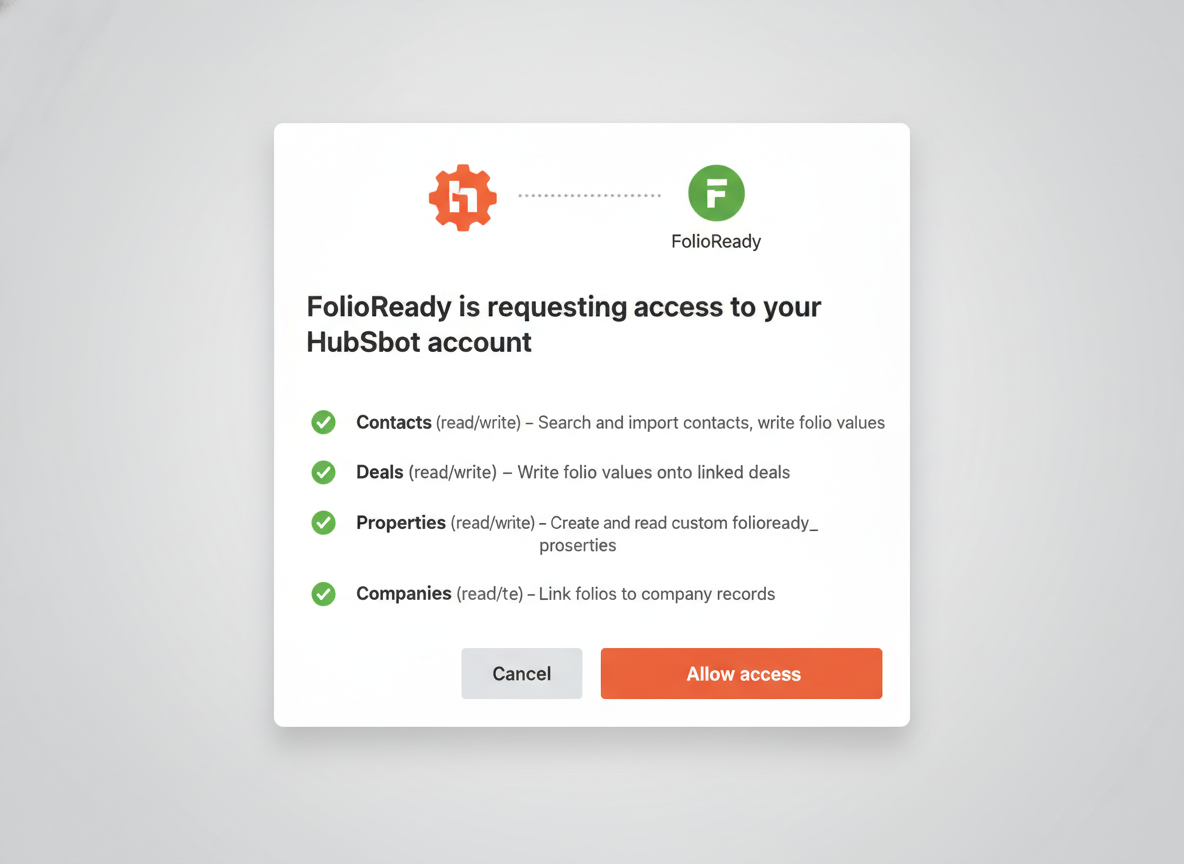
- You'll be redirected to HubSpot's authorization screen
- Select the HubSpot account (portal) you want to connect, then authorize FolioReady
- You'll be redirected back to FolioReady — the integration is now active
HubSpot requires the following permissions:
| Permission | What it's used for |
|---|---|
| Contacts (read/write) | Searching and importing contacts, writing collected folio values onto the Contact record |
| Deals (read/write) | Writing collected folio values onto the Deal record when a Deal is linked |
| Contact schema (read/write) | Reading the list of existing custom contact properties and creating new FolioReady properties |
| Deal schema (read/write) | Same as above for deals |
Once connected, FolioReady automatically sets HubSpot as your CRM service. New contact imports and folio field syncs flow from that point forward.
Importing Contacts
Once connected, an Import from HubSpot button appears on the Clients page.
Step 1: Search for a Contact
Click Import from HubSpot to open the import page. It opens on your most recently updated HubSpot contacts — no need to type first — and searching by name or email narrows the list.
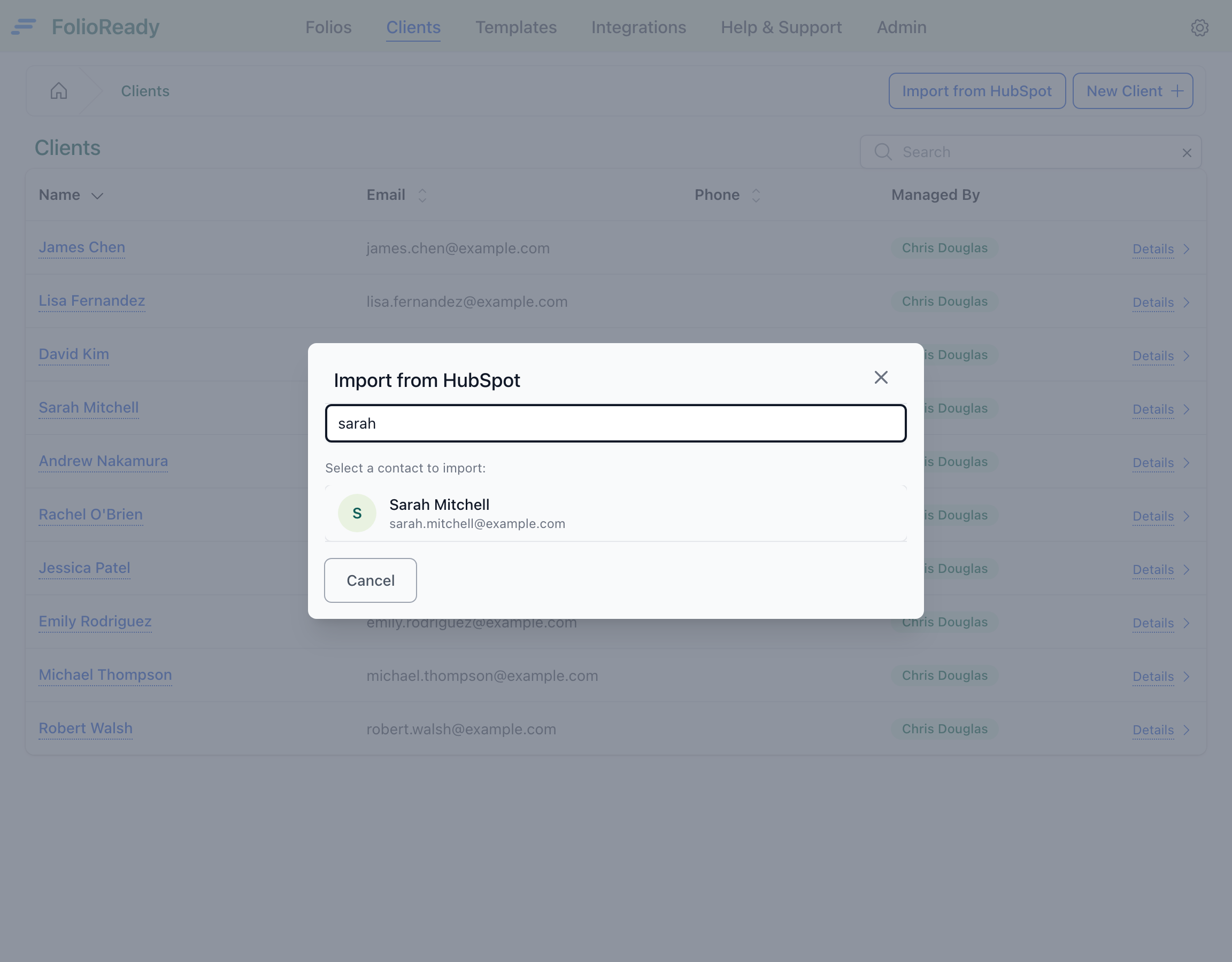
Step 2: Client Created
Press Link to HubSpot on their row. The contact becomes a FolioReady client with their name and email pre-filled from HubSpot, and their record opens. Pressing it on someone already in FolioReady opens the client you already have rather than creating a second — the same is true of a client you added by hand under the same email address, who is linked instead of duplicated.
Mapping Folio Fields to HubSpot Properties
In the template builder, every canvas field can be mapped to a HubSpot Contact or Deal property. When a client completes a folio, FolioReady writes the collected values onto the linked HubSpot record.
Using an existing property
Open a template in the builder and set the Document Target under Settings to Contact or Deal — that choice covers the whole template. Then, on any canvas field, open the sync settings: FolioReady loads that object's properties from HubSpot, and you pick the one to write to.
Creating a new property from FolioReady
If you need a property that doesn't exist yet, click Create field inline. FolioReady creates a new custom property on the selected object type, drops it into the "FolioReady" property group, and selects it for you. No need to leave the template builder.
The FolioReady property group
All properties that FolioReady creates live in a dedicated "FolioReady" group in HubSpot's property settings. This keeps your schema tidy and makes it easy to find or audit every property managed by the integration.
Send a Folio to a Deal
A Contact answers "who is this?". A Deal answers "what are we working on?" — and for a lot of teams, that's where the paperwork belongs. In the template builder, open Settings and set the Document Target to either Contact or Deal. It starts on No CRM sync, so a template writes nothing to HubSpot until you choose where its folios should land.
Set it to Deal and every folio from that template files against a Deal instead of the Contact: its field values and its document summaries both land on the same Deal record.
Choosing the Deal
FolioReady never creates a Deal, and never guesses which one. When you create a folio, it looks at the Deals already associated with that Contact in HubSpot:
- One Deal — it's selected automatically, and you'll see it named on the folio's Target step.
- Several Deals — you pick the right one before the folio goes out.
- None — the request is refused, and the Target step says so. A Deal-targeted folio for a Contact with no Deals could only ever collect documents and sync them nowhere, so FolioReady stops rather than creating one. Create the Deal in HubSpot, or pick a template that files against the Contact.
A Contact target needs none of this: the client is the Contact, so there's nothing to choose and the folio goes straight out.
Once the Deal is linked
The folio names the Deal it files against — on the folio's detail page, and in the CRM column of your folio lists, so you can tell at a glance what each request is filed against.
A folio that names no Deal doesn't sync. Its field values and summaries stay in FolioReady rather than being written to the wrong record — and they stay there: the Deal can't be chosen from the folio's page afterwards, so nothing reaches HubSpot retroactively. The Target step when you send the request is where the Deal is decided.
Document Summaries
When a client uploads a document, FolioReady's AI reads it and writes a short plain-language summary. That summary is posted as a note on the folio's linked HubSpot record — the Contact, or the Deal if the folio targets one — headed "Document synopsis: [filename]". Your team can see what each file contains straight from the CRM timeline.
Summaries post automatically once the AI finishes reading a document; a file that's still processing, or that couldn't be summarized, is skipped until its summary is ready.
Choosing what syncs
FolioReady pushes folio data to HubSpot on its own — there's no button to press. Mapped field values go onto the record whenever they change: when AI extraction fills them, when you edit a field on the folio, and when you accept an AI value or an Insight proposal. Each document's summary goes out as a note once the AI has finished reading that file.
The two are switched separately under Company → Integrations: Sync Field Values and Sync Document Synopses. Turn the synopses off and field values keep flowing, which is the setting to use when your team wants the data on the record but not the AI's summaries in the timeline.
How It Works
HubSpot                              FolioReady                         HubSpot
────────                             ───────────                        ────────
Search contacts    ◄────────────    Import from HubSpot
Contact selected   ──────────────►   Client created/linked

                                     Template builder:
                                     Pick HubSpot property  ──────────►  Read property schemas
                                     Or create new property ──────────►  Create property in
                                                                         "FolioReady" group

                                     Folio completed        ──────────►  Contact/Deal property
                                                                         values updated
All sync happens in the background. There's no delay or extra steps in your workflow — events are processed automatically as they occur.
FolioReady automatically refreshes your HubSpot access tokens before they expire. You do not need to reconnect under normal circumstances.
Disconnecting
To disconnect HubSpot:
- Go to Settings > Integrations
- Click Delete Connection on the HubSpot integration
- Confirm the disconnection
After disconnecting, no more folio data writes to HubSpot. Custom properties already created in HubSpot remain there — disconnecting only stops future sync. If you want to remove the properties, you can delete the entire "FolioReady" property group from HubSpot's property settings.
Troubleshooting
"Import from HubSpot" button not showing
The import button only appears when your company has HubSpot connected as the CRM service. Check Settings > Integrations > HubSpot — the status should read Available.
Properties not appearing in HubSpot
Custom properties are created on demand — the first time you use the "Create field" button in the template builder for a given object type (Contact or Deal). Until then, HubSpot won't show the "FolioReady" property group.
If you used "Create field" but don't see the property, reload the HubSpot property settings page and check the "FolioReady" group.
Sync fails after password change or revoked access
If your connection status turns red, FolioReady was unable to refresh your access token. This can happen if you revoke access from your HubSpot settings or change your password.
Click Reconnect on the integration page to re-authorize.
Wrong portal selected during authorization
HubSpot prompts you to pick a portal during the OAuth flow. If you picked the wrong one, click Delete Connection, then Connect again, and select the correct portal on the HubSpot authorization screen.
Related
- Pipedrive Integration — Embed FolioReady inside Pipedrive's sidebar and sync contacts bidirectionally
- Attio Integration — Sync folios to any Attio object, with a record widget inside Attio
- Intercom Integration — Track document collection against Intercom contacts
- Less Annoying CRM Integration — Connect with an API key, no OAuth redirect
- Salesforce Integration — Sync contacts, track document collection, and log activity in Salesforce