If a client with the same Pipedrive person ID already exists, FolioReady links the existing client instead of creating a duplicate.
Connecting...
Tags:
crm
Pipedrive Integration
Keep your CRM and document collection in sync. When you connect Pipedrive, FolioReady embeds directly in the Pipedrive sidebar so you can view folio status, create requests, and track document collection without switching apps. Contacts import in two clicks, collected field values and document summaries write back to the linked record, and changes to contacts in either system stay in sync automatically.
Why Connect Pipedrive?
Work from inside Pipedrive
A FolioReady sidebar panel appears on every person and deal detail view. See linked folios, their status, and document progress without leaving the page. Need a new folio? Start one right from the sidebar.
Stop retyping client details
Without the integration, you manually enter client names and emails into FolioReady — even though the same contacts already exist in Pipedrive. With the connection, search your Pipedrive contacts and import them in two clicks.
Contacts stay in sync both ways
When you update a contact's name or email in Pipedrive, FolioReady picks up the change automatically. No manual updates, no data drift.
Collected data lands on the record
Map any folio field to a Pipedrive person or deal field and the collected value writes straight onto the linked record. Uploaded documents get an AI-written summary posted as a note, so your team sees what arrived without opening a single file.
Link folios to deals
Point a template at Deals and every folio it produces files against the client's Pipedrive deal, writing its field values and document summaries there rather than to the person — so deal-stage reviews include document collection context.
Prerequisites
- A Pipedrive account with admin or API access
- An active FolioReady account
Connecting Your Account
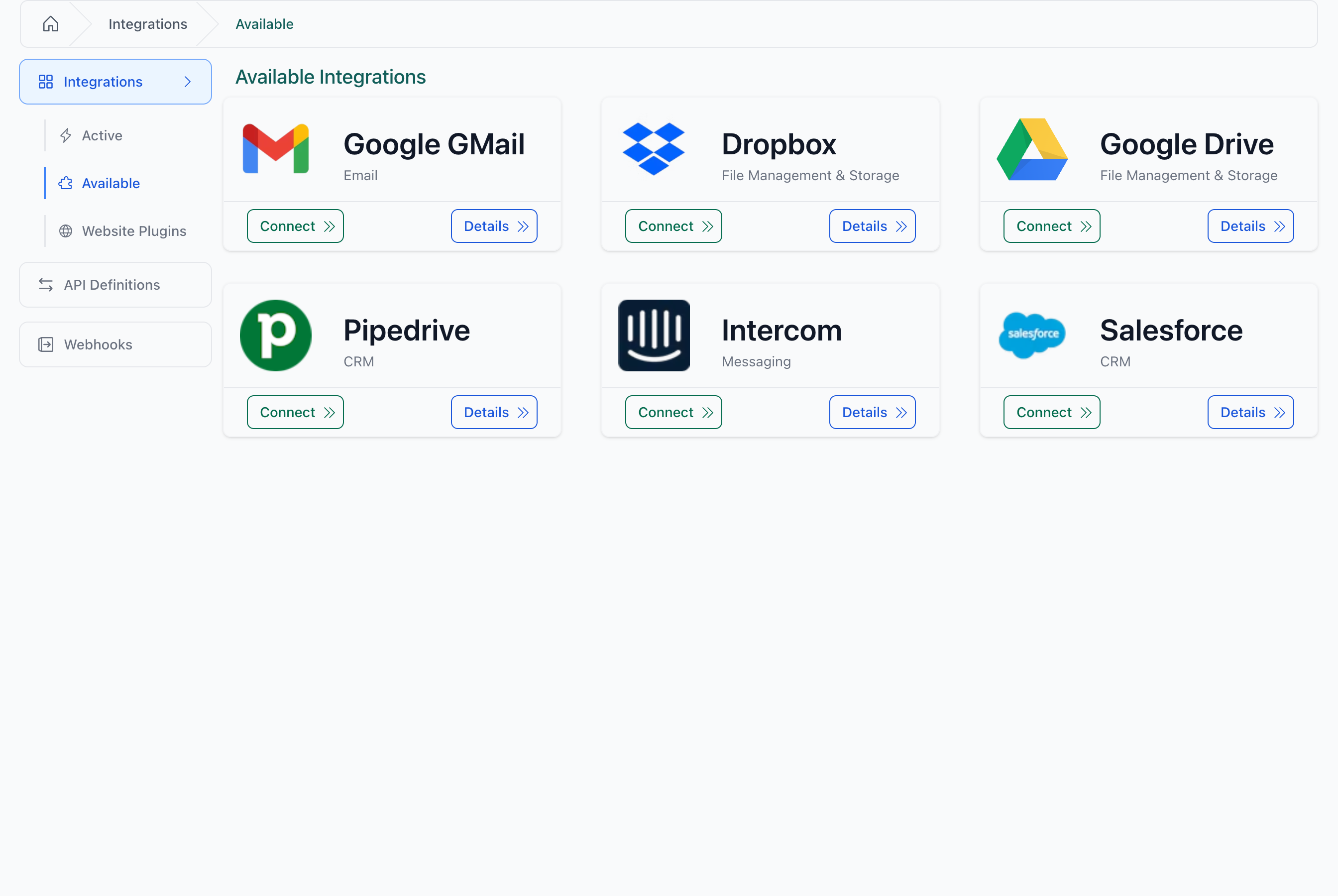
Step 1: Open Integrations
Navigate to Integrations and find the Pipedrive card.
Step 2: Authorize Access
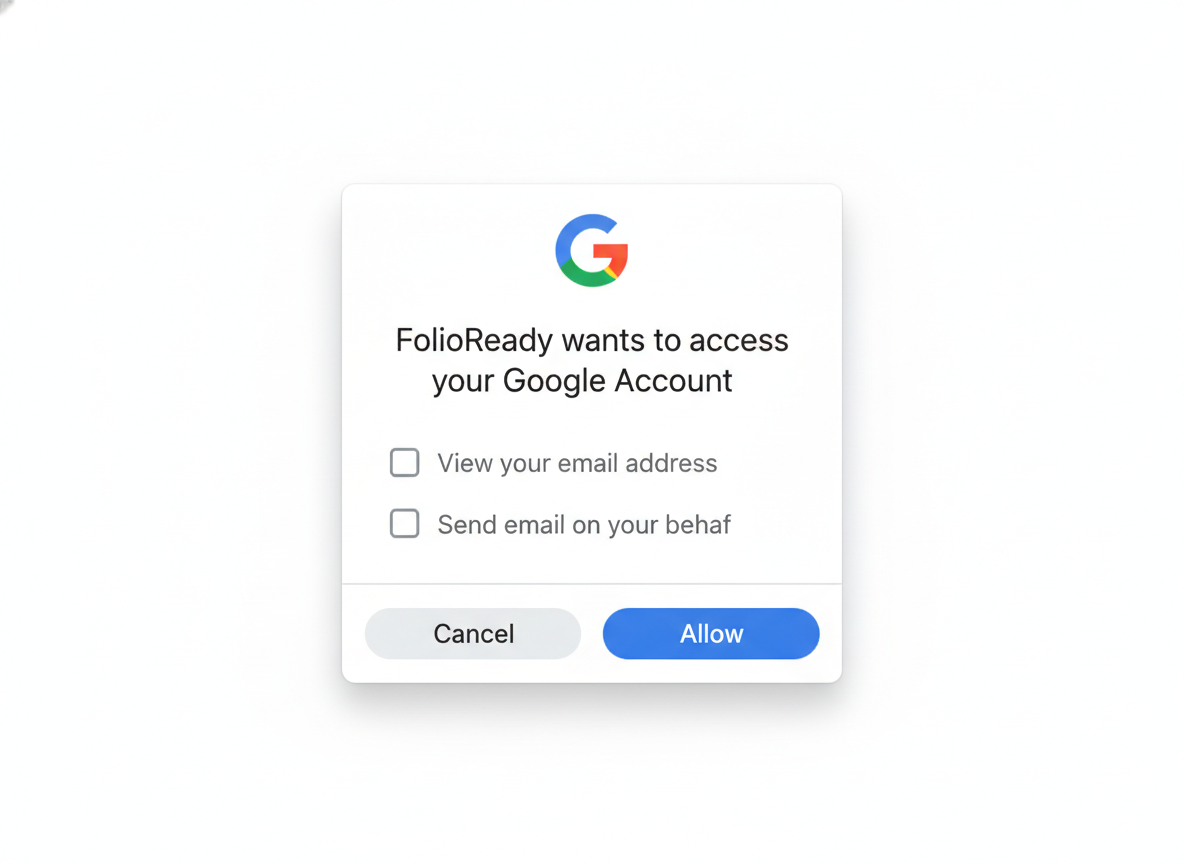
Click Create Connection to start the authorization flow. You are redirected to Pipedrive where you sign in and grant FolioReady the following permissions:
| Permission | Description |
|---|---|
| Contacts | Search, create, and update persons — used for importing contacts and writing mapped field values and notes |
| Deals | Read and update deals — used for deal linking and writing mapped field values |
| Files | Upload files — used for syncing client-uploaded documents to Pipedrive |
| Webhooks | Receive notifications — used for syncing contact changes from Pipedrive to FolioReady |
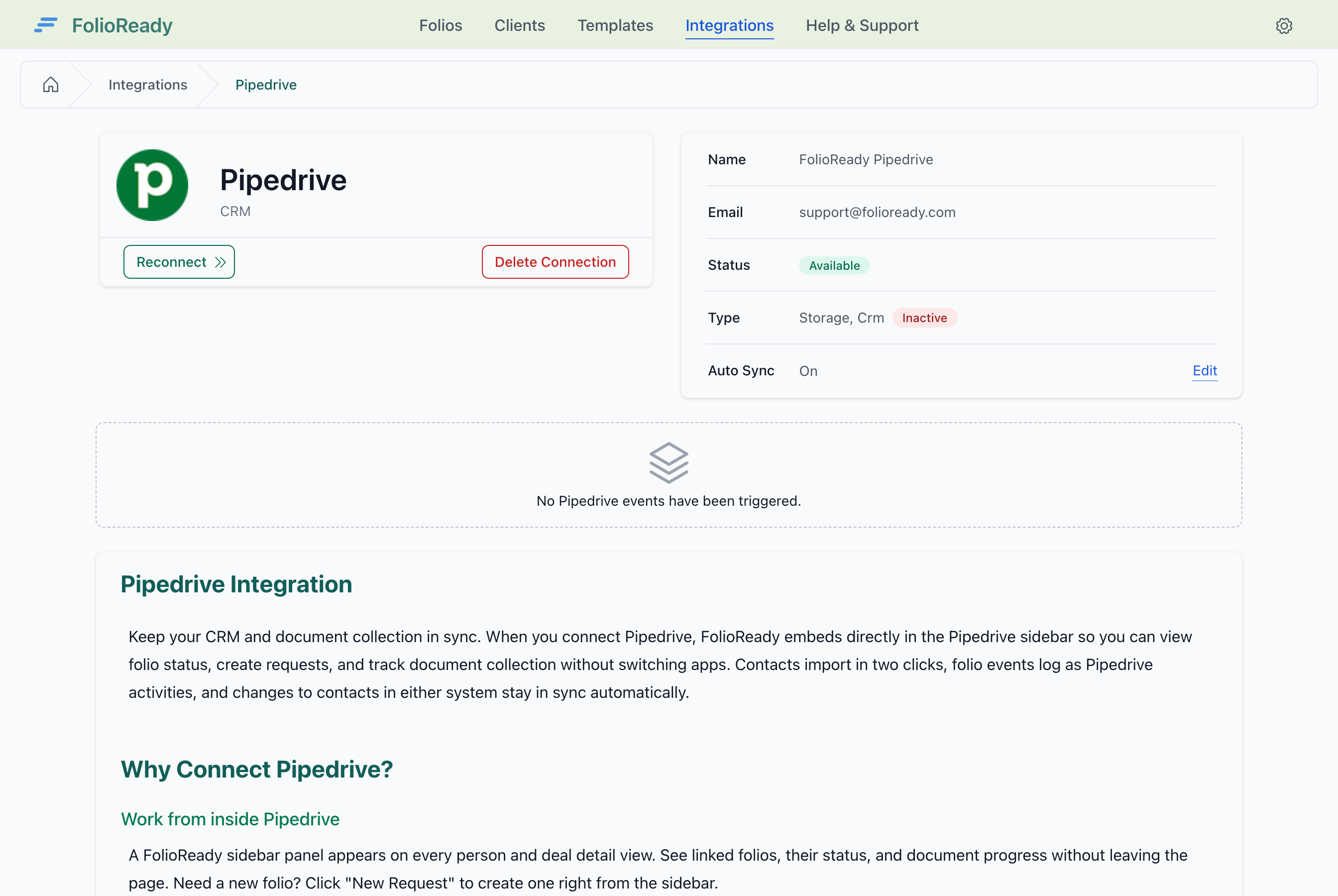
Step 3: Confirm Connection
After granting access you are redirected back to FolioReady. The integration status changes to Available and your Pipedrive account details are displayed.
Importing Contacts
Once connected, an Import from Pipedrive button appears on the Clients page.
Step 1: Pick a Contact
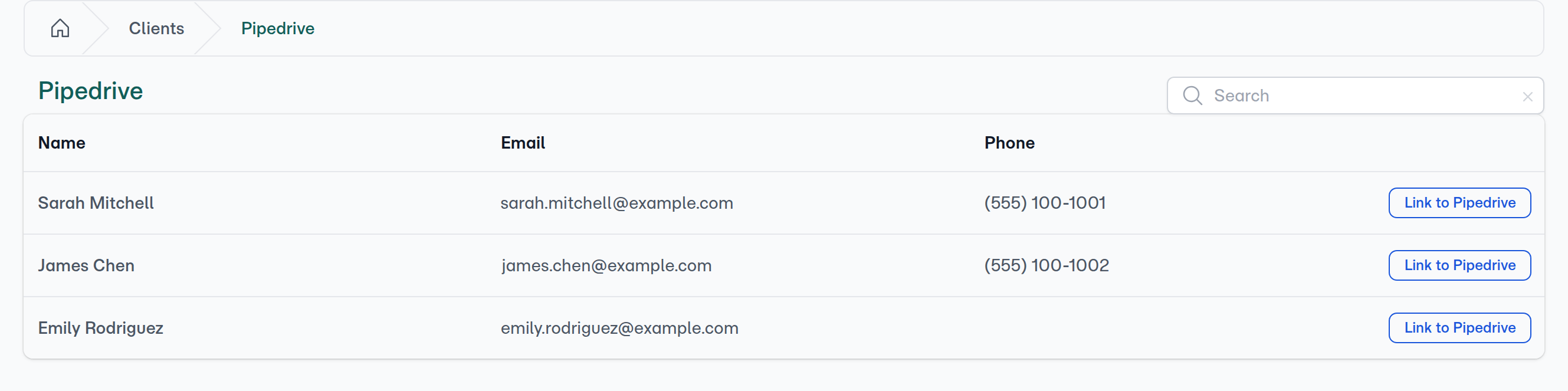
Click Import from Pipedrive to open the import page. Your Pipedrive contacts are listed straight away — search by name or email address to narrow them down.
Step 2: Client Created
Click Link to Pipedrive on the contact's row. It is imported as a FolioReady client with their name, email, and phone pre-filled from Pipedrive, and linked to the Pipedrive person for ongoing sync.
No duplicates
Mapping Folio Fields to Pipedrive Fields
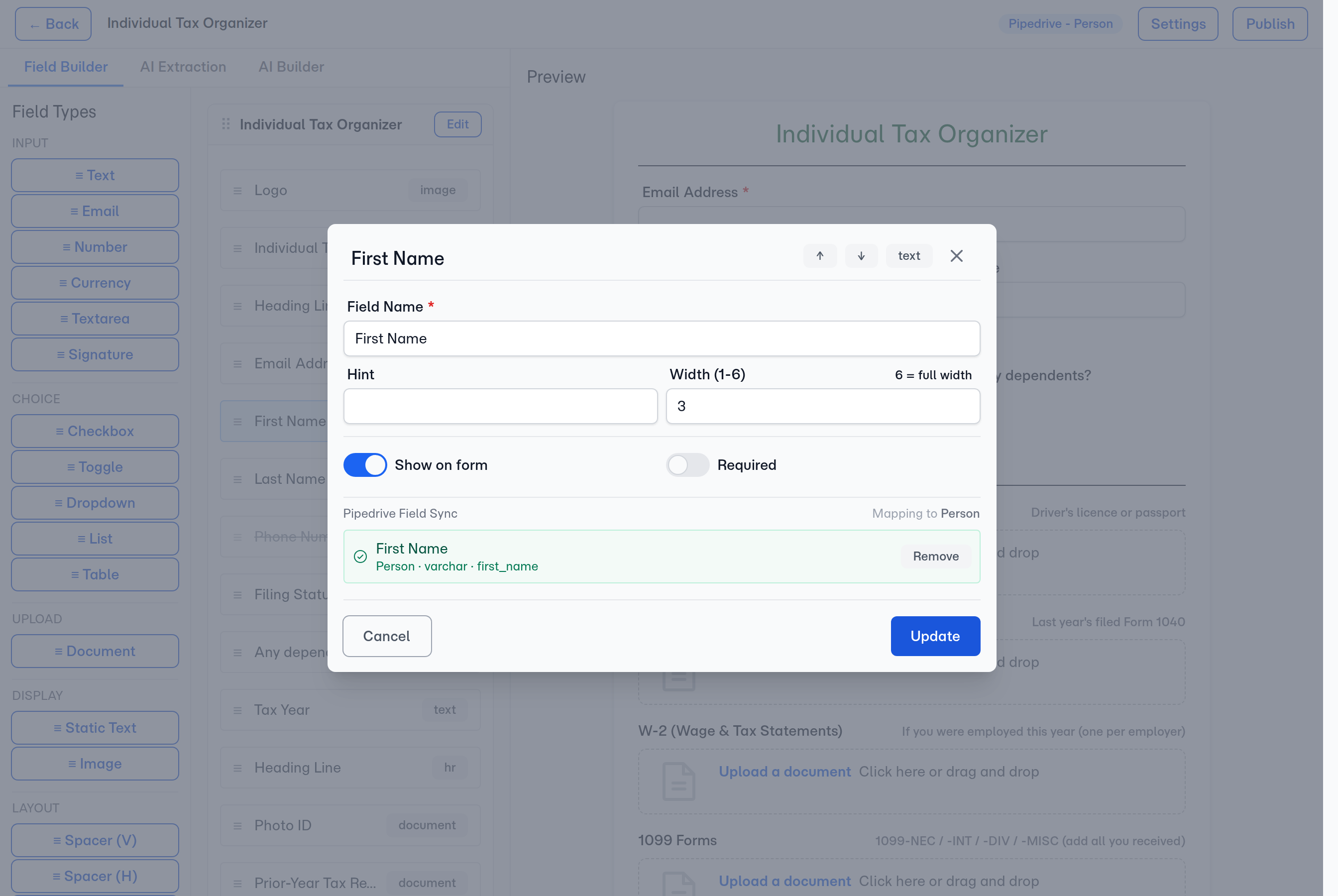
In the template builder, map any canvas field to a Pipedrive Person or Deal field. When a client completes a folio, FolioReady writes the collected value onto the linked Pipedrive record — no manual re-entry.
Send a Folio to a Deal
A Person answers "who is this?". A Deal answers "what are we working on?" — and for a lot of teams, that's where the paperwork belongs. In the template builder, open Settings and set the Document Target to either Person or Deal. It starts on No CRM sync, so a template writes nothing to Pipedrive until you choose where its folios should land.
Set it to Deal and every folio from that template files against a Deal instead of the Person: its field values, its document summaries, and its mirrored files all land on the same Deal record.
Choosing the Deal
FolioReady never creates a Deal, and never guesses which one. When you create a folio, it looks at the Deals Pipedrive already has for that Person:
- One Deal — it's selected automatically, and you'll see it named on the folio's Target step.
- Several Deals — you pick the right one before the folio goes out.
- None — the request is refused, and the Target step says so. A Deal-targeted folio for a Person with no Deals could only ever collect documents and sync them nowhere, so FolioReady stops rather than creating one. Create the Deal in Pipedrive, or pick a template that files against the Person.
A Person target needs none of this: the client is the Person, so there's nothing to choose and the folio goes straight out.
A Deal belongs to the folio, never to the client. A client is who you communicate with, and is never scoped to one Deal — so importing a contact links the client to a Pipedrive Person and nothing else. The Document Target decides where each folio's data is written.
Once the Deal is linked
The folio names the Deal it files against — on the folio's detail page, and in the CRM column of your folio lists, so you can tell at a glance what each request is filed against.
A folio that names no Deal doesn't sync. Its field values, summaries and files stay in FolioReady rather than being written to the wrong record — and they stay there: the Deal can't be chosen from the folio's page afterwards, so nothing reaches Pipedrive retroactively. The Target step when you send the request is where the Deal is decided.
Sidebar Panel
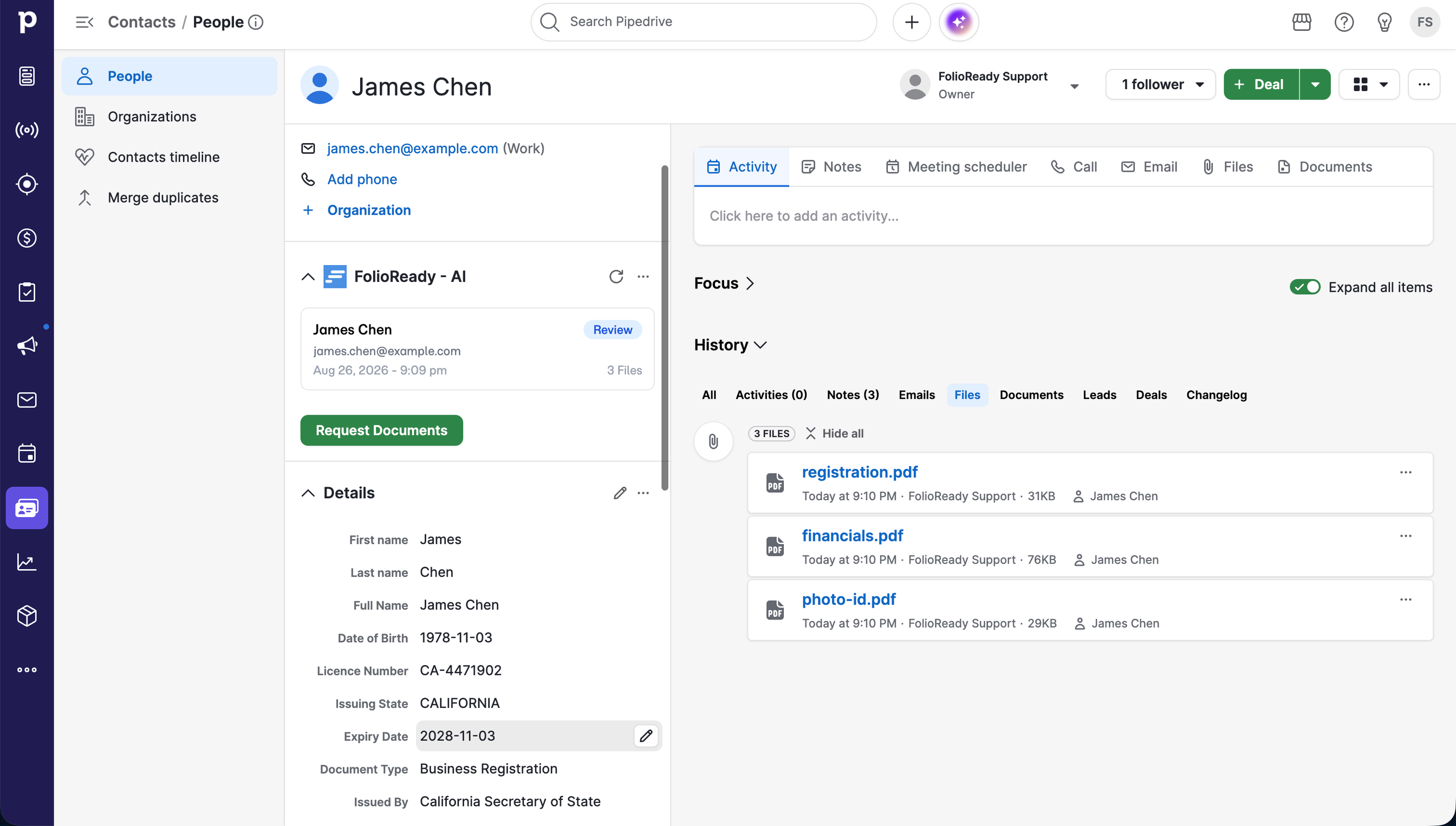
Once connected, a FolioReady panel appears in the sidebar of every person and deal detail view in Pipedrive.
What you see
- Person view — All folios linked to this contact, with status, document count, and completion percentage
- Deal view — Folios linked to the deal, with the same status details
- No linked client — A "Link Client" button to connect the Pipedrive contact to an existing FolioReady client
- Not connected yet — A "Connect your FolioReady account" button, shown when the Pipedrive workspace has no FolioReady connection at all
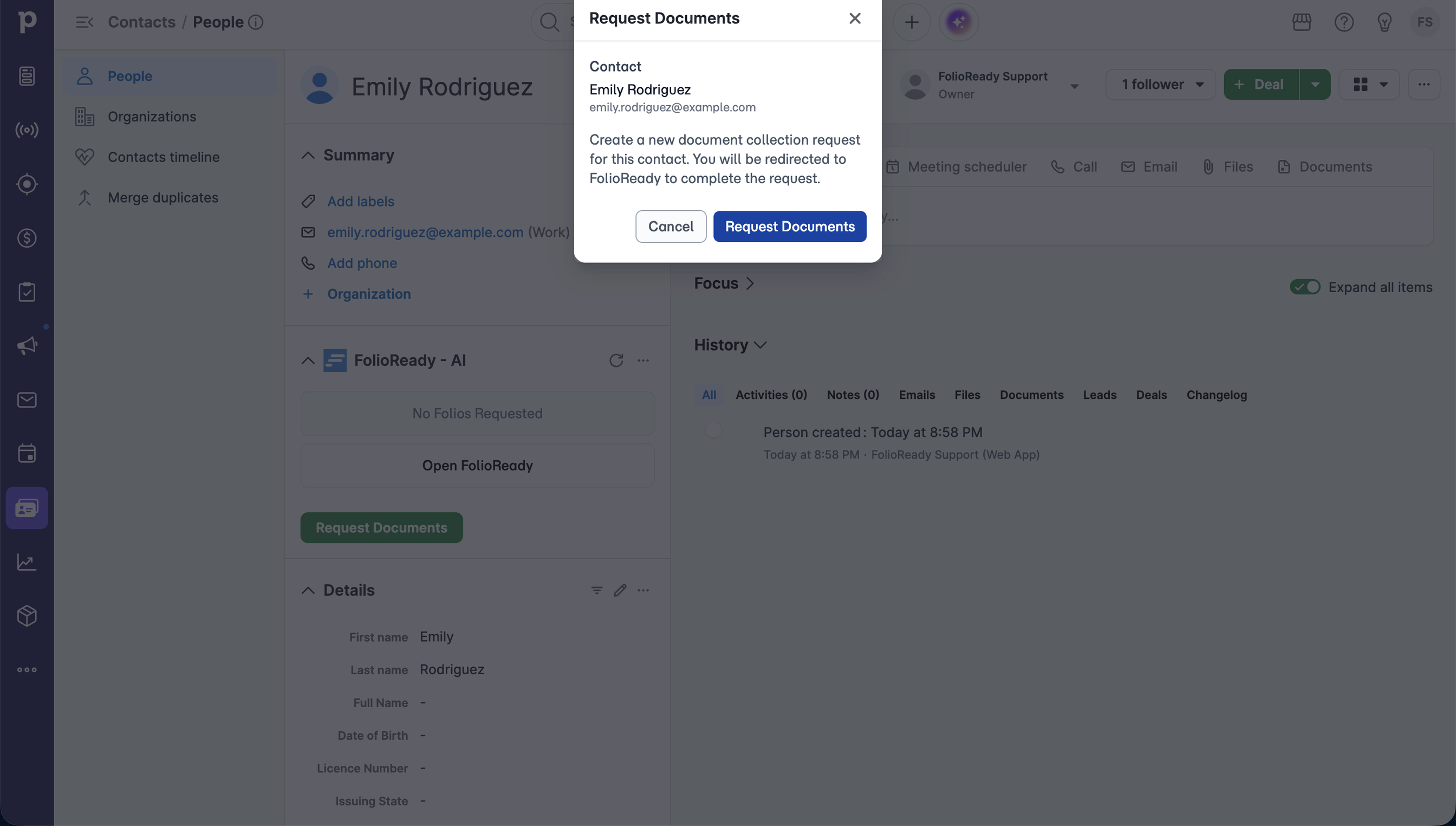
Creating a folio from Pipedrive
Click Request Documents — on the panel, or in the record's actions menu — to open a modal. The contact's name and email are pre-filled from Pipedrive. Select a template, fill in the details, and create the folio — it appears in the sidebar immediately.
Document Summaries
When a client uploads a document, FolioReady's AI reads it and writes a short plain-language summary. That summary is posted as a note on the folio's linked Pipedrive record — the person, or the deal if the folio targets one — headed "Document synopsis — [filename]". Your team can see what each file contains straight from the CRM timeline.
Summaries post automatically once the AI finishes reading a document; a file that's still processing, or that couldn't be summarized, is skipped until its summary is ready.
Choosing what syncs
FolioReady pushes folio data to Pipedrive on its own — there's no button to press. Mapped field values go onto the record whenever they change: when AI extraction fills them, when you edit a field on the folio, and when you accept an AI value or an Insight proposal. Each document's summary goes out as a note once the AI has finished reading that file.
The two are switched separately under Company → Integrations: Sync Field Values and Sync Document Synopses. Turn the synopses off and field values keep flowing, which is the setting to use when your team wants the data on the record but not the AI's summaries in the timeline.
How It Works
Once a client is linked to a Pipedrive person, changes sync in both directions:
  Client                  FolioReady               Pipedrive
    │                         │                         │
    │   Upload files via      │                         │
    │   folio link            │                         │
    ├────────────────────────►│                         │
    │                         │                         │
    │                         │   Write mapped fields    │
    │                         │   onto the linked record │
    │                         ├────────────────────────►│
    │                         │                         │
    │                         │   Add note               │
    │                         │   (document summary)     │
    │                         ├────────────────────────►│
    │                         │                         │
    │                         │   Contact name/email     │
    │                         │   changed in Pipedrive   │
    │                         │◄────────────────────────┤
    │                         │                         │
    │                         │   Update linked client   │
    │                         │   in FolioReady          │
    │                         │                         │
    │   Folio updated         │                         │
    │◄────────────────────────┤                         │
    │                         │                         │
What Syncs to Pipedrive
| FolioReady Trigger | Written to Pipedrive |
|---|---|
| A folio section carrying mapped fields is completed | The mapped values, on the folio's linked person or deal |
| AI finishes summarizing an uploaded document | A note headed "Document synopsis — [filename]" |
Contact Sync from Pipedrive
When a contact's name or email changes in Pipedrive, FolioReady automatically updates the linked client. This keeps your records consistent without any manual work.
| Pipedrive Change | FolioReady Update |
|---|---|
| Person email changed | Linked client email updated |
| Person name changed | Linked client name updated |
One connection per company
Pipedrive connects once for your whole company. Any team member can view and sync every client, whoever manages them — nobody needs to connect separately. Records FolioReady writes into Pipedrive are attributed to the person who set up the connection.
FolioReady automatically refreshes your Pipedrive access tokens before they expire. You do not need to reconnect under normal circumstances.
You can check the status of recent events on the integration detail page under the Events section.
Disconnecting
To remove the integration, open the Pipedrive integration page and click Delete Connection. A confirmation dialog appears — click Delete to confirm.
What happens when you disconnect
Your Pipedrive tokens are removed from FolioReady and webhook subscriptions are deleted from Pipedrive. New folio events will no longer sync to Pipedrive, and contact changes in Pipedrive will no longer update FolioReady. Field values, notes, and files already written to Pipedrive are not deleted — they remain in your Pipedrive account.
Troubleshooting
Connection Shows as Failed
If your connection status turns red, it means FolioReady could not refresh your access token after several attempts. This can happen if you revoke access from your Pipedrive settings or if your password changes.
Click Reconnect on the integration page to re-authorize.
Panel Asks a Teammate to Connect
Pipedrive connects once for the whole company, so a colleague seeing "Connect your FolioReady account" does not need a connection of their own — authorizing again will not change what the sidebar shows. It means the panel could not match the person viewing it to a FolioReady user. Everything outside the sidebar is unaffected: importing contacts, sending folios, and syncing all work from FolioReady directly. Contact support if the prompt persists.
Data Not Appearing in Pipedrive
Check the Events section on the integration page. If events show a failed status, the connection may need to be refreshed. Try clicking Reconnect to re-authorize your account.
Data only syncs for clients that have been imported from Pipedrive (or manually linked with a Pipedrive person ID). Clients created without a Pipedrive link do not sync to Pipedrive.
"Import from Pipedrive" Button Not Showing
The import button only appears when your account has a connected Pipedrive integration with CRM service active. Check Integrations > Pipedrive to confirm the connection status is Available.
Mapped Fields Not Visible in Pipedrive
FolioReady does not create any Pipedrive fields when you connect. A field appears in Pipedrive when you create it yourself from a canvas field's sync settings in the template builder. Its value stays empty until a client completes the folio section that carries it.
Related
- Google Drive Integration — Automatically store client files in your Google Drive
- Dropbox Integration — Store client files in your Dropbox with managed access