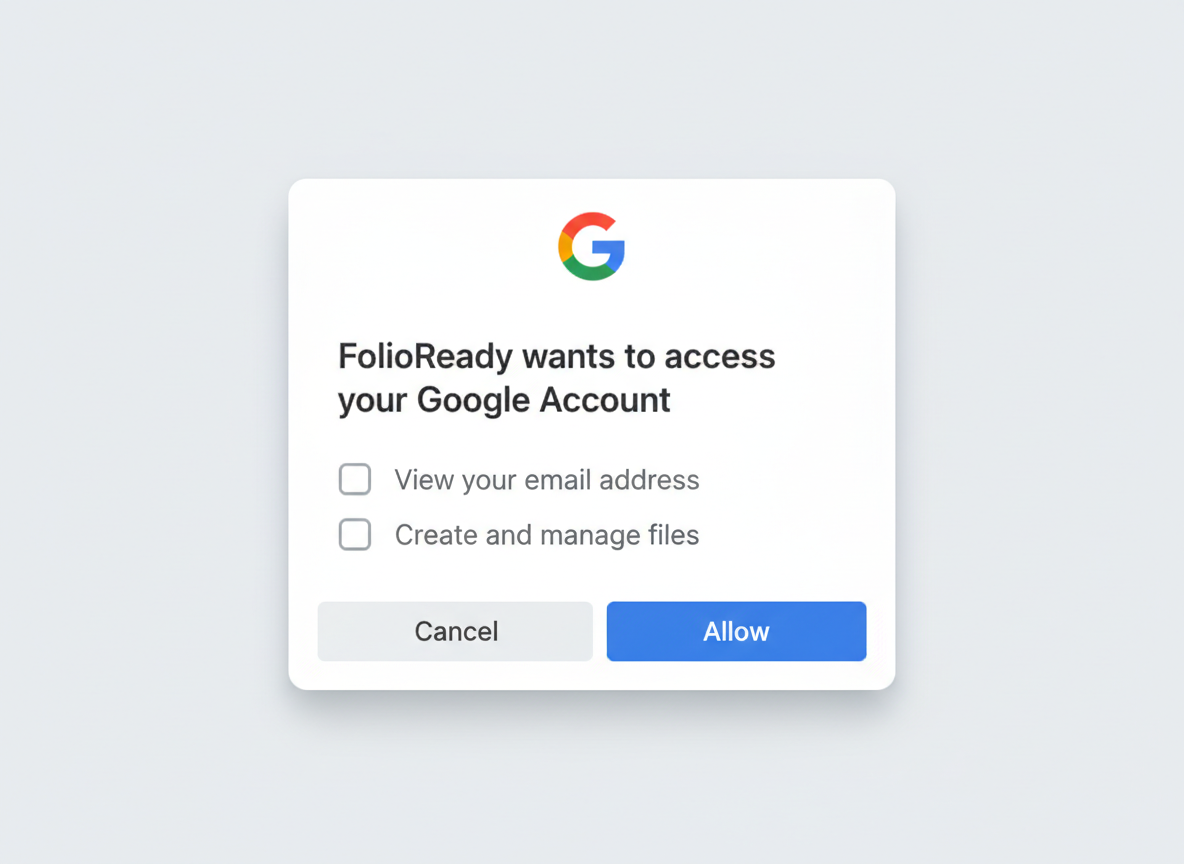
FolioReady uses the most restrictive Google Drive permission available. It can only access files it creates, not your existing files or folders.
Connecting...
Tags:
storage
google
Google Drive Integration
Store client files securely in your Google Drive account. When clients upload documents through a folio, FolioReady automatically saves them to your Drive in an organized folder structure.
Why Connect Google Drive?
Stop downloading files manually
Without a storage integration, every client upload sits inside FolioReady waiting for you to download it. With Google Drive connected, files land in your Drive automatically the moment a client submits them — no extra steps.
Files organized by client, every time
FolioReady creates a folder for each client and stores their documents inside it. You always know where to find a client's files without digging through downloads or email attachments.
Your files stay yours
Files are stored in your own Google Drive account. You own them, you control access, and they stay put even if you stop using FolioReady. Nothing is locked inside a third-party system.
Your team already uses Drive
No new tools to learn. Files show up in the same Google Drive your team already uses for sharing and collaboration. Use your existing shared drives, permissions, and workflows as-is.
Prerequisites
- A Google account with Google Drive enabled
- An active FolioReady account
Connecting Your Account
Step 1: Open Integrations
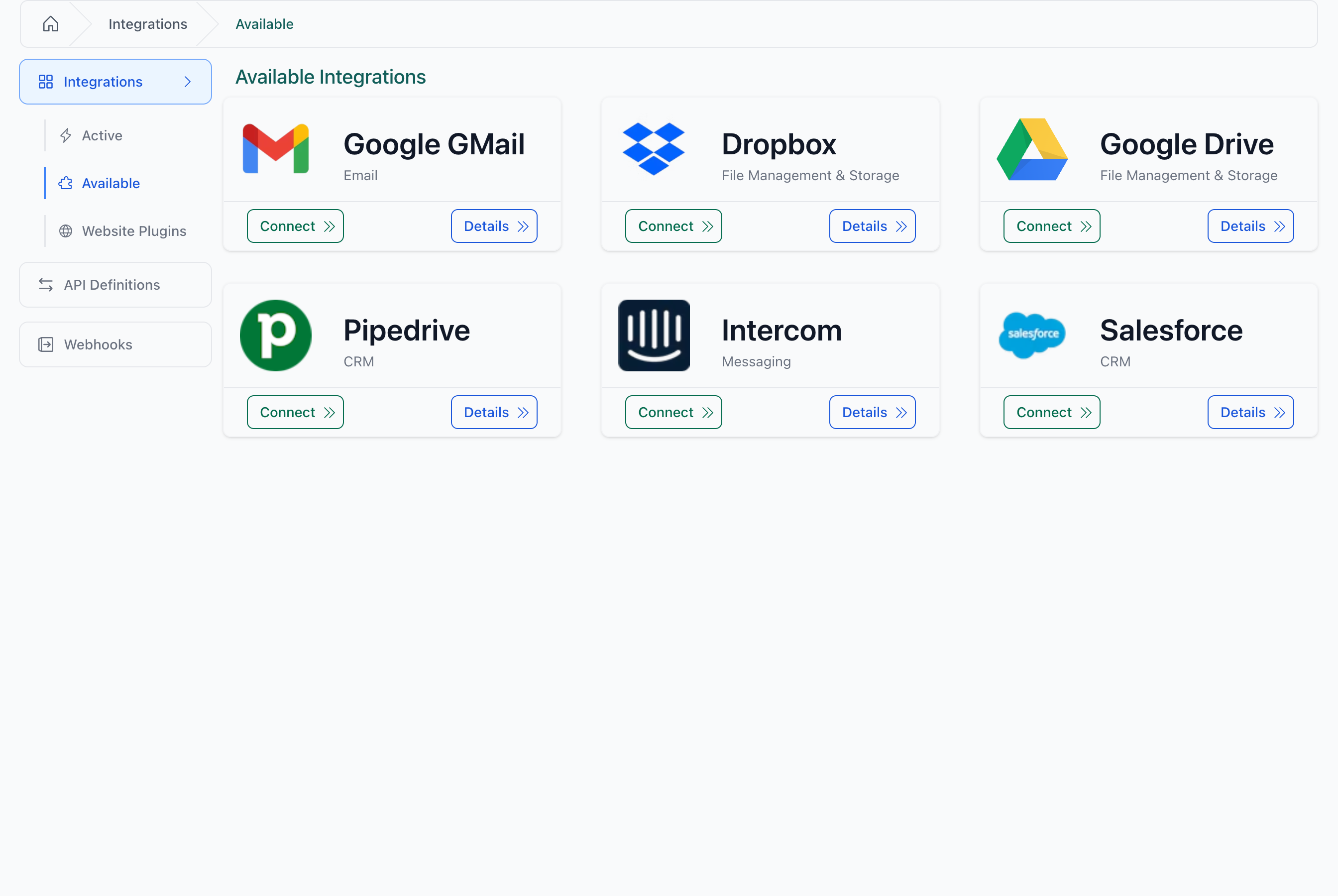
Navigate to Settings > Integrations and find the Google Drive card.
Step 2: Authorize Access
Click Create Connection to start the authorization flow. You are redirected to Google where you sign in and grant FolioReady the following permissions:
| Permission | Description |
|---|---|
| View your email address | Identifies your Google account so FolioReady can display it in the integration settings |
| View your basic profile info | Retrieves your name for the integration connection details |
| Manage files created by FolioReady | Allows FolioReady to upload and organize client files in your Google Drive. FolioReady can only access files it creates — it cannot see your other Drive files |
Limited access
Step 3: Confirm Connection
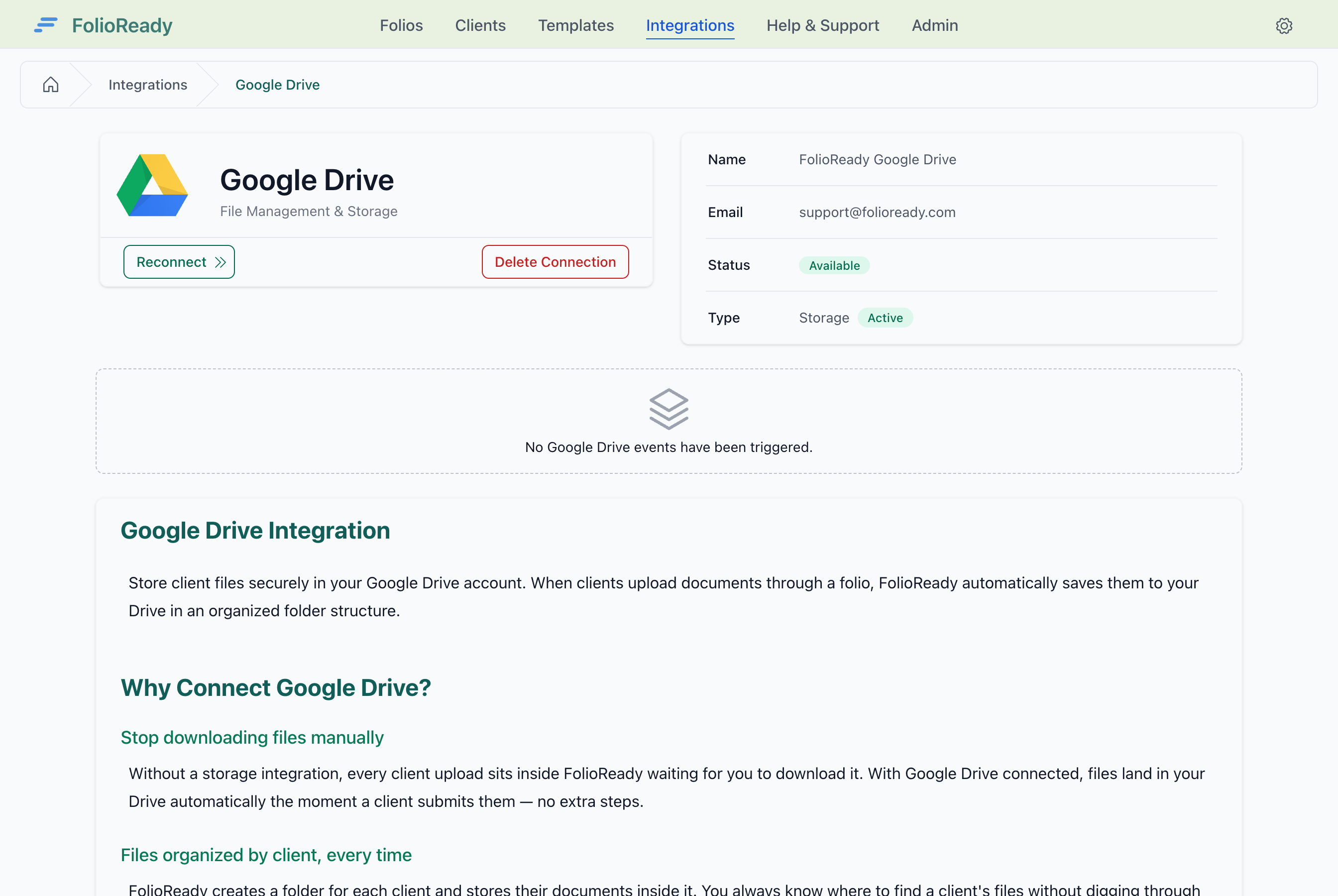
After granting access you are redirected back to FolioReady. The integration status changes to Available and your Google account details are displayed.
How It Works
Once connected, file storage is fully automatic:
  Client                  FolioReady               Google Drive
    │                         │                         │
    │   Upload files via      │                         │
    │   folio link            │                         │
    ├────────────────────────►│                         │
    │                         │                         │
    │                         │   Create folder          │
    │                         │   FolioReady/client@…/   │
    │                         ├────────────────────────►│
    │                         │                         │
    │                         │   Upload files           │
    │                         ├────────────────────────►│
    │                         │                         │
    │                         │         ✓ Stored         │
    │                         │◄────────────────────────┤
    │                         │                         │
    │   Folio updated         │                         │
    │◄────────────────────────┤                         │
    │                         │                         │
When a client uploads files through a folio, FolioReady saves them to your Google Drive in the background.
Files are organized in a folder structure:
FolioReady/
  client-email@example.com/
    document-2026-03-09.pdf
    photo-2026-03-09.jpg
Each client gets their own subfolder, and files are timestamped to avoid naming conflicts.
Company-wide connection
Google Drive is a company-level integration. All team members share the same storage connection, so every file uploaded by any client is stored in the connected Google Drive account.
FolioReady automatically manages your connection behind the scenes. Access tokens are refreshed before they expire, so you do not need to reconnect under normal circumstances.
You can check the status of recent file uploads on the integration detail page under the Events section.
Disconnecting
To remove the integration, open the Google Drive integration page and click Delete Connection. A confirmation dialog appears — click Delete to confirm.
What happens when you disconnect
Your Google Drive tokens are removed from FolioReady. New file uploads will no longer be stored in Google Drive. Files already uploaded to your Drive are not deleted — they remain in your Google Drive account.
Troubleshooting
Connection Shows as Failed
If your connection status turns red, it means FolioReady could not refresh your access token after several attempts. This can happen if you revoke access from your Google account settings or if your Google password changes.
Click Reconnect on the integration page to re-authorize.
File Uploads Not Appearing in Drive
Check the Events section on the integration page. If events show a failed status, the connection may need to be refreshed. Try clicking Reconnect to re-authorize your account.
If events show complete but files are not visible, check the FolioReady folder in your Google Drive — files are stored there, not in your Drive root.
Google Drive Storage Full
If your Google Drive storage quota is full, file uploads will fail. Free up space in your Drive or upgrade your Google storage plan, then FolioReady will resume uploading automatically.
Related
- Google Gmail Integration — Send folio notifications from your Gmail account