Your Gmail tokens are removed from FolioReady. Future notifications will not be sent by email until you reconnect or connect a different email service. No emails are deleted from your Gmail account.
Connecting...
Tags:
email
google
Google Gmail Integration
Send folio notifications — requests, reminders, and updates — directly from your Gmail account. Emails arrive from your address so clients see a familiar sender, not a generic system address.
Why Connect Gmail?
Emails clients actually open
Automated emails from unfamiliar addresses get ignored or land in spam. When notifications come from your own Gmail address, clients recognize the sender and are far more likely to open and respond.
No extra email tool to manage
You don't need a separate email service or transactional email provider. FolioReady sends through the Gmail account you already have — requests, reminders, and updates all go out under your name.
Automatic follow-ups
FolioReady sends reminder emails on your behalf when clients haven't responded. You don't need to track who's overdue or draft follow-up messages — it happens automatically through your Gmail.
Prerequisites
- A Google account with Gmail enabled
- An active FolioReady account
Connecting Your Account
Step 1: Open Integrations
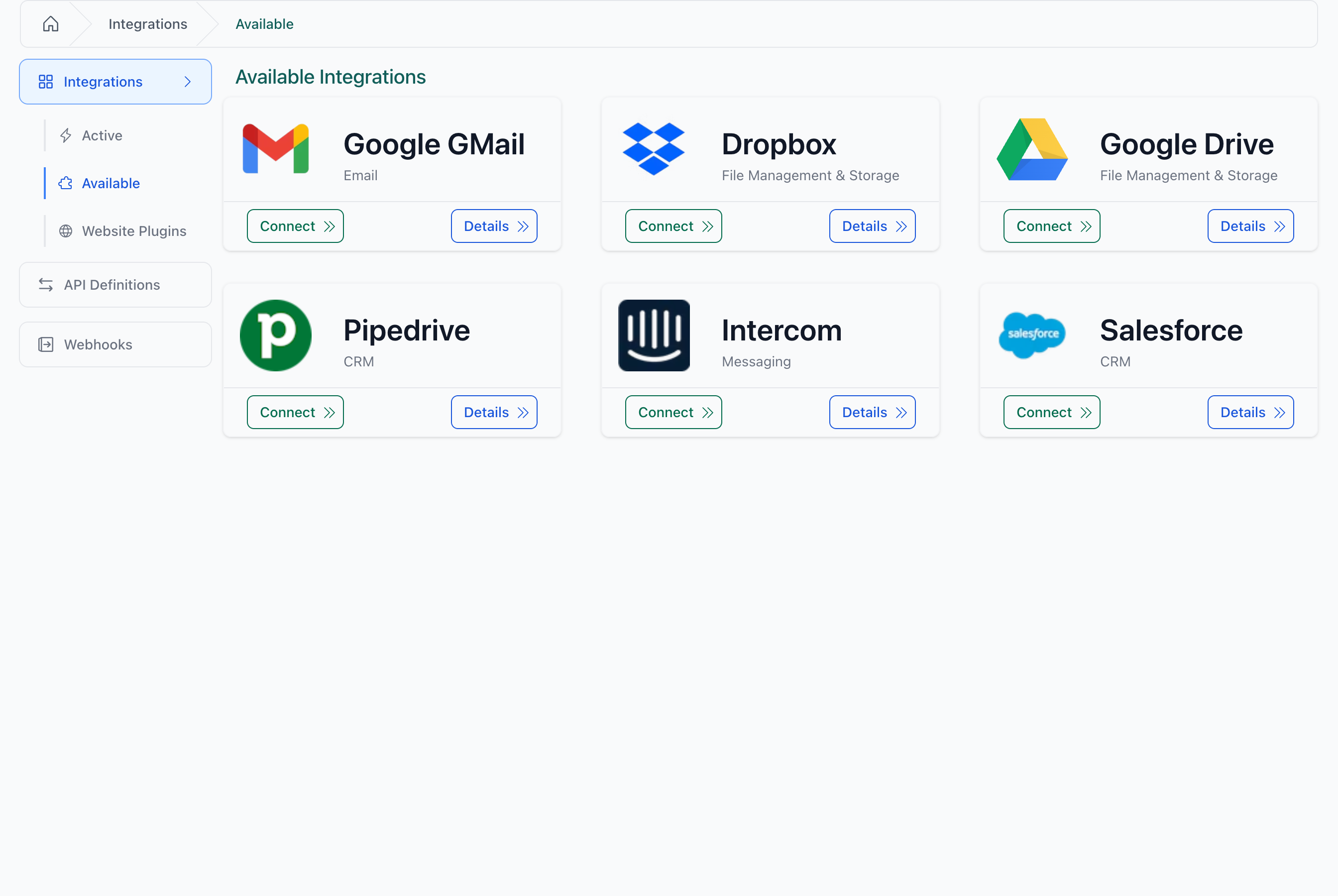
Navigate to Settings > Integrations and find the Google Gmail card.
Step 2: Authorize Access
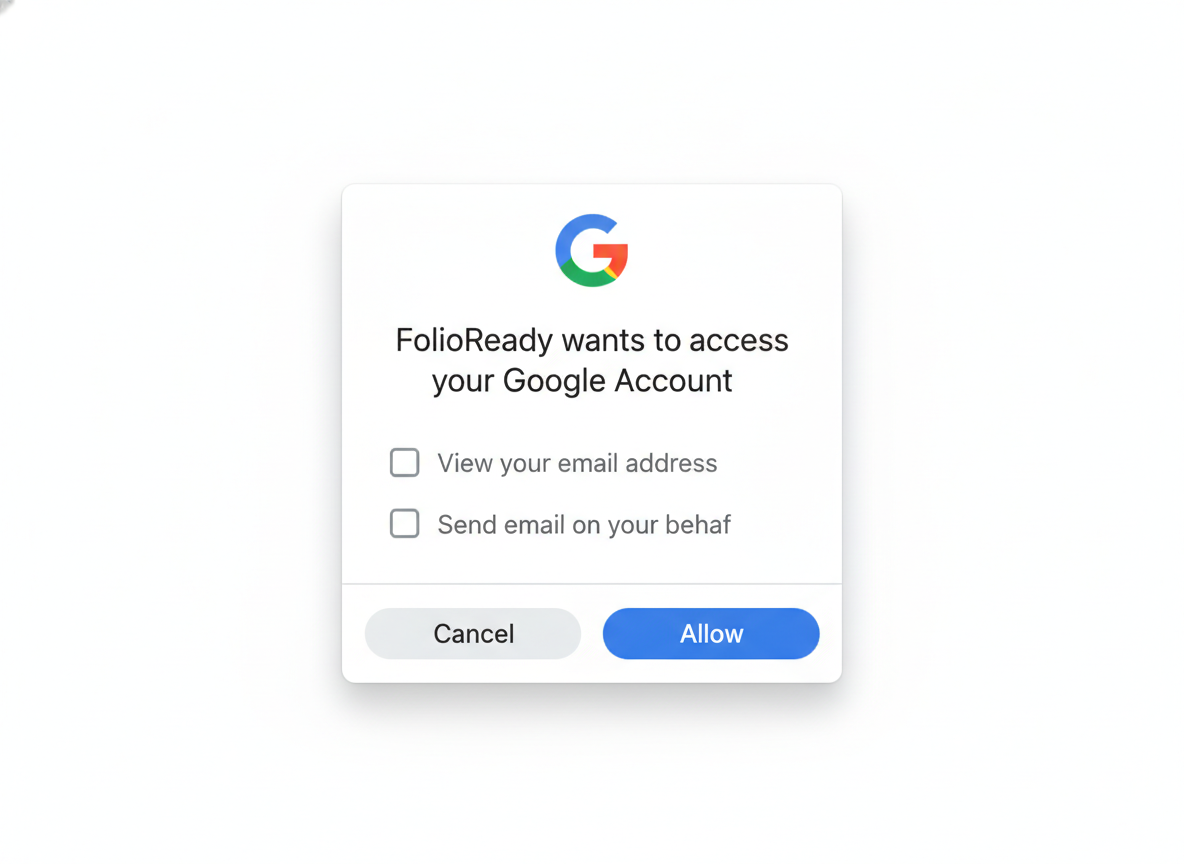
Click Create Connection to start the authorization flow. You are redirected to Google where you sign in and grant FolioReady the following permissions:
| Permission | Description |
|---|---|
| View your email address | Identifies your Gmail account so FolioReady can display it in the integration settings |
| View your basic profile info | Retrieves your name to use as the sender name on outgoing emails |
| Send email on your behalf | Allows FolioReady to send folio notifications through your Gmail account |
Step 3: Confirm Connection
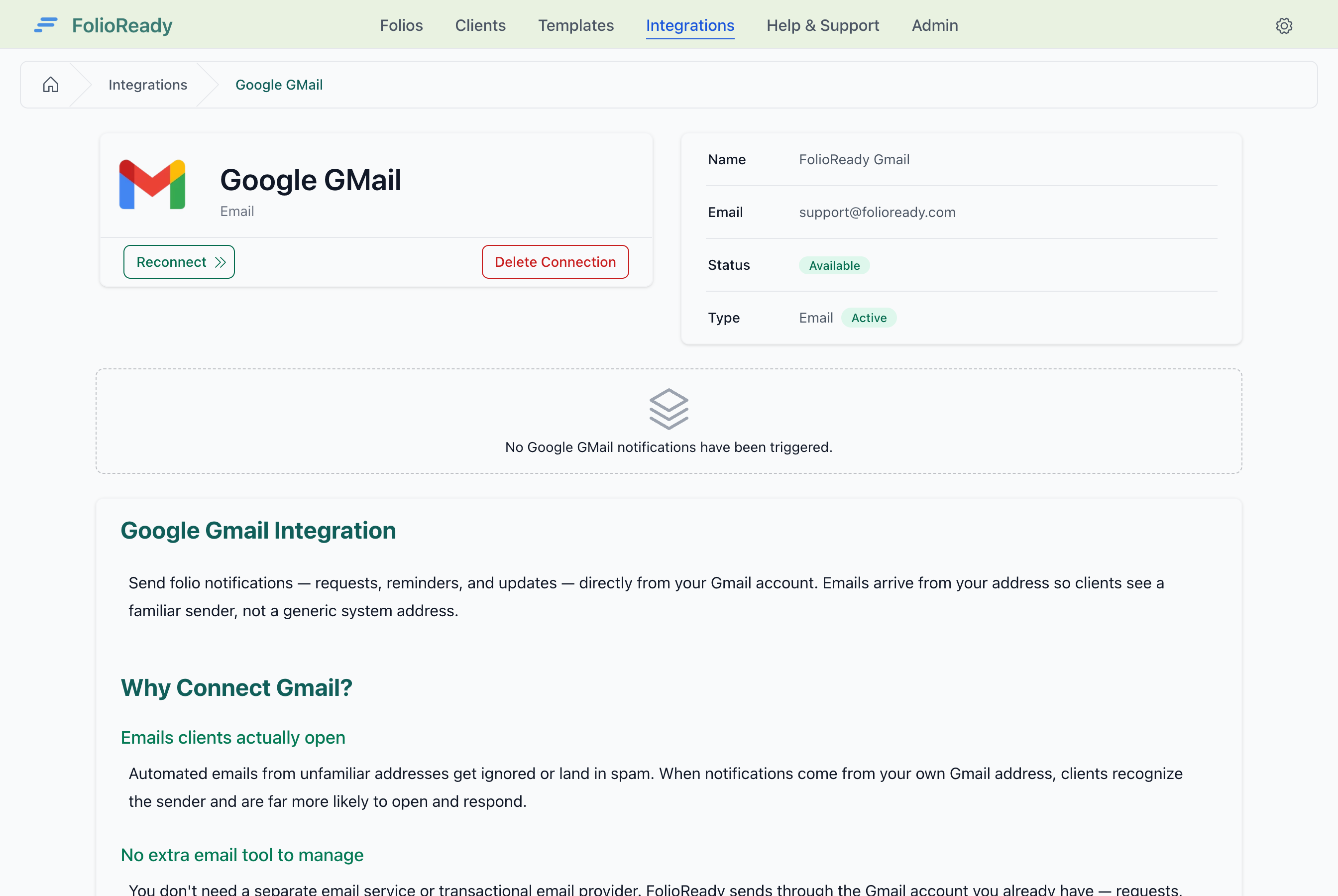
After granting access you are redirected back to FolioReady. The integration status changes to Available and your Gmail address is displayed.
Configuration
Email Notification Types
Once connected, FolioReady can send three types of email notifications through your Gmail:
| Notification Type | Description |
|---|---|
| Request notifications | Sent when a new folio request is created for a client |
| Reminder notifications | Sent automatically when a client has not responded within the reminder interval |
| Update notifications | Sent when a folio requires corrections or additional information from the client |
All three notification types are enabled by default when you connect your account.
How It Works
  You                     FolioReady               Your Gmail            Client
   │                         │                         │                    │
   │   Create folio for      │                         │                    │
   │   client                │                         │                    │
   ├────────────────────────►│                         │                    │
   │                         │                         │                    │
   │                         │   Send request email     │                    │
   │                         │   via Gmail API          │                    │
   │                         ├────────────────────────►│                    │
   │                         │                         │                    │
   │                         │                         │   Email from       │
   │                         │                         │   your@gmail.com   │
   │                         │                         ├───────────────────►│
   │                         │                         │                    │
   │                         │     ── time passes ──   │                    │
   │                         │                         │                    │
   │                         │   Send reminder email    │                    │
   │                         ├────────────────────────►│                    │
   │                         │                         │   Reminder from    │
   │                         │                         │   your@gmail.com   │
   │                         │                         ├───────────────────►│
   │                         │                         │                    │
When you create a folio for a client, FolioReady sends the notification email through your connected Gmail account. The email arrives in the client's inbox from your Gmail address, making it look like a personal email rather than an automated message.
FolioReady automatically manages your connection behind the scenes. Access tokens are refreshed before they expire, so you do not need to reconnect under normal circumstances.
If a send attempt fails, FolioReady retries automatically. You can check the delivery status of recent notifications on the integration detail page under the Notifications section.
Disconnecting
To remove the integration, open the Google Gmail integration page and click Delete Connection. A confirmation dialog appears — click Delete to confirm.
What happens when you disconnect
Troubleshooting
Connection Shows as Failed
If your connection status turns red, it means FolioReady could not refresh your access token after several attempts. This can happen if you revoke access from your Google account settings or if your Google password changes.
Click Reconnect on the integration page to re-authorize. Your notification preferences are preserved.
Emails Not Being Delivered
Check the Notifications section on the integration page. If individual notifications show a failed status, the issue may be with the recipient's email address or spam filters. Notifications with a retry status will be attempted again automatically.
Gmail sending limits
Google imposes daily sending limits on Gmail accounts. If you are sending a high volume of notifications, some may be delayed until the limit resets.
Related
- Google Drive Integration — Automatically store client files in your Google Drive