Salesforce Integration
Keep your CRM and document collection in sync. When you connect Salesforce, FolioReady imports contacts, logs folio activity as Tasks, tracks document collection status with custom fields, and sends folio emails through Salesforce — all without leaving your workflow.
Why Connect Salesforce?
Stop retyping client details
Without the integration, you manually enter client names and emails into FolioReady — even though the same contacts already exist in Salesforce. With the connection, search your Salesforce contacts and import them in two clicks.
See collection progress in Salesforce
FolioReady creates custom fields on your Salesforce Contacts and Opportunities. Your team sees exactly where document collection stands — "Collecting" or "Complete" — without switching apps.
Every event logged automatically
When a folio is sent, a file is uploaded, a reminder goes out, or a folio is completed, FolioReady logs it as a Salesforce Task on the linked Contact. Your CRM timeline tells the full story of every client interaction.
Link folios to Opportunities
Optionally connect a client to a specific Salesforce Opportunity. Tasks and status updates appear on both the Contact and the Opportunity, so deal reviews include document collection context.
Send folio emails from Salesforce
When Salesforce is set as your email service, folio request emails, reminders, and updates are sent through Salesforce's email system. Emails come from your Salesforce identity, keeping everything in one place.
What You Can Do
Import contacts from Salesforce
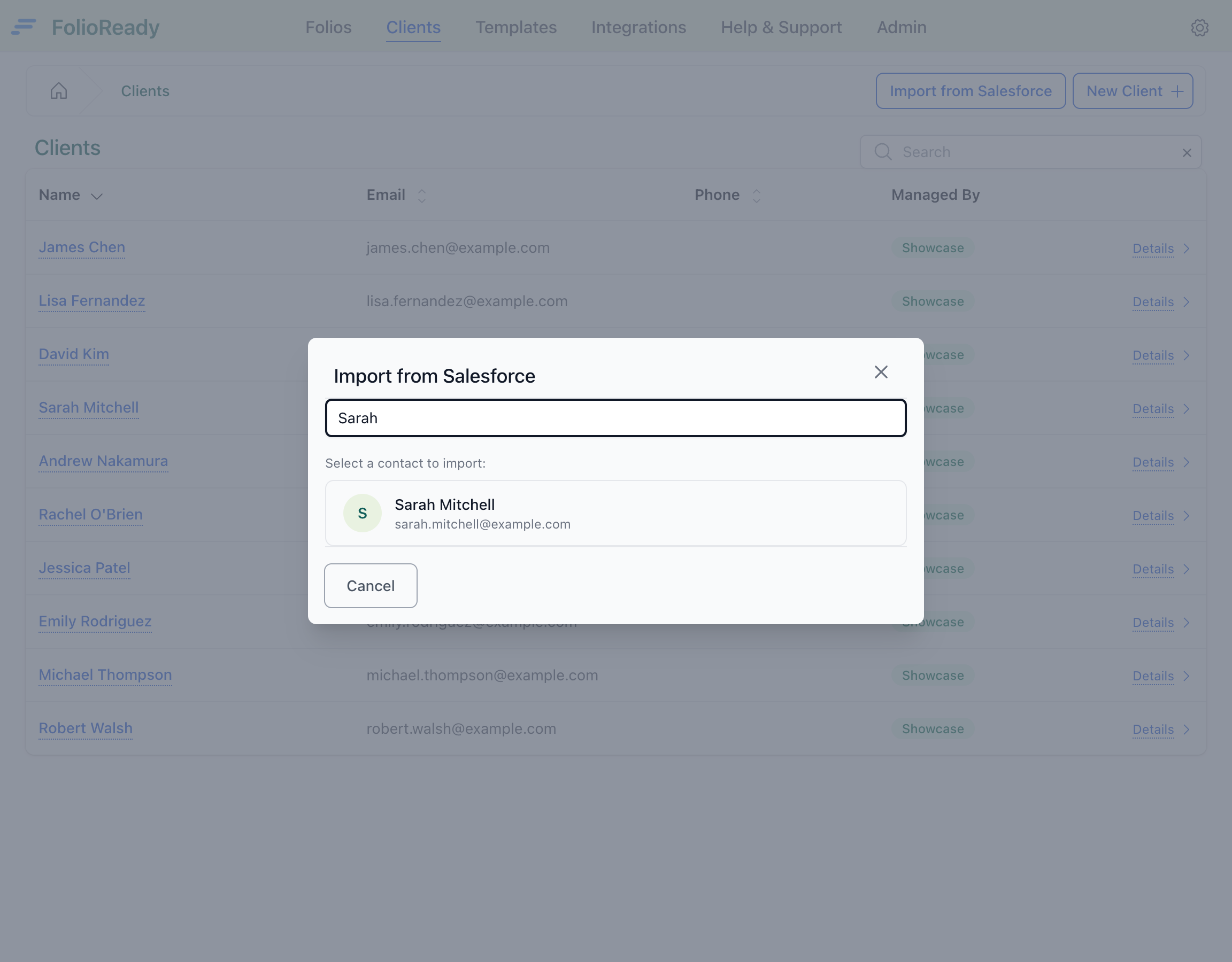
Search your Salesforce contacts by name or email and import them as FolioReady clients. Contact details are pre-filled — no manual data entry.
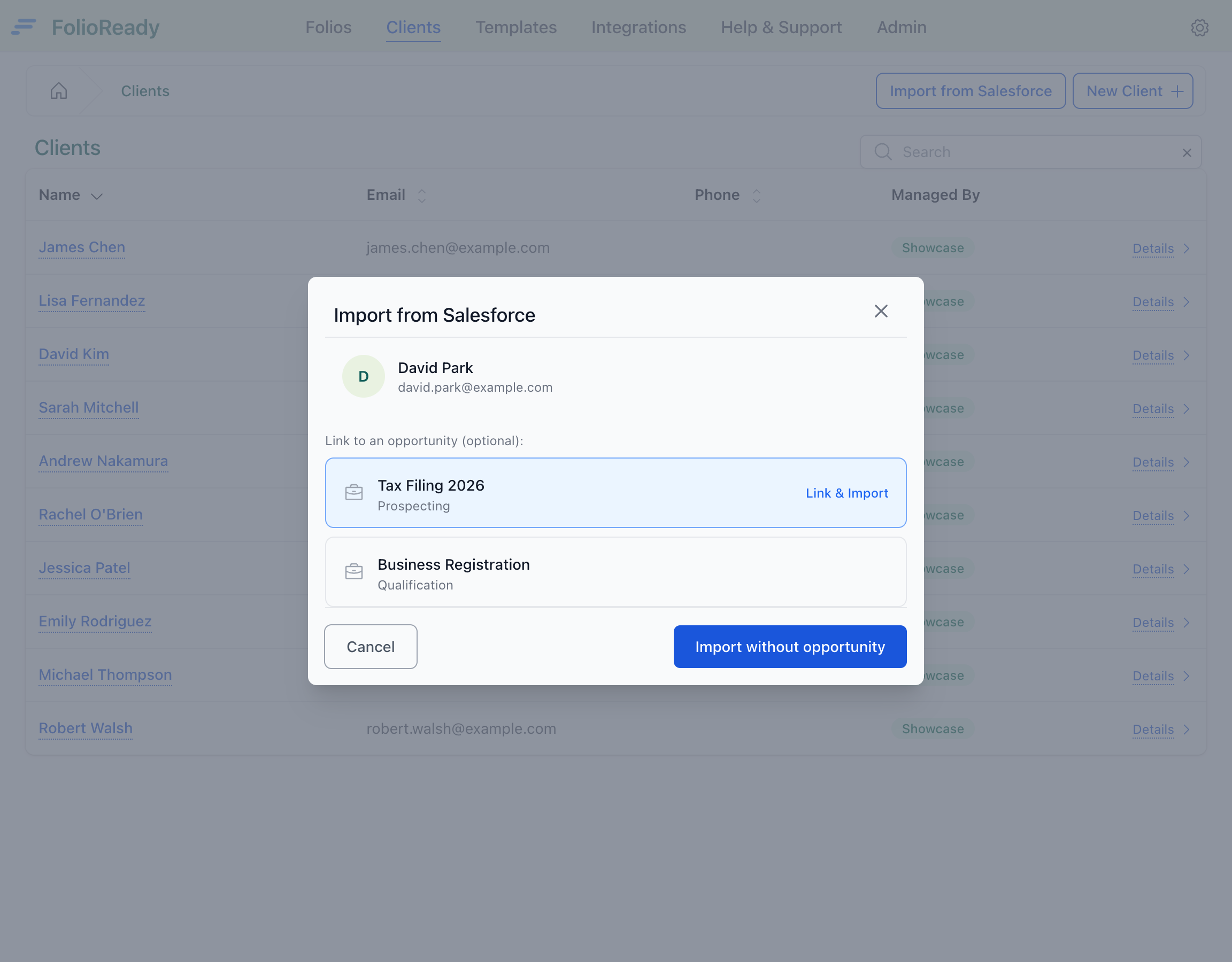
Optionally link the client to a Salesforce Opportunity. Opportunity linking means Tasks and status updates appear on both the Contact and the Opportunity.
Track status with custom fields
FolioReady adds custom fields to Contacts and Opportunities that update automatically:
| Field | Description |
|---|---|
FolioReady Status | Current status — "Active", "Collecting", or "Complete" |
FolioReady Documents | Progress summary — "3/5 sections complete" |
FolioReady Client Id | The client's FolioReady ID for reference |
Review activity in Tasks
Key events are logged as completed Tasks on the Contact:
- Folio sent — "Folio 'Tax Documents 2025' sent"
- File uploaded — "File uploaded for 'Tax Documents 2025'"
- Reminder sent — "Reminder sent for 'Tax Documents 2025'"
- Folio completed — "Folio 'Tax Documents 2025' completed"
Prerequisites
- A Salesforce account with API access
- A FolioReady account on any plan
Connecting Your Account
- Navigate to Settings > Integrations in FolioReady
- Find Salesforce and click Connect
- You'll be redirected to Salesforce's authorization screen
- Authorize FolioReady to access your account
- You'll be redirected back to FolioReady — the integration is now active
Salesforce connects once for the whole company — one authorization covers every client, whoever manages them, and nobody needs to connect separately. Records FolioReady writes into Salesforce, and any client emails it sends through Salesforce, are attributed to the person who set up the connection.
How It Works
FolioReady                              Salesforce
───────────                             ──────────
Client created    ──────────────────►   Contact found/created
                                        Custom fields set

Folio sent        ──────────────────►   Custom fields updated
                                        Task created

File uploaded     ──────────────────►   Task created

Folio completed   ──────────────────►   Custom fields updated
                                        Task created

Email notification ─────────────────►   Email sent via Salesforce
All sync happens in the background. Events are processed automatically as they occur.
Disconnecting
To disconnect Salesforce:
- Go to Settings > Integrations
- Click Delete Connection on the Salesforce integration
- Confirm the disconnection
After disconnecting, folio emails will fall back to your default email method. Contacts, Tasks, and custom field values already synced to Salesforce remain there.
Troubleshooting
Token expired errors
Salesforce access tokens expire after approximately 2 hours. FolioReady automatically refreshes them. If you see persistent token errors, try disconnecting and reconnecting your account.
Custom fields not appearing
Custom fields are created on the Contact the first time FolioReady syncs data. If you don't see them, check that at least one folio has been sent to the client since connecting Salesforce. Your Salesforce admin may also need to add the fields to page layouts.
Emails not sending
Check that your Salesforce account has the "Send Email" permission enabled. Some Salesforce editions restrict API email sending.