The Sheet starts out named after the template. After that you can rename it or move it in Drive, and FolioReady keeps writing to it. Renaming the template doesn't rename the Sheet.
Connecting...
Tags:
google
import-export
Google Sheets Integration
Send every folio to a Google Sheet. Each template gets its own Sheet in your Google Drive, and each folio is a row: who the client is, where the folio stands, and every value read from their documents or typed into the form. When a folio changes, its row changes too.
Why Connect Google Sheets?
A CRM without the CRM
Plenty of practices run on a spreadsheet. Connect Google Sheets and that spreadsheet fills itself in. The answers your clients give, and the details read from the documents they upload, land in the row you already work from.
One row per folio, always current
FolioReady writes the folio's whole row whenever something changes: a client submits, AI reads a document, you correct a value, or the status moves on. You never copy a value across by hand, and the row never falls behind the folio.
Sort, filter and share as you like
It's an ordinary Google Sheet in your own Drive. Add your own columns, sort, filter, build a chart or share it with your team. FolioReady writes only its own columns and leaves the rest alone.
Access limited to its own files
FolioReady can open only the Sheets it creates. It can't see anything else in your Google Drive.
Prerequisites
- A Google account with Google Drive
- An active FolioReady account
- No CRM connected. Google Sheets takes the place of a CRM, so a company sends folios to one or the other.
Connecting Your Account
Step 1: Open Integrations
Go to Integrations > Available and find the Google Sheets card. Click Connect.
Step 2: Authorize Access
You're sent to Google to sign in and allow FolioReady to:
- See your email address and basic profile, so the integration page can show which Google account is connected
- See, edit, create and delete only the Google Drive files it creates, so it can create and update your Sheets. FolioReady can't open your other files.
Step 3: Confirm the Connection
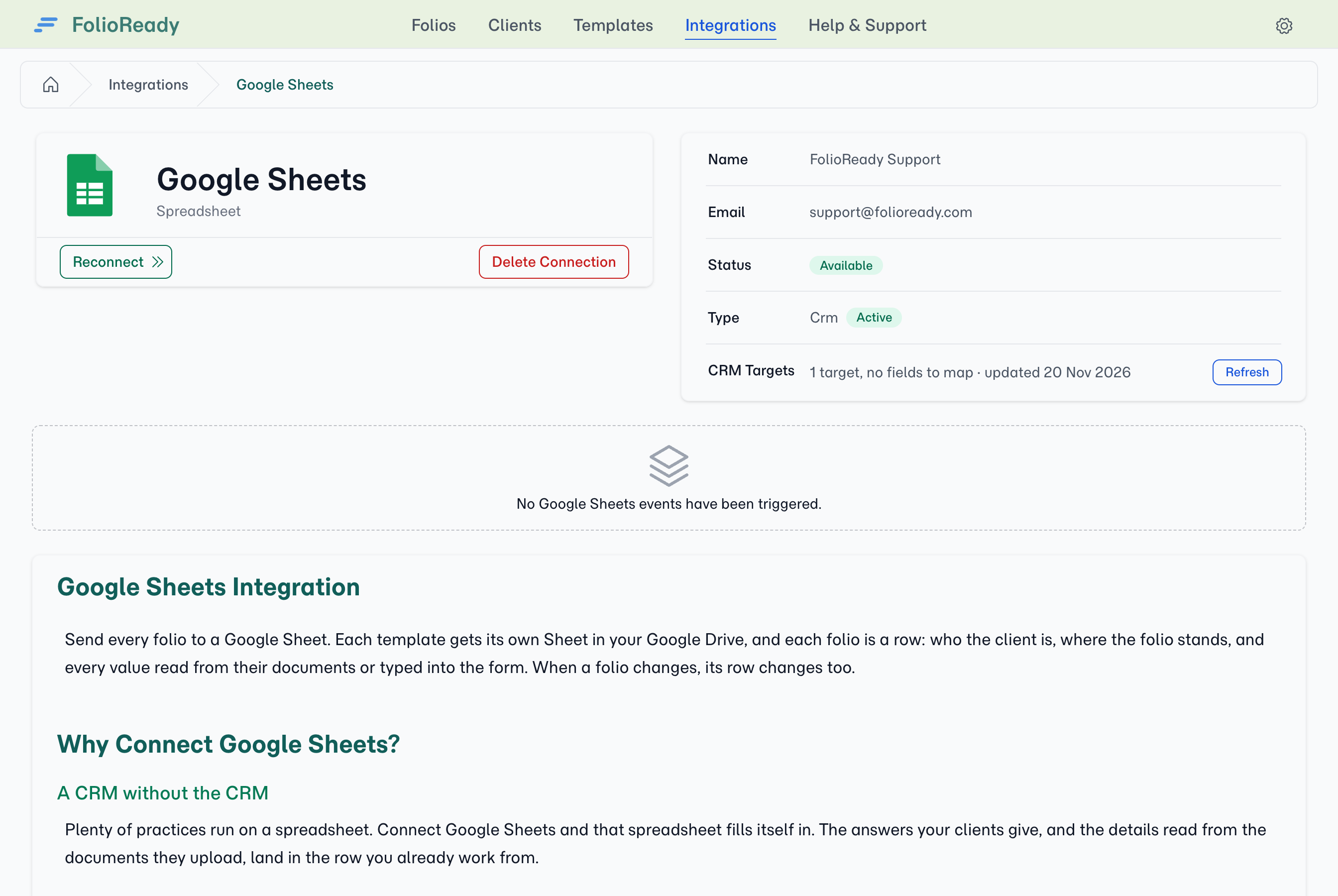
Back in FolioReady, Google Sheets moves to your active integrations. Its page shows the Google account you connected.
Sending a Template to a Sheet
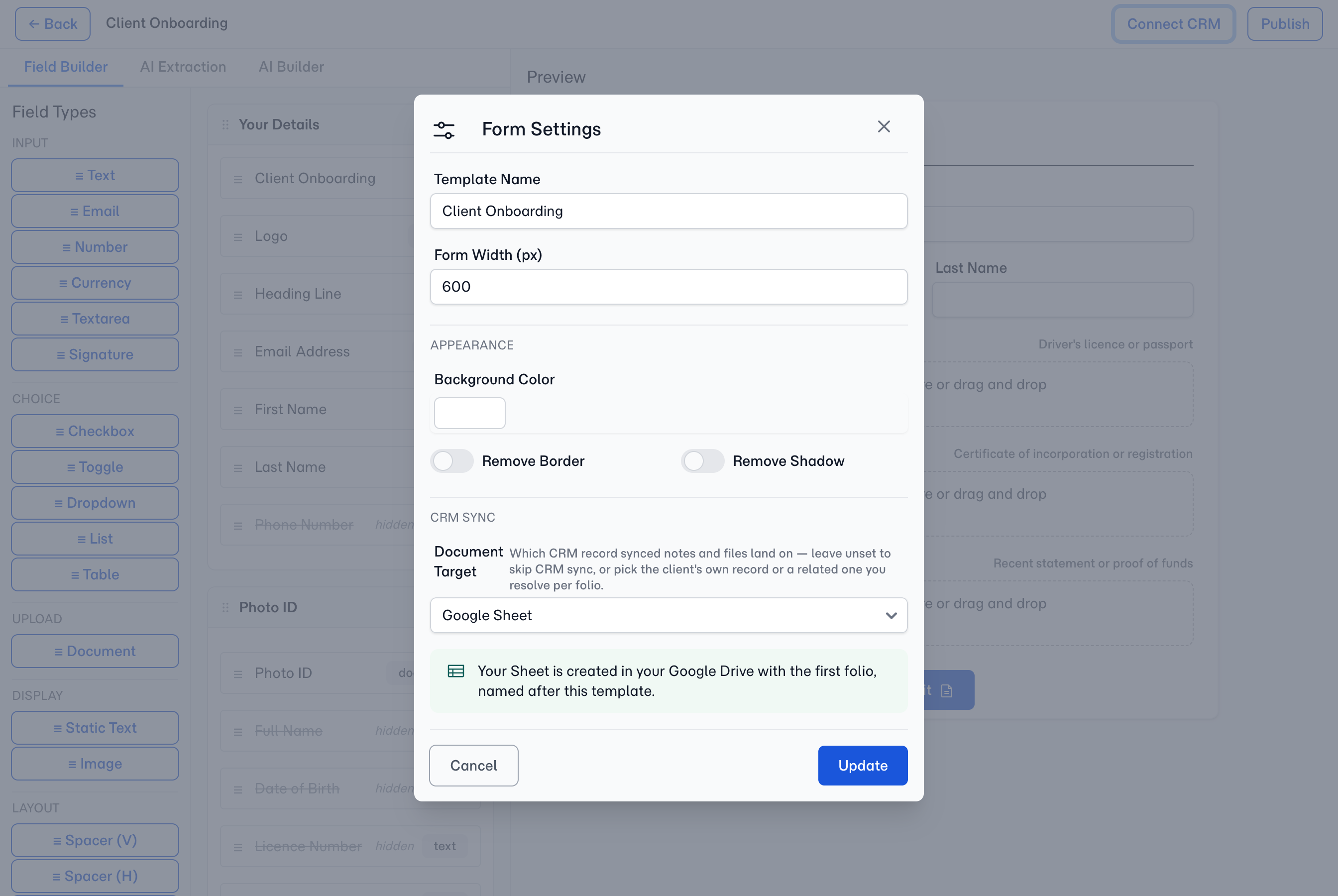
Open a template in the builder and click Connect CRM. In Form Settings, under CRM Sync, set Document Target to Google Sheet, then click Update.
Each template has its own Sheet. It's created in your Google Drive when the template's first folio is written, and it's named after the template. Until then, the panel tells you a Sheet is on its way.
Once the Sheet exists, the panel shows its name and an Open Sheet button.
The name is yours
How It Works
What's in the Sheet
The first tab has one row per folio. Its columns are:
- Client name, Client email, Folio name, Status and Updated (in UTC)
- One column for each field in the template, in the template's order, headed by the field's name
- Folio GUID, the folio's id, which FolioReady uses to find its row
Numbers and amounts arrive as numbers, checkboxes and switches as TRUE or FALSE, and a choice as the option the client picked. A table in the form gets a tab of its own, with a row for each of its rows.
Uploaded files, signatures and display text don't go to the Sheet. The files stay in FolioReady, or in your connected file storage.
When rows are written
Client                FolioReady                    Google Sheet
  |                        |                              |
  |-- submits the form --->|                              |
  |                        |-- AI reads the documents     |
  |                        |-- writes the folio's row --->| new row
  |                        |                              |
Manager                    |                              |
  |-- corrects a value --->|                              |
  |-- approves ----------->|-- writes the row again ----->| row updated
A row is written whenever the folio changes: a field is filled in or edited, by the client, by AI, by you, or through the API, and whenever its status changes. A quick run of changes is written once, together.
Folios that existed before you connected get a row the next time they change.
Editing the Sheet
The sync runs one way, from FolioReady to the Sheet. Edit a value in FolioReady and the row follows. A value you type over in one of FolioReady's columns is replaced at the folio's next write.
Your own columns and tabs are never touched. You can reorder columns and rename tabs freely. Keep the Folio GUID column: hide it if you like, but without it FolioReady can't find a folio's row and adds a new one.
When the template changes
The Sheet follows the template at the next write. A renamed field renames its column, a new field adds a column at the end, and a removed field's column keeps its values and stops being updated. FolioReady never deletes your data.
Starting a new Sheet
To start a template on a fresh Sheet, set Document Target to No CRM sync, save, then set it back to Google Sheet and save again. The next folio creates the new Sheet. The old one stays in your Drive.
Disconnecting
Open the Google Sheets integration and click Delete Connection, then confirm.
What happens when you disconnect
FolioReady stops writing to your Sheets and forgets the connection. Your Sheets stay in your Google Drive, with everything already written to them.
Troubleshooting
Rows aren't updating
Open the folio and check its timeline. A sync entry for Google Sheets marked failed means the write didn't reach the Sheet. Usually the Sheet was deleted, or access was removed in your Google account.
The Sheet was deleted
FolioReady doesn't quietly make a new one. Restore the Sheet from your Drive's trash and writes carry on. To start over instead, follow Starting a new Sheet above.
The connection shows as failed
FolioReady couldn't renew its access, usually because access was removed in your Google account's security settings. Click Reconnect on the integration page to sign in again.
A folio has two rows
The Folio GUID column was removed or edited. Put it back, then delete the extra row.
Related
- Spreadsheet Integration: Import contacts and export folio data as CSV or Excel files
- Google Drive Integration: Store client files in your Google Drive
- Webhooks: Send folio events to any other tool