Spreadsheet Integration
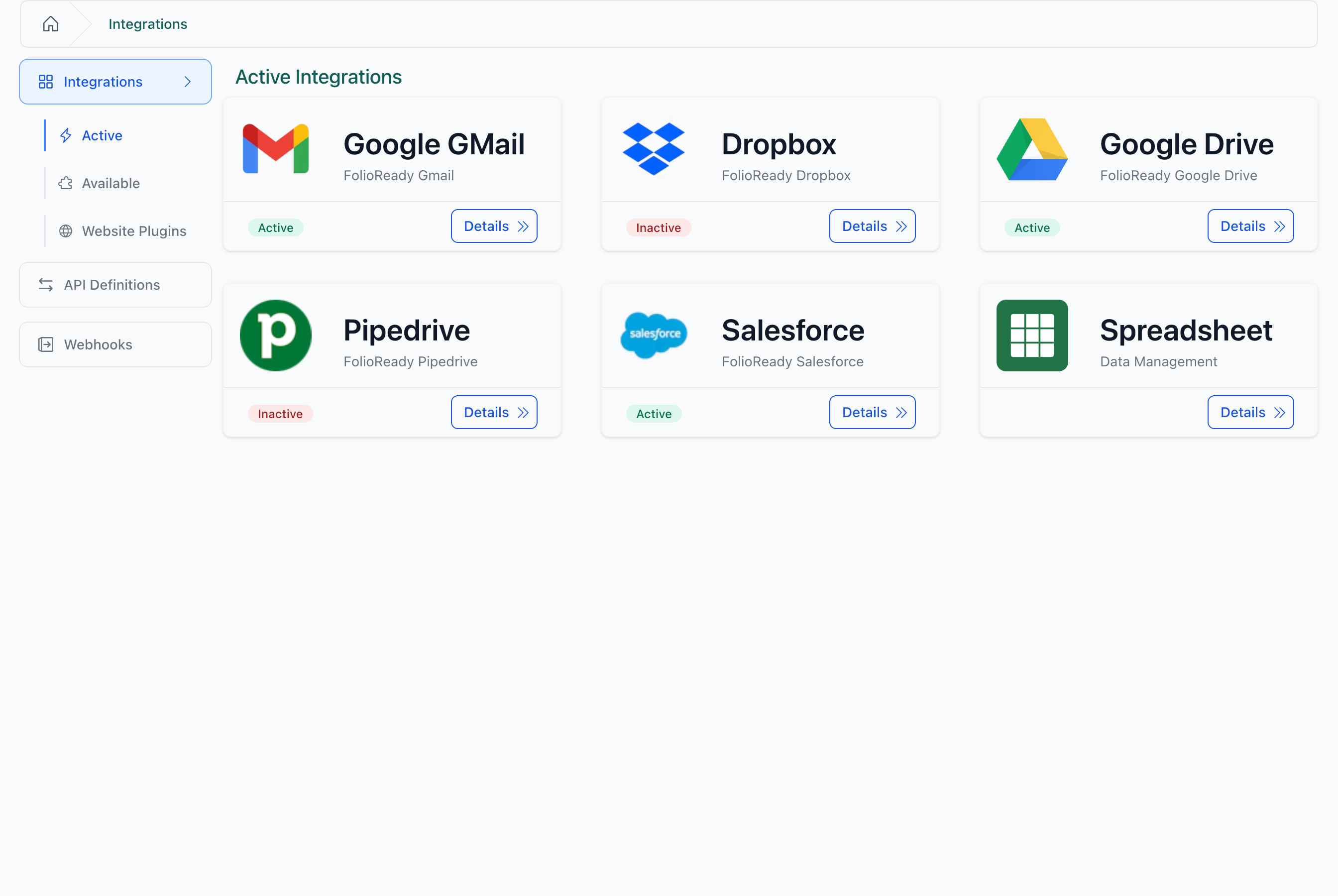
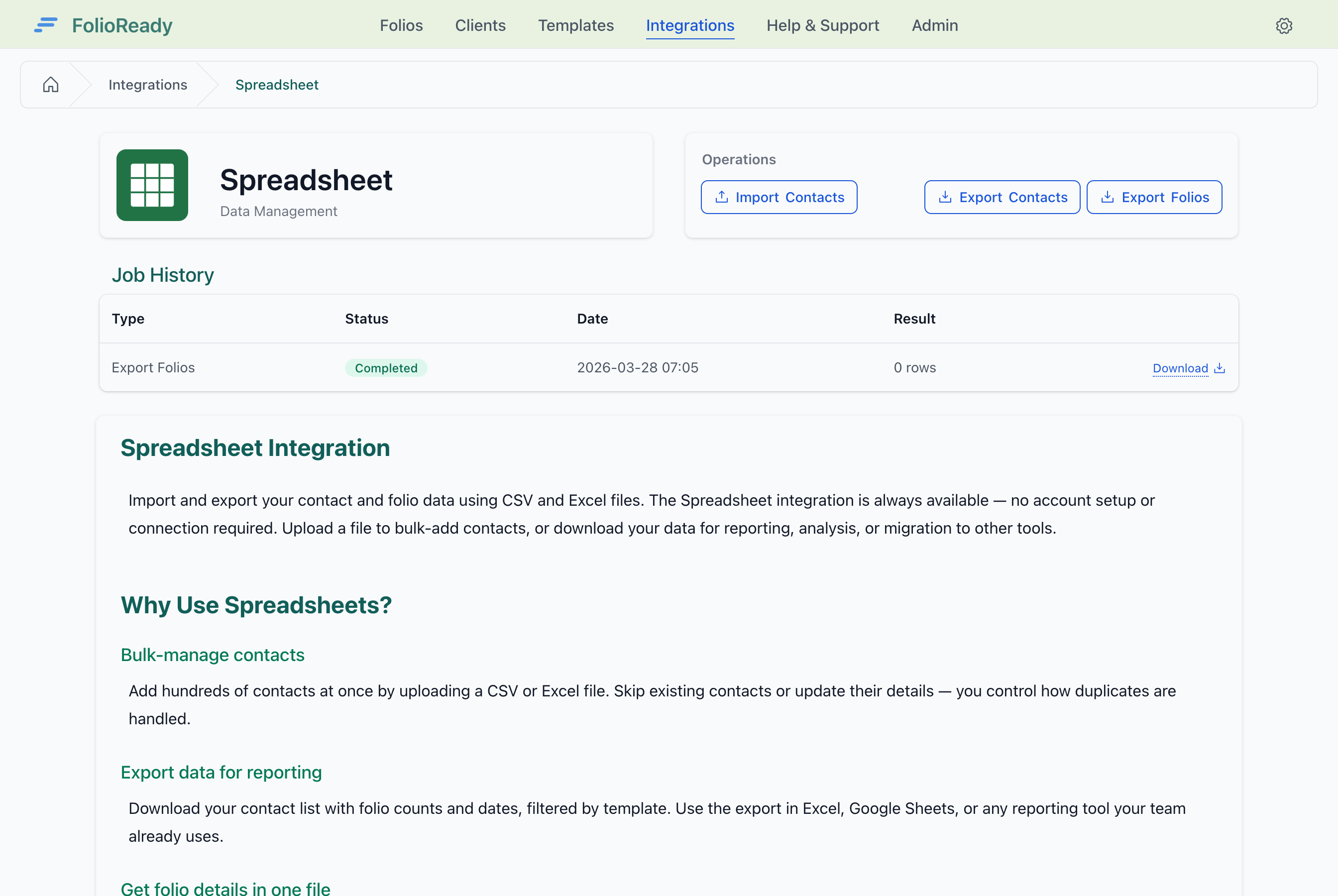
Import and export your contact and folio data using CSV and Excel files. The Spreadsheet integration is always available — no account setup or connection required. Upload a file to bulk-add contacts, or download your data for reporting, analysis, or migration to other tools.
Why Use Spreadsheets?
Bulk-manage contacts
Add hundreds of contacts at once by uploading a CSV or Excel file. Skip existing contacts or update their details — you control how duplicates are handled.
Export data for reporting
Download your contact list with folio counts and dates, filtered by template. Use the export in Excel, Google Sheets, or any reporting tool your team already uses.
Get folio details in one file
Export folio data with all extracted field values and file information. Each template gets its own sheet in Excel, so you can review submissions across templates in a single download.
No setup required
The Spreadsheet integration is available to every company automatically. Open it from the Integrations page and start importing or exporting immediately.
How to Import Contacts
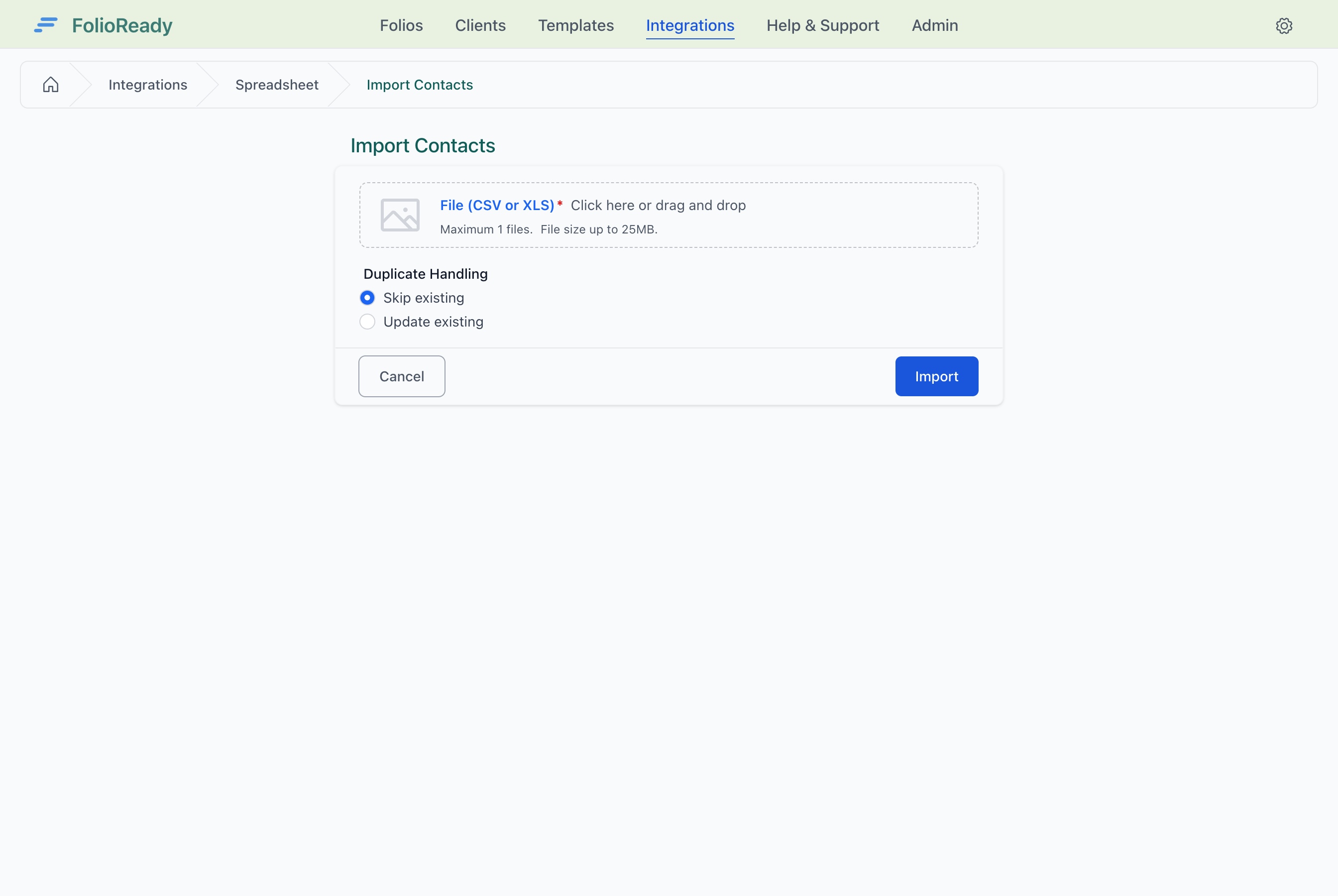
- Go to Integrations and click Spreadsheet
- Click Import Contacts to open the import page
- Choose your file (CSV or Excel)
- Select how to handle duplicates:
- Skip existing — contacts with matching email addresses are left unchanged
- Update existing — contact details are overwritten with values from the file
- Click Import
Your file is processed in the background. Check the Job History table for progress and results.
File format
Your file must include a header row with an email column. Optional columns: first_name, last_name, phone.
| Column | Required | Description |
|---|---|---|
| Yes | Contact email address | |
| first_name | No | Contact first name |
| last_name | No | Contact last name |
| phone | No | Contact phone number |
Contacts are matched by email address (case-insensitive). Rows without a valid email are skipped and reported in the results.
How to Export Contacts
- Go to Integrations and click Spreadsheet
- Click Export Contacts to open the export page
- Select which templates to scope the folio data to
- Choose your format: CSV or XLS
- Click Export
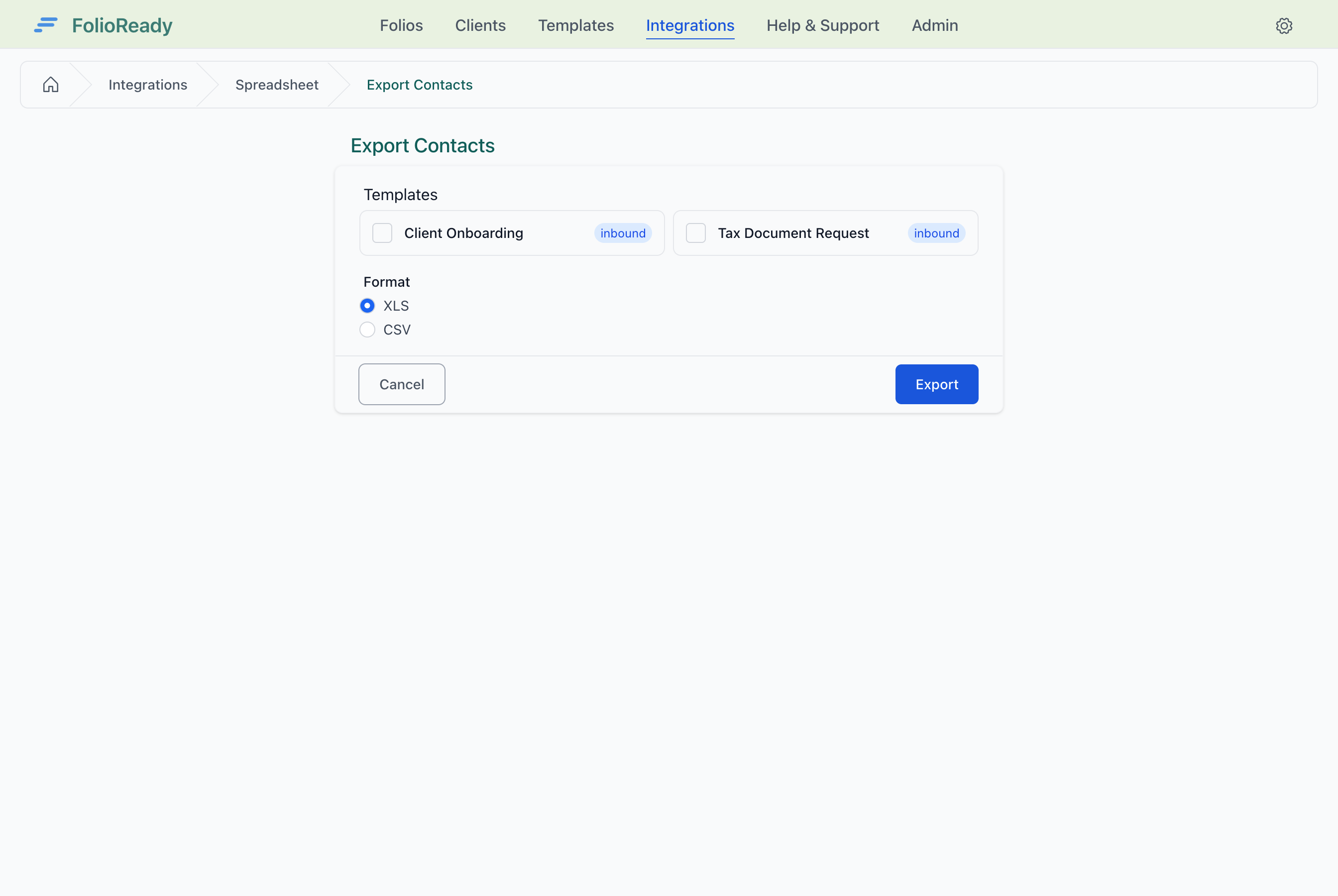
The export includes all contacts with their folio count and last folio date for the selected templates.
| Column | Description |
|---|---|
| Contact email address | |
| first_name | Contact first name |
| last_name | Contact last name |
| phone | Contact phone number |
| folio_count | Number of folios for the selected templates |
| last_folio_date | Date of the most recent folio for the selected templates |
How to Export Folios
- Go to Integrations and click Spreadsheet
- Click Export Folios to open the export page
- Select templates
- CSV: select a single template
- XLS: select one or more templates (each gets its own sheet)
- Choose your format: CSV or XLS
- Click Export
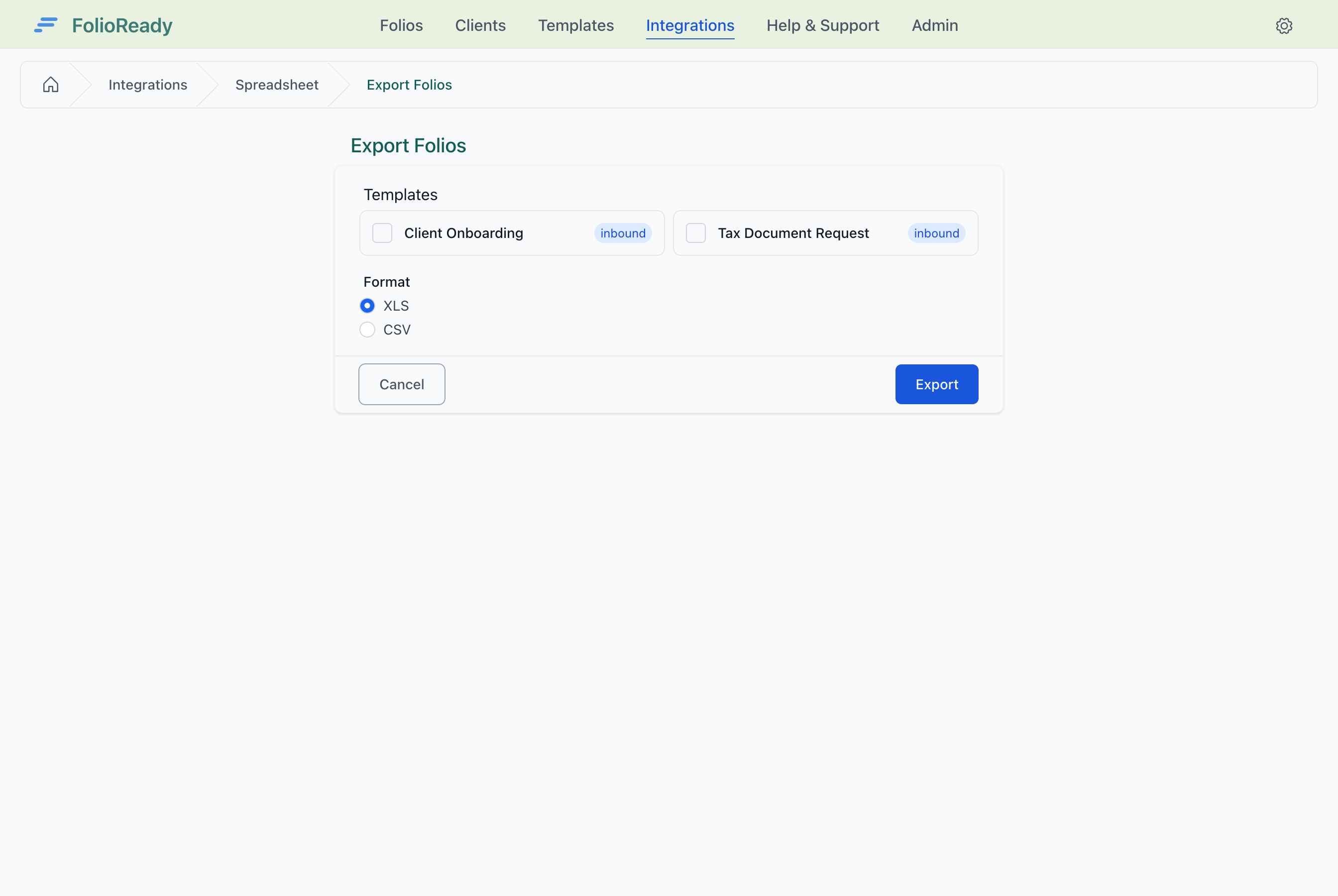
The export includes contact information, folio details, and all extracted field values from the template design.
Supported Formats
| Format | Import | Export | Multi-template |
|---|---|---|---|
| CSV (.csv) | Yes | Yes | No (single template) |
| Excel (.xls, .xlsx) | Yes | Yes | Yes (one sheet per template) |
Troubleshooting
"Missing required email column"
Your file must have a header row with a column named email. Check that the first row contains column headers, not data.
Rows were skipped
Rows are skipped when:
- The email field is empty
- The email format is invalid
- A duplicate email appears earlier in the same file
- The contact already exists (in Skip mode)
Check the job result summary for the count of skipped rows and errors.
Export is empty
Make sure the selected templates have published folios. Only folios linked to the chosen templates are included in the export.