The AI-generated draft is a starting point, not a finished form. Read each field and ask whether you'd actually use the answer — delete anything that doesn't pass that test. Shorter, sharper templates get higher completion rates than exhaustive ones.
Connecting...
Type a Sentence, Get a Template
The hardest part of building a new template is the blank page. You know what you want clients to send — a quick onboarding form for retirement reviews, an annual KYC refresh, an estate-planning intake — but staring at an empty builder and dragging fields into place is the slow way to get there.
Now you don't have to. When you create a new template, there's a one-line prompt field. Describe the form you need in plain English, click create, and the builder opens with a draft already taking shape. Your job shifts from "build it from scratch" to "react to a draft" — much faster, and usually better.
What's New
One sentence, one draft template
The New Template modal in the manager app now has a prompt field. Type something like "Onboarding form for retirement clients — contact details, current accounts, retirement timeline, and what's keeping them up at night" and the builder opens with the AI already drafting fields, sections, and helper text.
If you'd rather start from a blank template and use the AI chat panel inside the builder later, leave the prompt empty. The blank-template path still works exactly as before.
From the Wix panel too
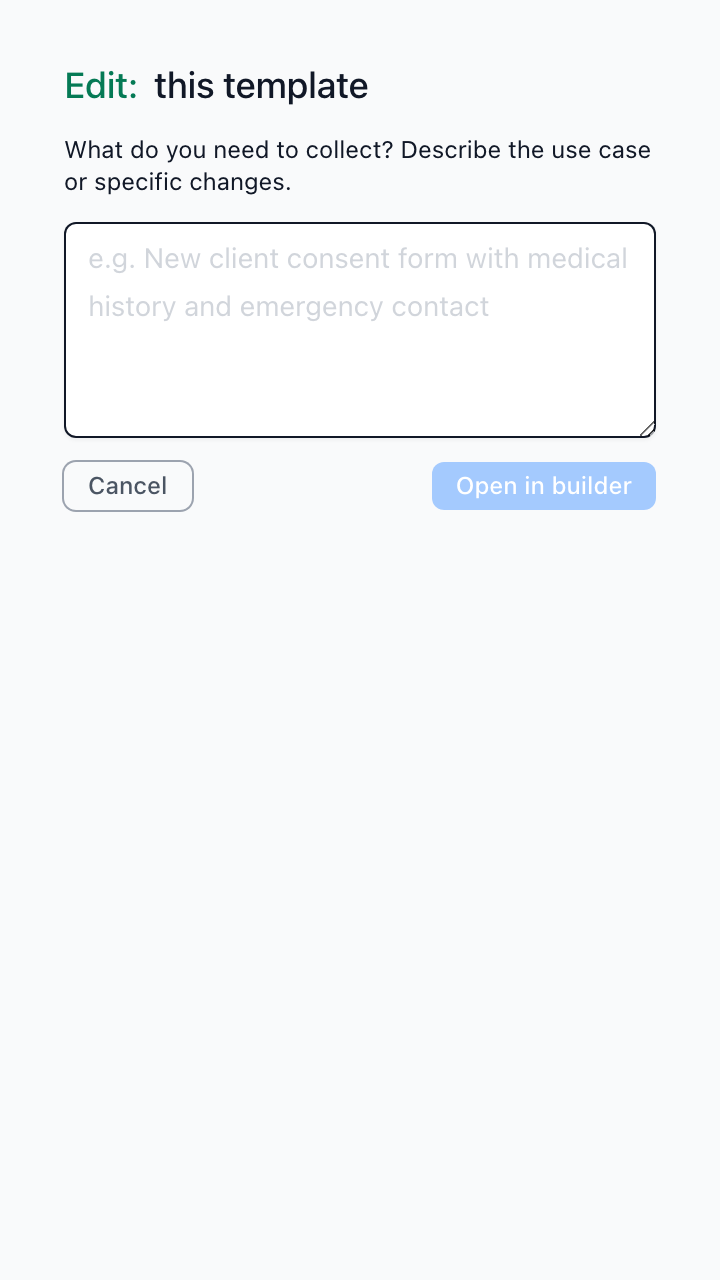
If you embed FolioReady on a Wix site, the same flow is now built into the element's settings panel. Open the panel, click Edit template, type a one-liner about what you want clients to submit, and the manager builder opens in a new tab with the draft already streaming. You can refine and publish without leaving Wix.
A clearer Wix settings panel
The Wix element's settings panel now has three small screens instead of a single text input:
- Current — shows what template the element on this page is bound to. A freshly-dropped element auto-binds to your default template, so it's never broken on first publish.
- Switch template — pick from your published templates if you want this element to use a non-default one. No more hunting for a code to paste.
- Edit template — the prompt-driven flow described above.
If your Wix site already has the element embedded, you don't need to do anything — the new panel loads automatically the next time you open settings in the editor.
See archived templates when you need them
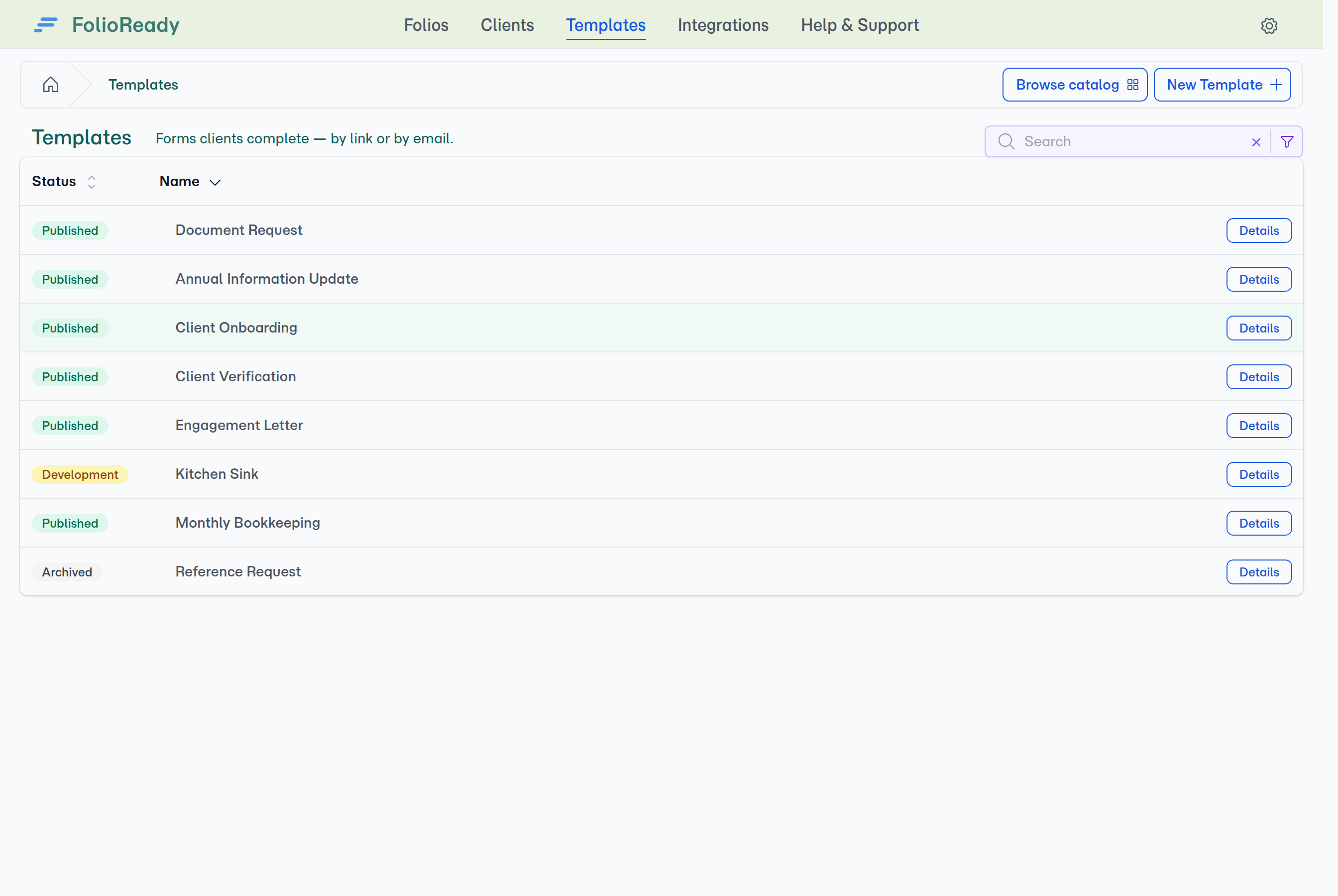
The templates list now hides archived templates by default — your everyday view stays uncluttered. When you do need to find something old, toggle Include archived at the top of the list and they reappear.
How to Use It
- In the manager app, open Templates and click New Template
- Type a one-line description of what you want to collect
- Click create — the builder opens with a draft already responding to your prompt
- Review what AI generated, trim or rename anything that doesn't fit, and publish when you're ready
For Wix users:
- In the Wix editor, click the FolioReady element and open Settings
- Click Edit template, type a one-liner, and confirm
- The manager builder opens in a new tab — refine, publish, and return to Wix
What's Improved
Consistent CRM search
Searching for a contact in HubSpot, Pipedrive, Intercom, or Salesforce now uses the same picker pattern across all four — same look, same keyboard behaviour, same result density. If you switch CRMs (or use more than one), you don't relearn the search box every time.
The right preview, every time
When you're looking at a template's detail page, the preview now reflects the latest draft rather than a slightly older version. What you see on the show page matches what's about to be published.
💡
Worth knowing
Related
- Designing Your First Template — How to think about field choices once the AI gives you a draft to react to
- Wix Integration — Embed FolioReady on your Wix site, end to end
- Industry Starter Templates — A catalog of ready-made templates you can filter by industry and import, if you'd rather start there than from a prompt