Industry Starter Templates
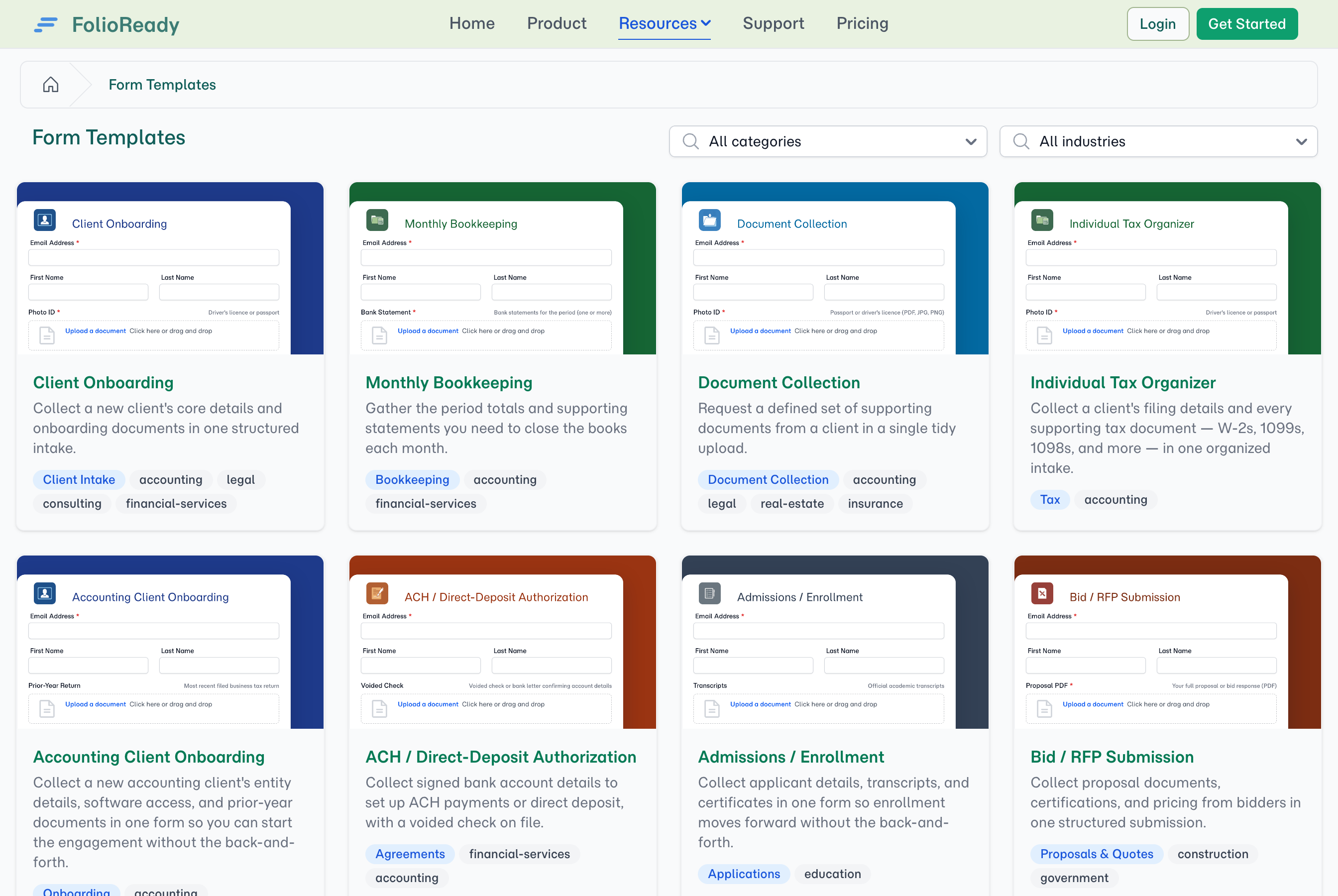
A blank template builder is a hard place to start. You know the documents you collect, but turning them into a clean, well-labelled form — section by section, field by field — is its own job. So FolioReady ships a catalog of 69 ready-made templates, spanning the intakes real practices run every day: tax organizers, client onboarding, legal intake, identity and business verification, patient intake, tenant applications, loan applications, and dozens more. Filter to your industry, find the one that fits, and import it in a click — you're editing a working form instead of authoring one from scratch.
Why Start From the Catalog?
Skip the blank-page problem
Most form-builder tools start you on an empty canvas and ask you to imagine every field, section, and hint. The catalog flips that around: you begin from a working draft that already has the right fields, the right widths, and the right required flags. From there you're editing — not authoring — which is a much faster way to reach a template you'd actually send.
A starting point for the work you actually do
The catalog covers seventeen categories across sixteen industries — Accounting, Financial Services, Legal, Real Estate, Consulting, Construction, Technology, Healthcare, Insurance, Creative Agency, Staffing, Marketing, Nonprofit, Education, Government, and Architecture. An accounting firm finds Individual and Business Tax Organizers, Monthly Bookkeeping, and 1099 collection. A law practice finds client intake for family, estate, immigration, personal-injury and criminal-defence matters, plus records-release requests. A property manager finds listing intake, tenant applications, and move-in/out inspections. Filter to your field and the templates that fit rise to the top.
Every template is built the same proven way
Whatever you import follows one familiar shape: a client-details block at the top, then one section per document you ask for — the file, and the fields AI reads out of it. Because the structure is consistent across the catalog, anything you pull in behaves predictably from the first send, and every extracted value stays grouped with the file it came from.
Ready to send, ready to edit
Every catalog template lands in your account as a real, working template — you can publish and start collecting the same day. Or open it in the builder and make it yours: add a field, drop a section, rewrite a hint, set a reminder schedule. Because it's a regular template from the moment it's imported, every FolioReady tool works on it — the AI builder panel, drag-and-drop editing, document checklists, signatures, the lot.
How It Works
1. Browse the catalog
Open Templates → Catalog in your account to browse every ready-made template, or explore the same collection on the public gallery at /templates — no account required, so you can see what's on offer before you sign up. Each card shows the template's category and the industries it suits.
2. Filter to your industry
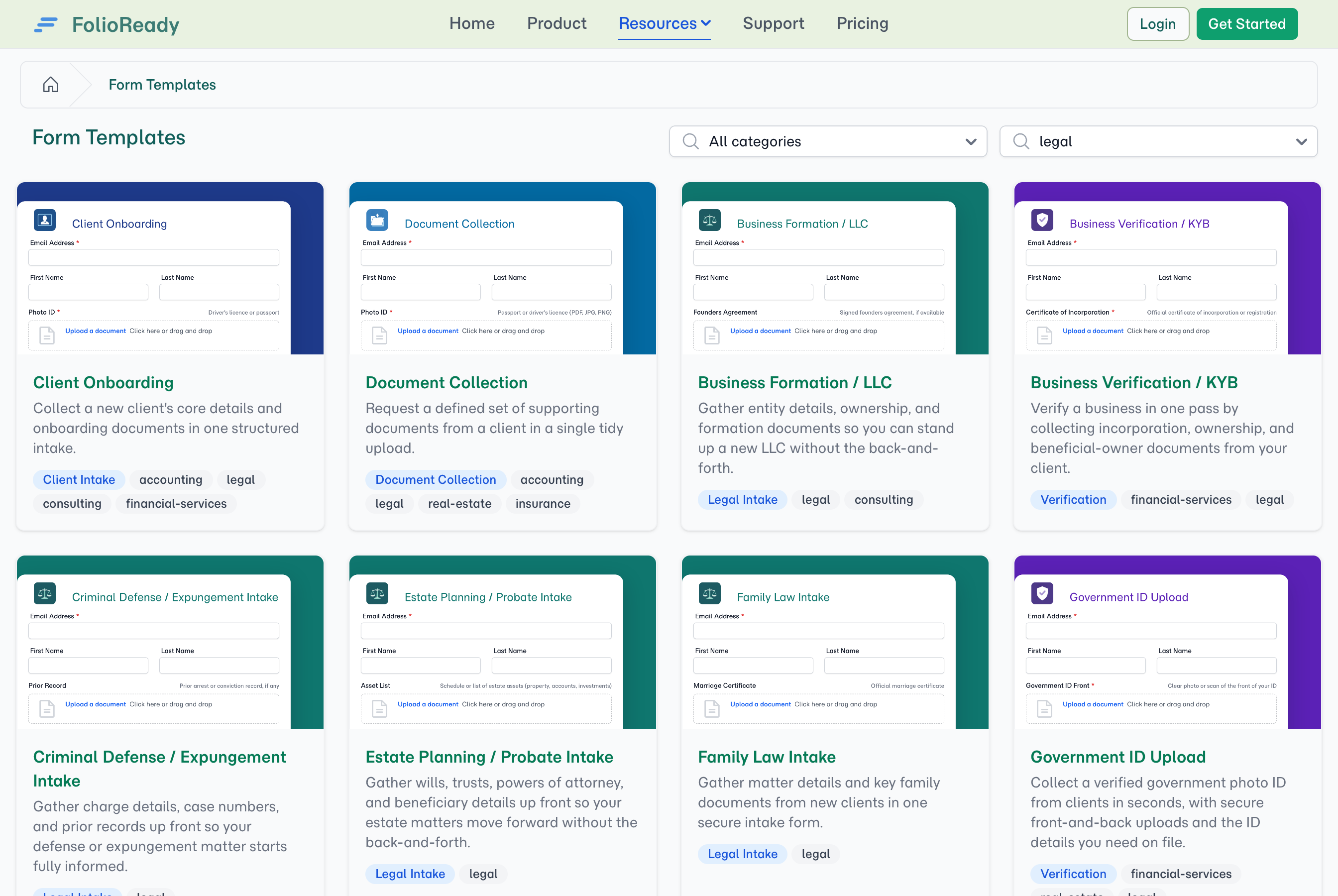
Two dropdowns sit above the grid: Category (Tax, Legal Intake, Agreements, Onboarding, Verification, Lending, and more) and Industry. Pick your industry and the grid narrows to the templates built for it; combine both filters to zero in — say, Legal Intake templates for a Legal practice. Clear the filters any time to see the whole catalog again.
3. Preview, then import
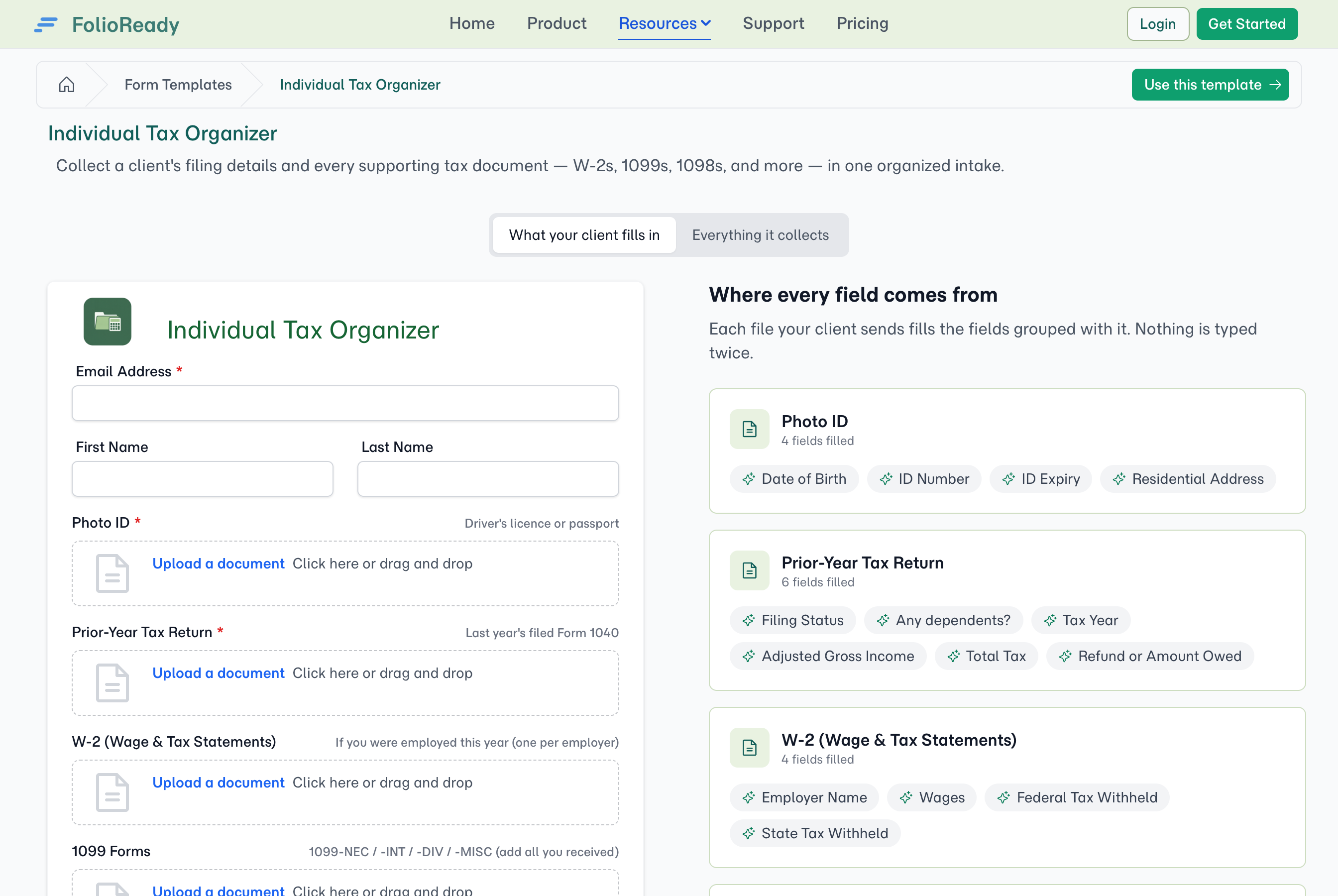
Open a template to preview it — the fields, sections, and document slots you'd be starting from. When it fits, click Create Template. FolioReady copies the template into your account and drops you straight into the builder with it open, ready to edit.
4. Make it yours, then send
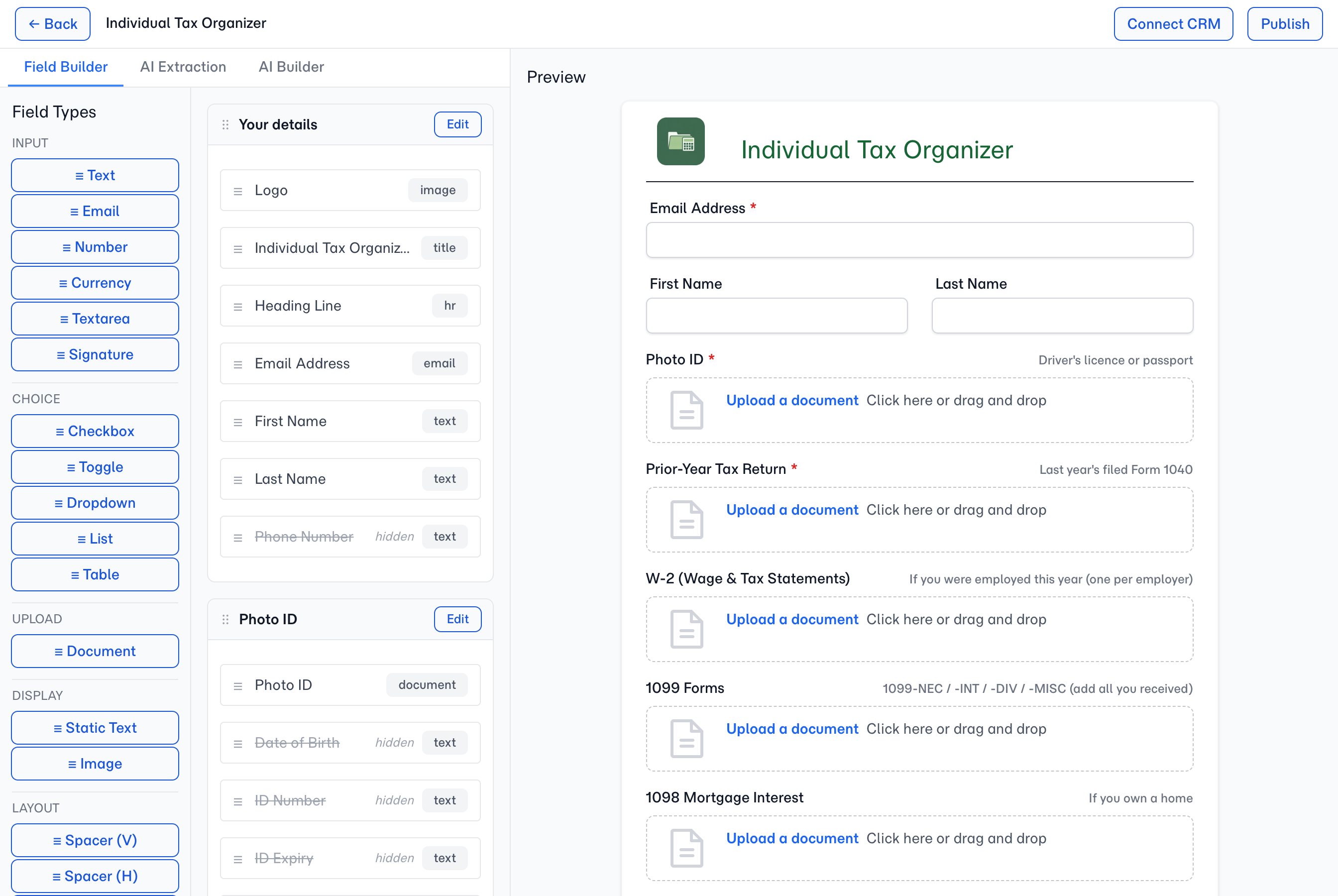
The imported template is yours to shape. Rename fields, add or remove sections, mark documents required, set reminders — or leave it exactly as it came and publish. Use the AI builder panel to make bigger changes in plain English ("add a section for vehicle details", "mark the passport upload as required") and the panel applies them for you.
What's in a Catalog Template
Each ready-made template arrives with:
| Piece | What's already filled in |
|---|---|
| Client-details block | A protected title field plus the standard name and email fields, at the top of the first section |
| Sections | A client-details section, then one section per document the template asks for |
| Fields | Pre-built fields specific to the scenario — text, select, textarea, date, currency, and more |
| Document checklist | Named document slots where the template collects files (W-2, photo ID, bank statement), each required or optional |
| Extracted fields | Hidden fields grouped with the file that fills them, so AI reads the values instead of the client typing them |
| Required flags | The fields you genuinely need are marked required; the optional ones aren't |
| Field widths | Half-, third-, or full-width per field, so the form doesn't read as one tall column |
Everything is editable. A catalog template is a launching pad, not a fixed format.
Configuration
- Where to find it — In your account, Templates → Catalog (
/manager/template/catalog). The same collection is public at/templatesfor browsing before sign-up. - Filtering — Narrow by Category, by Industry, or both together; clear filters to reset.
- Creating a template — Clicking Create Template copies the catalog template into your company account as a brand-new, independent template. Editing your copy never affects the catalog original, and you can create another copy of the same template any time for a fresh start.
- After import — The template is fully yours: drag-and-drop editing, the AI builder panel, document checklists, signatures, and reminder schedules all apply.
Tips
- Import a couple to compare, then keep what fits. Nothing stops you importing three candidates, opening each in the builder, and deleting the two you won't use. A clean template index makes the ones you rely on easy to spot.
- Filter by industry first, then scan categories. Your industry narrows the field fast; the category badge on each card tells you what kind of intake it is at a glance.
- Use the AI builder panel to extend a starter. Once a catalog template is in your account, the AI builder panel lets you describe changes in plain English rather than editing field by field.
- Preview before importing. The preview shows the exact fields and document slots you'd start from — a quick look saves an import you'd only delete.
- Browse the public gallery to plan. Not sure which templates you need? The public
/templatesgallery is a fast way to see the shape of common intakes across professions before you commit to building.
Related
- Document Checklists — The named document slots that ship inside many catalog templates
- AI Automation — Automatic field extraction from documents uploaded to any template
- Folio Insights — Ask questions across the documents collected by your templates
- Designing Your First Template — How to think about field types and sections when extending a starter
- What Templates Do I Need? — Audit your workflows and figure out which templates to start from