AI Automation
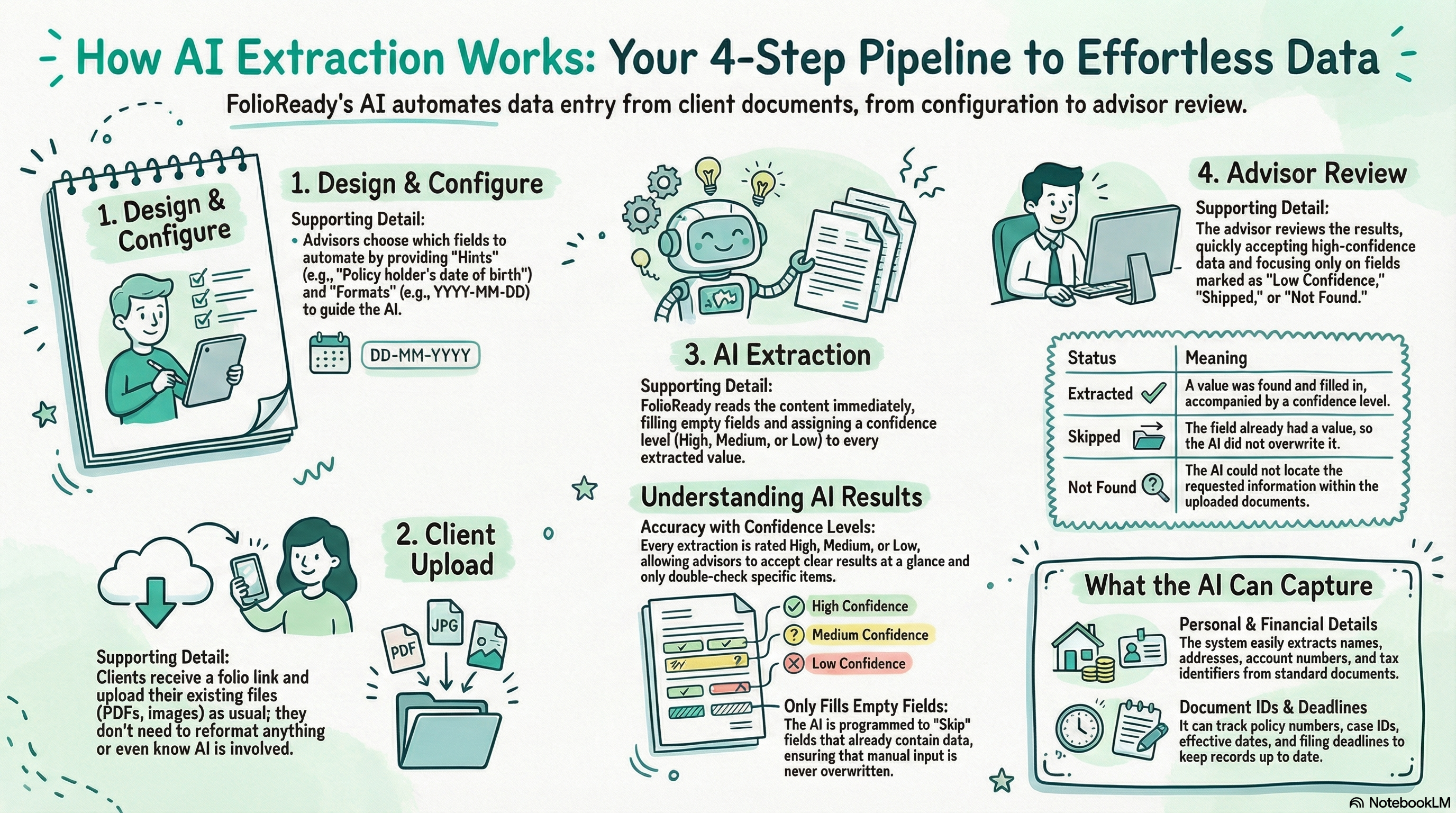
Collecting documents is only the first step. Once files arrive, someone still has to open each one, find the right information, and type it into the right fields. FolioReady's AI automation reads your clients' uploaded documents and extracts the data you need — automatically filling in form fields so you don't have to.
Why Use AI Automation?
Stop copying and pasting from documents
Without AI extraction, you open every uploaded file, scan it for the information you need, and manually type it into each field. With AI automation enabled, FolioReady reads the documents as soon as they arrive and fills in the fields for you. What used to take minutes per client now happens in seconds.
Accuracy with confidence levels
Every extracted value comes with a confidence rating — high, medium, or low — so you always know how much to trust the result. High-confidence extractions can be accepted at a glance. Lower-confidence values tell you exactly where to double-check, instead of reviewing everything manually.
Works with the documents your clients already have
AI extraction reads the content of uploaded files — PDFs, scanned documents, images. Your clients don't need to fill in extra fields or reformat anything. They upload what they have, and FolioReady pulls out the data you asked for.
Only fills empty fields
If a client has already entered a value, AI extraction leaves it alone. It only fills fields that are still blank, so manual input is never overwritten. You stay in control of the final data.
How It Works
1. You design the form and configure extraction
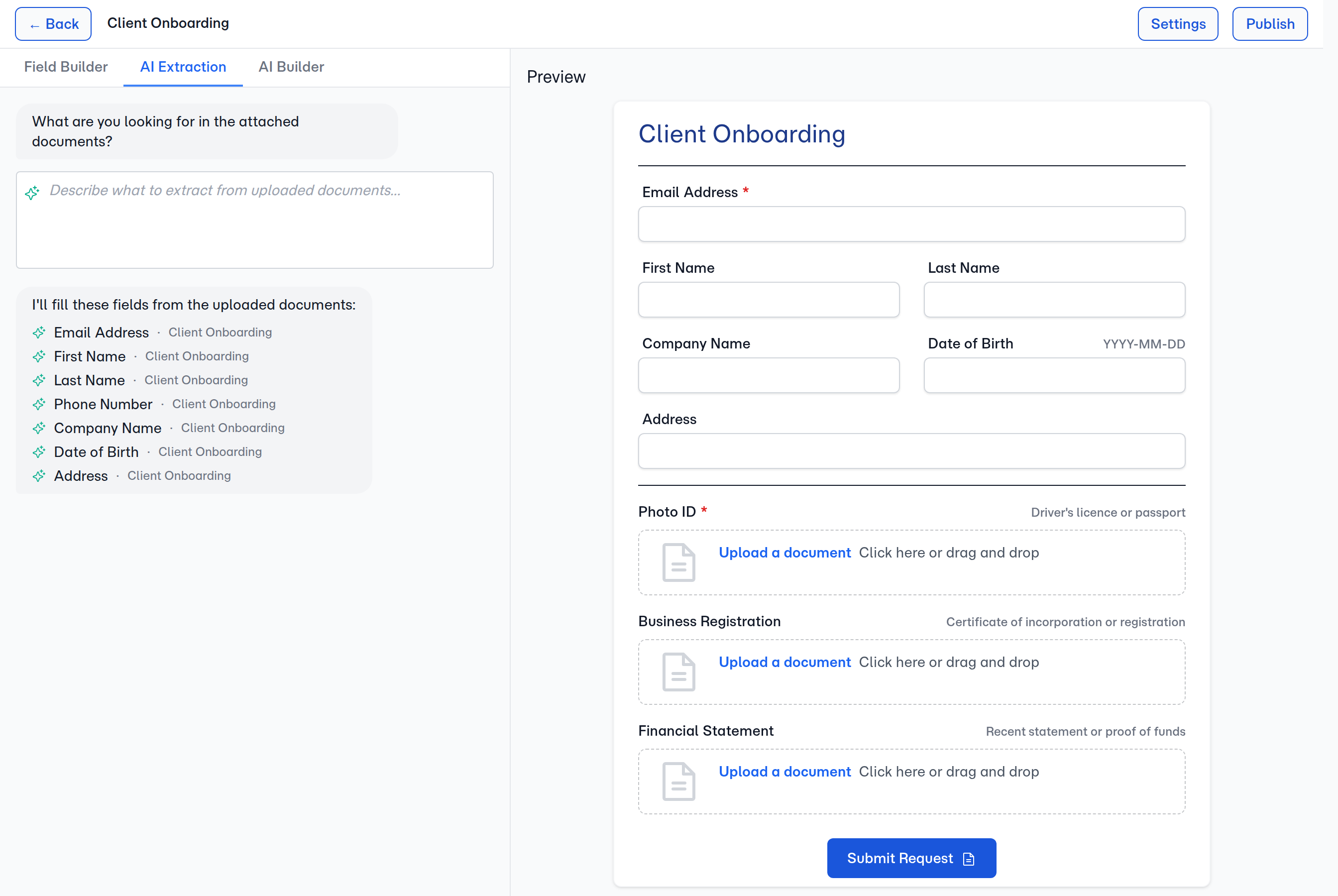
When building a form template, you choose which fields should be extracted from uploaded documents. For each field, you can provide:
- A hint — guidance about what the field represents (e.g., "The policy holder's date of birth")
- A format — the expected format for the value (e.g., "YYYY-MM-DD")
You also write a prompt that gives the AI context about the type of documents your clients will upload.
2. Your client uploads their documents
Clients receive a folio link and upload their files as usual. Nothing changes on their end — they don't need to know AI is involved.
3. FolioReady extracts the data
As soon as documents are uploaded, FolioReady reads the file content and extracts values for each configured field. Results are filled in automatically with a confidence level and a source reference showing which file the value came from.
4. You review the results
Each extracted field shows its status:
| Status | Meaning |
|---|---|
| Extracted | A value was found and filled in, with a confidence level |
| Skipped | The field already had a value, so extraction was skipped |
| Not found | The AI could not find the requested information in the documents |
You review the results, accept or correct values, and move on. Fields that weren't found or had low confidence are easy to spot so you know exactly where to focus your attention.
What You Can Extract
AI extraction works with any text-based information in uploaded documents. Common examples:
- Personal details — names, dates of birth, addresses, phone numbers
- Financial data — account numbers, amounts, tax identifiers
- Document references — policy numbers, invoice numbers, case IDs
- Dates and deadlines — effective dates, expiration dates, filing deadlines
The extraction prompt and field hints let you tailor the AI to your specific use case, whether you're collecting tax documents, onboarding new clients, or processing insurance claims.
Supported AI Providers
FolioReady supports multiple AI providers, so you can choose the one that fits your needs:
| Provider | Description |
|---|---|
| Anthropic | Claude models via the Anthropic API |
| Gemini models via the Google AI API | |
| AWS Bedrock | Claude models hosted on AWS infrastructure |
| Ollama | Self-hosted open-source models for full data privacy |
Your AI provider is configured at the company level. All extractions use the same provider and model across your account.
Getting Started
To start using AI extraction:
- Navigate to Settings and choose your AI provider and model
- Open the Template Builder for the form you want to automate
- Enable AI extraction on the section where clients upload files
- Write a prompt describing the documents your clients will upload
- Configure which fields should be extracted, with optional hints and formats
- Send a folio to a client — extraction runs automatically when they upload
Related
- File Storage Integrations — Automatically store client files in your cloud storage provider