File Storage Integrations
Collecting documents from clients is only half the job. Once files arrive, you need them organized, accessible, and backed up in a place your team already uses. FolioReady's file storage integrations connect directly to your cloud storage provider so that every file a client uploads is automatically saved to your account — no manual downloads, no drag-and-drop, no forgotten attachments.
Why Connect a File Storage Provider?
Automatic file delivery
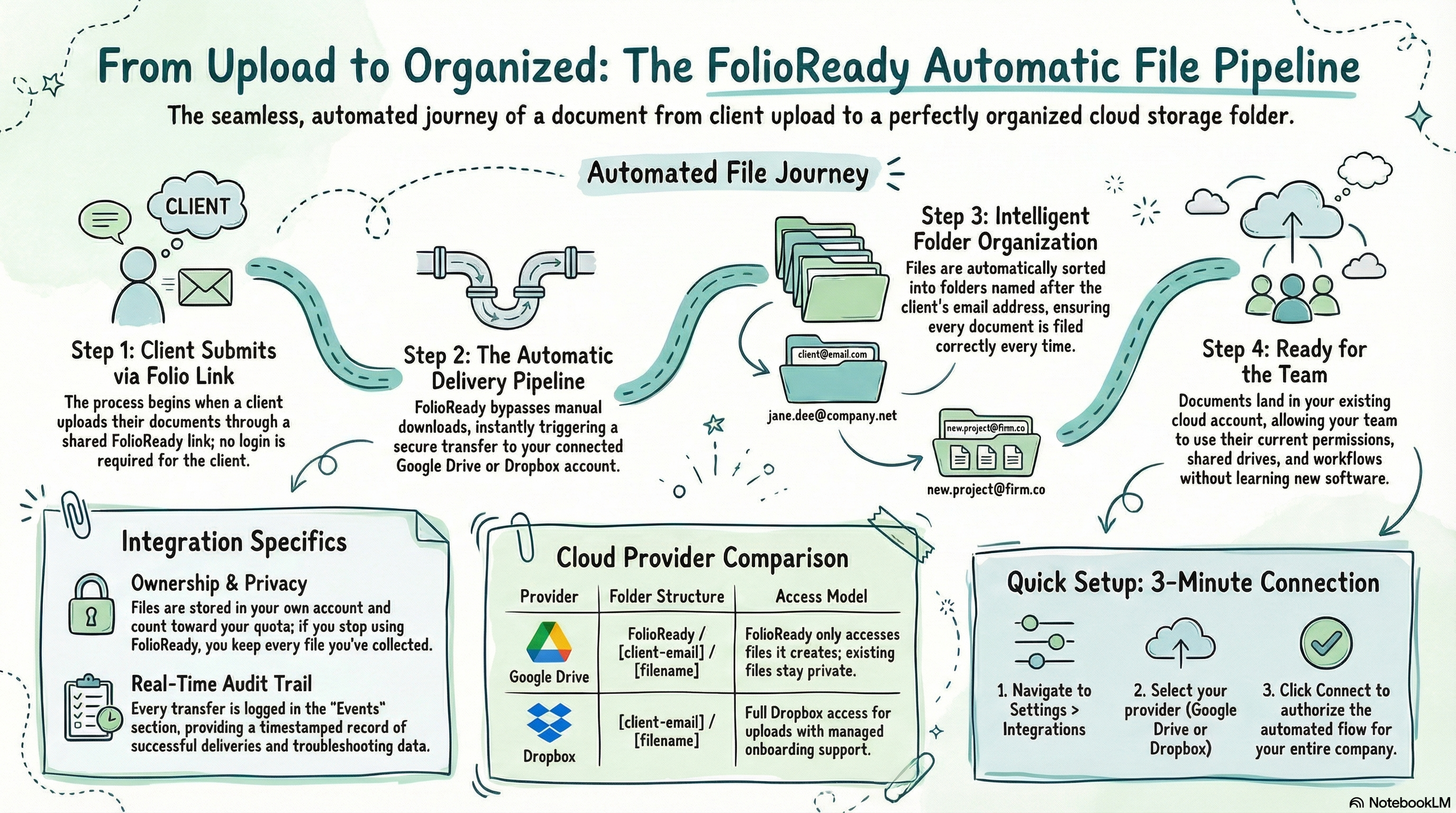
Without a storage integration, client files live inside FolioReady. You would need to download each file manually and move it to the right place. With a storage integration connected, every upload is delivered to your cloud storage automatically, as soon as the client submits it.
Files organized by client
FolioReady creates a folder for each client using their email address and stores all of their uploaded documents inside it. You always know where to find a client's files without hunting through your inbox or downloads folder.
FolioReady/
  alice@example.com/
    tax-return-2025.pdf
    drivers-license.jpg
  bob@company.com/
    contract-signed.pdf
Your files, your account
Files are stored in your own cloud storage account. You own them, you control access, and they count toward your storage quota — not ours. If you ever stop using FolioReady, every file you collected stays right where it is.
No extra software to learn
Your team already uses Google Drive or Dropbox. File storage integrations meet you where you are instead of forcing you into a new tool. Files show up in the same place your team already looks for documents.
What You Can Do
Collect and store in one step
Send a folio link to your client. They upload their documents. FolioReady stores the files in your connected cloud storage automatically. There is nothing else to do — the entire flow from request to organized storage happens without manual intervention.
Share files with your team
Because files land in your cloud storage account, you can use your provider's built-in sharing and permissions to give teammates access. Set up shared folders, add collaborators, or use your existing team drives — whatever workflow you already have in place.
Keep a complete audit trail
Every file transfer is logged in FolioReady's Events section on the integration page. You can see when each file was uploaded, whether it was delivered successfully, and troubleshoot any issues at a glance.
Work with multiple clients at scale
Whether you are collecting documents from five clients or five hundred, the process is the same. Each client gets their own folder automatically. Files are timestamped to prevent naming conflicts. You never need to sort or rename anything manually.
Supported Providers
FolioReady currently supports two file storage providers:
| Provider | Folder Structure | Access Model |
|---|---|---|
| Google Drive | FolioReady/client-email/filename | FolioReady can only access files it creates — your existing Drive files remain private |
| Dropbox | client-email/filename | Full Dropbox access for file uploads, with managed onboarding through FolioReady support |
Both integrations are company-wide — one connected account serves your entire team. All client uploads from any team member are stored in the same cloud storage account.
Getting Started
Connecting a file storage provider takes just a few minutes:
- Navigate to Settings > Integrations
- Find your preferred storage provider
- Click Connect and authorize FolioReady with your cloud storage account
- Start collecting files — uploads are stored automatically from that point forward
For detailed setup instructions, see the integration guides below.
- Google Drive Integration — Automatically store client files in your Google Drive
- Dropbox Integration — Store client files in your Dropbox with managed access