Folio Insights
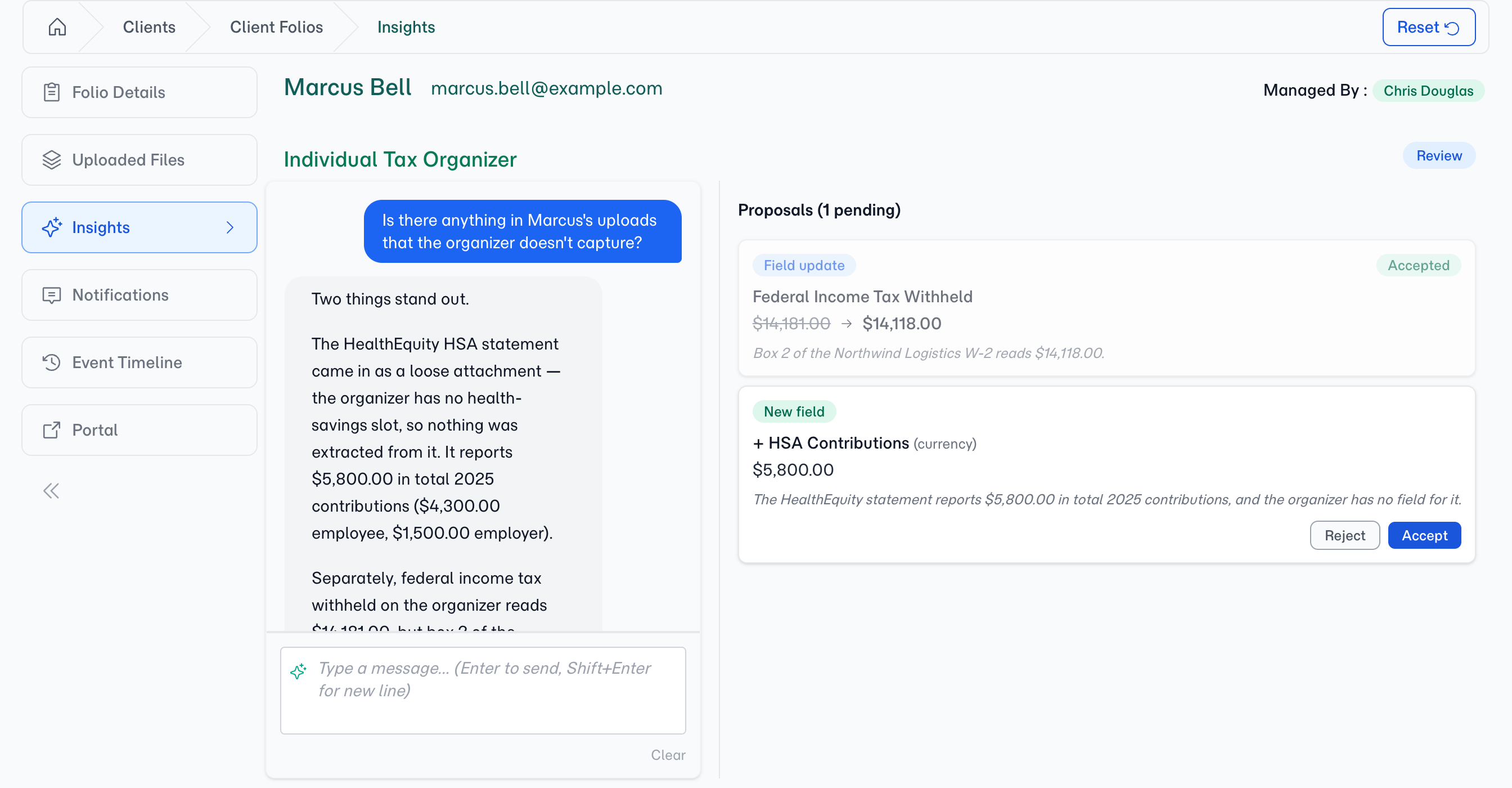
Your clients' documents hold more information than any template can ask for. A tax return has dates, amounts, and filing history. An insurance policy has coverage details, renewal terms, and beneficiaries. Most of it sits in uploaded files, invisible until someone opens them. Folio Insights lets you ask questions of those files in plain language and get answers — plus concrete suggestions for filling in fields you hadn't even thought to ask about.
Why Use Folio Insights?
Get more out of documents you already have
Without Insights, a folio's documents are passive attachments — useful only if you open them and read them. Insights reads every uploaded file, builds a working summary, and lets you ask questions against the whole folio at once. "When does this policy renew?" "What's the client's filing status?" "Are there any named beneficiaries?" Answers come back in seconds, pulled straight from the documents.
The AI suggests, you decide
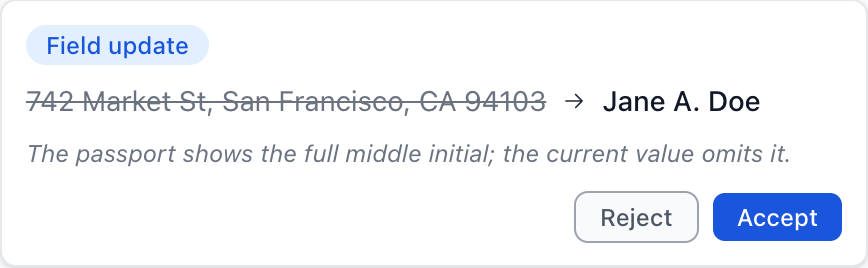
Insights never changes your folio on its own. Every suggestion — whether it's updating a field you already have or adding a new one — shows up as a proposal card you explicitly accept or reject. You see what's being proposed, why the AI is suggesting it, and where the information came from. Nothing sneaks into the folio without your approval.
Real-time across your whole team
Multiple managers can have the same folio open at the same time. When one manager asks a question, the other sees the conversation appear live. When one manager accepts a proposal, the field updates and the card disappears for everyone. Insights is collaborative by default — no page refreshes, no stale views.
Choose the right model for the job
Insights runs two separate AI workloads: summarising every file (cheap, runs in the background) and answering your questions (the conversational part). You can configure a different model for each. Pair a fast, inexpensive model for summaries with a stronger model for conversation — or use the same model for both. The choice is yours, per company.
How It Works
1. Open the Insights tab
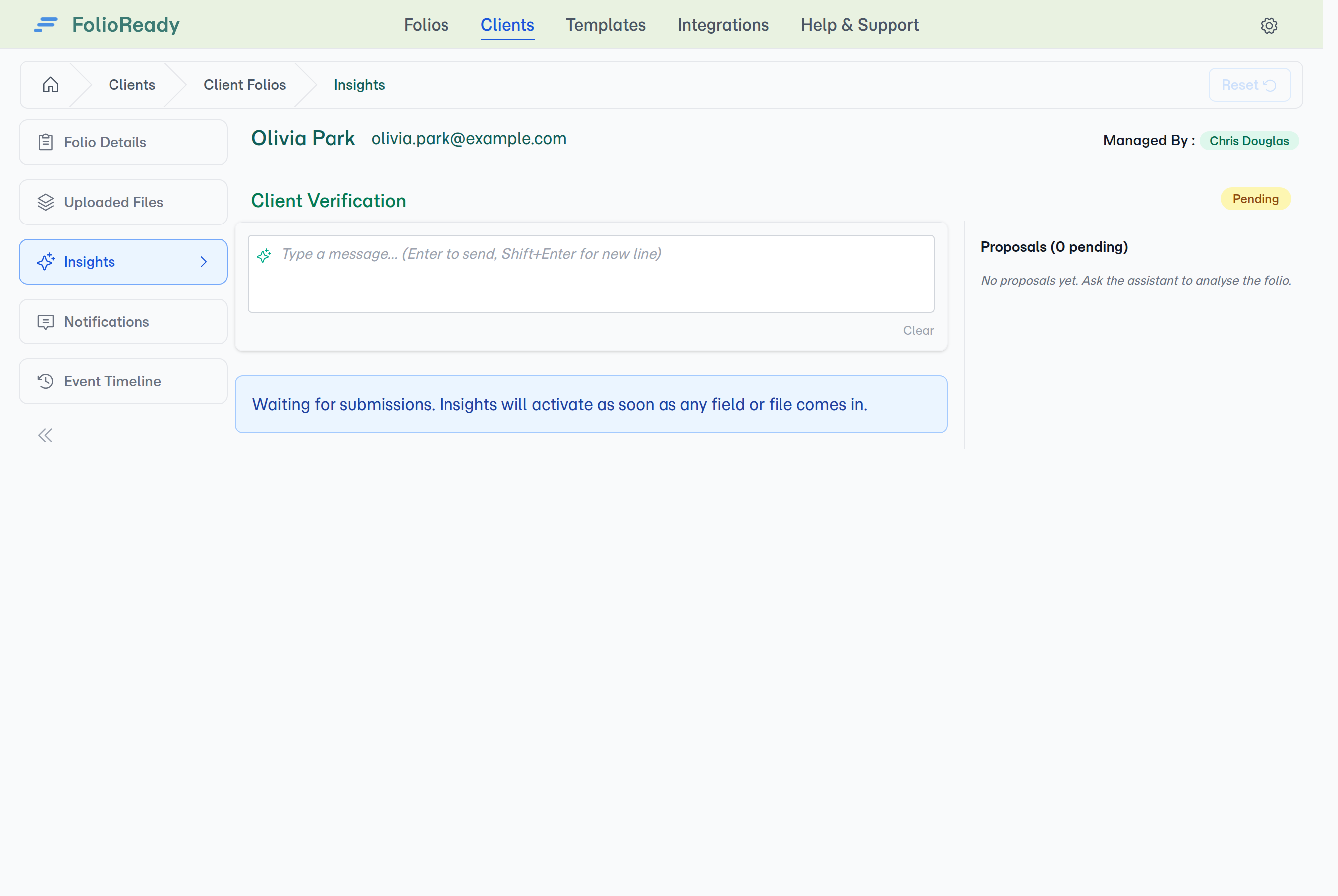
On any folio, the Insights tab sits alongside the usual detail view. If the folio doesn't have any uploaded documents yet, you'll see a "Waiting for submissions" empty state — Insights needs files to work with.
2. Pick a starter question, or ask your own
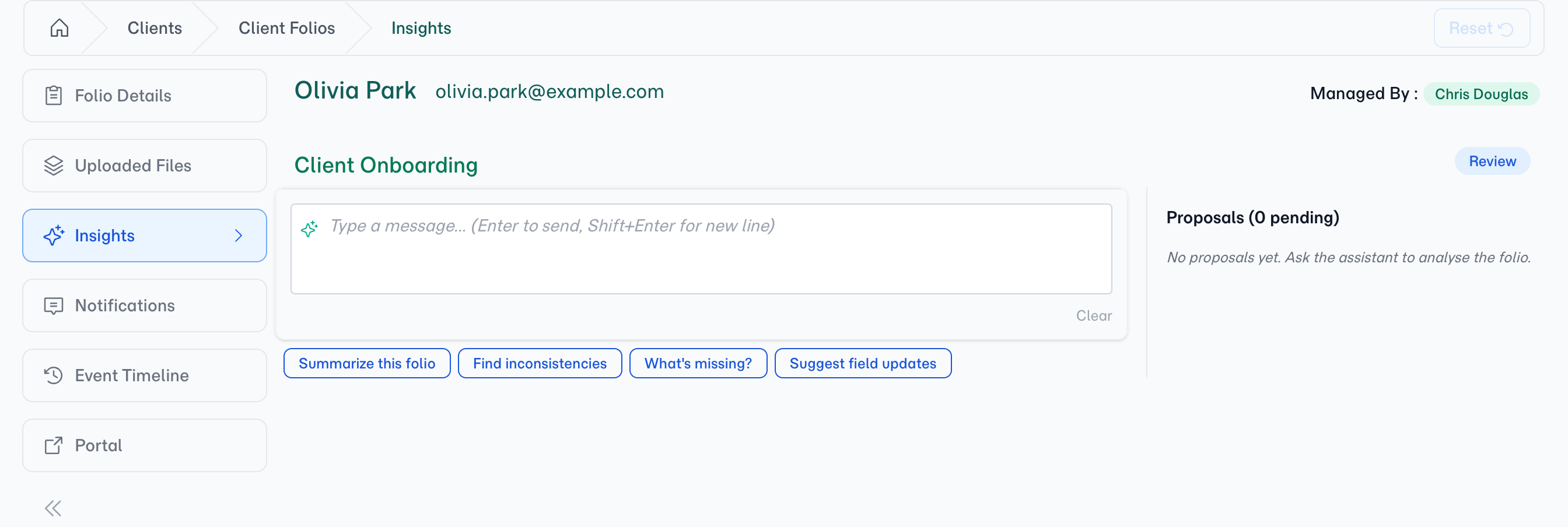
The tab opens with a few starter chips to get you going — common questions like "Summarise this folio" or "What's missing?". Tap one, or type your own question. Anything you'd ask a colleague who had just finished reading the files, you can ask Insights.
3. FolioReady reads the documents
Before the AI answers your first question, it summarises every file on the folio in the background. You'll see a progress indicator as each file is processed. Summaries are cached, so subsequent questions on the same folio are answered instantly — FolioReady only re-reads files that have actually changed.
4. Get a reply and proposals
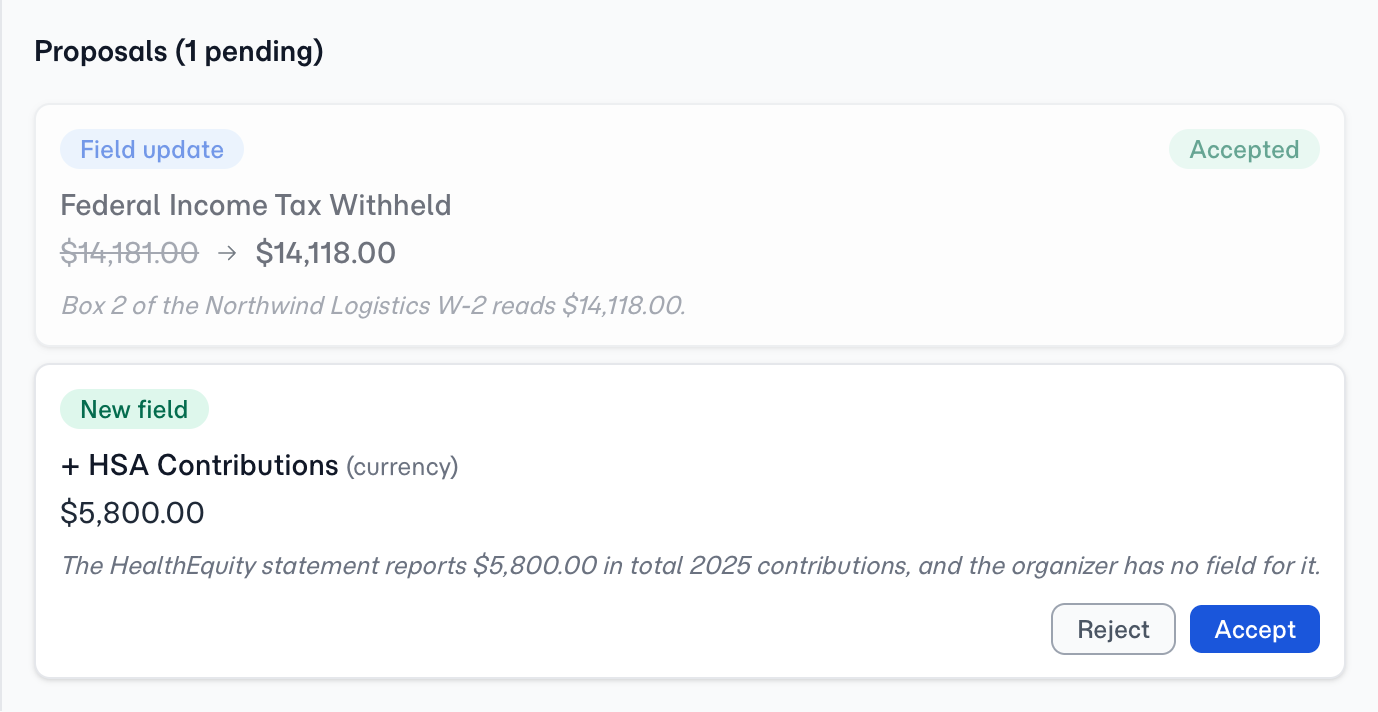
The AI replies in the chat panel. Alongside the reply, if the documents suggest specific field updates, you'll see proposal cards on the right:
| Proposal kind | What it does |
|---|---|
| Field update | Suggests a new value for a field that already exists on the folio |
| Field add | Suggests adding a field that wasn't on the folio's template |
Each proposal shows what's being changed, the supporting evidence from the documents, and two buttons: Accept or Reject.
5. Accept, reject, or keep asking
Accept a proposal and the field is updated immediately, with an audit entry recorded. Reject it and the card is dismissed. You can keep asking follow-up questions — refining the AI's understanding, pushing back on a suggestion, or exploring a different angle on the same documents.
Configuration
Insights uses your company's AI provider setup, with two separate action slots:
| Setting | What it controls |
|---|---|
| Insights model | The model used for conversational replies and proposal generation |
| Insights synopsis model | The model used to summarise each file in the background |
Both can be configured per company under Settings → AI. If you don't set them, Insights falls back to your default AI model. Usage counts against your company's AI usage limit, the same as extraction does.
Tips
- Best for folios with multiple documents. The more material the AI has to work with, the more useful its answers become. A folio with a single name-and-address form won't surface as much as a folio with a full client file.
- Proposals are audit-logged. Every accepted proposal writes an entry to the folio's event log, so you can always see which fields were changed via Insights and when.
- Rejected proposals aren't resurfaced. If you reject a suggestion, the AI won't propose the same change again in the same thread.
- The AI is advisory. It's a reading assistant, not an authority. Verify important values against the source documents before acting on them.
Related
- AI Automation — Automatic field extraction from uploaded documents when a folio is submitted
- Email Ingestion — Collect documents by email, then explore them with Insights