Each Wix site connects to one FolioReady account. If you manage multiple sites, each one has its own connection.
Connecting...
Tags:
website-builder
embed
Wix Integration
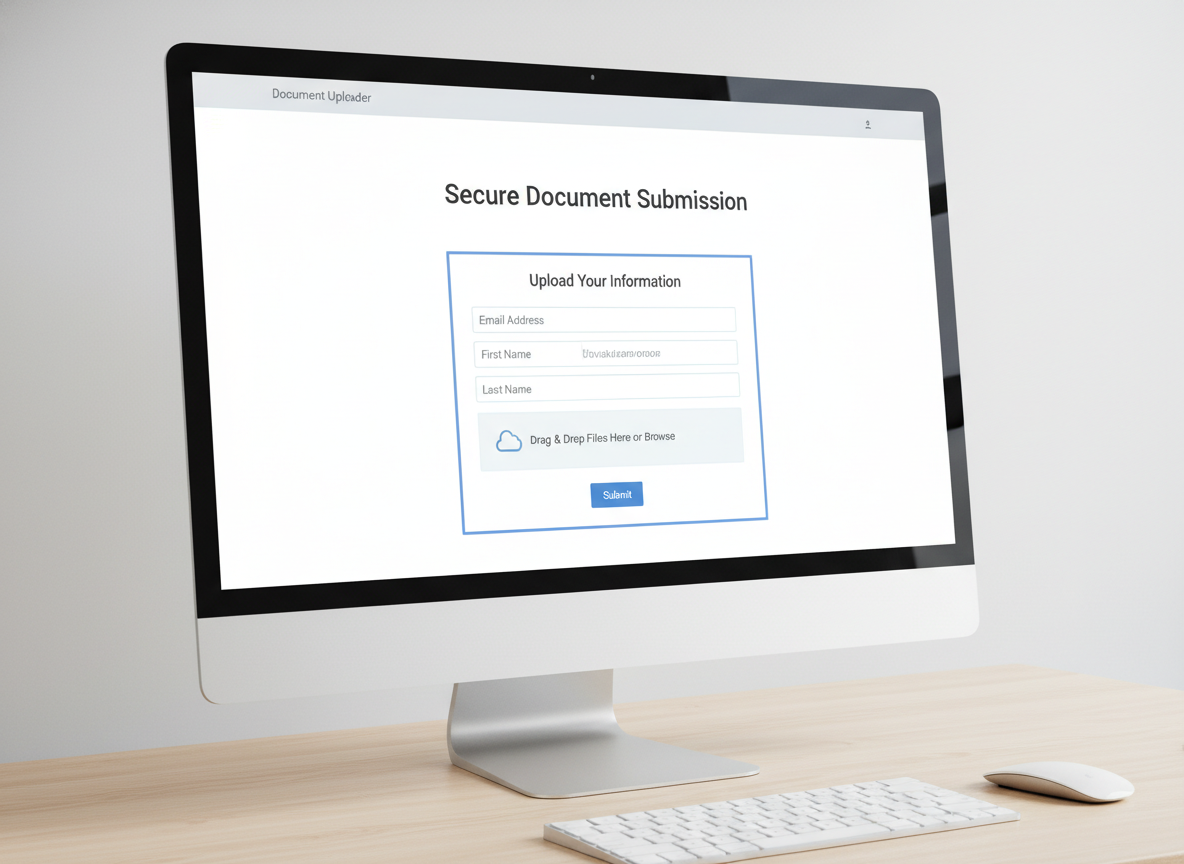
Embed FolioReady directly on your Wix website. Visitors fill out your document collection form without leaving your site, and you manage submissions from a dashboard inside your Wix admin.
Why Embed on Your Wix Site?
Keep clients on your website
Sending clients to a separate portal means extra steps and drop-offs. An embedded form on your Wix site keeps the experience seamless — clients see your brand and submit documents without leaving your page.
Manage submissions without leaving Wix
The built-in dashboard inside your Wix admin gives you a live view of every submission, its status, and the client who sent it. You can check on submissions without switching between tools.
No code, no maintenance
The FolioReady app installs from the Wix App Market like any other Wix app. Drag the element onto your page and publish — your default template loads automatically. Updates happen in the background.
Prerequisites
- A Wix website
Installing the App
Step 1: Add FolioReady from the Wix App Market
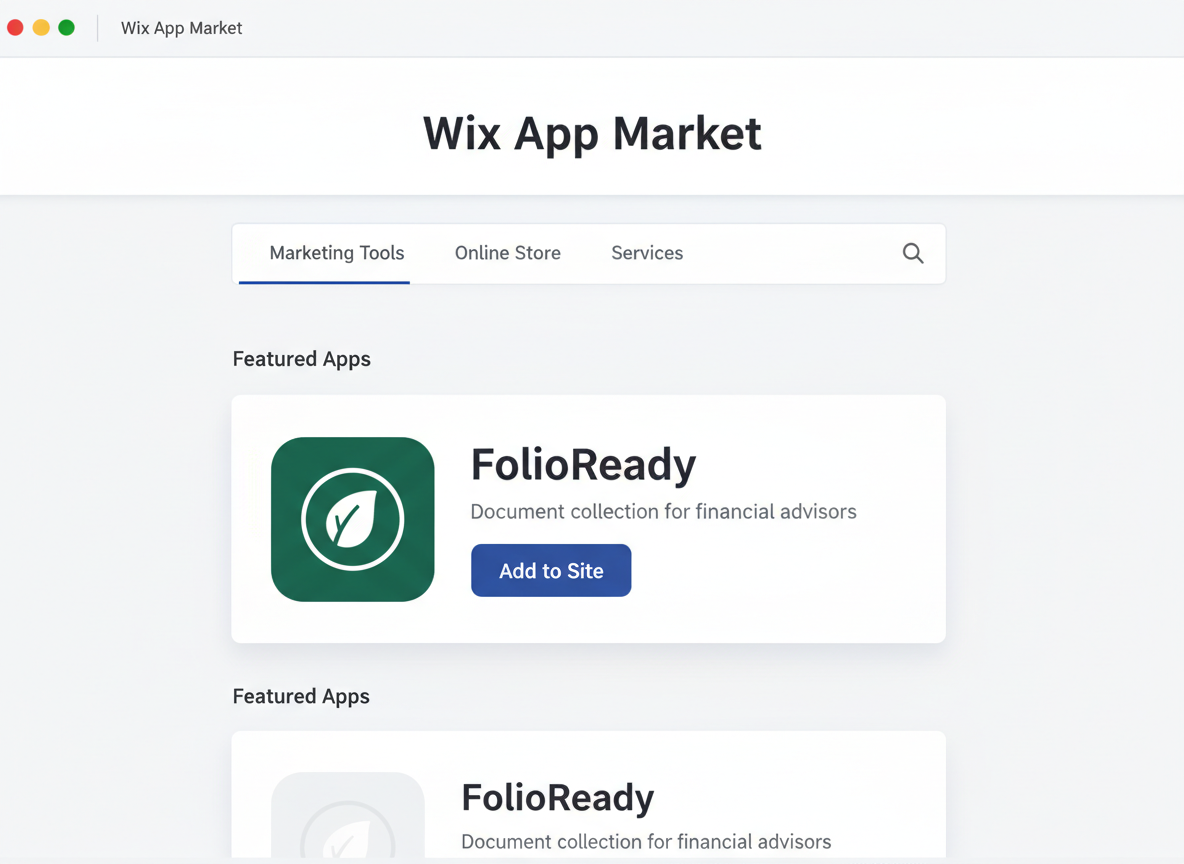
Find FolioReady in the Wix App Market and click Add to Site. Wix redirects you to authorize FolioReady.
Step 2: Authorize FolioReady
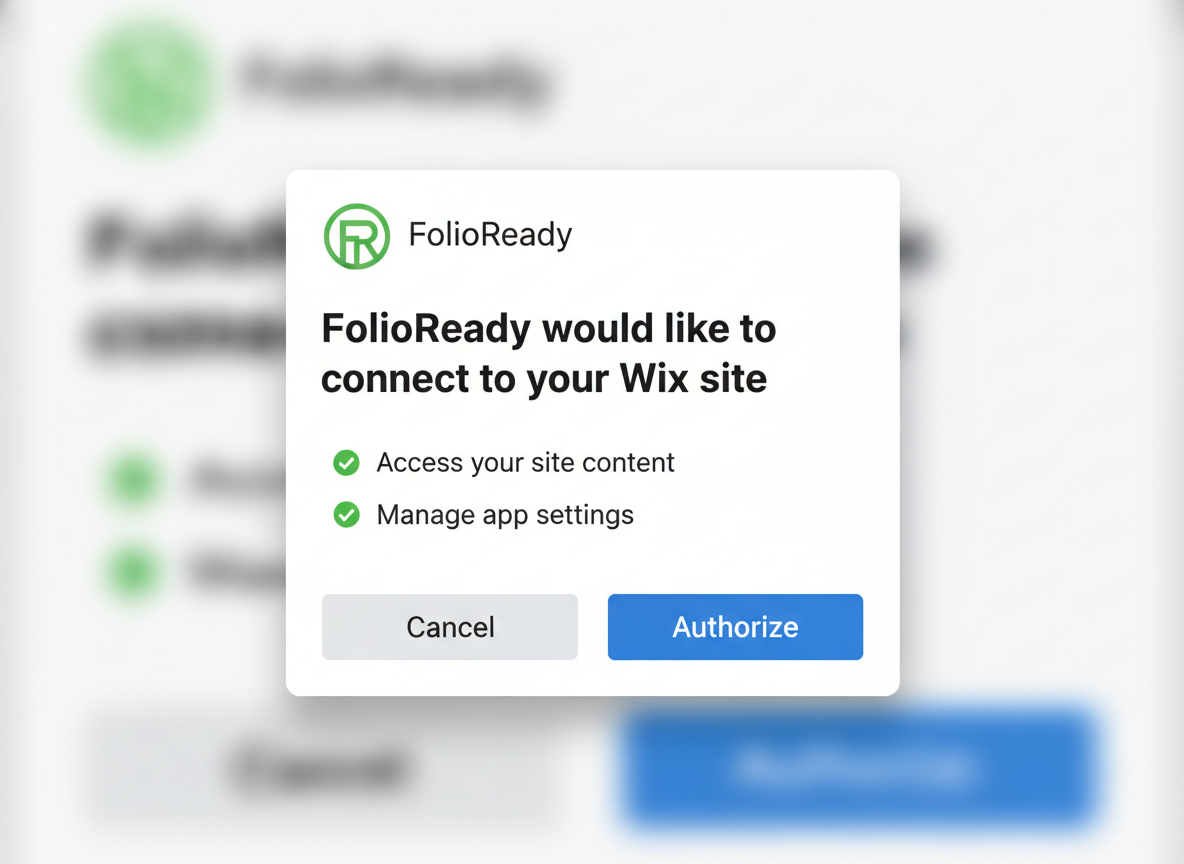
Sign in to your FolioReady account (or create one) and authorize the connection. Once authorized, you are redirected back to your Wix dashboard.
One app per site
Adding the Collector to Your Page
Step 3: Add the FolioReady Element
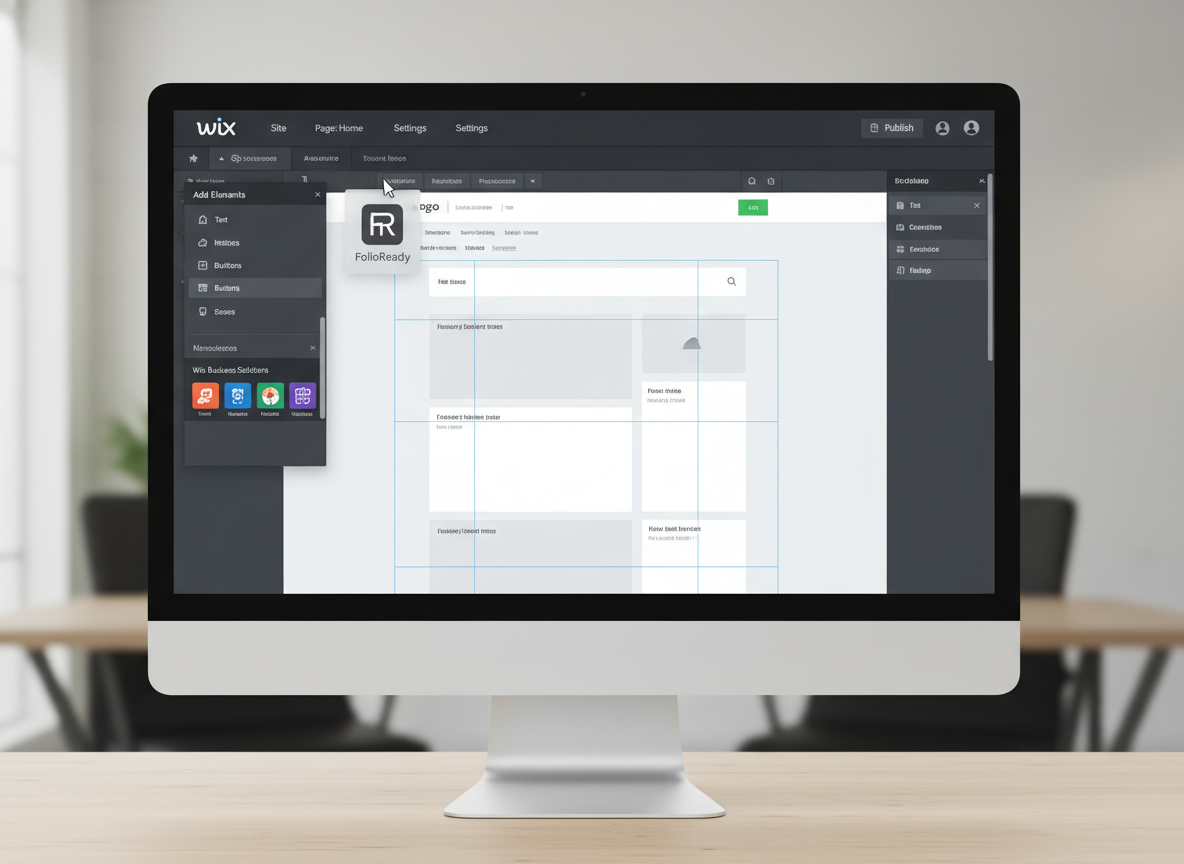
Open the Wix editor for your site. Add the FolioReady element to the page where you want clients to submit documents.
Step 4: (Optional) Choose a Different Template
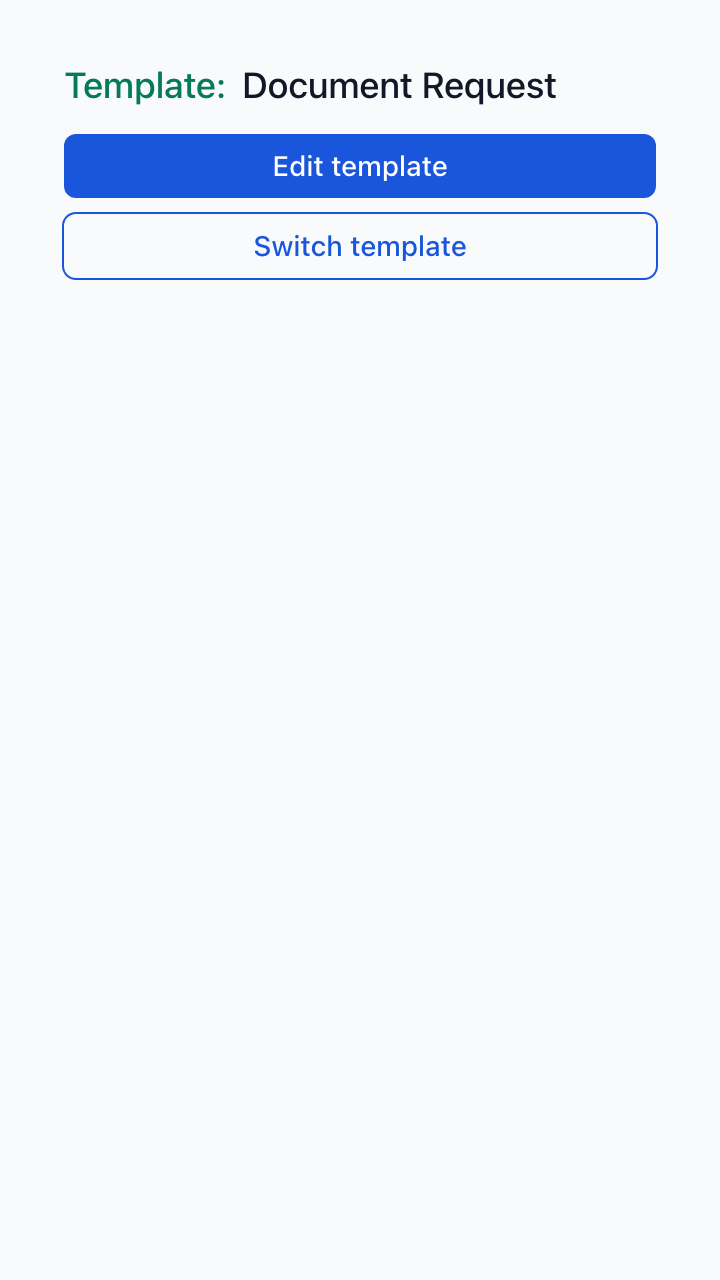
The element loads your default Document Request template automatically — no setup needed. If you have multiple templates and want this element to use a specific one, click the FolioReady element and open its Settings panel.
The panel shows what the element is currently bound to and lets you:
- Switch template — pick from your published templates
- Edit template — open the FolioReady builder in a new tab to refine the form (you can describe the changes in plain English and let AI update it for you)
Step 5: Publish Your Site
Publish your Wix site to make the form live. Visitors can now fill out your document collection form directly on your website.
Using the Dashboard
FolioReady includes a dashboard inside your Wix admin where you can view and manage document submissions without leaving Wix.
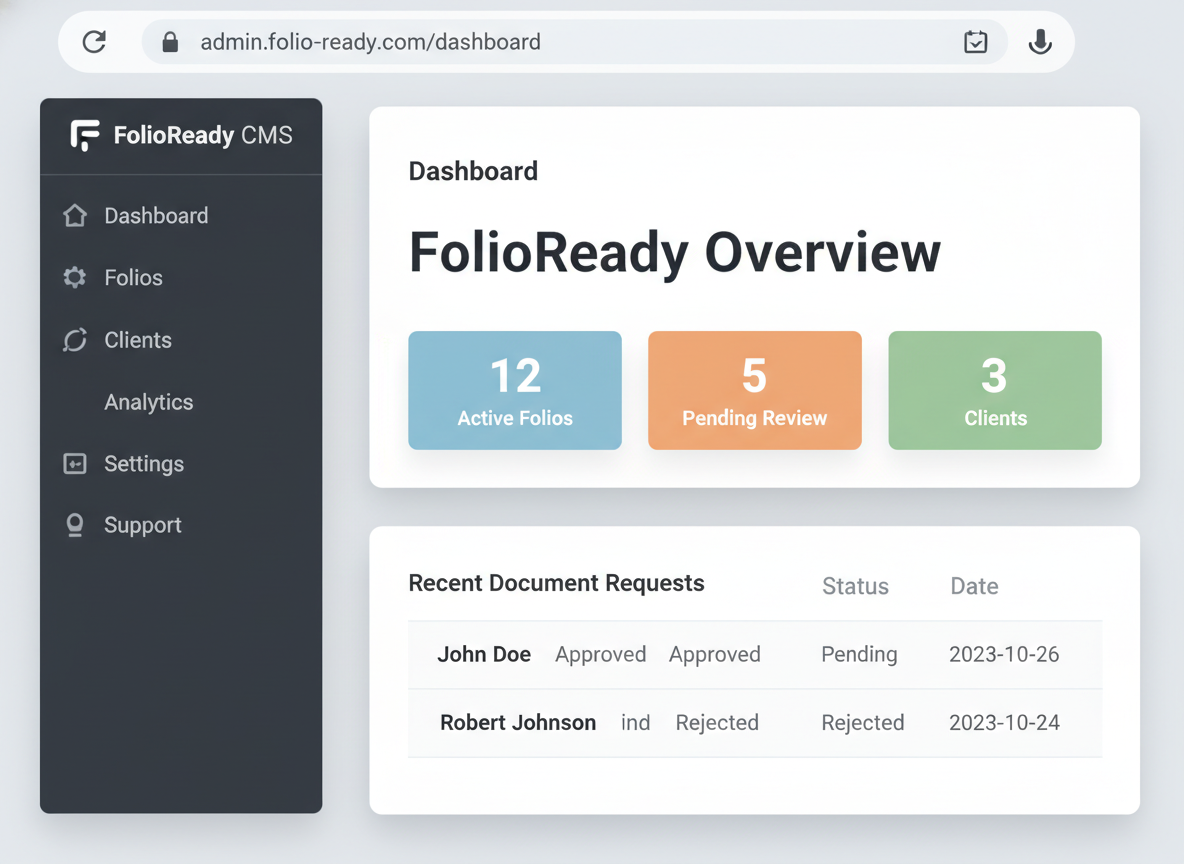
The dashboard shows a table of all folio submissions with their status, client name, email, date, and file count. Status indicators show where each submission stands:
| Status | Meaning |
|---|---|
| Pending | Waiting for the client to submit |
| Update | Client has been asked for additional information |
| Review | Submission received, ready for your review |
| Accepted | Submission approved |
| Expired | Submission window has passed |
| Closed | Submission closed |
Click Details on any row to open the full submission in FolioReady.
The dashboard menu provides quick navigation to your FolioReady account:
- All Clients — view and manage your client list
- Folio Uploads — see all document submissions
- Template Design — edit your form template
- Website Code — get the template code for your Wix element
How It Works
  Visitor                 Your Wix Site            FolioReady
    │                         │                        │
    │   Visits your page      │                        │
    ├────────────────────────►│                        │
    │                         │                        │
    │   FolioReady element    │   Loads form design    │
    │   renders form          │◄──────────────────────►│
    │                         │                        │
    │   Fills out form and    │                        │
    │   uploads documents     │                        │
    ├────────────────────────►│                        │
    │                         │                        │
    │                         │   Saves submission     │
    │                         ├───────────────────────►│
    │                         │                        │
    │   Confirmation shown    │       ✓ Stored         │
    │◄────────────────────────┤◄───────────────────────┤
    │                         │                        │
When a visitor opens your page, the FolioReady element loads your form design and displays it inline. The visitor fills out the form and uploads any required documents. Submissions are saved to your FolioReady account in real time and appear in your Wix dashboard.
The collector adapts to the Wix environment automatically. In the editor, it shows a preview of your form. On your published site, it runs in full interactive mode.
Disconnecting
To remove FolioReady from your Wix site:
- Open your Wix dashboard
- Go to Manage Apps
- Find FolioReady and click Remove
What happens when you disconnect
Your existing submissions and client data remain in your FolioReady account. Only the connection between your Wix site and FolioReady is removed. You can reinstall the app at any time to reconnect.
Troubleshooting
Form Not Showing on Published Site
Open the FolioReady element's Settings panel in the Wix editor and confirm the Current screen shows a template (it should auto-bind to your default). If it shows nothing, use Switch template to pick one from your published templates, then republish your site.
Dashboard Shows No Data
If the dashboard is empty after installing, check that you have created at least one folio template in your FolioReady account. The dashboard displays submissions — if no clients have submitted documents yet, the table will be empty.
"Reinstall the Wix App" Error in Dashboard
This means the connection between your Wix site and FolioReady could not be verified. Remove the FolioReady app from your Wix dashboard and reinstall it from the Wix App Market.
Navigation Links Open a Denied Page
Dashboard links to your FolioReady account use short-lived login tokens. If you click a link and see a denied page, the token may have expired. Return to the dashboard and click the link again.
Related
- WordPress Integration — Embed FolioReady on your WordPress website with the official block plugin
- Ghost Integration — Embed FolioReady on your Ghost website with a simple code snippet
- Google Drive Integration — Automatically store client files in your Google Drive
- Dropbox Integration — Store client files in your Dropbox with managed access