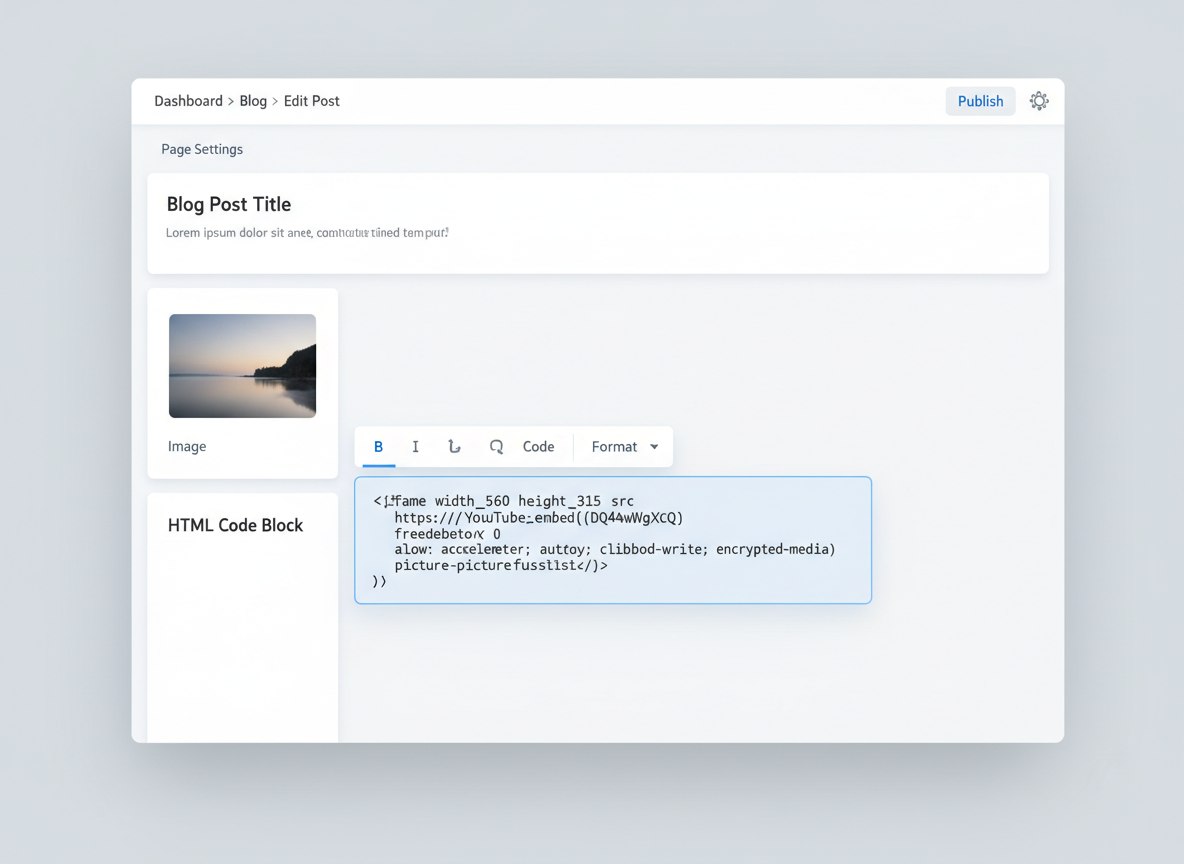
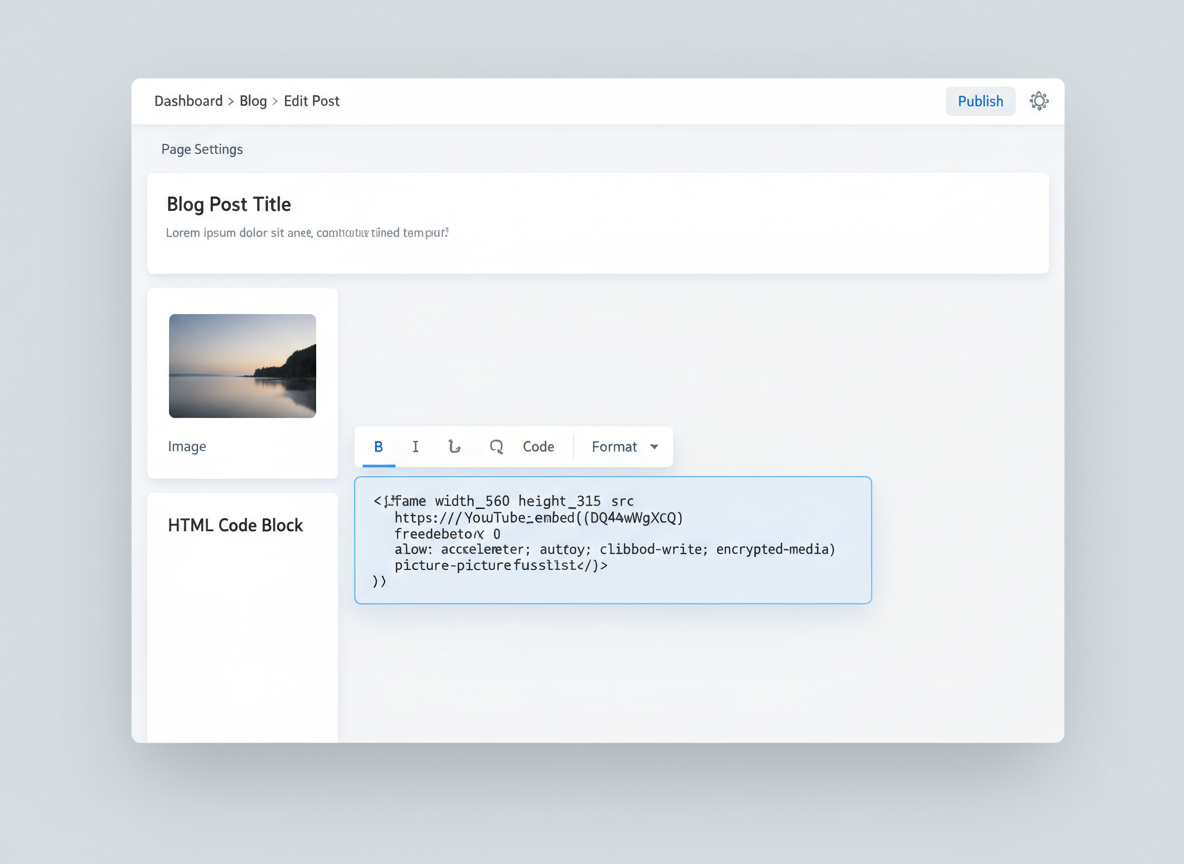
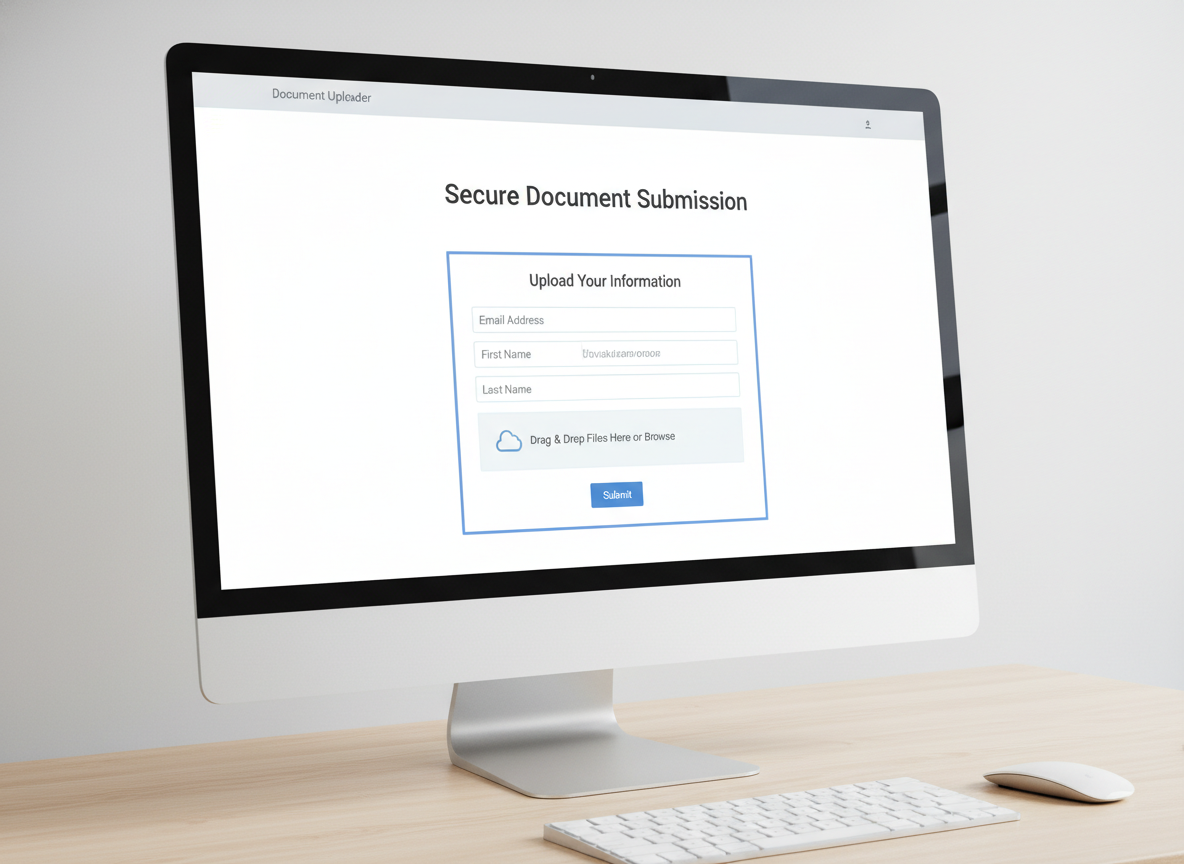
Once you enter your template code, a preview of your form appears directly in the editor.
Connecting...
Tags:
website-builder
embed
WordPress Integration
Embed FolioReady directly on your WordPress website using the official block plugin. Visitors fill out your document collection form without leaving your site, and submissions go straight to your FolioReady account.
Why Embed on Your WordPress Site?
Keep clients on your website
When you send clients to a separate portal, some never make it there. An embedded form on your own site means fewer drop-offs — clients see your branding, your domain, and a familiar experience. They fill out the form right where they already are.
No development required
The FolioReady block works like any other WordPress block. Drop it onto a page, enter your template code, and publish. There is no custom code, no iframe sizing, and no theme conflicts to debug.
Submissions managed in one place
Everything your clients submit flows into your FolioReady account automatically. You don't need to check WordPress for new entries — your existing FolioReady workflow handles it all.
Prerequisites
- A WordPress website (version 6.7 or later)
Installing the Plugin
Step 1: Install from WordPress
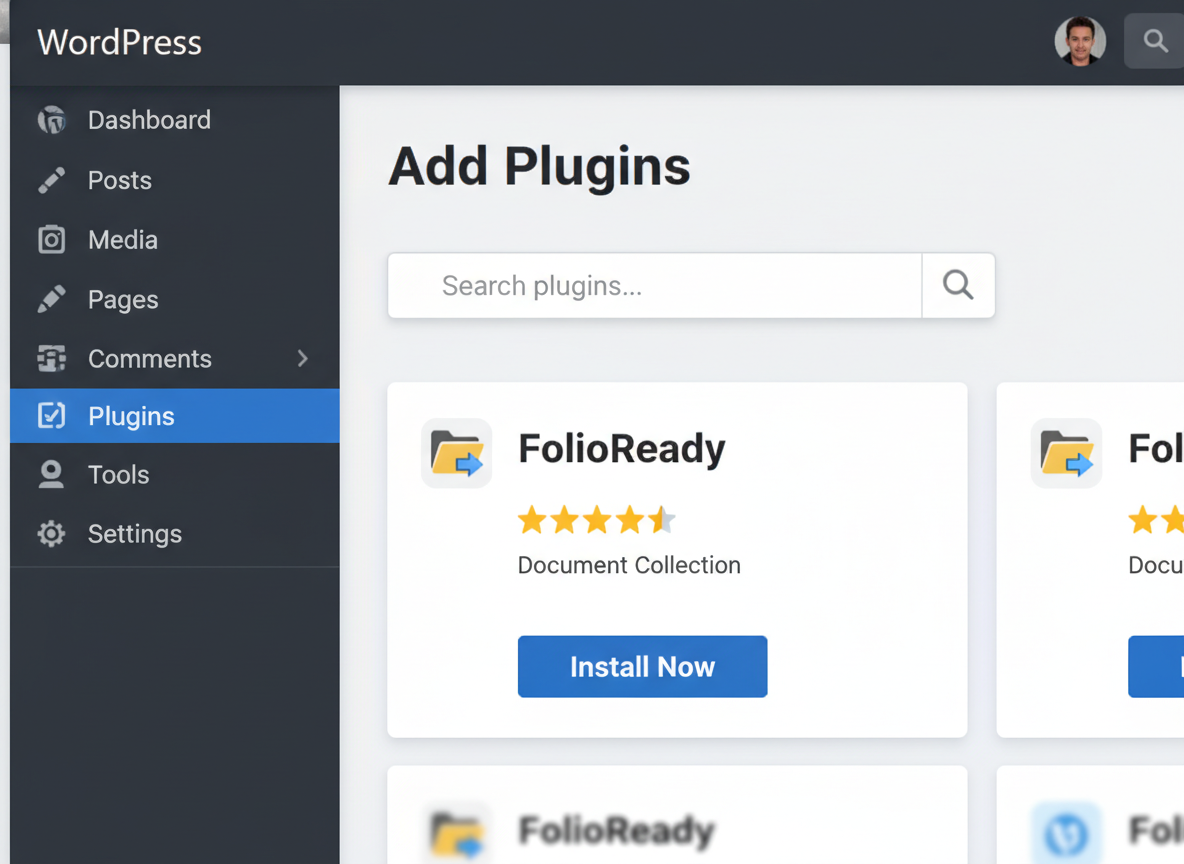
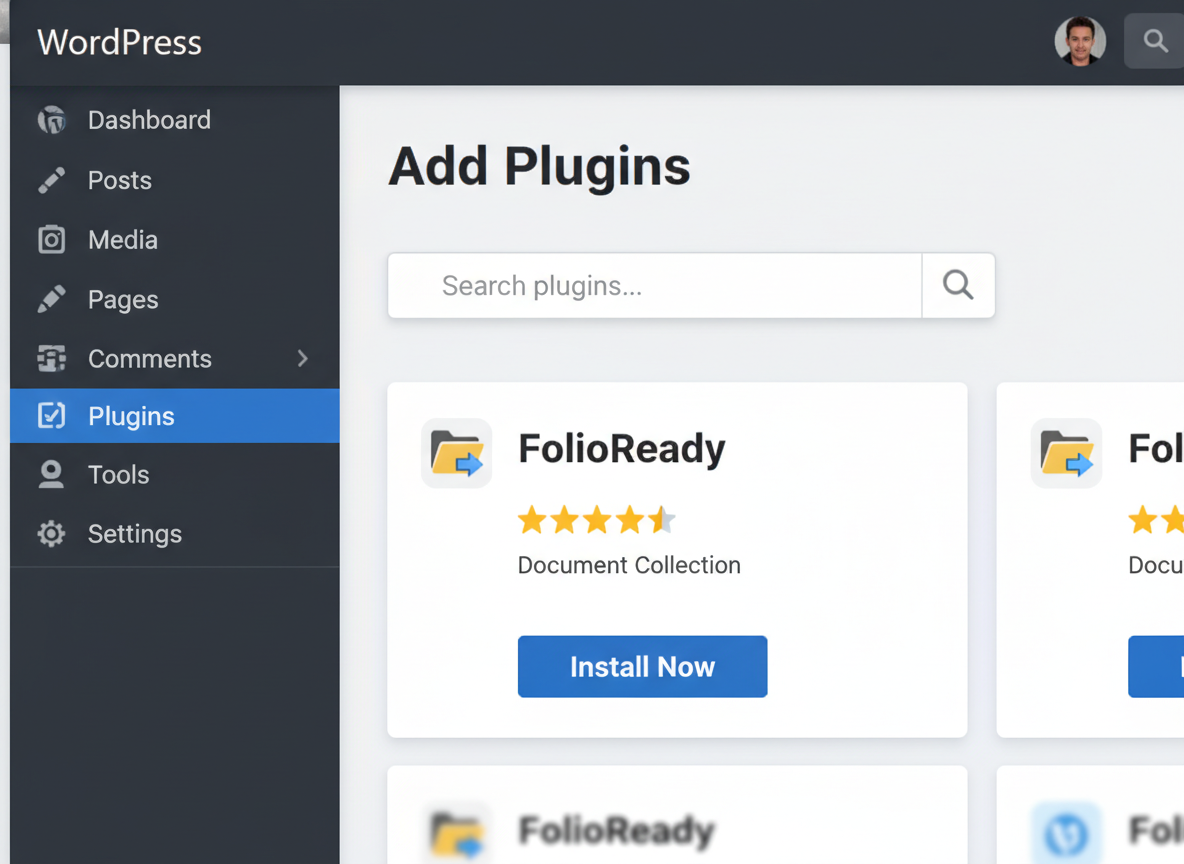
In your WordPress admin, go to Plugins → Add New Plugin and search for FolioReady. Click Install Now, then click Activate.
Alternatively, download the plugin ZIP file and upload it via Plugins → Add New Plugin → Upload Plugin.
Step 2: Activate the Plugin
If you haven't already, go to Plugins → Installed Plugins, find FolioReady, and click Activate.
Adding to Your Page
Step 3: Add the FolioReady Block
Create or edit a page or post. Click the + block inserter button and search for FolioReady. Add the block to your page.
Step 4: Enter Your Template Code
Click the FolioReady block and open the Settings sidebar. Enter your FolioReady template code — this is the unique identifier for your form design.
You can find your template code in your FolioReady account under Template Design → Website Code.
Live preview
Step 5: Publish Your Page
Publish your page to make the form live. Visitors can now fill out your document collection form directly on your website.
How It Works
  Visitor               Your WordPress Site        FolioReady
    │                         │                        │
    │   Visits your page      │                        │
    ├────────────────────────►│                        │
    │                         │   Loads form design    │
    │   FolioReady block      │◄──────────────────────►│
    │   renders form          │                        │
    │                         │                        │
    │   Fills out form and    │                        │
    │   uploads documents     │                        │
    ├────────────────────────►│                        │
    │                         │   Saves submission     │
    │                         ├───────────────────────►│
    │                         │                        │
    │   Confirmation shown    │       ✓ Stored         │
    │◄────────────────────────┤◄───────────────────────┤
    │                         │                        │
When a visitor opens your page, the FolioReady block loads your form design and displays it inline. The visitor fills out the form and uploads any required documents. Submissions are saved to your FolioReady account in real time.
You manage all submissions from your FolioReady account — there is no admin interface inside WordPress.
Removing the Plugin
To remove FolioReady from your WordPress site:
- Go to Plugins → Installed Plugins
- Click Deactivate on FolioReady
- Click Delete
What happens when you remove the plugin
Your existing submissions and client data remain in your FolioReady account. Only the plugin is removed from your WordPress site. You can reinstall it at any time.
Troubleshooting
Block Not Showing in the Editor
Make sure the FolioReady plugin is activated in Plugins → Installed Plugins. The block requires WordPress version 6.7 or later — check your WordPress version in Dashboard → Updates.
Form Not Loading on Published Page
Verify that you have entered a valid template code in the block's settings sidebar. The code must match a template in your FolioReady account. Open the page in the editor, click the FolioReady block, and check the settings panel.
Template Code Not Working
Make sure you are using the correct template code from your FolioReady account. Go to Template Design → Website Code to find your code. Copy and paste it exactly — do not add extra spaces or characters.
Related
- Ghost Integration — Embed FolioReady on your Ghost website with a simple code snippet
- Wix Integration — Embed FolioReady on your Wix website with the marketplace app
- Google Drive Integration — Automatically store client files in your Google Drive
- Dropbox Integration — Store client files in your Dropbox with managed access