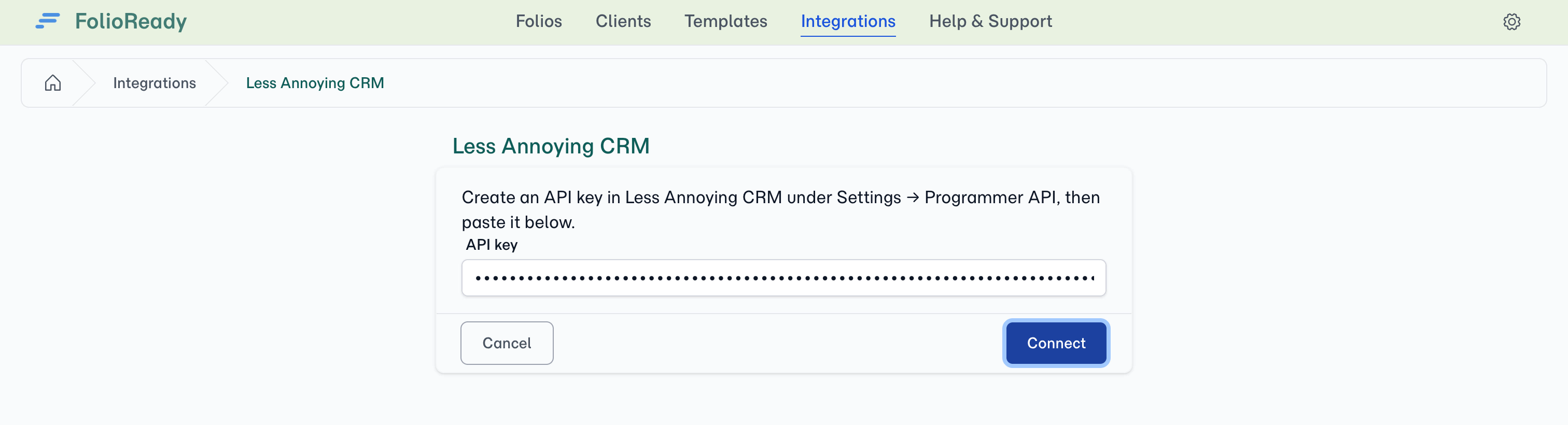
Once stored, your key is never shown again — not masked, not partially, not at all. To change it, press Replace key and paste a new one. There is nothing to copy back out, which is exactly the point.
Connecting...
Less Annoying CRM Integration: One Key, and the Documents Land Too
Less Annoying CRM is our sixth CRM connection, and everything a folio collects goes back to one record. Collected values write onto the contact's custom fields, each document's AI summary is posted as a note, and a copy of the file is attached to the contact — so the paperwork ends up on the record you already open, not in a second place you have to remember to check.
Connecting takes a pasted key. No redirect, no consent screen, no admin approval to chase.
What's New
Connect by pasting an API key
Create a key in Less Annoying CRM under Settings → Programmer API, then open Settings → Integrations in FolioReady, find Less Annoying CRM, and press Connect. Paste the key and FolioReady checks it against your CRM straight away — on success the page shows Connected along with the name and email of the account the key belongs to. If the key is wrong or has been revoked, the page tells you and nothing is saved, so you can just try again.
🔒
The key is write-only
Import contacts from the Clients page
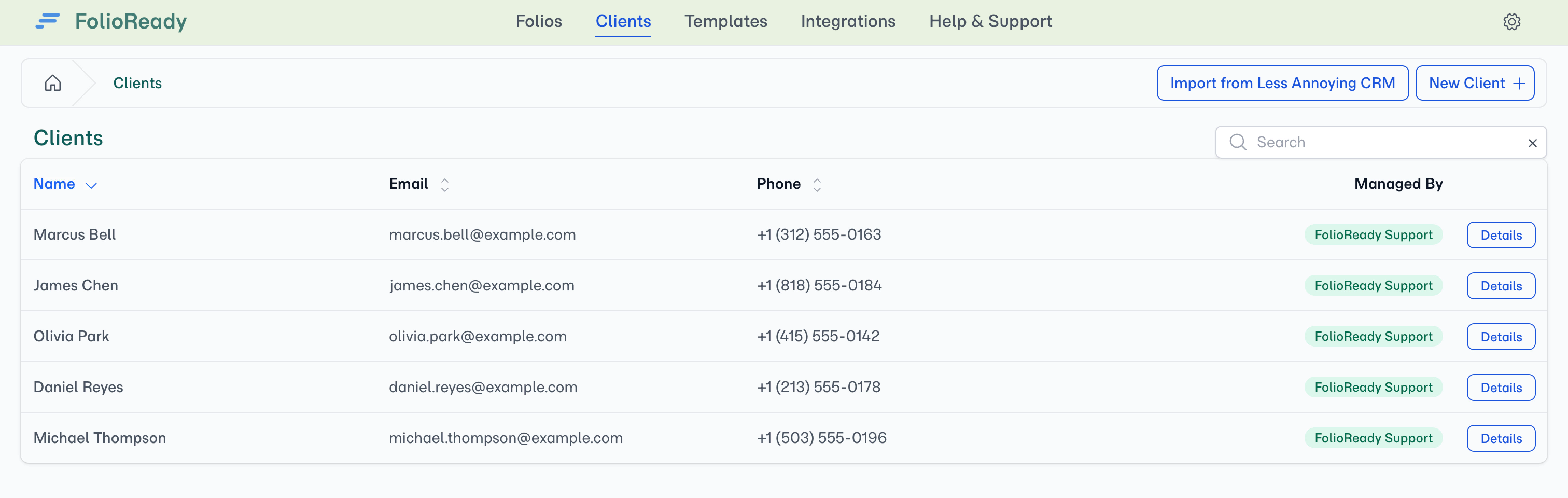
Once connected, an Import from Less Annoying CRM button appears on the Clients page. Search your contacts by name or email, press Link to Less Annoying CRM on the right row, and the contact becomes a FolioReady client with their name and email filled in.
💡
No duplicates
Importing someone you already have opens the client you already have and links them — including a client you added by hand under the same email address.
Folio values write onto contact custom fields
In the template builder, open the sync settings on any canvas field and pick the custom field on the contact its value should be written to. FolioReady reads the custom field list straight from your account, so what you see is what your CRM actually has. When a client completes the folio, the values are written across.
Create a custom field without leaving the builder
If the field you want doesn't exist yet, press Create field. FolioReady creates it on the contact in Less Annoying CRM and selects it for you, choosing the type to match what the folio collects:
| What the folio collects | Custom field created |
|---|---|
| A short answer | Text |
| A long answer | Text Area |
| A number | Number |
| A date | Date |
Document summaries arrive as notes
FolioReady's AI reads each collected document and writes a short summary. That summary is posted as a note on the contact, so the record carries both what arrived and what it said. Less Annoying CRM notes are plain text, so we send plain text — no stray formatting characters cluttering your CRM.
The documents themselves, attached to the contact
Every collected file is uploaded onto the contact as an attachment. Not a link, not a summary — the file itself, sitting alongside everything else you keep on that contact.
Two things worth knowing. It's a copy, never a move: your original stays wherever FolioReady already keeps it, so your document store is unaffected. And mirroring is its own switch, not a storage choice — with Pipedrive or Attio, files reach the CRM by picking that CRM as your storage destination instead of Google Drive or Dropbox, whereas here the copy goes to the contact alongside whatever file store you already use.
Three switches decide what reaches your CRM
The connection carries a switch for each kind of write — field values, document notes, and mirrored documents. All three start on. Turn any of them off and that kind of write stops while the others carry on; turning one back on affects new activity only, so nothing is backfilled.
How to Use It
- In Less Annoying CRM, create a key under Settings → Programmer API
- In FolioReady, go to Settings → Integrations → Less Annoying CRM and press Connect
- Paste the key
- From Clients, press Import from Less Annoying CRM and link a contact
- Open a template in the builder, go to Settings, and set Document Target to Contact
- Map canvas fields to the contact's custom fields
- Send the folio — values, summaries and documents all file against the contact as they arrive
⚠️
No target, no sync
A new template starts on No CRM sync and writes nothing until you set its target. If you've connected the integration and nothing is arriving, that's the first thing to check.
What's Improved
Each CRM shows only the switches it can act on
Sync switches are now specific to the CRM you've connected, rather than a fixed list. Less Annoying CRM shows all three because it can perform all three; the CRMs that reach your files through the storage setting instead show the two that apply to them, rather than a switch that would quietly do nothing.
The builder tells you when a template still needs a CRM target
When your company has a CRM connected but the open template hasn't been pointed at it yet, the builder's Settings button reads Connect CRM — naming the job that's outstanding rather than leaving you to find it.
Your CRM's own words when a field can't be created
If Less Annoying CRM refuses to create a custom field, you now see the reason it gave rather than a generic failure message.
Integration cards line up
The cards on the Integrations page share a row height, so the grid stays tidy however long each description runs.
What's Fixed
Uploading from two windows at once
If you had the same folio open in more than one window or tab, an upload in one could be recorded by the others — counting the file twice and marking the wrong section as submitted. Each upload is now handled only by the window that started it.
A failed upload says what went wrong
When a document can't be processed, the reason is now recorded against the event instead of the row simply stopping, so the folio's timeline shows why.
Related
- Less Annoying CRM Integration — Full setup guide, sync switches, field mapping, and troubleshooting
- Attio Integration — The CRM before this one, on the same search-and-sync pattern
- HubSpot Integration — Contact and Deal property mapping with the same field-sync mechanism