HubSpot Integration: CRM-Native Contacts and Deals
HubSpot is our fourth CRM integration, and it ships with the full contact workflow on day one. Connect your HubSpot portal, import contacts straight into FolioReady, and map folio fields to HubSpot Contact and Deal properties so the data clients submit writes back onto the records your team already works from.
FolioReady keeps custom properties tidy, too — everything we create lives in a dedicated "FolioReady" property group so your HubSpot admins always know where our fields came from.
What's New
Connect your HubSpot portal in a few clicks
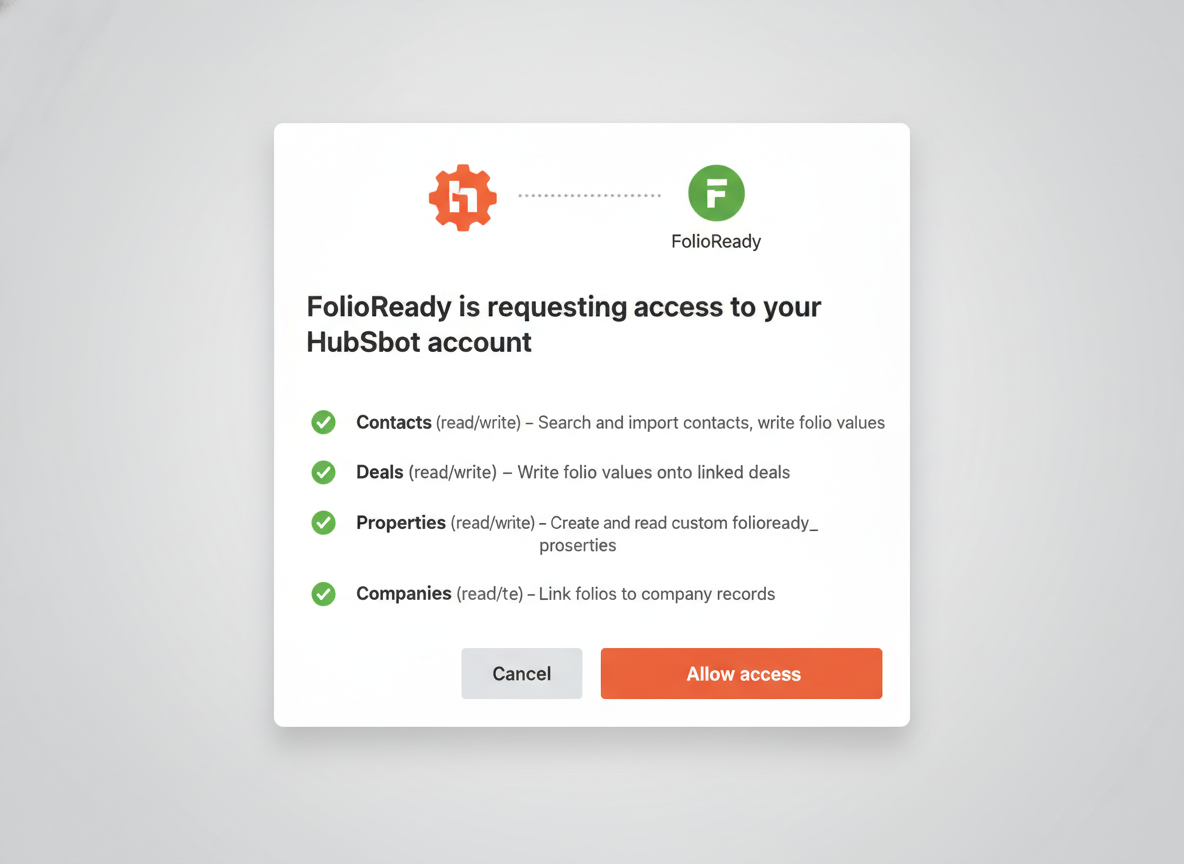
Head to Integrations → HubSpot and click Connect. You'll approve FolioReady's access inside HubSpot's own consent screen, and you're in. A single connection per company means your whole team shares one authorised portal — no per-user setup.
Contact search and import
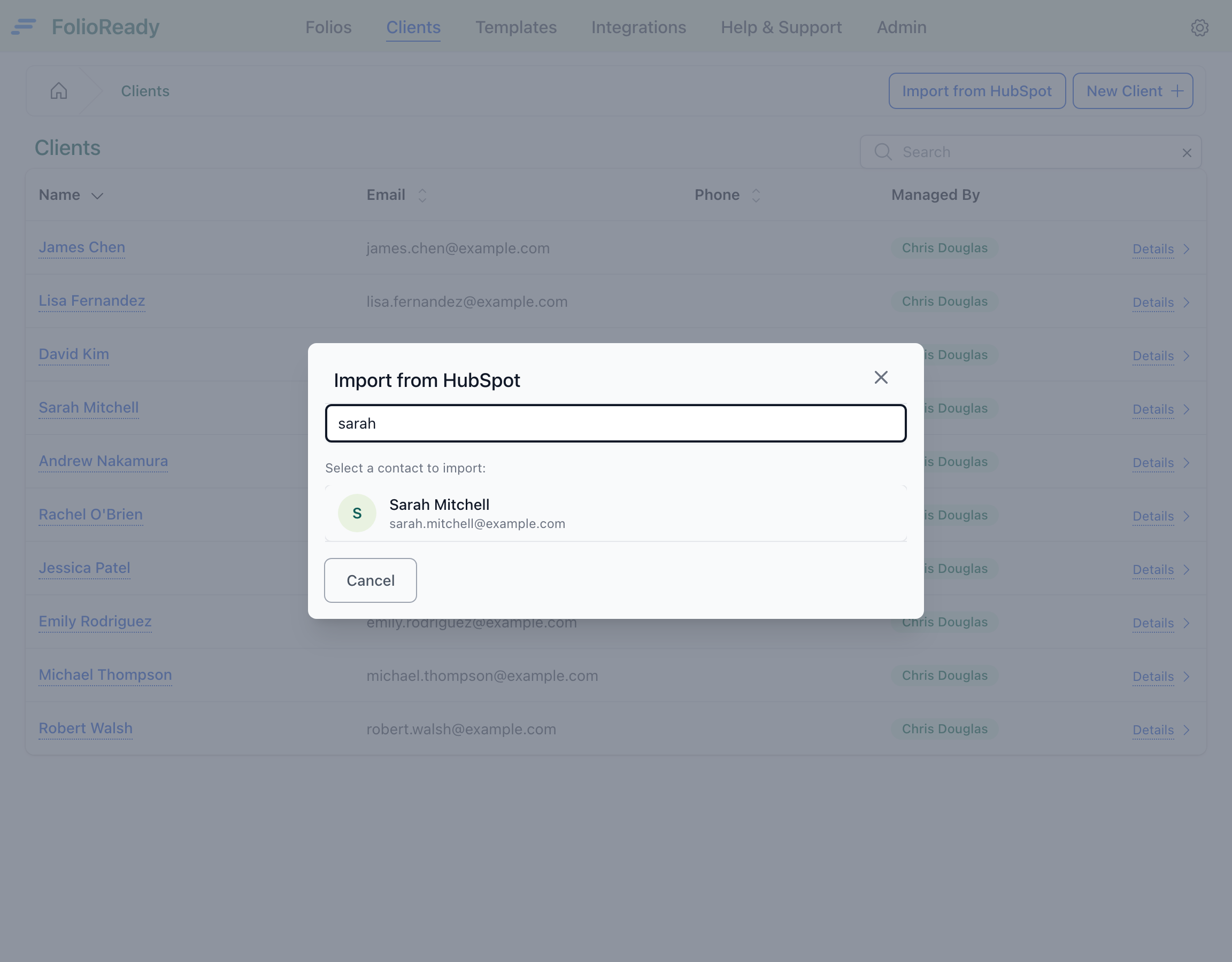
A new Import from HubSpot button on the Clients page opens a search modal. Type a name or email, see matching HubSpot contacts, and click to import. The contact becomes a FolioReady client with their name and email pre-filled — and the link between the two records is preserved for every future folio.
Map folio fields to HubSpot properties
In the template builder, every canvas field can be mapped to a HubSpot Contact or Deal property. When a client completes a folio, FolioReady writes each collected value onto the linked HubSpot record — no manual re-entry, no copy-paste.
Create custom properties without leaving FolioReady
Need a custom field on the HubSpot side? Click Create field in the builder's sync settings and FolioReady creates it in HubSpot for you, under a dedicated "FolioReady" property group. Your HubSpot admins can always tell at a glance which properties came from us, and nothing gets created twice if you map the same field from multiple templates.
Stays connected automatically
HubSpot's OAuth tokens expire on a schedule, but you'll never see it. FolioReady refreshes them in the background. If access is genuinely revoked — someone removed the FolioReady app from HubSpot, for example — you'll see a clear "Reconnect HubSpot" prompt instead of a confusing error.
How to Use It
- Go to Integrations → HubSpot
- Click Connect and approve access in HubSpot
- From Clients, click Import from HubSpot
- Search for a contact, click Import
- In the template builder, map canvas fields to HubSpot Contact or Deal properties
- Submit a folio — the collected values appear on the linked HubSpot record
What's Improved
A consistent experience across CRMs
HubSpot joins Pipedrive, Salesforce, and Intercom on the same search-and-import pattern: a company-wide connection and contact search from the Clients page that works the same no matter which CRM you use. Improvements we make to one flow carry across to the others.
Field-level sync in the template builder
HubSpot shares Pipedrive's field-sync mechanism — pick which template fields write onto which HubSpot Contact or Deal properties, and every submitted folio updates the linked HubSpot record automatically. Salesforce and Intercom currently support search and import only; field sync is on the roadmap for both.
Property bookkeeping you don't have to maintain
Custom properties created from FolioReady are tracked so we never create the same field twice, even if multiple templates map the same FolioReady field to the same HubSpot property. Your HubSpot schema stays clean.
Related
- HubSpot Integration — Full setup guide with permissions, property mapping, and sync behaviour
- Pipedrive Integration — The original CRM workflow this pattern is built on
- Salesforce Integration — Same search/import flow, different CRM