Verification emails the address you hold for the client — not one they type in. If that address is out of date, the code goes to the wrong inbox and your client can't get in. It's worth a glance at the client's record before sending a form to someone you haven't dealt with in a while.
Connecting...
Portal Email Verification
A portal link is a plain URL. It gets forwarded to a spouse, sits in an inbox for months, and opens on any device that happens to have it — which is why FolioReady has never shown real client data on one. That kept the data safe, but it made for an odd experience: a client opening their own form saw their own details starred out.
Portal Email Verification settles both ends of that trade. Someone who just has the link sees your branded form with nothing in it. A client who proves they control the email address you hold on file sees their real details, exactly as you have them.
Why use it
A forwarded link gives nothing away
Possession of the link stops being proof of anything. Whoever opens it gets your form's title, your branding, and your questions — none of which are secret — and no name, no email, no phone number, no uploaded documents. If a client forwards their link to the wrong person, or leaves it open on a shared laptop, there's nothing on screen to find.
Your client sees their real details, not asterisks
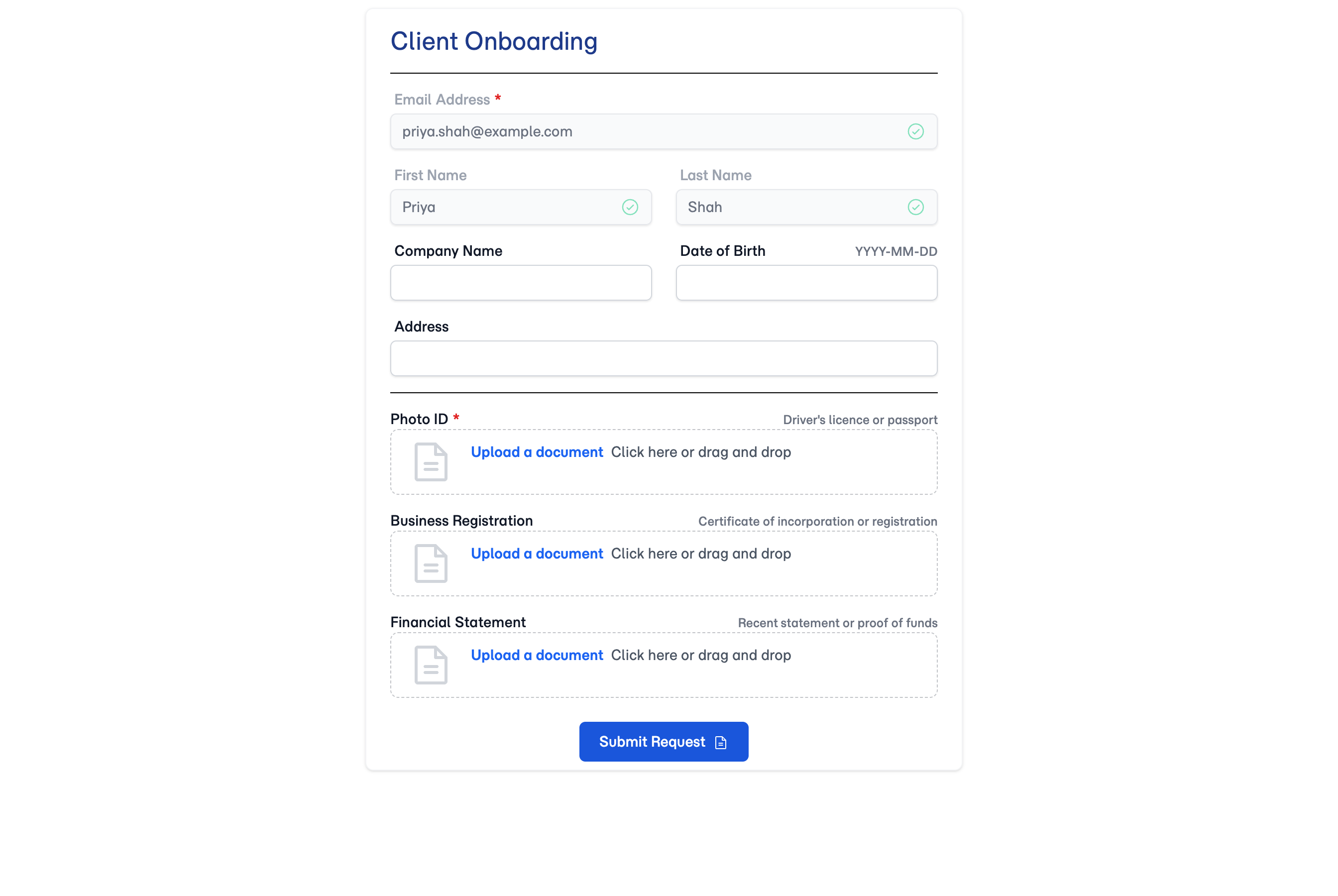
Once a client verifies, the form fills in with what you actually hold for them — their name, email, phone, and anything already submitted — shown read-only so it's clear the record is yours, not a form to re-type. They can confirm at a glance that you have them on file correctly, which is exactly what a returning client wants to check.
No account and no password
There's nothing for your client to sign up for. They enter the six-digit code you email to the address you already have for them, and that's the whole login. Nobody has to remember a password for a form they'll open twice a year.
A leaked link can't be turned on your client
Codes can only be requested so often — at most once a minute, and no more than five in any ten-minute stretch. Someone holding a link they shouldn't have can't lean on the code button to bury your client's inbox, which matters because those emails arrive with your company's name on them.
How it works
1. The client opens their link
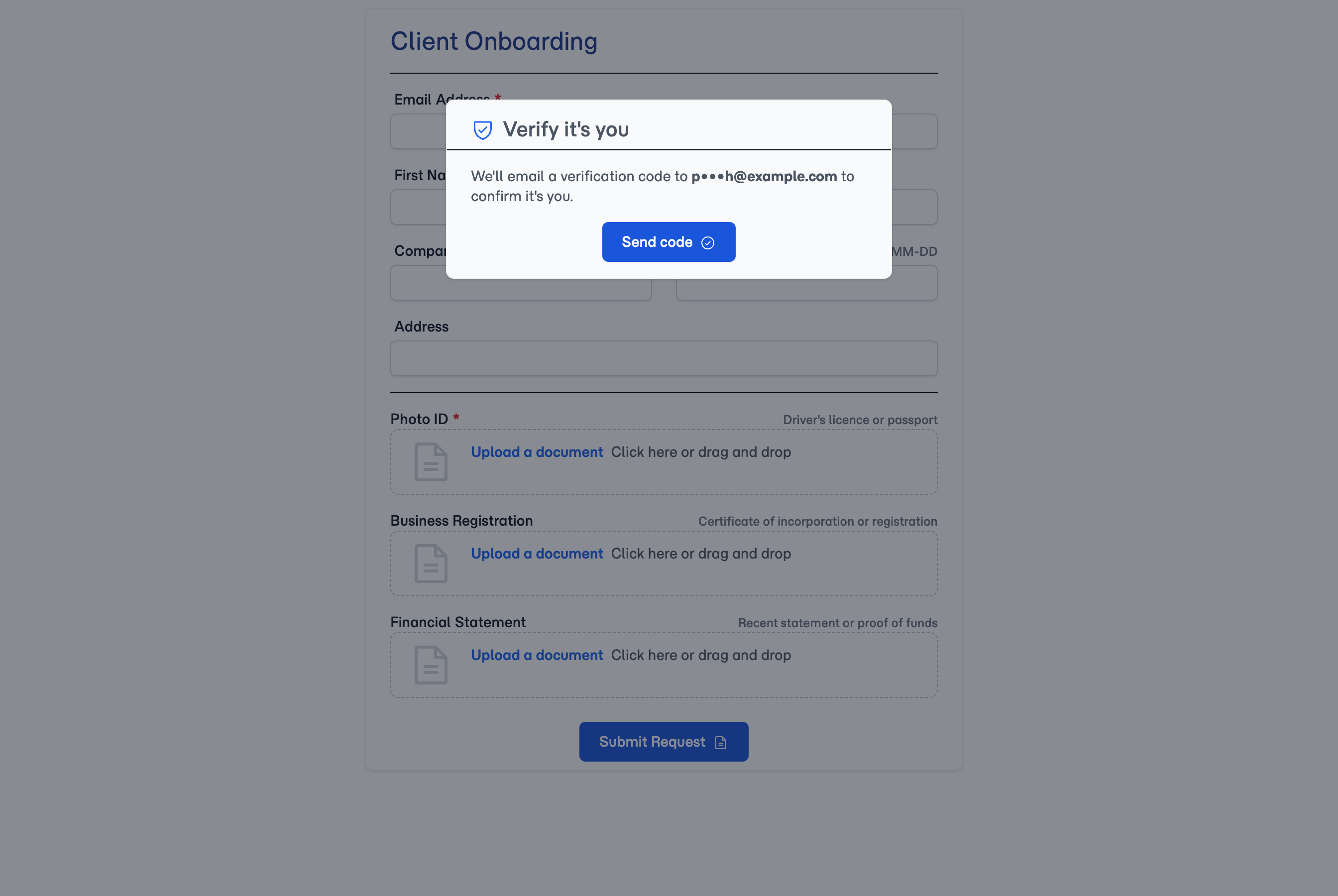
The form loads with your branding and your questions, dimmed behind a Verify it's you panel. It's a real form, not an error page — the client can see they're in the right place before being asked for anything.
2. They request a code
One tap sends a six-digit code to the email address on the client's record — and the panel only ever shows that address partly masked, so the link can't be used to harvest it. The code names your company in the body, so the client can see which form it belongs to. It lasts ten minutes; if they fumble it five times it stops working and they'll need a fresh one.
3. The form reveals
The panel drops away and the form fills in with their real details, read-only. They stay verified while they're working. Coming back later — a new visit, a refreshed page — asks for a fresh code, which is what keeps a stale open tab from becoming a way in.
Configuration
There's nothing to switch on. Every folio form you send to a client is verified automatically.
Your public forms are not affected. A blank form from a template link — the one you embed on your website or hand out to attract new enquiries — has no client behind it and nothing on file to protect, so it stays open. Nobody filling in an enquiry form is asked to verify an address you don't have yet.
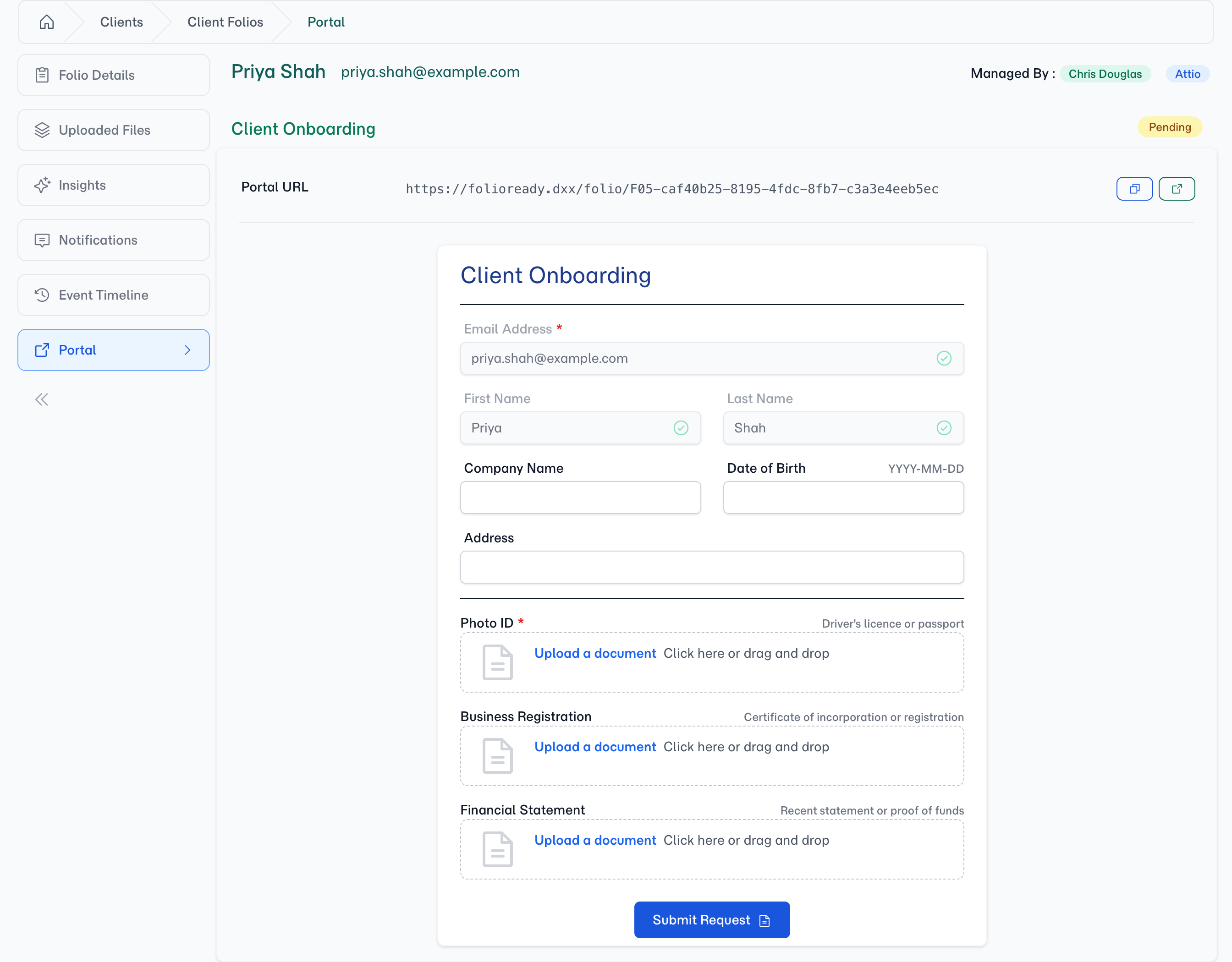
You can always see the form yourself. The folio's Portal tab shows the shareable link alongside a live preview of the form that skips the gate, so you can check what your client will work through without emailing yourself a code. The link you copy from that page is the ordinary public one — your preview access doesn't travel with it.
📇
The code goes to the address on the client's record
Tips
- Keep client email addresses current. The address on the record is the one that receives the code, so a stale address locks a client out of their own form. Fix it on the client's record and they can request a new code straight away.
- Use a template link for anything public. Embedding a form on your website, or sharing one in a newsletter, means you want it open — reach for a public template link rather than a folio link, and no one is asked to verify.
- Send the form and the heads-up together. A client who isn't expecting a code may not look for one. Mentioning it in the same message you send the link saves a "did you get my form?" round trip.
- Preview from the Portal tab, not by emailing yourself. The tab shows the real client form without the gate, which is faster than sending yourself a link and verifying against your own inbox.
Related
- Embedding Forms on Your Website — Public template forms for new enquiries, open by design and never gated
- Client Event Timeline — Follow what a client did on a folio, from opening it to submitting
- Sign In with Google or Microsoft — How you sign in to FolioReady, which is a separate thing from how your client proves who they are