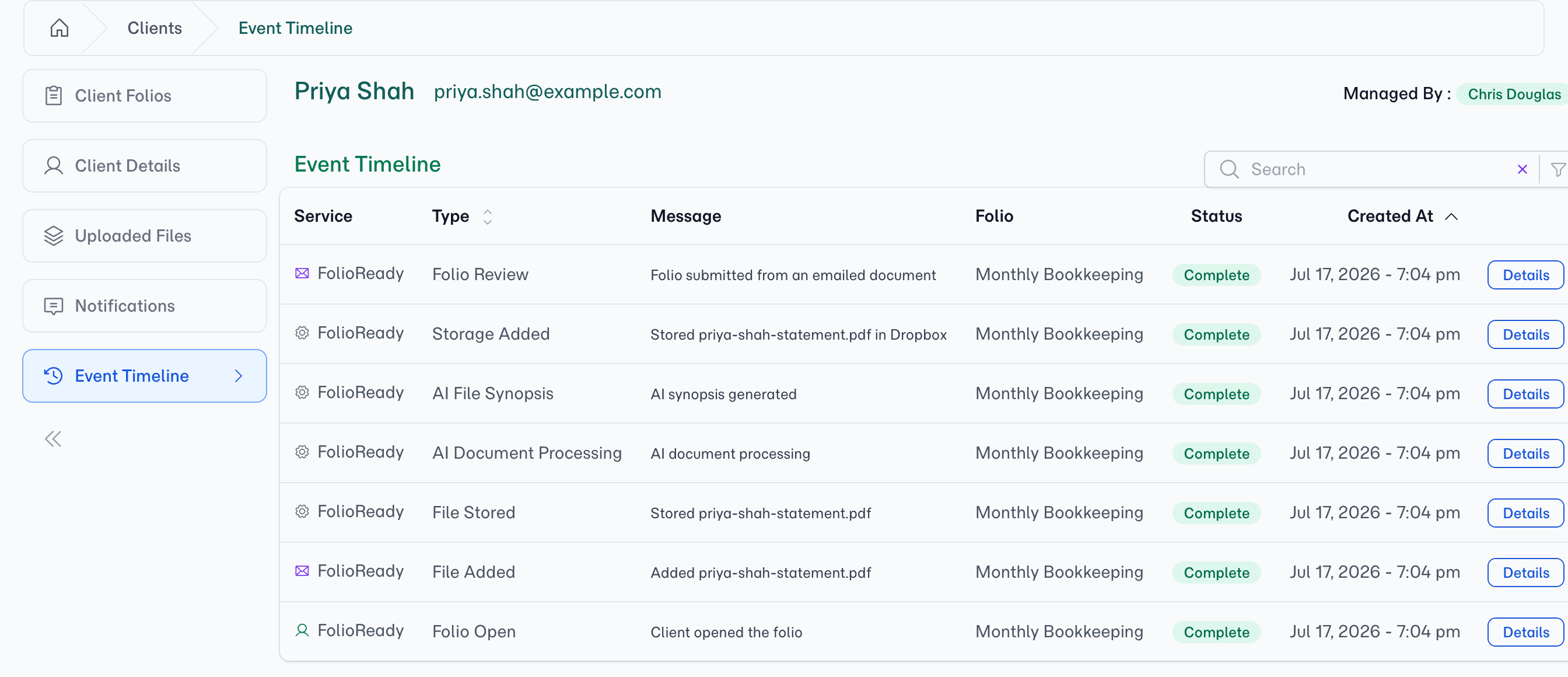
Discarded events are hidden from the timeline, so the feed stays focused on activity that actually matters. The Event Timeline is the searchable, filterable record across a client's folios; a single folio's own Progress tab shows that folio's events as its submission stages instead.
Connecting...
A Single Activity Feed for Each Client
A client rarely has just one folio. Between an onboarding pack, an annual review, and a one-off document request, activity is spread across several folios at once — and each folio keeps its own private history. When you need to answer "what's actually been happening with this client?", checking each folio one by one is slow and easy to get wrong.
The Event Timeline solves that. It's a client-level feed that gathers every event from every folio belonging to a client into one chronological list — so the whole story is in front of you, newest first, on a single page.
Why use it
The full client picture at a glance
Instead of opening folios one at a time, you see everything a client has done and everything FolioReady has done on their behalf — opens, document uploads, AI extraction, CRM syncs, notifications — in one place, in order.
Know exactly where each event happened
Because the feed spans multiple folios, every row names the folio it came from, and a Details link takes you straight there. You never lose track of which folio an event belongs to.
Audit your automation
Filter to CRM to confirm precisely what's been pushed to your pipeline, or to AI to review everything the assistant has read and extracted. It's the quickest way to verify that the automated parts of your workflow did what you expected.
How it works
Open any client and select the Event Timeline tab in the left menu, alongside Client Folios, Client Details, Uploaded Files, and Notifications. The timeline lists events from all of that client's folios together, most recent first. Each row shows:
- Service — where the event originated (FolioReady itself, or a connected service such as your CRM or storage provider)
- Type — the kind of event (see the glossary below)
- Message — a plain-language description of what happened
- Folio — which of the client's folios the event belongs to
- Status — whether the event completed, is still in progress, or needs attention
- Created At — when it happened, in your timezone
Each individual folio has its own Progress tab, which shows that folio's events as the stages of its submission rather than as a list. The Event Timeline sits one level up and combines every folio's events into one feed.
The events you'll see
Events are grouped into seven families. The filter (below) lets you narrow the feed to any one of them.
Folio
Lifecycle milestones for a folio as it moves through your workflow.
- Folio Open — the client opened the folio for the first time
- Folio Update — the client revised and resubmitted after you asked for changes
- Folio Review — the client submitted the folio and it's ready for your review
- Folio Accepted — you accepted the folio as complete
- Folio Expired — the folio passed its deadline without being completed
- Folio Closed — you closed the folio; no further client changes are allowed
File
Documents moving in and out of a folio.
- File Added — a document was uploaded to the folio
- File Removed — a document was removed from the folio
Notification
Messages sent to the client about a folio.
- Notification Sent — a request, reminder, update, review, or expiry message went out to the client's email
AI
What the AI assistant did with the folio's documents.
- AI Document Processing — the AI began reading one or more uploaded documents
- AI Field Extraction — the AI pulled answers out of the documents and into the folio's fields
- AI File Synopsis — the AI produced a short summary of an uploaded document
Insight
Changes proposed and applied through AI Insights.
- Insight Field Added — AI Insights added a value to a folio field
- Insight Field Updated — AI Insights updated an existing folio field value
Storage
Files saved to your connected storage provider.
- Storage Added — a folio document was saved to your connected storage (such as Google Drive or Dropbox)
CRM
Writes sent to your connected CRM.
- CRM Field Write — folio field data was synced to your CRM
- CRM Note Write — a note (for example, a document summary) was written to your CRM
Filtering and search
A filter panel lets you narrow the timeline to a single family — Folio, File, Notification, AI, Insight, Storage, or CRM — in one click. A search box filters the feed by the text of each event, so you can jump to a particular document name, action, or service without scrolling.
💡
Worth knowing
Related
- AI Automation — Automatic field extraction from uploaded documents, recorded as AI events
- Document AI Reader — How every uploaded file is parsed before AI extraction runs
- File Storage Integrations — Save client files to your connected storage, with each save recorded as an event
- Folio Insights — The AI Insights that produce Insight events