Document AI Reader
A folio is only as useful as the documents inside it — and until now those documents had to be PDFs or images for the AI features to read them. The Document AI Reader changes that. Every file your client uploads — Word, Excel, PowerPoint, OpenDocument, HTML, epub, even TIFF — is parsed into a clean text representation the moment it lands, ready for field extraction and synopsis to work on. The same document is read twice, by two different AI passes, so the data extracted into your folio fields is cross-checked before it ever reaches your form.
Why Use Document AI Reader?
Every common file format, not just PDFs
Clients send what they have — a Word draft, an Excel workbook, a PowerPoint deck, an HTML email export, an epub policy document. Until now, anything outside PDF/image needed manual conversion before the AI could touch it. Now the supported list covers virtually every file type a professional services workflow encounters, and each one is read end-to-end before AI extraction or synopsis run on it.
| Format family | Examples |
|---|---|
| PDF and images | PDF, PNG, JPEG, TIFF |
| Word processing | DOCX, DOC, ODT, RTF |
| Spreadsheets | XLSX, XLS, ODS, CSV |
| Presentations | PPTX, PPT, ODP |
| Web and text | HTML, Markdown, plain text |
| Books | EPUB |
Two AI passes, cross-checked
The AI Reader runs a structured extraction pass first, then your field extraction prompt runs against the same parsed content. Both have their say on every value the AI writes into your folio. When the two agree, that value lands marked confirmed. When the second pass corrects the first, you can see the original suggestion alongside the final answer. When only one pass produced a value, that's flagged too. You spend less time second-guessing the AI because you can see at a glance which fields are well-evidenced and which need a closer look.
Re-runs automatically on every new file
When another file is added to a section that's already been AI-processed, the whole AI cycle — parse, extract, synopsise — re-runs across the section's files. You don't need to ask for it. New files always pick up the current template prompt; existing field values are re-extracted against the combined evidence so the folio reflects everything that's been uploaded.
See exactly what's been processed
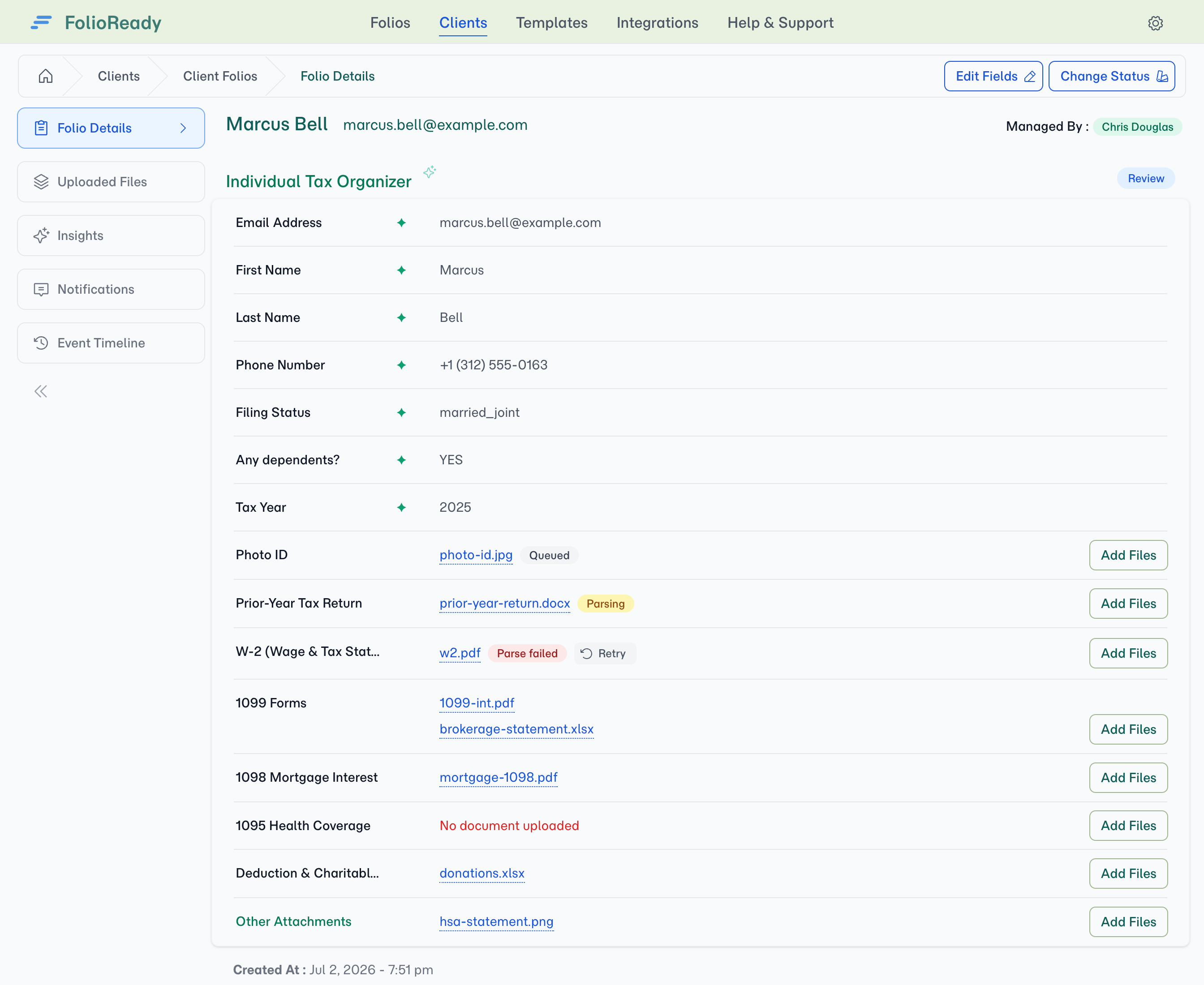
While a document is still being read, its file row carries a small parse status badge; once it's parsed the badge clears and the row goes quiet:
| Badge | Meaning |
|---|---|
| Queued (grey) | Waiting in line to be parsed |
| Parsing… (yellow) | Being read right now |
| Parse failed (red) | The reader couldn't open the file — usually fixed by re-uploading or converting it |
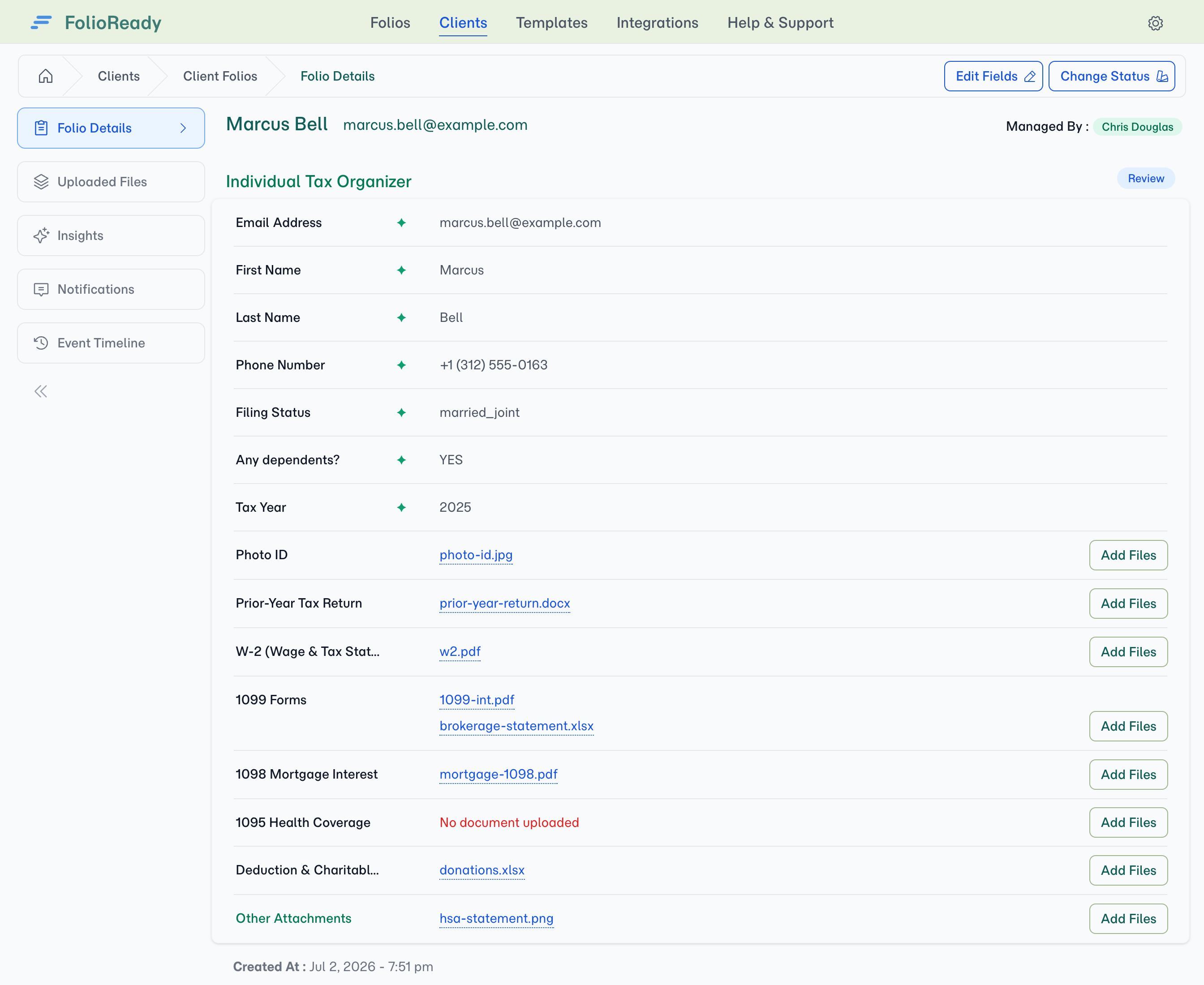
| (no badge) | The file is read and ready — a clean row means nothing needs your attention. (Also shown for files that pre-date the AI Reader, or if your account has it turned off.) |
Always under your control
The AI Reader is on by default for every account so you start getting the benefits immediately. If your team uses Bring Your Own AI Keys and prefers to handle document parsing entirely through your own provider, our support team can turn the Reader off for your account — your folios fall back to direct AI calls on the original file bytes.
How It Works
1. Upload a file — any supported format
On any folio, drop a file into a section the way you always have — via the client portal, the manager upload modal, or by email. The moment the upload completes, the file is queued for AI reading.
2. Watch the parse status badge
The file row picks up a Queued badge immediately, then switches to Parsing… when the AI Reader starts. Most files finish reading in under a minute; when parsing completes the badge clears and the row goes quiet. You can keep working on the folio while parsing runs — nothing is blocked.
3. AI extraction and synopsis kick in automatically
Once a file finishes reading — its parse badge clears — both field extraction and the per-file synopsis are unlocked. They run automatically as you'd expect — the synopsis appears on the file's Synopsis tab, and extracted values populate the folio's fields. Both work from the same parsed text, so an unusual scan or an awkward layout no longer trips the AI up the way it used to.
4. Open a folio field to see the AI origin
Each AI-suggested field value carries a small marker showing how the value was reached:
- Confirmed — both passes produced the same value
- Corrected — the second pass adjusted the first pass's suggestion
- From text only — only one pass produced this value; treat with closer review
This is informational, not gating — every value is still yours to accept, edit, or clear before completing the folio.
Configuration
The Document AI Reader is enabled by default on every account. The only thing to configure is whether to use it at all — if you're a BYO AI customer who'd prefer to route every document directly through your own provider, our support team can switch it off for your account.
| Setting | What it controls |
|---|---|
| Document AI Reader | Whether new uploads are pre-parsed before AI extraction and synopsis. Default: on |
When the Reader is off, files skip the parse step and AI features fall back to reading the file bytes directly — the same path FolioReady used before this feature shipped.
Tips
- Let parsing finish before you click around. A file that's still Parsing… can be opened, but its Synopsis tab will be empty and field extraction won't include it. The badges are there so you know when to wait and when to move.
- Add a fresh file to pick up a new prompt. If you tighten the template's AI extraction prompt midway through a busy folio, the existing files won't re-process on their own — but the next file uploaded re-runs extraction across the whole section with the updated prompt.
- Read the AI origin marker on critical fields. A From text only marker on a high-stakes field (a date of birth, a policy number, a transfer amount) is a useful hint to compare the value against the source document before you accept it.
- Parse failed almost always means the file is corrupted or password-protected. Re-uploading a clean copy fixes it nine times out of ten. Genuine reader failures are rare.
Related
- Document Synopsis — One-paragraph AI summary per file; uses the same parsed content
- AI Automation — Automatic field extraction from uploaded documents
- Bring Your Own AI Keys — Route AI calls through your own provider account
- Folio Insights — Ask cross-document questions of a folio in plain language