Bring Your Own AI Keys
Every AI-powered feature in FolioReady — field extraction, document synopsis, folio insights, template builder — runs on a large-language-model provider. By default we run them on our shared account, and the cost is bundled into your plan. If you'd rather route AI calls through your own provider account, Bring Your Own AI Keys lets you paste in a key per action and take it from there. Your calls, your billing relationship, your model choices.
Why Use Your Own AI Keys?
Billing goes through your own provider account
When you paste in your own API key, AI usage shows up on your provider's invoice — not on your FolioReady bill. If your firm already has an LLM spend budget, an enterprise agreement, or tax treatment that depends on a specific vendor, routing calls through your own account keeps AI spend where your finance team already tracks it.
Pick the right model for each job
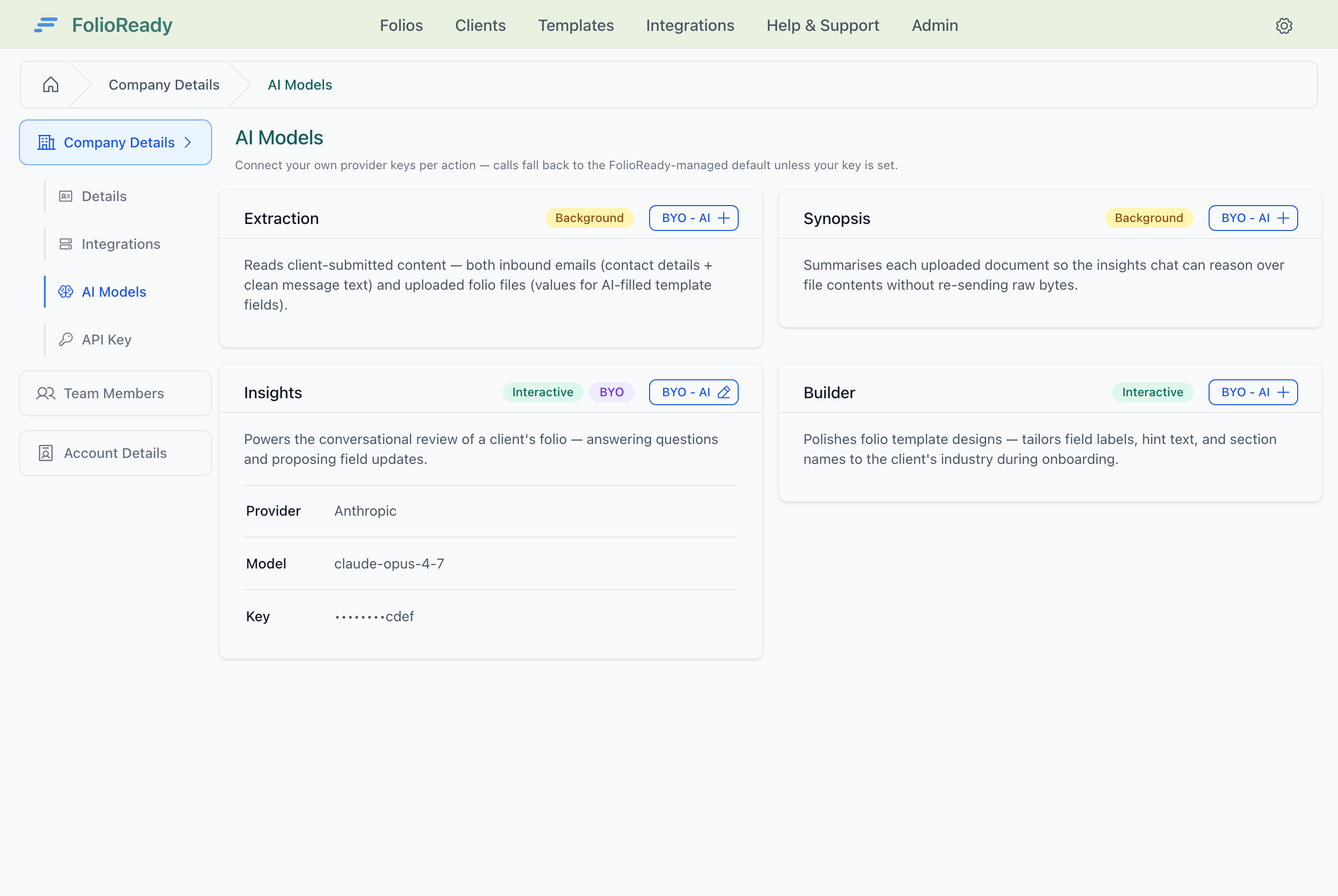
Not every AI action needs the same horsepower. Document synopsis is a fast, bulk-summarisation task — a smaller model handles it cheaply. Folio Insights, where the AI is reading a whole folio and proposing field updates, benefits from a stronger model. The AI Models page exposes each action — Extraction, Synopsis, Insights, Builder — as its own card, so you can route each one to whichever provider, model, and key makes sense.
Your key stays encrypted
Your API key is encrypted at rest the moment you save it. It's never displayed back to you after save, never written to logs, and only decrypted at the moment FolioReady makes the API call on your behalf. You can rotate or replace the key at any time — removing it simply falls you back to the shared FolioReady key.
Switch back with one click
You're not locked in. Remove your BYO key and FolioReady resumes using the shared provider account with no change to your data or your workflow. The AI-powered features keep working exactly as they did — only the invoice changes.
How It Works
1. Open Company → AI Models
From the manager sidebar, open Company Details and pick the AI Models tab (/manager/company/model). The page lists four cards — one per AI action — each showing the provider and model that action currently routes to.
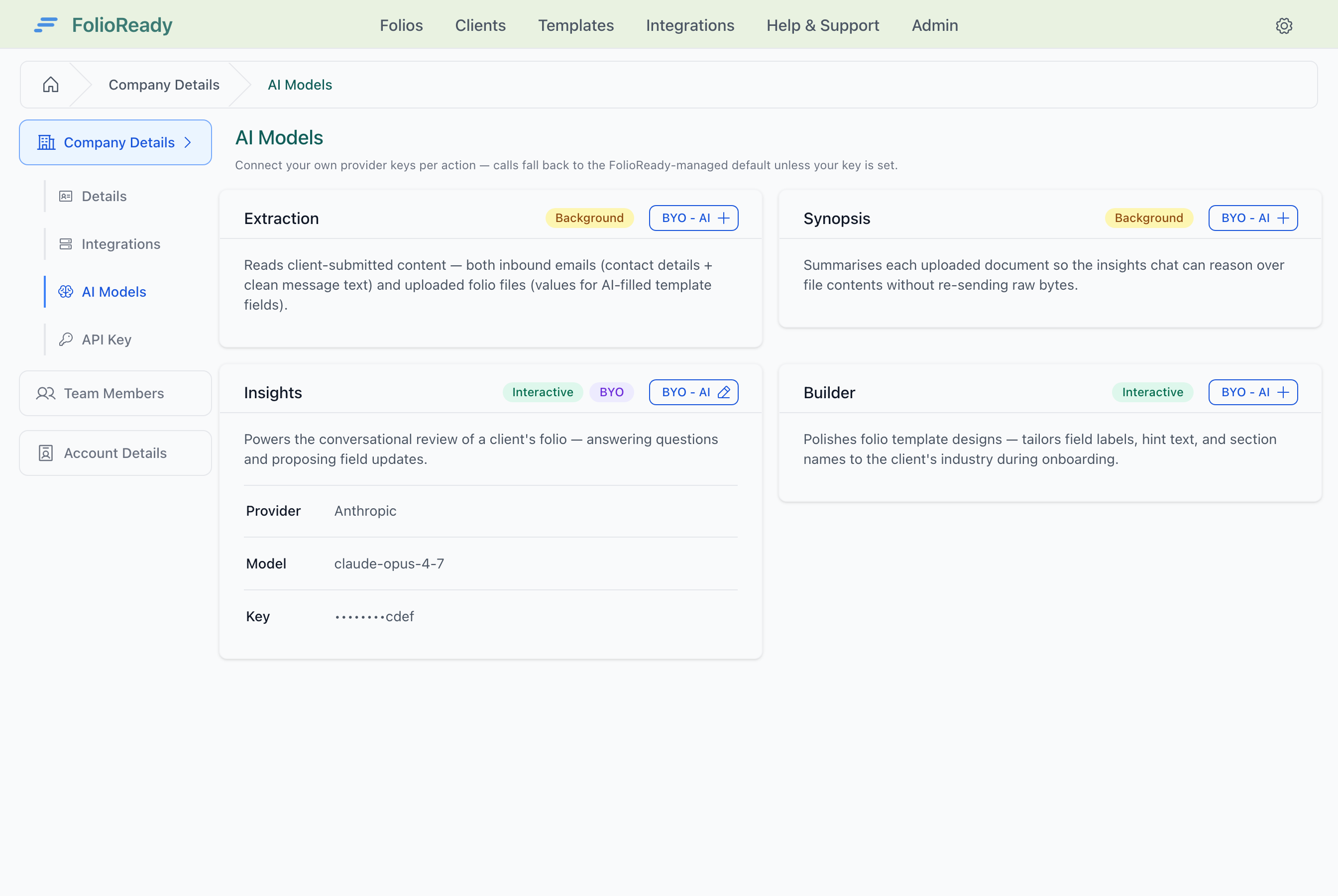
2. Click BYO - AI on the action you want to override
Each card has a BYO - AI button. Clicking it opens the BYO form for that specific action (/manager/company/model/:action/new — e.g. /manager/company/model/extraction/new). The form is scoped to a single action, so there's no scope picker to fill in.
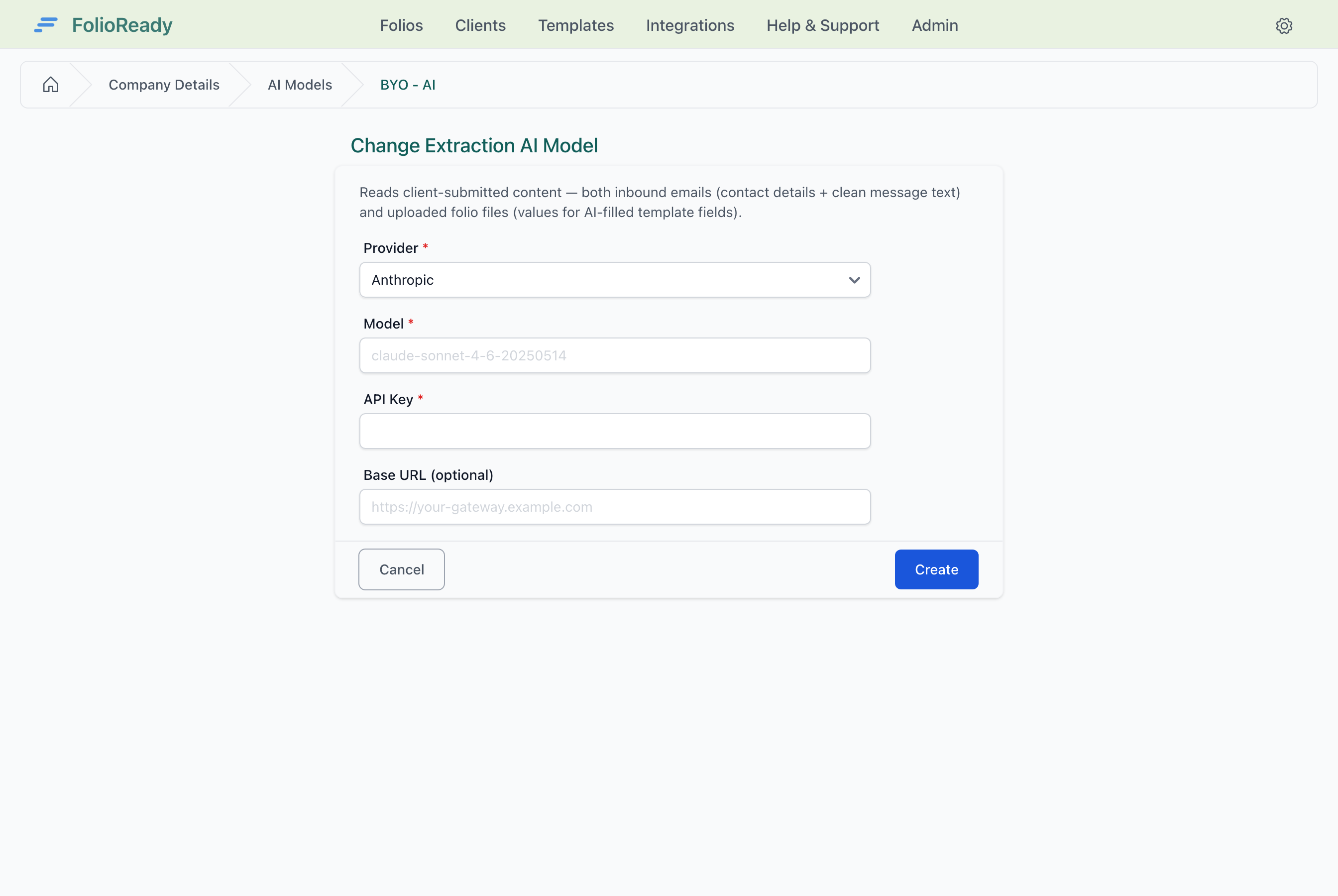
Pick a provider (Anthropic, OpenAI, DeepSeek, Google, AWS Bedrock, Ollama, LM Studio), enter the model ID, and paste your API key. If you're using a proxy endpoint (an internal gateway, a regional endpoint), enter it in the Base URL field — otherwise leave it blank and FolioReady will use the provider's default.
3. Repeat per action — they're independent
Override one action, override all four, override none — every card is independent. A common pattern: route Synopsis to a fast cheap model and Insights to a stronger one, while leaving Extraction and Builder on the FolioReady-managed default.
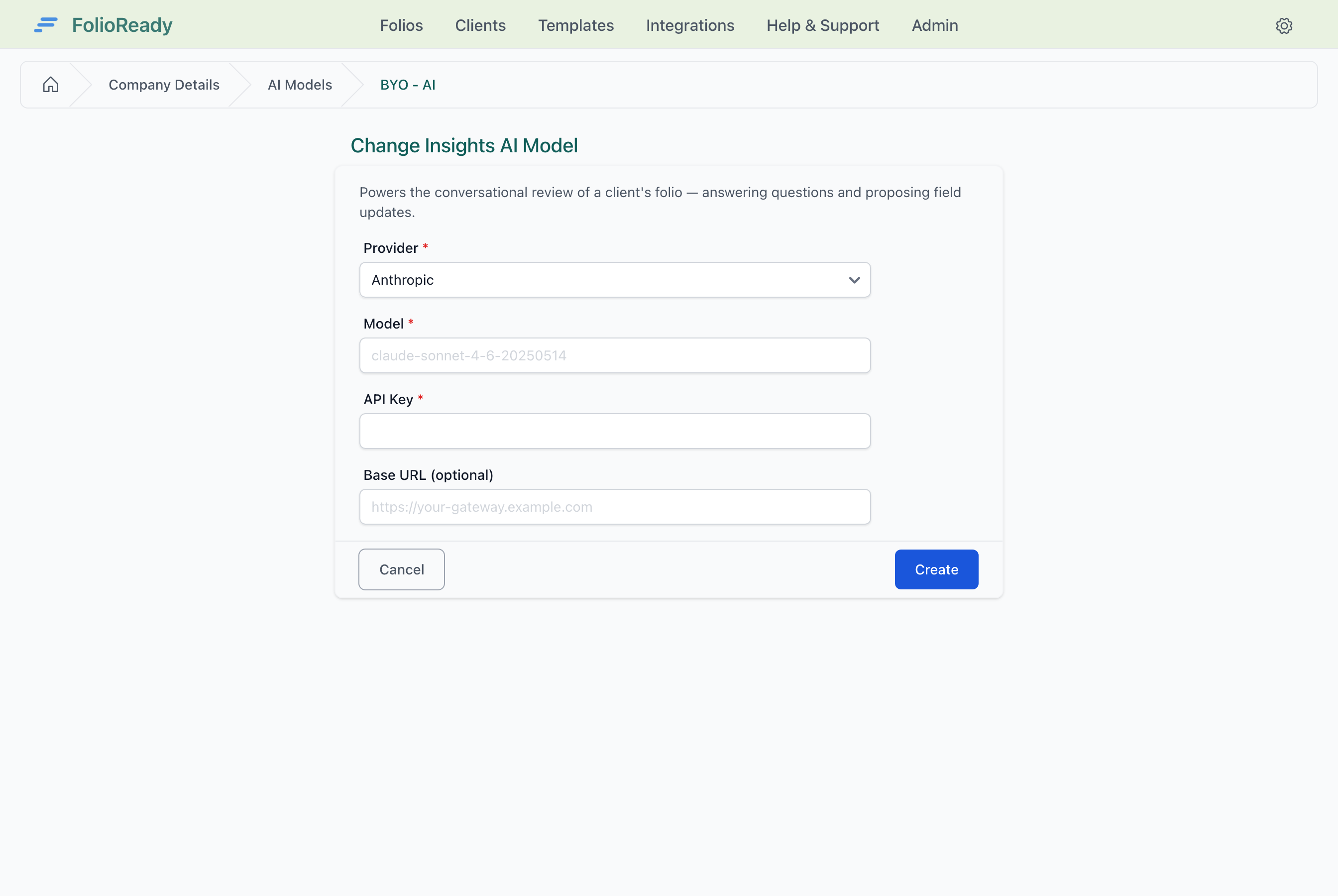
4. Save — your key is encrypted immediately
As soon as you save, the key is encrypted at rest. The card on the AI Models page shows the provider, model, and a masked key hint, but the key itself is never displayed back to you. That's not a UI limitation — the stored ciphertext is not reversible from the app's perspective, only at the moment of making an API call.
5. Use FolioReady as normal
The next call for that action automatically uses your BYO key. No restart, no cache flush, no per-folio toggle. You'll see the usage on your provider's billing dashboard; on the FolioReady side everything works exactly as it did before. Actions you didn't override keep using the FolioReady-managed default.
Configuration
| Setting | What it controls |
|---|---|
| Action | Set by the card you opened the form from — Extraction, Synopsis, Insights, or Builder. Each action has its own independent BYO. |
| Provider | Which LLM vendor the key authenticates with — Anthropic, OpenAI, Google, DeepSeek, AWS Bedrock, Ollama, or LM Studio |
| Model | The specific model ID to use for this action (e.g. claude-opus-4-7, gpt-4o, deepseek-v4-pro) |
| API key | Your provider-issued API key. Encrypted on save; never displayed back |
| Base URL | Optional. Use a custom endpoint (e.g. an enterprise proxy or an OpenAI-compatible service). Leave blank for the provider default. |
Tips
- Try one action first. If you're new to BYO, start by overriding just Insights or just Synopsis and watch the usage land on your provider's dashboard. The other three actions stay on the FolioReady-managed default until you decide to move them.
- Rotating keys is just replace-and-save. If your provider key leaks or rotates on a schedule, edit the action's BYO and paste the new key. The old ciphertext is overwritten; past calls are not affected.
- Removing a BYO is safe. Delete the BYO from a card and that action immediately falls back to the FolioReady-managed default. No feature flags, no downtime.
- Match the model to the action's mode. The cards show a Background or Interactive badge — Background actions (Extraction, Synopsis) are tolerant of slower/cheaper models; Interactive actions (Insights, Builder) benefit from faster, stronger ones.
- The Base URL is for proxies, not providers. If you want to use a different provider entirely, pick that provider in the dropdown. Only use Base URL when you're pointing at an OpenAI-compatible or Anthropic-compatible endpoint that isn't the default.
Related
- AI Automation — Automatic field extraction from uploaded documents
- Document Synopsis — One-paragraph AI summaries of every uploaded file
- Folio Insights — Ask cross-document questions of a folio in plain language