Document Synopsis
A folio's uploaded documents have always been one click away — but reading them takes time. A passport. A contract. A site photo. Each one needs the manager's eyes before they're useful. Document Synopsis turns every uploaded file into a one-paragraph summary you can scan instead of read, so you can triage a stack of documents in seconds and dive into the ones that need attention.
Why Use Document Synopsis?
Triage at a glance
Before a synopsis exists, the only way to know what's in a file is to open it — multiply that across a folio with five or six attachments and the cost is real. The file index does the triage for you: a file still generating, suspended, or failed carries a status badge, while a clean row means its synopsis is ready. One click opens the file straight to its summary, so you decide which documents actually need a full read.
Ready the moment a file lands
Every uploaded file is queued for a synopsis the instant it finishes uploading — whether the client submitted it through the portal or forwarded it in by email. By the time you open the file, the summary is usually already there. No extra click, no waiting on a blank summary.
Reuses the work for AI Insights
If you're using Folio Insights to ask cross-document questions of a folio, those answers depend on synopses. Generating one from the file show page means the next Insights conversation already has the summary ready — no waiting for the background pass. Work done once, used twice.
Manager-only, fully under your control
Synopses are visible only to managers. Clients see their files exactly as they uploaded them.
How It Works
1. Open any uploaded file
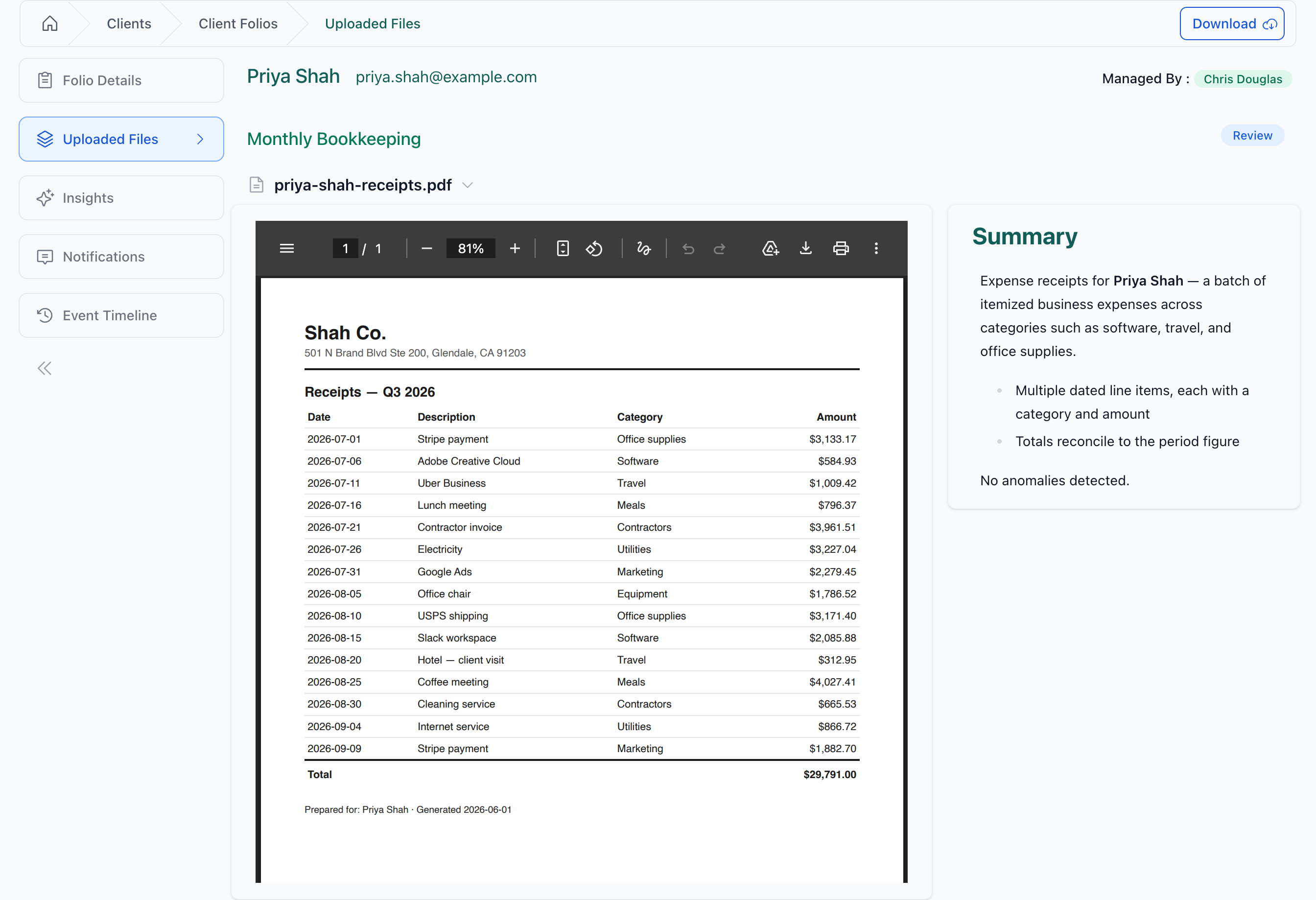
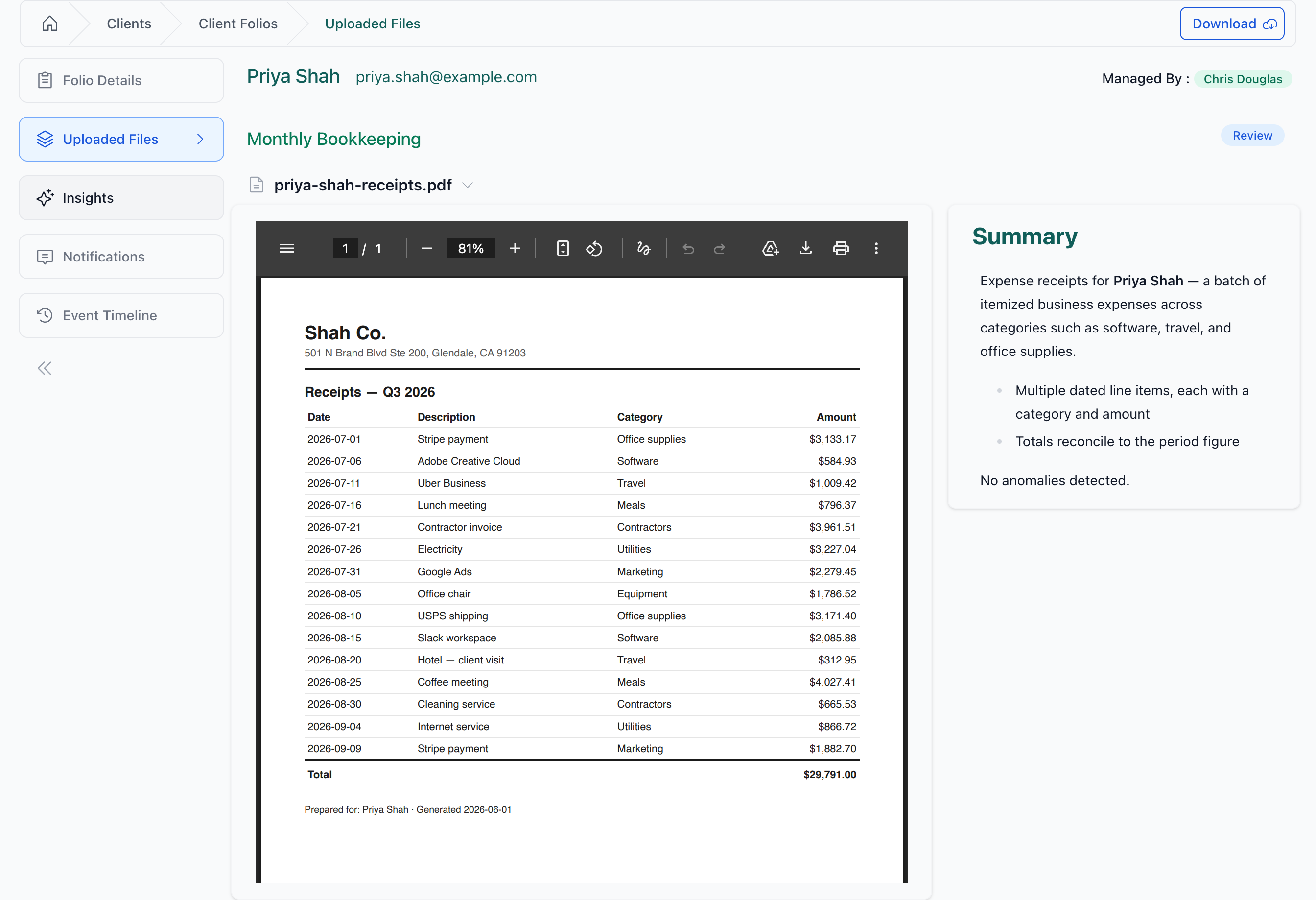
On the folio's Uploaded Files tab, choose a file from the picker — it shows just the filename, or the section and filename when more than one section holds files. The document preview and its AI synopsis sit side by side, so you see both at once (they stack on smaller screens, synopsis first).
2. Read the auto-generated summary
Most of the time the synopsis is already waiting for you — generation kicks off the moment the file finishes uploading. A "Generating synopsis…" indicator appears while the AI works; the summary text replaces it when it's ready, usually a few seconds later.
3. Generate manually if a file needs it
Most files never need this. But if generation failed, or paused because you hit your AI usage limit, the file's synopsis panel shows a single Generate synopsis button. It opens a quick confirmation — generation counts against your AI allowance — then runs. A ready synopsis simply shows its summary text; there's nothing else to click.
4. Scan the file index for status
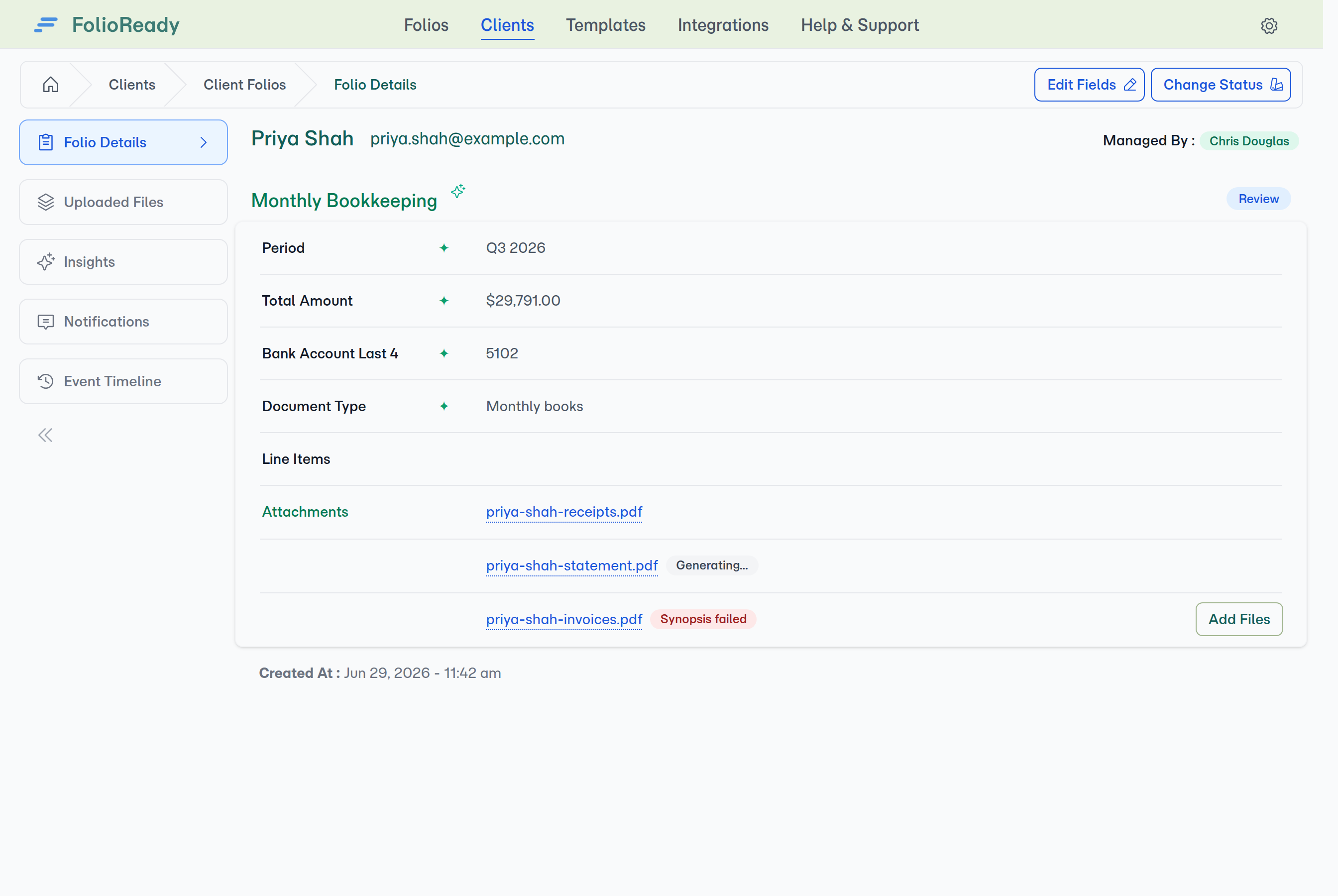
On the Folio Details page, the section that lists each file flags anything that's still processing or needs attention with a status badge next to the filename. A file whose synopsis is ready shows no badge — the row stays clean:
| Badge | Meaning |
|---|---|
| Generating… (grey) | The AI is working on it now |
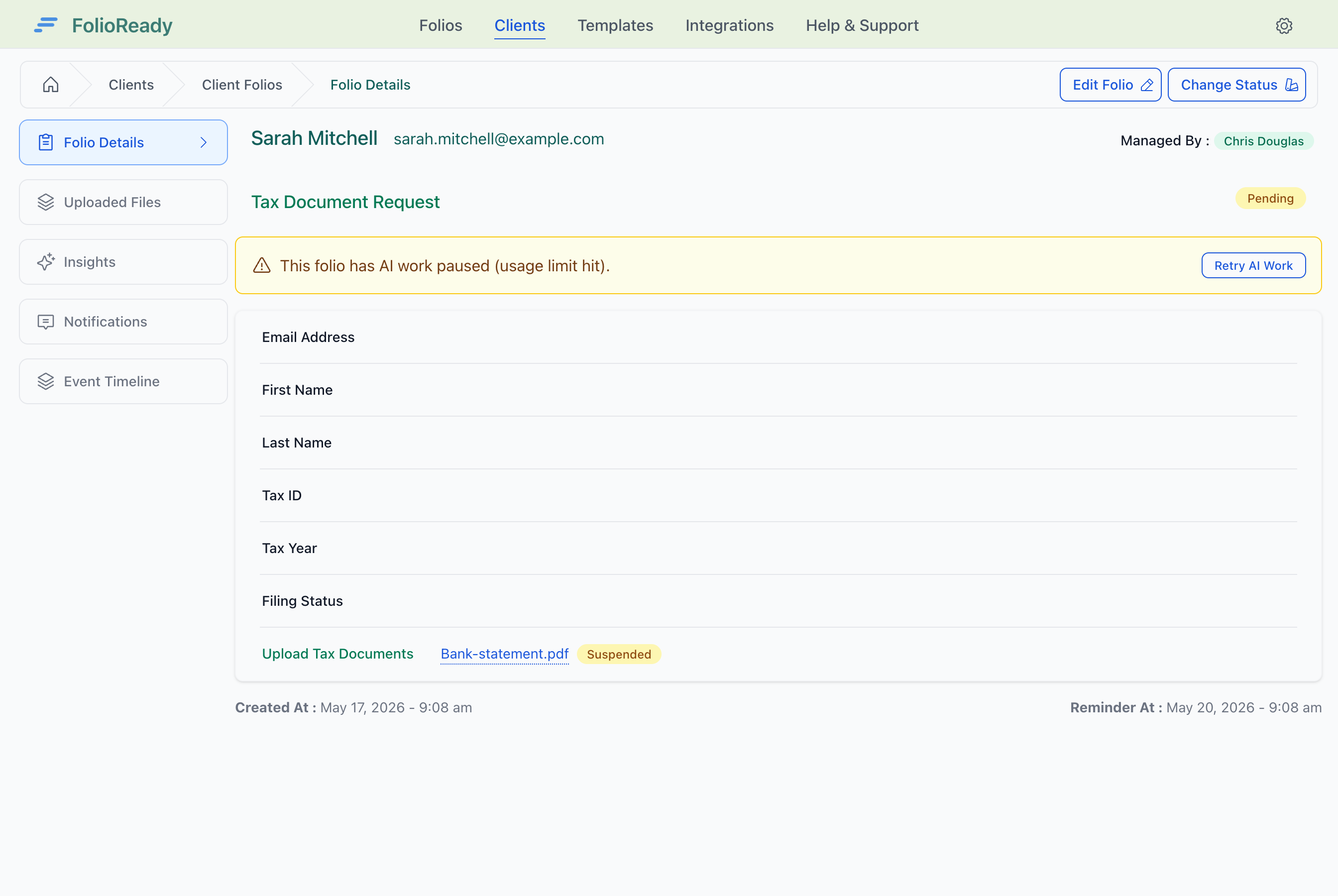
| Suspended (yellow) | Generation paused because your AI usage limit was hit — resumes once you raise the limit and retry from the Usage page or folio detail page |
| Synopsis failed (red) | Generation didn't complete — try again from the file show page |
| (no badge) | The synopsis is ready to read — or none has been generated yet. Either way the row stays clean; open the file to see the summary |
Configuration
Document Synopsis uses your company's AI provider setup. Generation counts against your AI usage limit, the same as field extraction and Insights. If you hit your usage limit while a synopsis is generating, the file is marked Suspended and waits for you — raise the limit, then click Retry suspended AI on the Usage page (or Retry AI Work on the folio) and generation resumes.
| Setting | What it controls |
|---|---|
| Insights synopsis model | The model used to generate the summary text |
If you don't set it, synopsis generation falls back to your default AI model. Configure it under Settings → AI.
Tips
- Synopses are placeholders, not authoritative records. They're a reading aid. Always verify important details against the source document before acting on them.
- A failed synopsis isn't permanent. If generation fails — usually because of a temporary AI provider issue — click Generate synopsis to run it again. Failed files are shown with a red badge so they're easy to spot.
Related
- Folio Insights — Ask cross-document questions of a folio in plain language
- AI Automation — Automatic field extraction from uploaded documents on submission