The Manager Usage Dashboard
Your FolioReady plan comes with a monthly allowance of documents (one per file added to a folio) and tokens (the AI fuel behind insights, synopsis, and field extraction), plus a cumulative storage allowance. The Usage dashboard is where you see how much of each you've spent in the current cycle, how much is left, and what each event cost. From the same page you can flip on auto-reload so a busy week doesn't stall, and set a monthly spend cap so the bill never surprises you.
Why Use This Dashboard?
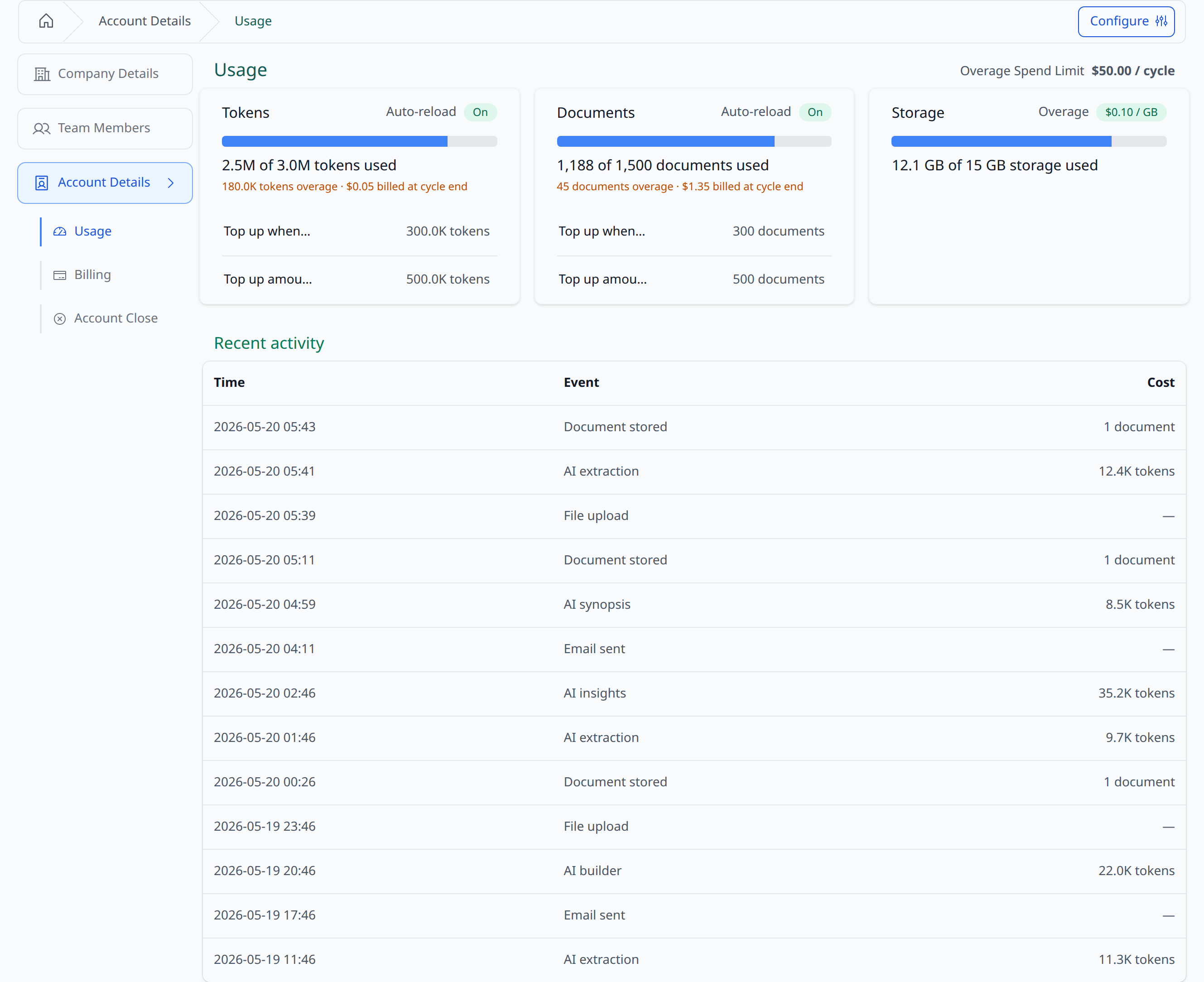
See exactly where your allowance is going
Three meters at the top — Tokens, Documents, and Storage — fill as the cycle progresses, with the percent used colour-banded so you can read the state at a glance. Tokens and Documents reset at the start of each cycle; Storage is cumulative and only frees up when you delete files. Hover any item in the activity table to see whether it consumed documents, tokens, or both. No more wondering whether a slow week was AI insights or bulk uploads — the breakdown is right there.
Auto-reload covers the busy weeks
Set a threshold and a top-up amount per ledger, and FolioReady refills as soon as you drop below the threshold. The next document upload or AI call goes through without interruption — and the top-up shows up on your next invoice. Turn it off and you'll just accumulate overage instead, billed at cycle end.
A spend cap you actually control
The Overage Spend Limit is the most you'll ever be billed beyond your plan in a cycle. It's the safety net for auto-reload — if a top-up would push you past the cap, the top-up doesn't fire. Set it to $0 to disable overage entirely; both auto-reloads turn off automatically and you're locked to the plan allowance for the cycle.
A live activity feed, not just a number
The Recent Activity table at the bottom of the page shows the last twenty events that consumed documents or tokens, with a humanised label for each kind — File upload, Document stored, Email sent, AI extraction, AI synopsis, AI insights, AI builder. It's the fastest way to spot a runaway integration or an unusually heavy AI day.
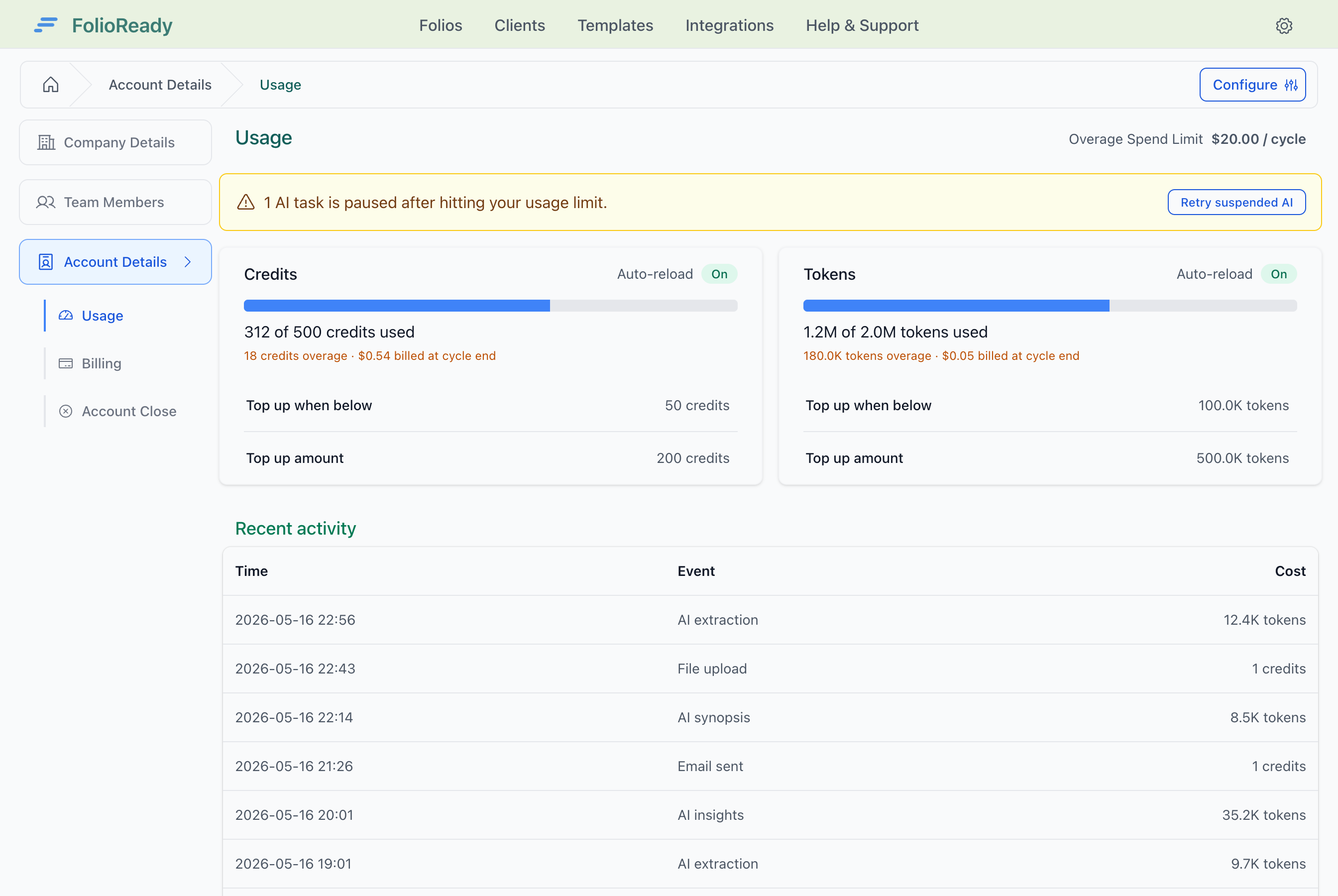
Restart paused AI work in one click
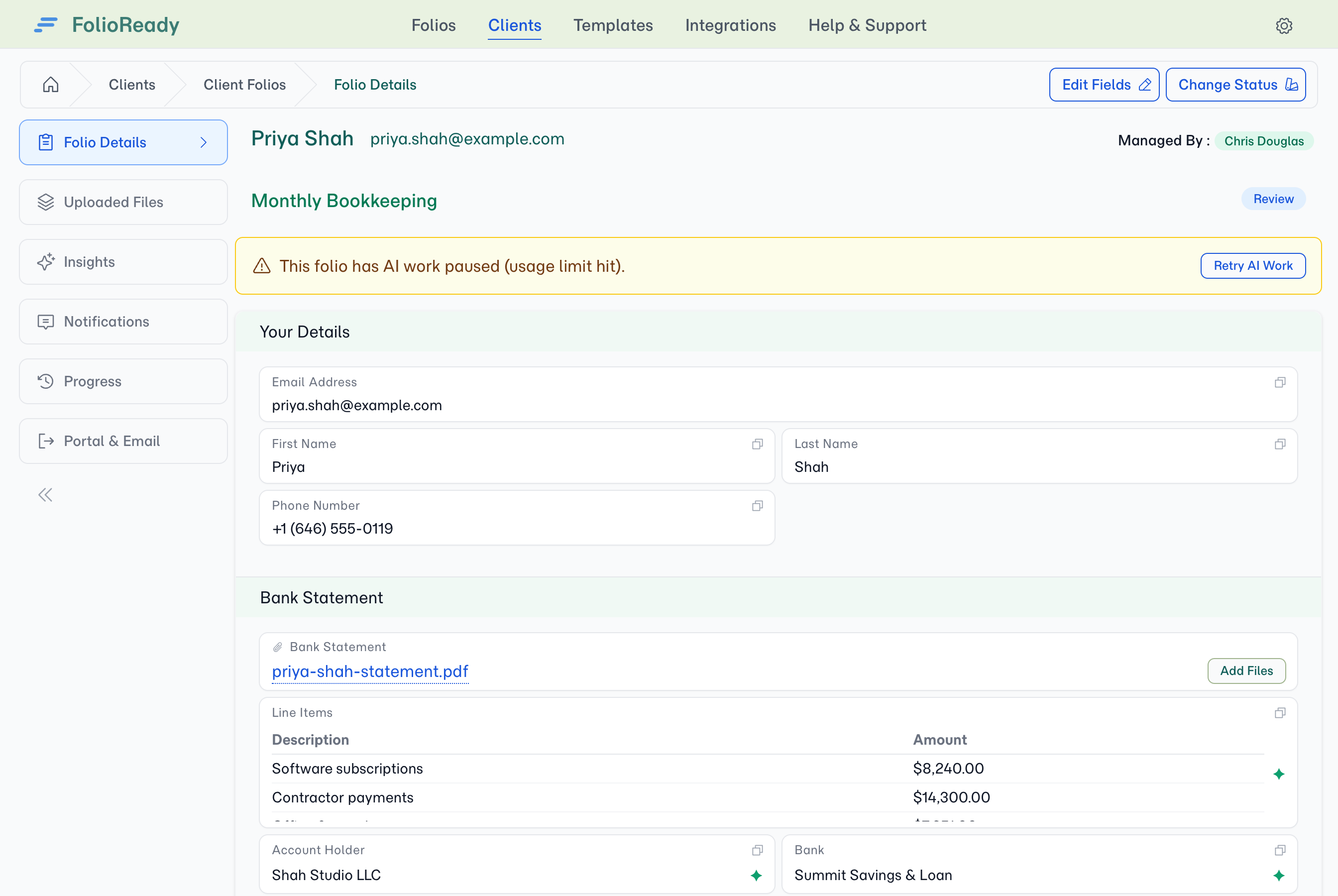
If you hit your spend limit mid-cycle, AI tasks that were running pause instead of failing — they wait for headroom. The Usage page surfaces a yellow banner the moment you reopen it, showing how many AI tasks are paused and a single button to retry them all once you've raised your limit. No hunting down individual folios. The same button is also available on each folio's detail page if you'd rather retry one folio at a time.
How It Works
1. Open Company → Usage
From the manager sidebar, navigate to Account Details → Usage. Three meter cards sit at the top — Tokens, Documents, and Storage from left to right — and the cycle's spend limit shows in the top right of the page heading.
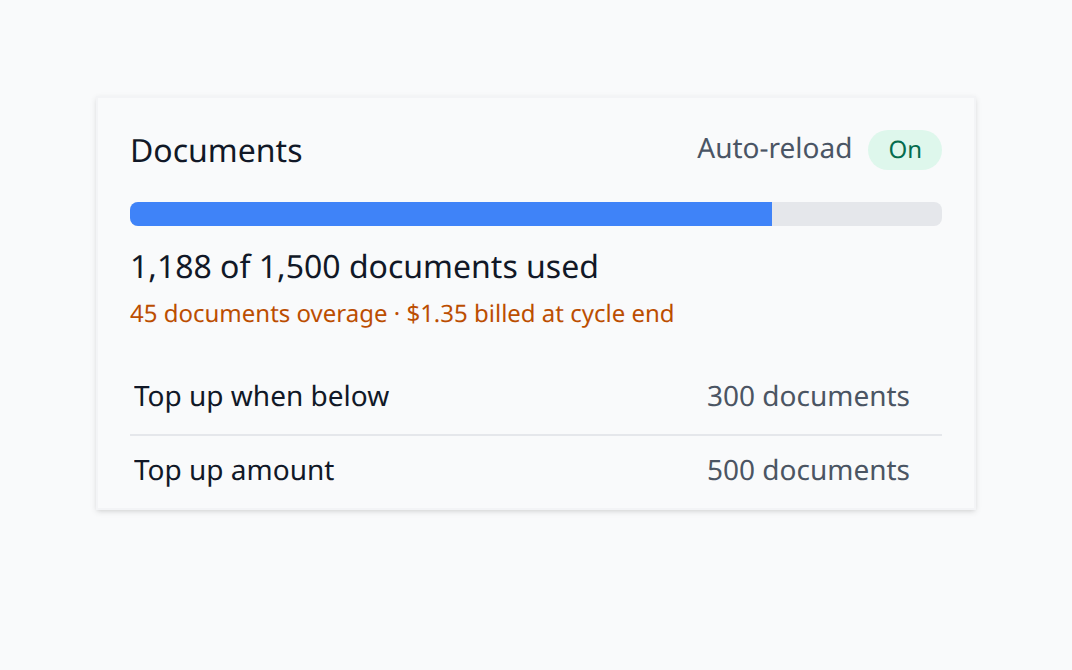
2. Read the meters
Each meter shows three pieces of information:
- A progress bar — used / included
- A short summary line —
1.8M of 3M tokens used,23 of 250 documents used,2.5 GB of 5 GB storage used - An overage line, in amber, when you've gone past the included amount —
12 documents overage · $0.36 billed at cycle end
Tokens and Documents reset each cycle and can auto-reload; the Auto-reload badge in each card's top right tells you whether top-ups are enabled for that ledger. Storage is cumulative and has no auto-reload — to free space, delete files from the manager UI and the bytes return to your allowance immediately.
3. Click Configure to change the rules
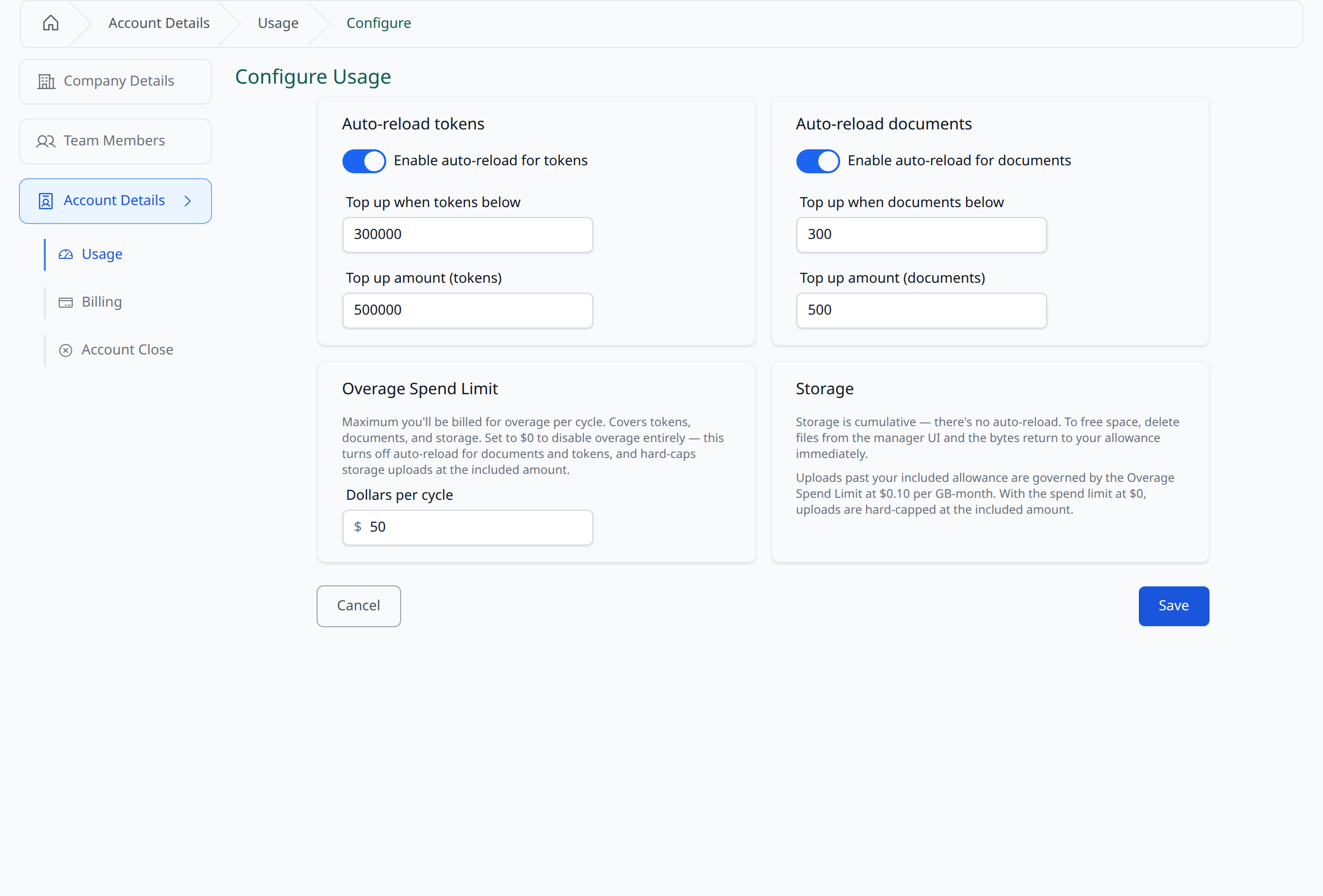
The Configure button in the top right of the Usage page opens the Configure Usage form. Three cards: auto-reload documents, auto-reload tokens, and the overage spend limit. Each is independent — you can leave tokens on auto-reload while turning documents off, or run both with the same threshold and amount.
4. Set the auto-reload thresholds and amounts
For each ledger:
- Top up when below — the trigger. When the remaining balance crosses below this, FolioReady tops up.
- Top up amount — how much to add. Charged at the published overage rate ($0.03 per document, $0.25 per million tokens) at cycle end.
The form disables the threshold and amount fields when auto-reload is off so it's clear which numbers are live.
5. Set your spend limit
The Overage Spend Limit is a single dollar value that caps overage charges per cycle. Two important behaviours:
- $0 disables overage entirely. Both auto-reload toggles flip off automatically. Your portal stops processing once you hit the included allowance — pristine, predictable, no overage charges ever.
- A non-zero limit is the cap, not the floor. Auto-reload top-ups stay within this cap; once they'd exceed it, the next top-up doesn't fire and processing pauses for the rest of the cycle.
6. Save and watch the meters
Click Save to apply the changes. You're redirected back to the Usage page and the new rules show in the meter cards immediately — no refresh needed.
7. Switch plans from the Billing tab
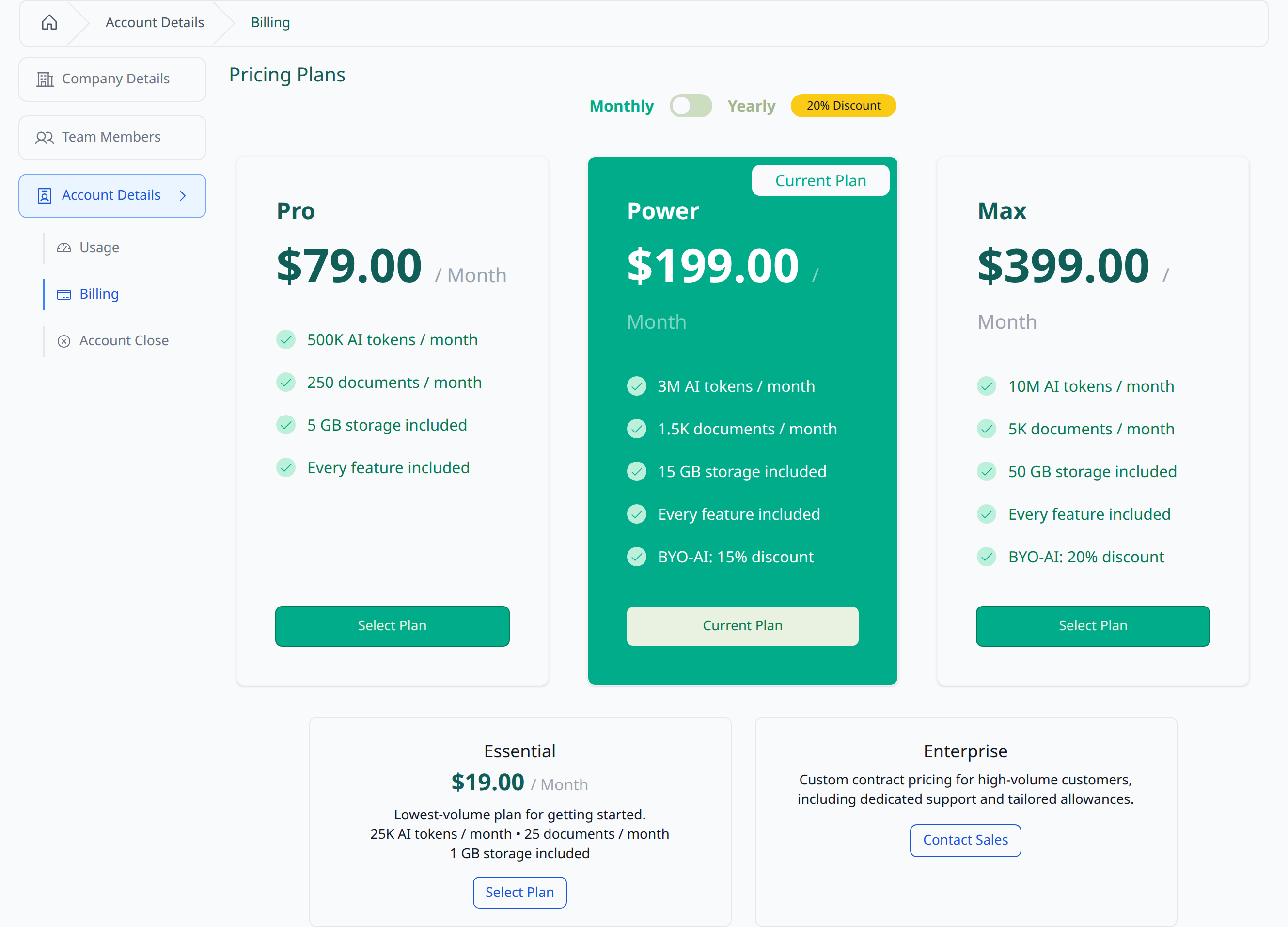
If a few cycles in a row are running into overage, the cheaper move is usually a bigger plan, not bigger top-ups. The neighbouring Billing tab lists every plan side by side with its included documents, tokens, storage, and BYO-AI discount, with your current plan flagged. Switch in one click.
Configuration
| Setting | What it controls |
|---|---|
| Auto-reload documents — Enabled | Whether the documents balance auto-tops-up when it drops below the threshold |
| Top up when documents below | Trigger threshold. The next event below this fires a top-up |
| Top up amount (documents) | How many documents to add per top-up |
| Auto-reload tokens — Enabled | Same toggle for tokens |
| Top up when tokens below | Token trigger threshold |
| Top up amount (tokens) | How many tokens to add per top-up (typically in the tens or hundreds of thousands) |
| Overage Spend Limit (Dollars per cycle) | Maximum cycle overage in USD. $0 disables overage entirely and forces both auto-reloads off |
Tips
- Match auto-reload to your busiest expected week, not the average. A monthly average masks the bursts. Pick a top-up amount that handles two or three busy days — not one — so a normal flurry doesn't trigger repeated reloads.
- Use $0 spend limit during a quiet month. If you know a month will be light (a holiday week, an internal training period), drop the spend limit to $0. You're locked to allowance only — no surprises, no drift.
- The activity table is the cheapest debugging tool. Before raising your plan, scan the last twenty events. If one integration or AI feature is dominating, throttling that one source is often cheaper than buying a bigger plan.
- Reading the overage line. If you see an amber overage row in the meter card, that amount will appear on your next invoice at cycle end — it's not pending, it's billed. Increasing your plan won't refund what's already accrued.
- Auto-reload only fires when below the threshold. If you cross threshold mid-call, the call still completes; the top-up fires after. You won't see a call fail because of a missed reload.
Related
- Pricing — Compare the four plans and their included documents, tokens, and storage
- How Tokens, Documents, and Storage Work — Background on the metering model, overage rates, and the spend cap
- Bring Your Own AI Keys — Route AI calls through your own provider account; reduces token consumption against your FolioReady plan
- Folio Insights — One of the AI features that consumes tokens
- Document Synopsis — Per-file AI summary; one of the cheaper token consumers