Document Checklists
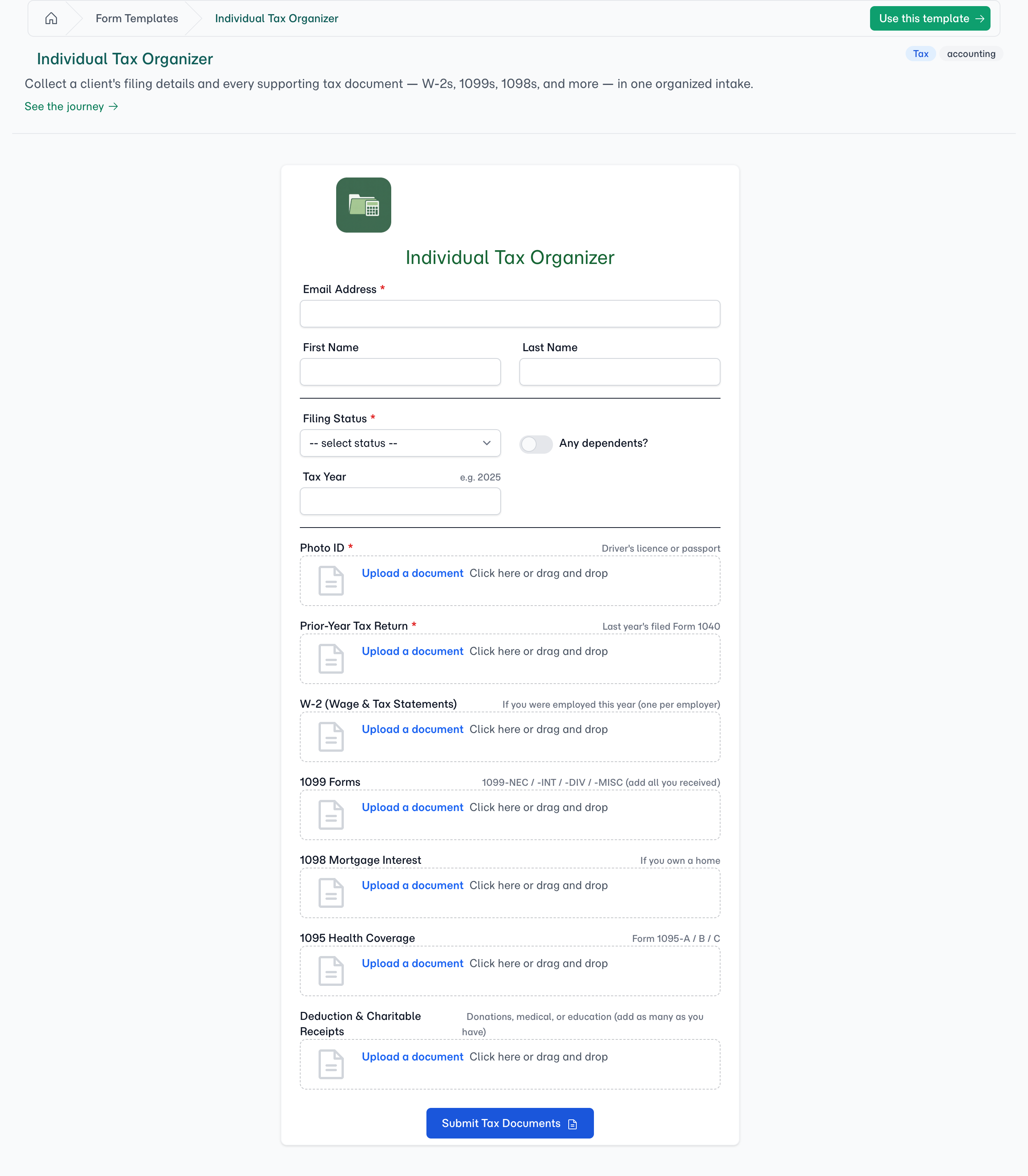
"Send me your documents" is where client collection goes to die. The client guesses what you meant, sends three of the five things, names the files scan001.pdf, and emails a sixth a week later. Document Checklists replace the guesswork: you specify the exact documents you need as a named, labelled list — W-2, bank statement, photo ID — and the client sees a tidy checklist with a slot for each. Every file lands where it belongs, and you can see at a glance what's still missing.
Why Use Document Checklists?
Ask for exactly what you need
Each document is its own slot with a name, an optional hint ("Passport or driver's licence"), and a required-or-optional marker. The client works down the list like a checklist — there's no ambiguity about what to send, and a required slot won't let the form be submitted empty. You stop chasing missing paperwork because the form does it for you.
One slot, one file — or a whole stack
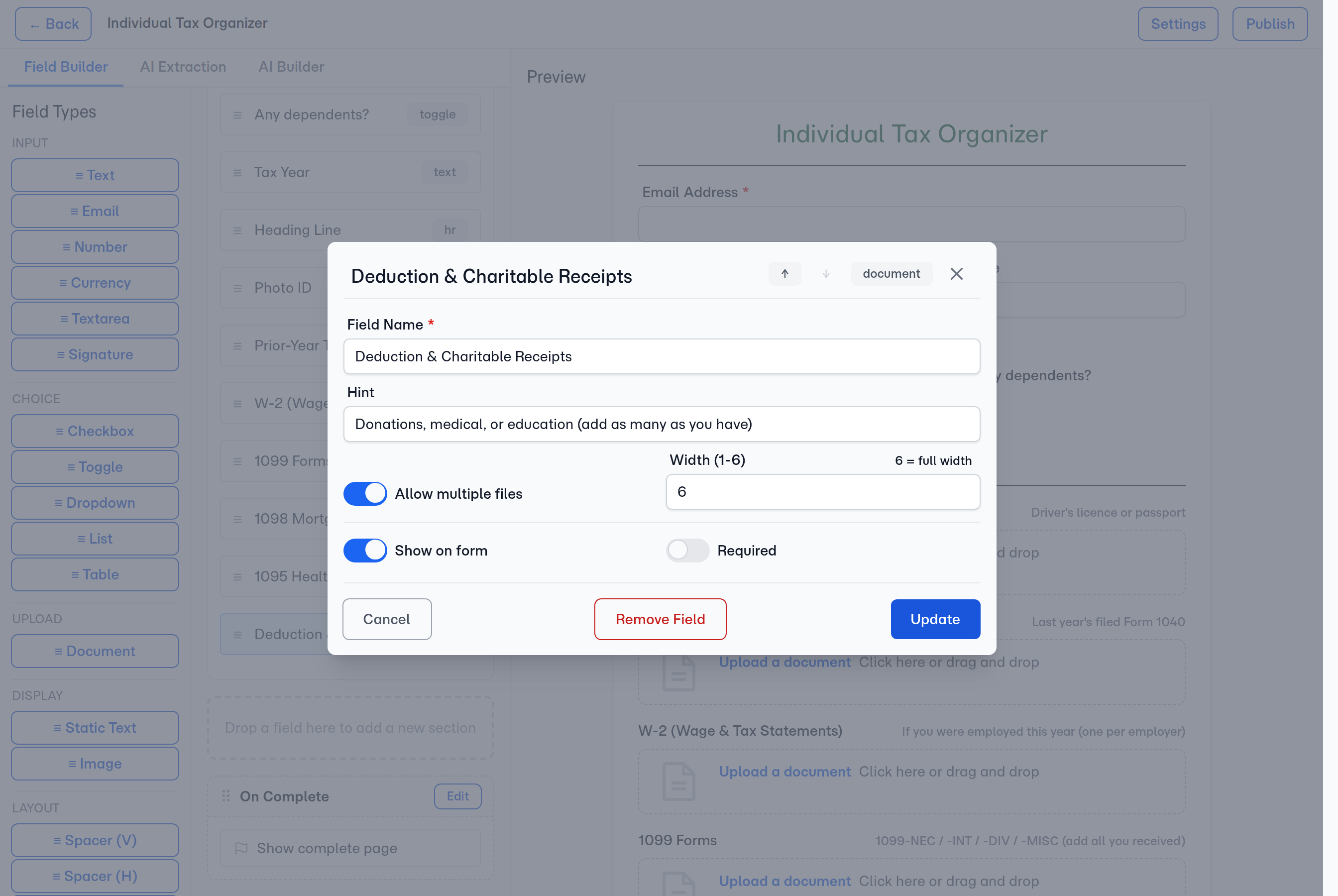
Some documents are singular — one photo ID, one prior-year tax return. Others come in piles: a year of bank statements, a shoebox of receipts. Each slot is set to accept exactly one file or as many as the client has, so a "Deduction & Charitable Receipts" slot takes the whole stack while "Photo ID" stays a single file.
Loose files are still read — you decide where they belong
Clients don't always use the form. They email you a folder of documents, or you drop a batch onto the folio yourself. Those files aren't a dead pile: AI reads every one, writes a synopsis so you know what it is without opening it, and extracts whatever fields it can find. Filing stays your call — the file's Move control puts it in any document slot, and Add Files on a slot uploads straight into it. Nothing guesses which requirement a document answers, so your checklist only ever says what you've confirmed.
The client sees a clean checklist — nothing else
The portal shows your named slots and nothing more. There's no catch-all "upload anything here" box for clients to dump files into — that keeps submissions structured and predictable. The loose-file inbox lives on your side of the folio, for documents that arrive by email or that you add yourself.
How It Works
1. Build the checklist
In the template builder, add a Document field for each thing you want to collect. Give it a name and a hint, mark it required or optional, and turn on Allow multiple files for the slots that take more than one document.
2. The request email names the documents
The request and reminder emails list what you're asking for, by name, with each slot's hint underneath. The client reads "photo ID, proof of address, last three payslips" in their inbox instead of "the required documents" and a link.
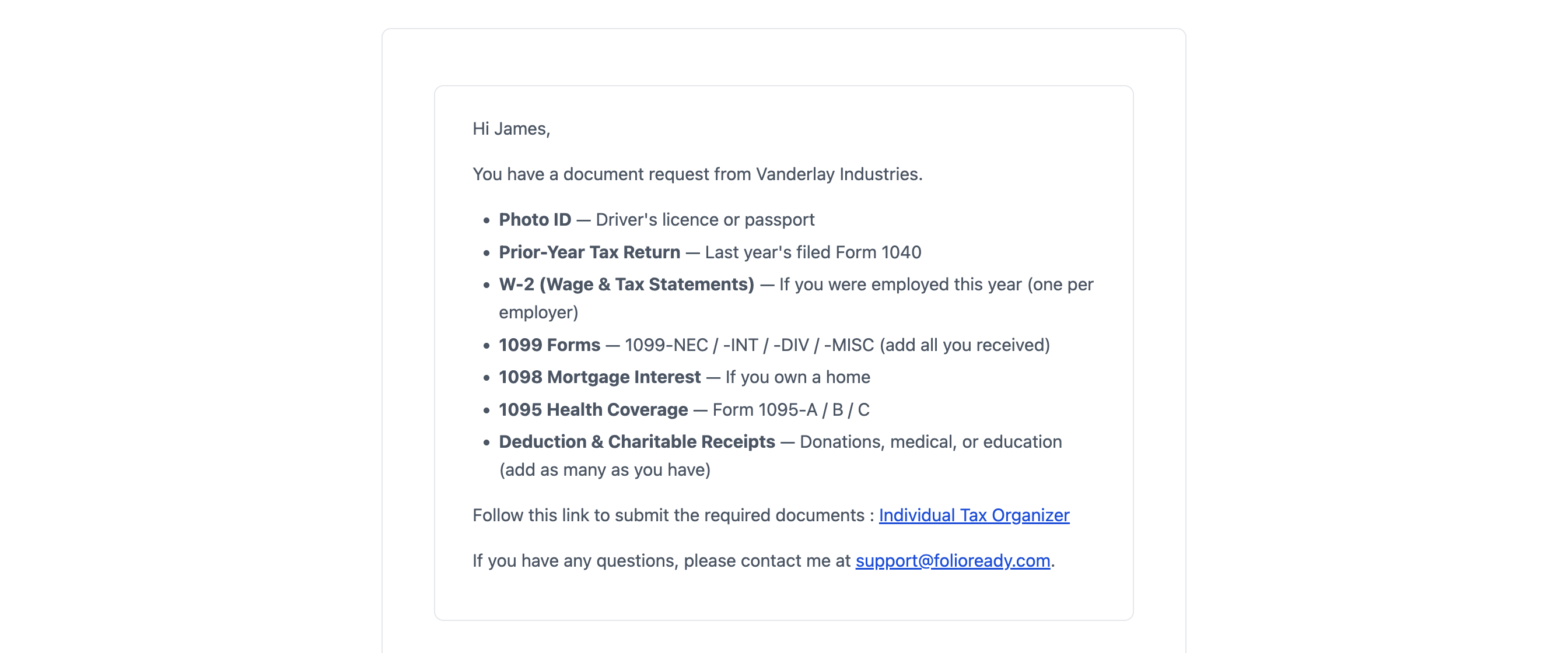
The reminder is where this earns its keep. It lists only what's still outstanding — a document the client has already sent drops off, so a follow-up never asks twice for something sitting in the folio. That happens on its own, on whatever schedule you set, with nobody checking.
Both emails carry the list as standard. If you've customised your email templates, add the Required Files variable ({{folio_required_files}}) where you want the list to sit; it's in the variable picker on every email editor, and it works in the update email too. On a folio that requests no documents — or once everything has arrived — it renders nothing at all, so it's safe to leave in a template permanently.
3. The client fills in the checklist
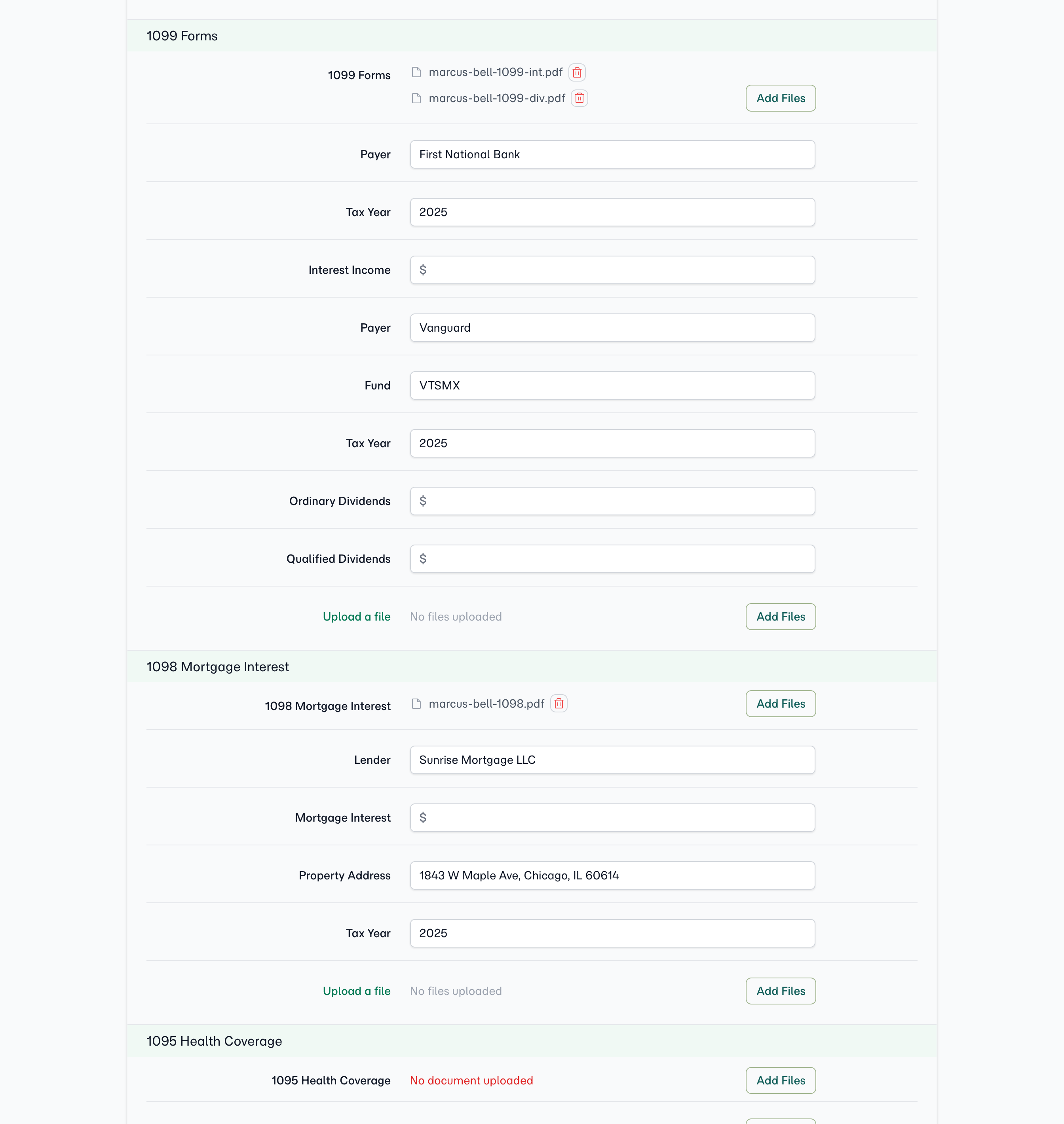
On the portal, the client sees each slot with its label, hint, and required marker. They upload against each one; a multi-file slot keeps a running list with the dropzone open to add more. A required slot must be filled before the form will submit.
4. Files that arrive loose wait in the folio's file area
When a client emails documents in, or you add files to the folio yourself, they land in the folio's file area rather than in a named slot. AI still reads each one — synopsis and field extraction both run — so an emailed document can fill in questionnaire answers before you've decided where it belongs. Documents that arrive by email are read by every section of the folio; a file you add to a section yourself is read by that section.
5. Review every document at its slot
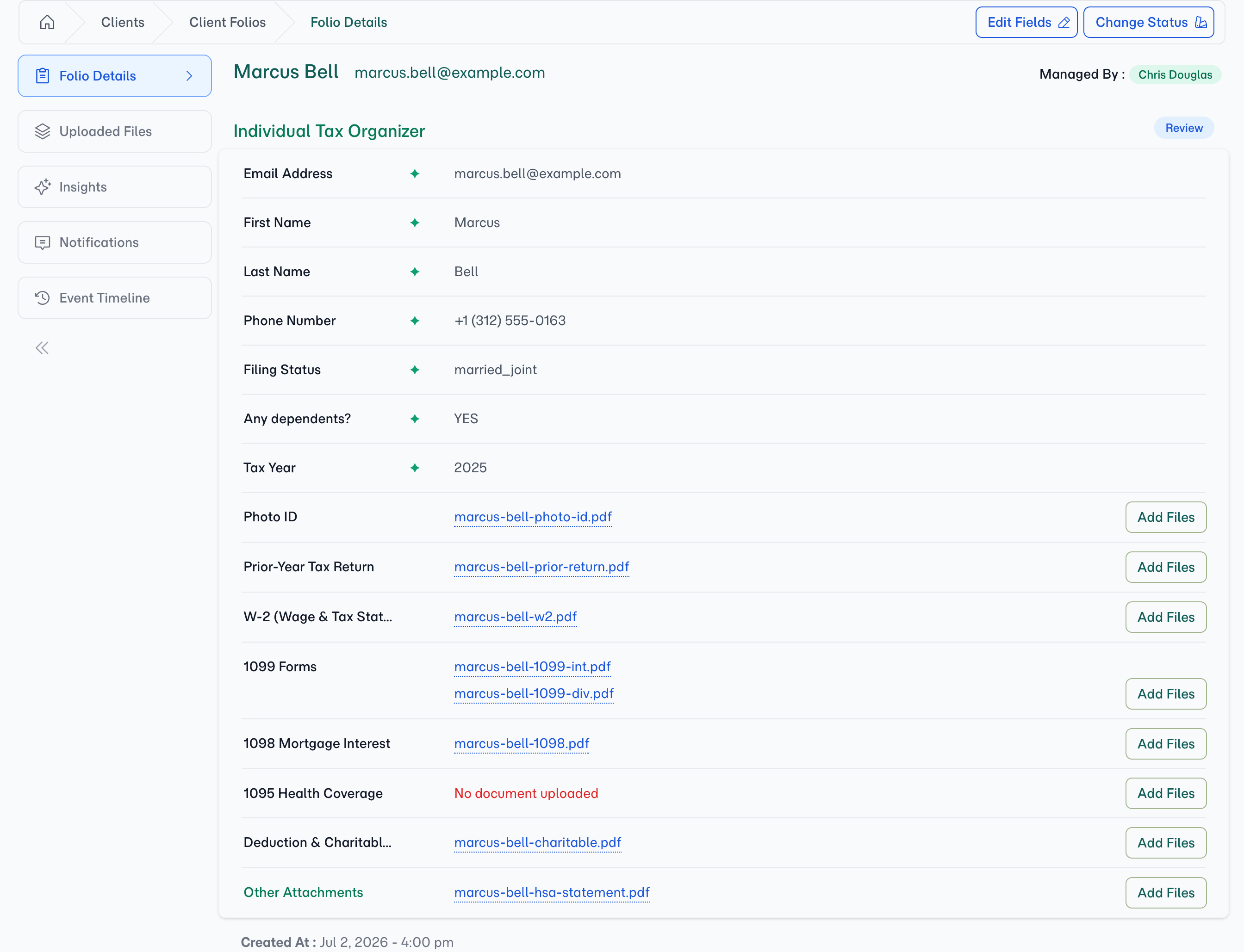
On the folio's detail view, each document sits at its slot — click a filename to open it under Uploaded Files, where you can read the document and its synopsis. If a file landed in the wrong place, the Move control there puts it in any document slot — or back under Other Attachments. The loose-file area on the detail view holds anything emailed in or added by hand that isn't filed to a slot yet, plus an Add Files button for documents you're attaching yourself.
6. Manage the checklist when you edit the folio
Editing a folio shows the same checklist, ready to work on. Every slot is there with its documents — Add Files on a slot uploads straight into it, and each file has a remove control for swapping out an outdated version. Documents you can't classify go under the folio's own attachments list at the bottom. A captured signature stays visible on its row but can't be removed — it's your submission evidence.
Configuration
Document Checklists are built into the template builder — add Document fields to any template's sections. Several catalog templates ship ready to use and import:
| Template | What it collects |
|---|---|
| Individual Tax Organizer | Filing questionnaire plus a tax-document checklist — W-2s, 1099s, 1098, prior-year return, deduction receipts (multi-file where it counts) |
| Document Collection | A general named-document request — photo ID, proof of address, bank statement, signed agreement |
| Monthly Bookkeeping | Period statements and receipts as recurring multi-file slots |
| Client Onboarding | The ID / registration / financials document triad |
Documents that arrive by email are read by every section of the folio, so one emailed file can answer questions in more than one part of the form. A file you add yourself is read by its own section by default; the Section / Folio control on the folio's edit page widens it to the whole folio. Reading files uses your company's AI provider setup and counts against your AI usage allowance, the same as field extraction and document synopsis.
Tips
- Mark only the truly-required documents required. A required slot blocks submission until it's filled — reserve it for documents you genuinely can't proceed without, and leave the rest optional so clients can submit what they have.
- Turn on "Allow multiple files" for anything that comes in batches — statements, receipts, invoices. A single-file slot is right for one-of-a-kind documents like an ID or a signed agreement.
- File emailed documents as you review them. Anything that arrives by email waits under Other Attachments — a quick Move into the matching slot keeps the checklist honest about what's still outstanding.
Related
- Document Synopsis — Turn every uploaded file into a one-paragraph summary you can scan
- AI Automation — Automatic field extraction from uploaded documents
- Email Ingestion — Let clients forward documents in by email
- File Storage Integrations — Send collected documents straight to your own storage