Reconcile Client Answers Against What AI Found
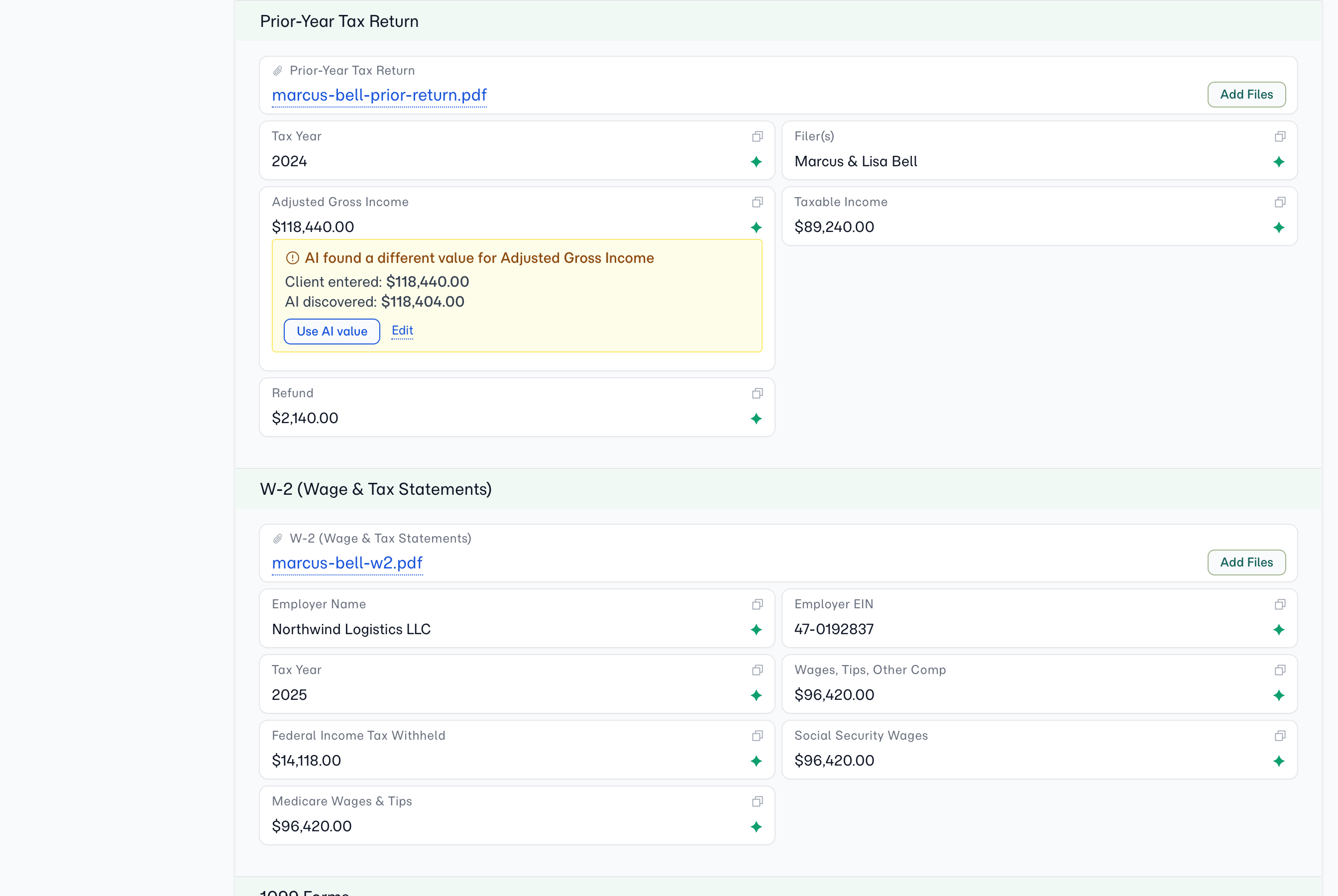
Clients mistype dates, transpose policy numbers, and shorten company names — and once they've typed something, the AI used to go quiet. The folio's job was to capture what the client said, even if the source document said something else. AI Value Reconcile changes that. The AI still reads every document, but its discovery lives in a parallel slot alongside the client's answer. When the two disagree on a field, the folio detail view flags the mismatch inline so you can verify and correct it before the data reaches your CRM.
Why Use This?
Catch client typos against the source documents
Before, the AI would only fill an empty field — the moment a client typed anything, AI extraction stopped writing for that field. A typo against the policy PDF or the bank statement was invisible until somebody noticed it manually. Now the AI extracts every data-entry field every time, and stores its answer in a separate value_ai slot. If the client typed a date that doesn't match the document, you see both side by side.
Client intent stays the source of truth
The client's answer is never overwritten. AI evidence sits next to it as a second opinion, not a replacement. You decide per field whether to accept the AI value with one click, edit the client's answer manually, or leave it as is — the client's typed value remains the value you'd export, send to a CRM, or merge into a document.
One-click reconcile when you spot a mismatch
Each AI field with a difference shows a small mismatch indicator listing the AI's value and a Use AI value action. Clicking it copies the AI's discovery into the field — the mismatch indicator disappears and the corrected value becomes the one that goes onward. No copy-paste, no opening the source document to re-type.
Accepting a value sends it onward by itself
Clicking Use AI value doesn't leave you with a second step to remember. The corrected value goes to your CRM on its own, the same way any other field change does — nothing to push, nothing to confirm.
Works on every existing folio without a migration
Historical folios that never carried an AI value see no change — fields with only a client value behave exactly as they always have. The reconcile flow only surfaces on fields where the AI actually found something different to record, so the UI stays clean for folios that don't need it.
How It Works
1. Upload documents as usual
Drop files into a folio section via the client portal, the manager upload modal, or by email. The AI Reader parses each file and AI extraction runs across the section's data-entry fields — the same flow you already use.
2. AI writes its answer to a separate slot
For each field, the AI records what it found in the documents, independently of whether the client already typed a value. If the client's answer and the AI's answer match, nothing visible changes — the field looks ordinary. If they differ, the field picks up a mismatch indicator.
3. Review the mismatch on the folio detail view
The mismatch indicator shows the AI's value beneath the field with the source filename. You can:
- Click Use AI value to copy the AI's answer into the field
- Click Edit to type a corrected value manually
- Leave it alone if the client's answer is the one you want — the AI's value stays on record but doesn't drive display, export, or sync
4. Reconciled answers reach your CRM on their own
Accepting an AI value writes the field and sends it to your CRM in the same step — there is no separate push. Whether field values go out at all is a company-level setting: Company → Integrations carries Sync Field Values, alongside Sync Document Synopses for the AI Reader's summaries, and either can be turned off on its own.
Configuration
There's nothing to configure. AI Value Reconcile is on automatically for every account that uses AI extraction. Re-running extraction (uploading a new file, or editing the template's AI prompt and re-uploading) refreshes the AI value for every field in the section.
| Setting | What it controls |
|---|---|
| AI Value Reconcile | On by default whenever AI extraction is enabled for the account |
Tips
- Pay attention to mismatches on high-stakes fields. Dates of birth, policy numbers, transfer amounts, and account references are where typos hurt most. A mismatch indicator on those fields is worth thirty seconds of verification against the source document before you sync.
- Editing a field clears the mismatch indicator. Once you've corrected the client's answer manually, the indicator disappears — even if your edit differs from both the original client value and the AI's value. The folio trusts your latest decision.
- Re-runs reflect the latest discovery. If the AI couldn't find a value on the first pass and you add a clarifying document later, the new run replaces the previous AI answer — including clearing it back to nothing if the new run can't find it either. You won't see stale AI suggestions sitting alongside fresh evidence.
Related
- Document AI Reader — How every file is parsed before AI extraction runs
- AI Automation — Automatic field extraction from uploaded documents
- Folio Insights — Ask cross-document questions of a folio in plain language
- Bring Your Own AI Keys — Route AI calls through your own provider account