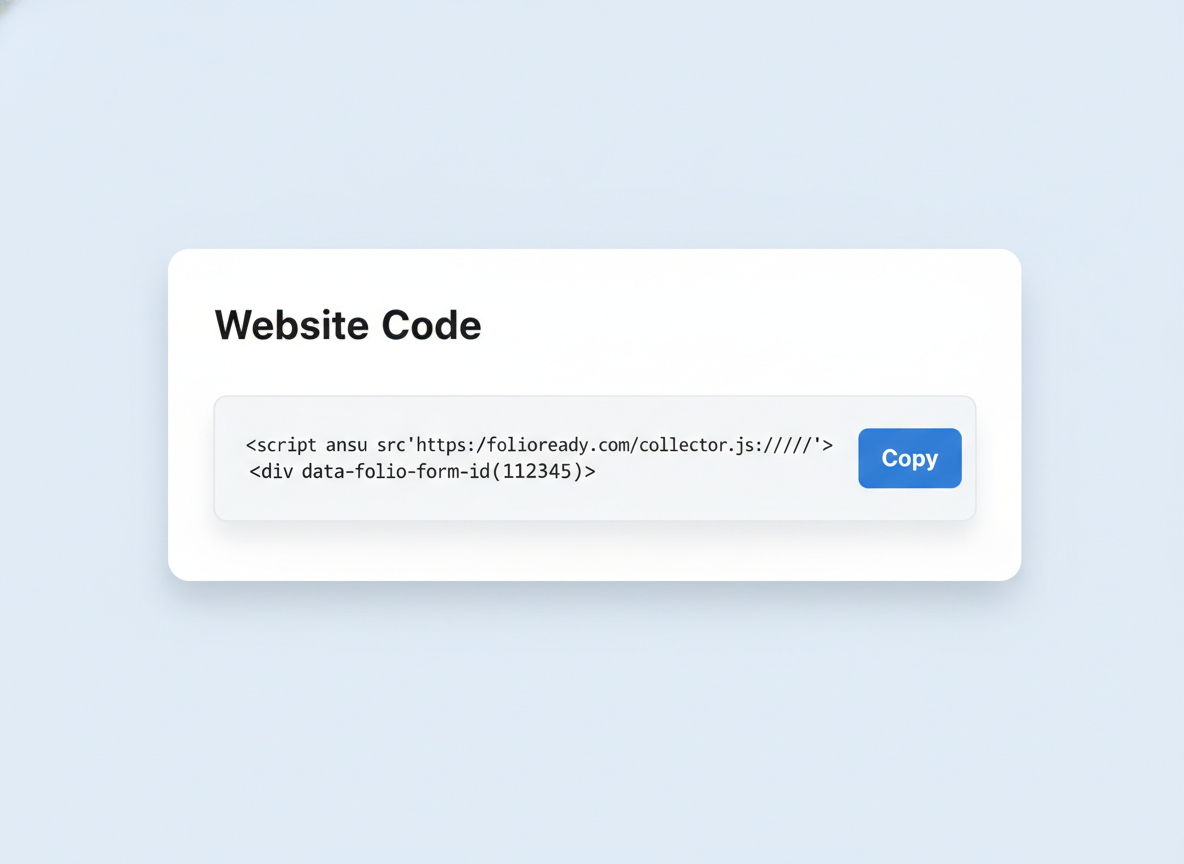
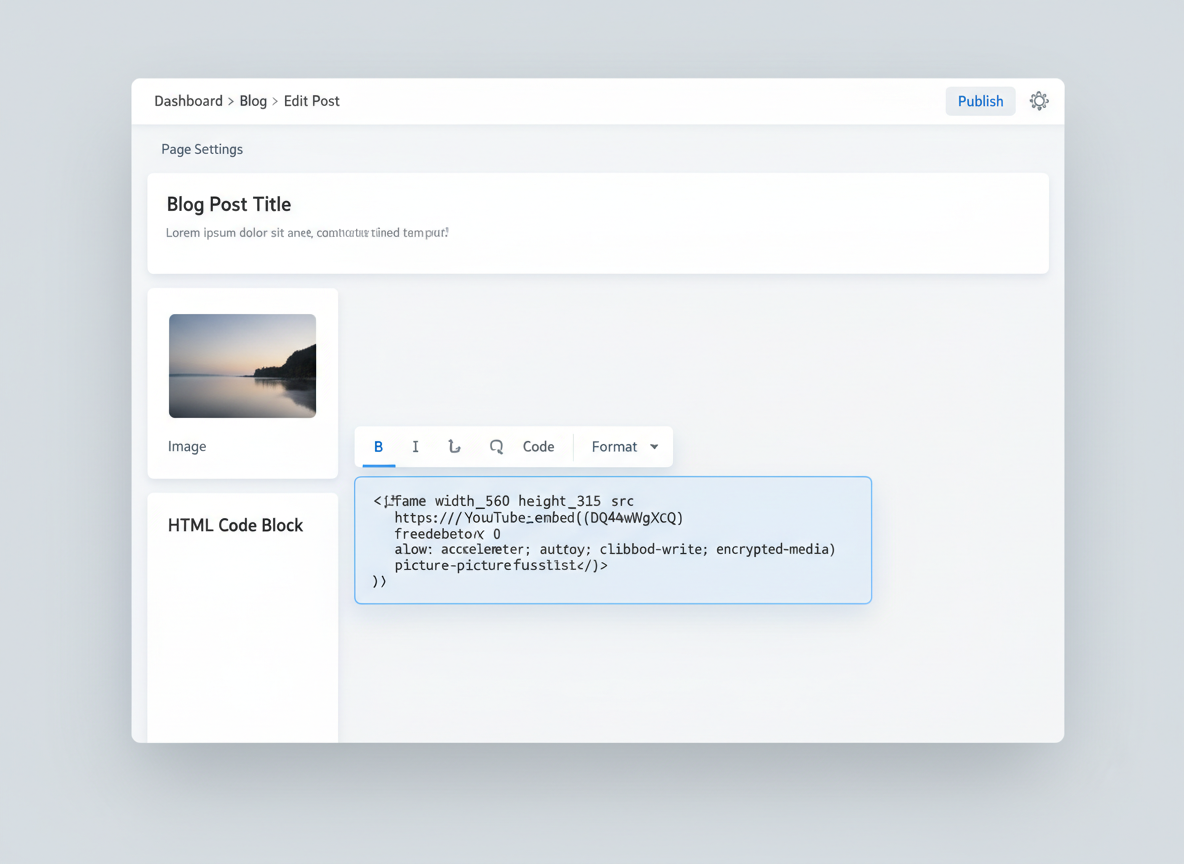
If you want FolioReady available on multiple pages, add the script tag to Settings → Advanced → Code Injection → Footer. Then you only need to add the collector element in each page's Code Block — without repeating the script tag.
Connecting...
Tags:
website-builder
embed
Squarespace Integration
Embed FolioReady on your Squarespace website using a simple code snippet. Visitors fill out your document collection form without leaving your site, and submissions go straight to your FolioReady account.
Why Embed on Your Squarespace Site?
Collect documents without sending clients elsewhere
Linking to an external portal adds friction. An embedded form on your Squarespace site lets clients upload documents in the same place they already trust — your website, your brand, your domain.
One snippet, no apps to install
Paste a single HTML snippet and you're done. No Squarespace extensions to manage, no dependencies to update, no compatibility issues with templates or site versions.
Submissions managed in one place
Everything your clients submit flows into your FolioReady account automatically. You don't need to check Squarespace for new entries — your existing FolioReady workflow handles it all.
Prerequisites
- A Squarespace website on the Core plan or above (Code Blocks with JavaScript require Core+)
Adding to a Page
Step 1: Copy Your Embed Code
In your FolioReady account, go to Template Design → Website Code. Copy the embed snippet — it contains everything needed to display your form.
Step 2: Add a Code Block in Squarespace
In the Squarespace editor, create or edit a page. Click Add Block (or the + insert point) and select Code from the block menu. In the Code Block editor, turn off the Display Source toggle, then paste your embed snippet.
Step 3: Publish Your Page
Save and publish your page to make the form live. The form won't appear in the Squarespace editor preview — you'll need to view the published page to see it.
Site-wide installation
How It Works
  Visitor                Your Squarespace Site     FolioReady
    │                         │                        │
    │   Visits your page      │                        │
    ├────────────────────────►│                        │
    │                         │   Loads form design    │
    │   Collector renders     │◄──────────────────────►│
    │   form                  │                        │
    │                         │                        │
    │   Fills out form and    │                        │
    │   uploads documents     │                        │
    ├────────────────────────►│                        │
    │                         │   Saves submission     │
    │                         ├───────────────────────►│
    │                         │                        │
    │   Confirmation shown    │       ✓ Stored         │
    │◄────────────────────────┤◄───────────────────────┤
    │                         │                        │
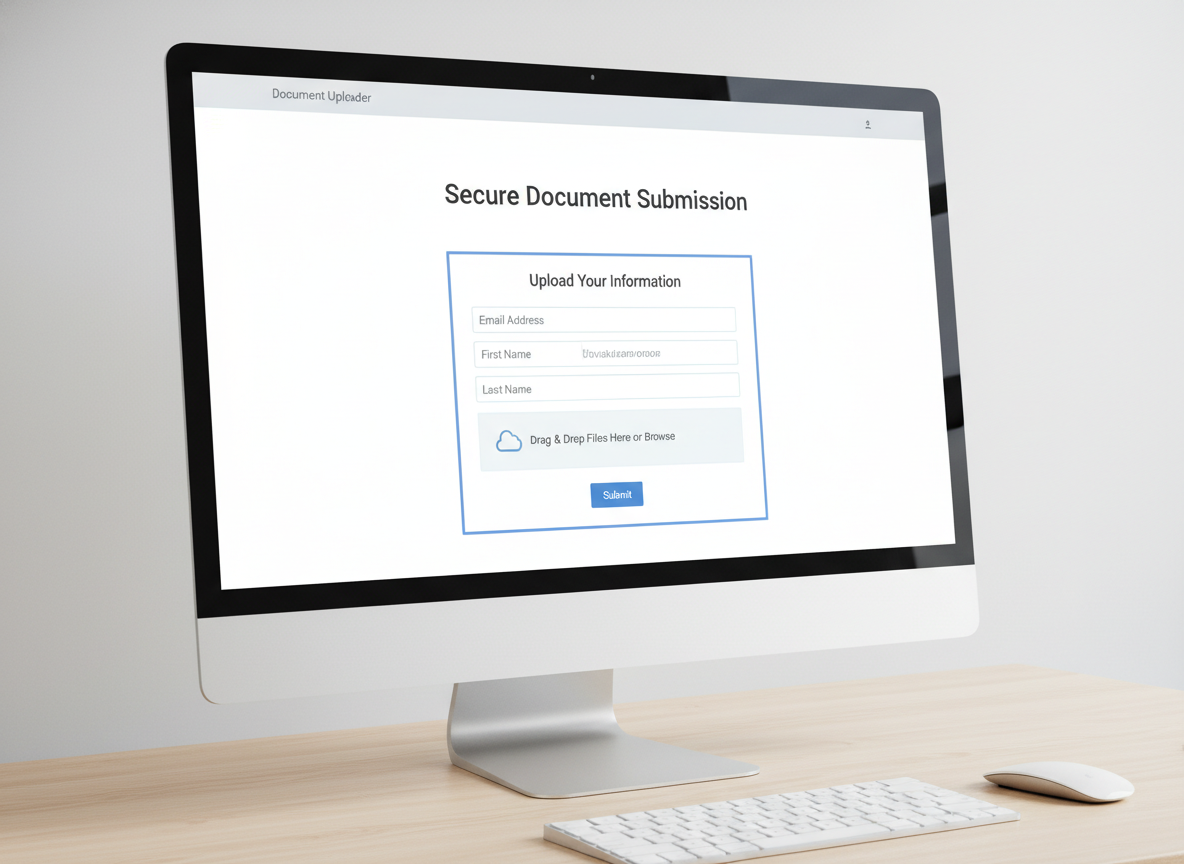
When a visitor opens your page, the embed snippet loads your form design from FolioReady and displays it inline. The visitor fills out the form and uploads any required documents. Submissions are saved to your FolioReady account in real time.
You manage all submissions from your FolioReady account — there is no admin interface inside Squarespace.
Removing
To remove FolioReady from your Squarespace site, delete the Code Block containing the embed snippet. If you added the script tag to Code Injection, remove it from Settings → Advanced → Code Injection → Footer.
What happens when you remove the snippet
Your existing submissions and client data remain in your FolioReady account. Only the embed code is removed from your Squarespace site. You can add it back at any time.
Troubleshooting
Form Not Showing in the Editor
This is expected. Squarespace disables JavaScript preview in the dashboard editor. Save your page and view the published or previewed version to see the form.
Form Not Showing on Published Page
Make sure the Code Block contains both the script tag and the collector element. The script tag loads the FolioReady component, and the collector element displays your form. If either is missing, the form won't appear. Also confirm your site is on the Core plan or above — the Basic plan does not support JavaScript in Code Blocks.
Script Not Loading
Verify that the script tag URL is correct. If your Squarespace site or any browser extensions enforce a Content Security Policy, external scripts may be blocked. Check your browser's developer console for blocked resource errors.
Template Code Not Working
Make sure the code attribute in the collector element matches a template in your FolioReady account. Go to Template Design → Website Code to find your code. Copy and paste it exactly — do not add extra spaces or characters.
Related
- WordPress Integration — Embed FolioReady on your WordPress website with the official block plugin
- Ghost Integration — Embed FolioReady on your Ghost website with a simple code snippet
- Wix Integration — Embed FolioReady on your Wix website with the marketplace app
- Google Drive Integration — Automatically store client files in your Google Drive
- Dropbox Integration — Store client files in your Dropbox with managed access