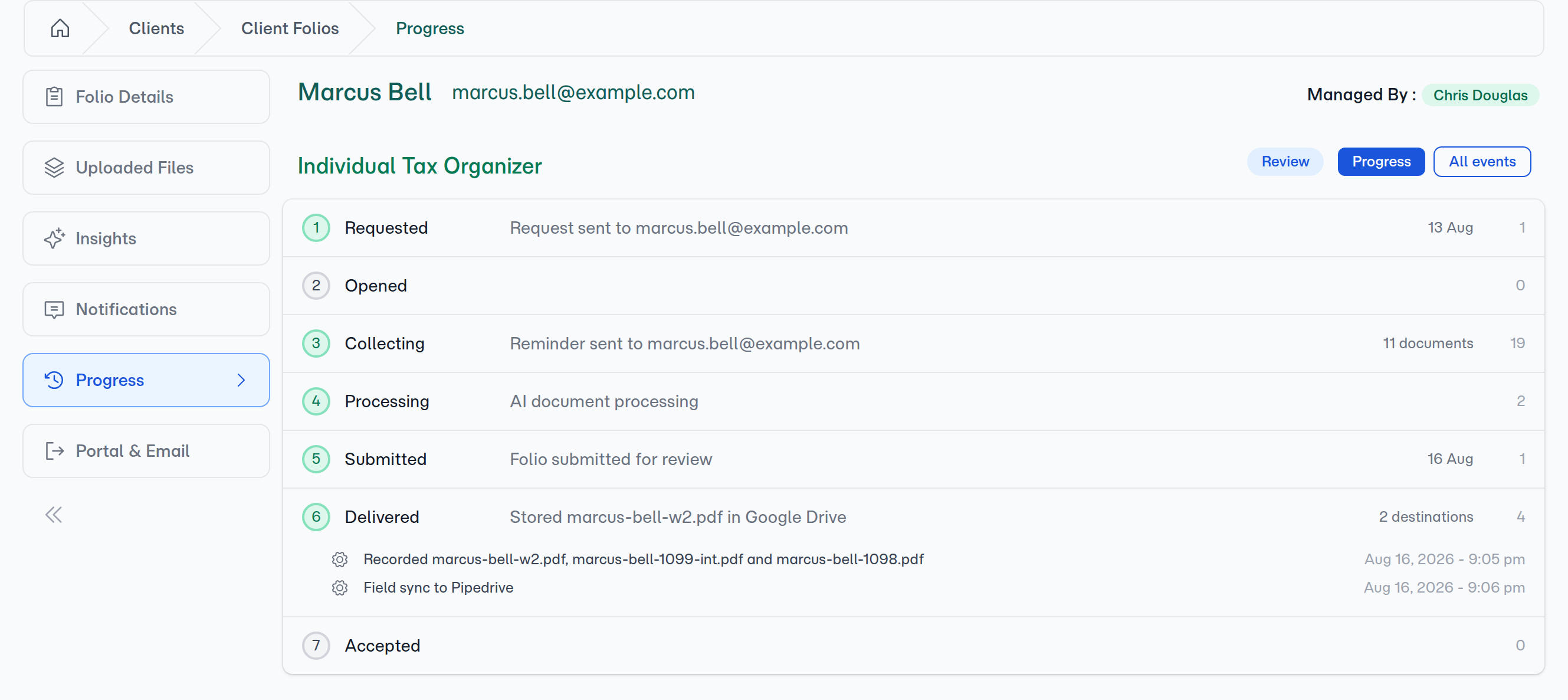
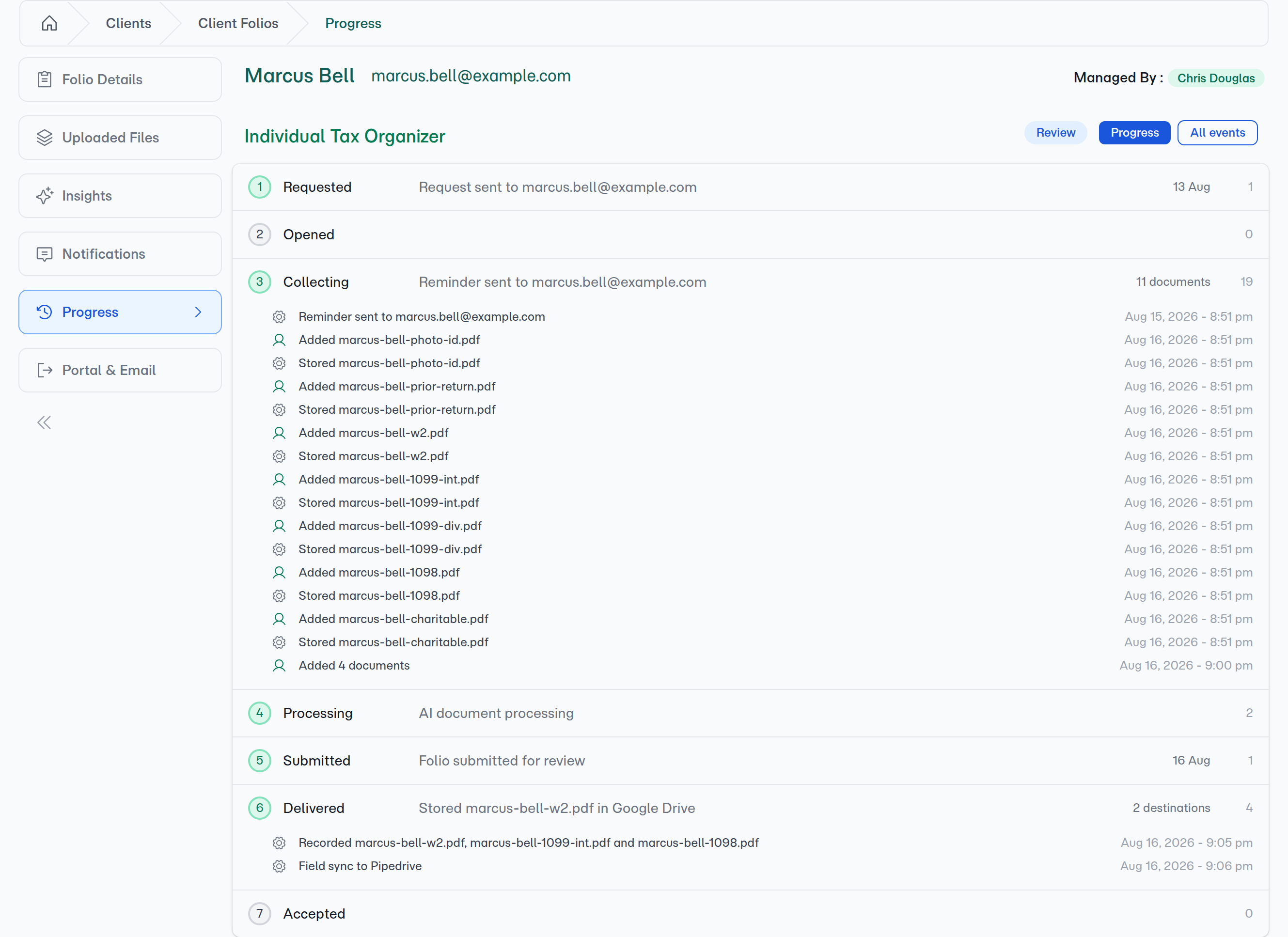
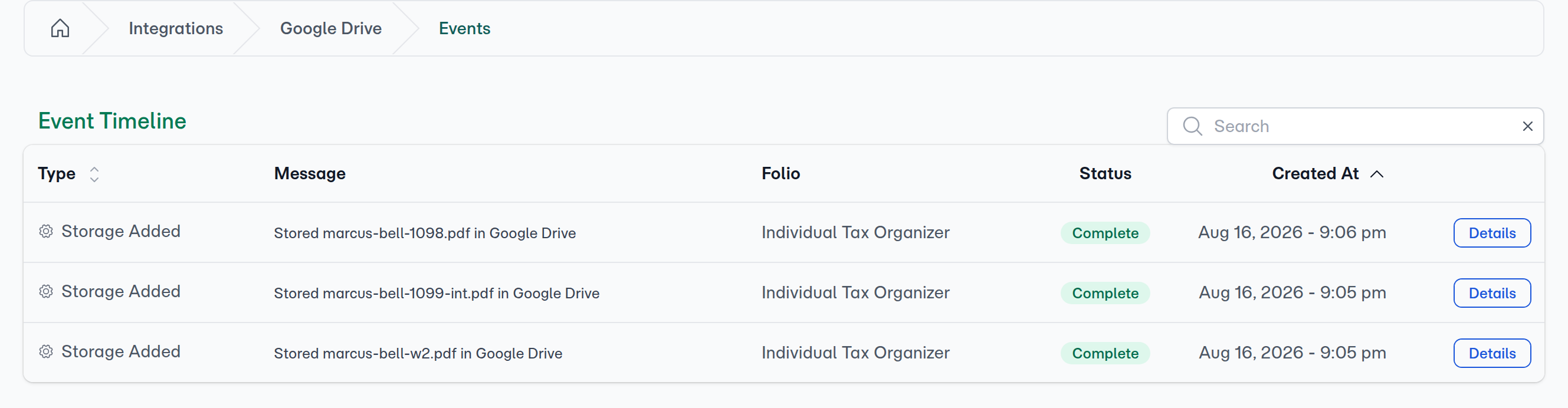
Progress reads the events your folios already record — there is no switch to turn on and nothing to configure. Existing folios show their full history in the new view immediately.
Connecting...
Every Folio Now Reads as a Process, Not a Log
A folio's history used to be a table: five columns, newest first, one row per thing that happened. It was complete and it was accurate, and it still made you reconstruct the actual question — where is this request up to? — in your head, one page of rows at a time.
Each folio now opens on a Progress tab instead. The same events, grouped into the seven stages of a submission and read top to bottom, so the state of the request is visible without decoding it. The full table is still one click away.
What's New
A folio's events, as its submission stages
Open any folio and select Progress. Every event is placed into one of seven stages — Requested, Opened, Collecting, Submitted, Processing, Delivered, and Accepted — shown in the order the work actually happens rather than in reverse date order.
Finished stages are ticked. The stage in flight is marked as running. Stages still ahead are dimmed. A folio that ended differently says so: the last stage reads Expired or Closed instead of Accepted, so the rail never claims an outcome the folio didn't reach.
Each stage says what it produced
Under every stage label is a second line naming its output, so most folios can be read without opening anything: Collecting counts the documents, Processing counts the fields the AI filled, and Delivered names how many destinations the folio reached — or how many writes failed.
Repeated events fold into one line
A run of uploads inside the same few minutes no longer takes ten rows. Events of the same kind from the same source collapse into a single entry that names the documents when there are three or fewer, and counts them when there are more. Three is the threshold, so a pair of uploads still reads as a pair.
Failures come to you
Anything that failed is pulled to the top of its stage, never folded into a roll-up, and the stage holding it opens on its own. A CRM write that didn't land is the first thing on the page rather than one grey row among thirty.
Every integration has its own Event Timeline
Connected apps now carry their own event feed. Open an app from your Integrations page and select Event Timeline to see every event that app has produced — across all clients and folios — with the same search and sorting you get elsewhere, and a Details link from any row into the folio it came from.
This is the view for checking a connection rather than a client: confirming your CRM has been receiving writes, or finding the point where a storage provider stopped saving.
How to Use It
- Open any client, then any of their folios
- Select the Progress tab
- Read the rail — ticked stages are done, the marked one is in flight, dimmed ones haven't started
- Click any stage to see its events; the stage that needs you is already open
- Press All events for the full searchable, sortable, filterable table, and Progress to go back
- For a connected app, open Integrations, pick the app, and select Event Timeline
💡
Nothing to set up
What's Improved
The Progress view keeps up on its own
Events that land while you have a folio open appear without a refresh, so a folio left open during an AI run fills in as the work completes.
Nothing to manage
The view you're on and the stages you've opened are how you're reading the folio right now, not settings that follow you around. Reload and you're back to the useful default: the current stage open, and any problems surfaced.
Integration pages read like the rest of the app
The recent-events summary on a connected app's page now shows proper event types, messages, folio names and status badges instead of raw internal labels, and hides discarded events — so it shows the same rows the full timeline does. The integration pages also use the full width of the screen.
The client-level timeline is unchanged
A client's combined Event Timeline, which gathers every event across all of that client's folios, works exactly as before. Progress sits one level below it, per folio.
Related
- Folio Progress — The full feature page: every stage, what each one collects, and how the roll-ups work
- Client Event Timeline — The same events one level up, combined across all of a client's folios
- Folio Insights — The Insight proposals that appear in the Processing stage