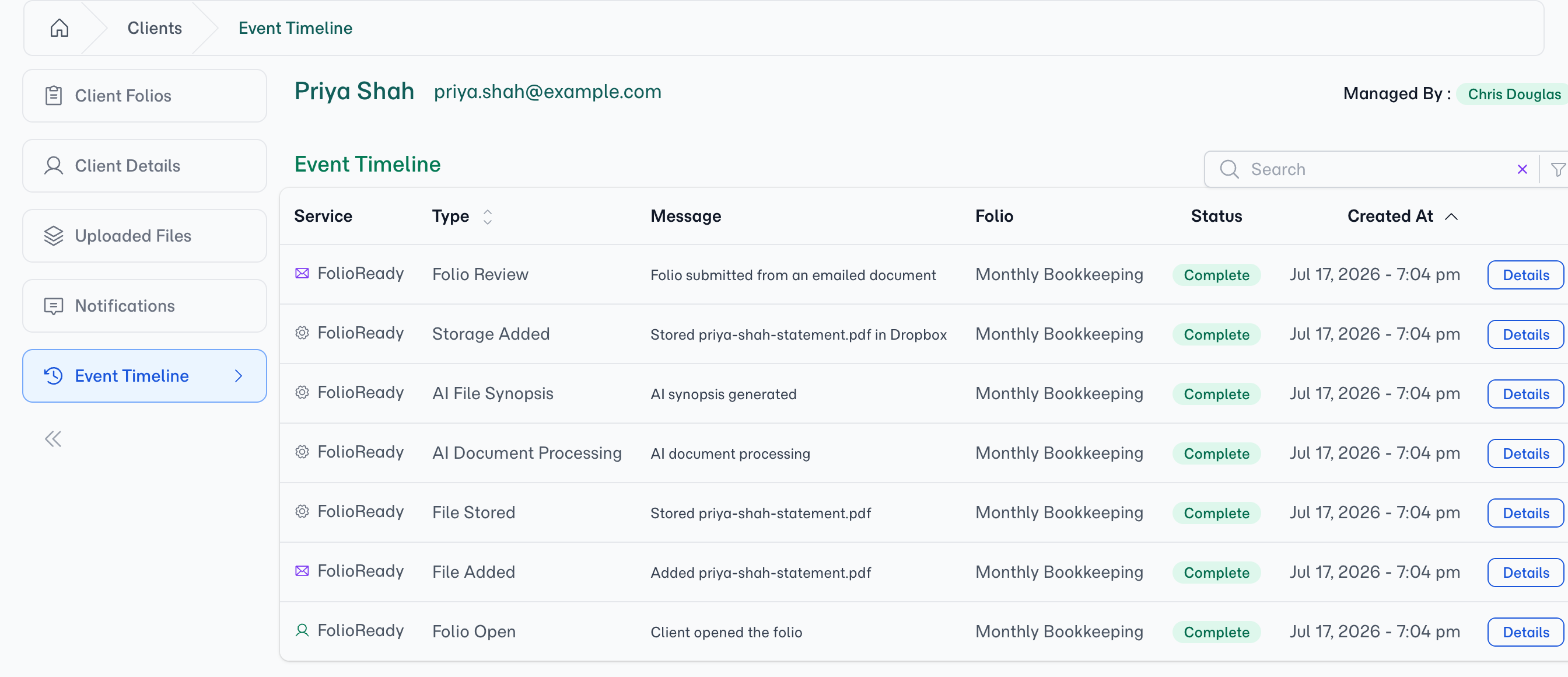
Each individual folio still has its own timeline on the folio page — unchanged. The client Event Timeline simply sits one level up, combining them all so you can see the client's full activity at a glance.
Connecting...
See Everything That's Happened Across a Client — in One Timeline
Every folio already keeps its own activity trail: when the client opened it, which documents arrived, what the AI pulled out, what synced to your CRM. But a single client often has several folios on the go at once, and answering a simple question — "what's the latest with this client?" — used to mean opening each folio in turn and reading its timeline separately.
The new Event Timeline rolls all of that up to the client level. One feed, ordered newest-first, showing every event across all of that client's folios — with search and a one-click filter to zero in on exactly the kind of activity you're looking for.
What's New
One feed for the whole client
Open a client and you'll find a new Event Timeline tab alongside Client Folios, Client Details, Uploaded Files, and Notifications. It gathers every event from every folio belonging to that client into a single chronological list — opens and updates, document uploads, AI extraction and synopsis, CRM writes, storage saves, and notifications sent. No more hopping between folios to piece together what happened when.
A Folio column so you never lose context
Because the feed spans multiple folios, each row names the folio the event belongs to. A quick scan tells you not just what happened but where — and a Details link on every row takes you straight to that folio when you want the full picture.
Filter by the kind of activity
A filter panel lets you narrow the timeline to one family of activity in a single click:
- Folio — opens, updates, reviews, acceptances, expiries, closes
- File — documents added or removed
- Notification — requests, reminders and updates sent to the client
- AI — document processing, field extraction, and synopsis
- Insight — fields added or updated by AI Insights
- Storage — files saved to your connected storage
- CRM — field syncs and notes written to your CRM
Pick CRM to audit exactly what's been pushed to your pipeline, or AI to review everything the assistant has done — without the rest of the noise.
Search the timeline
A search box filters the feed by the text of each event, so you can jump to a specific document name, action, or service in seconds instead of scrolling.
How to Use It
- Open any client from your Clients list.
- Click the Event Timeline tab in the left menu.
- Browse the combined feed — newest events first, each tagged with its folio.
- Use the filter to focus on one family of activity (CRM, AI, Storage, and so on), or the search box to find a specific event.
- Click Details on any row to open the folio that event belongs to.
💡
Where to look
Related
- AI Automation — Automatic field extraction from uploaded documents, surfaced in the timeline
- Document AI Reader — How every uploaded file is parsed before AI extraction runs
- File Storage Integrations — Save client files to your connected storage, with each save recorded as an event