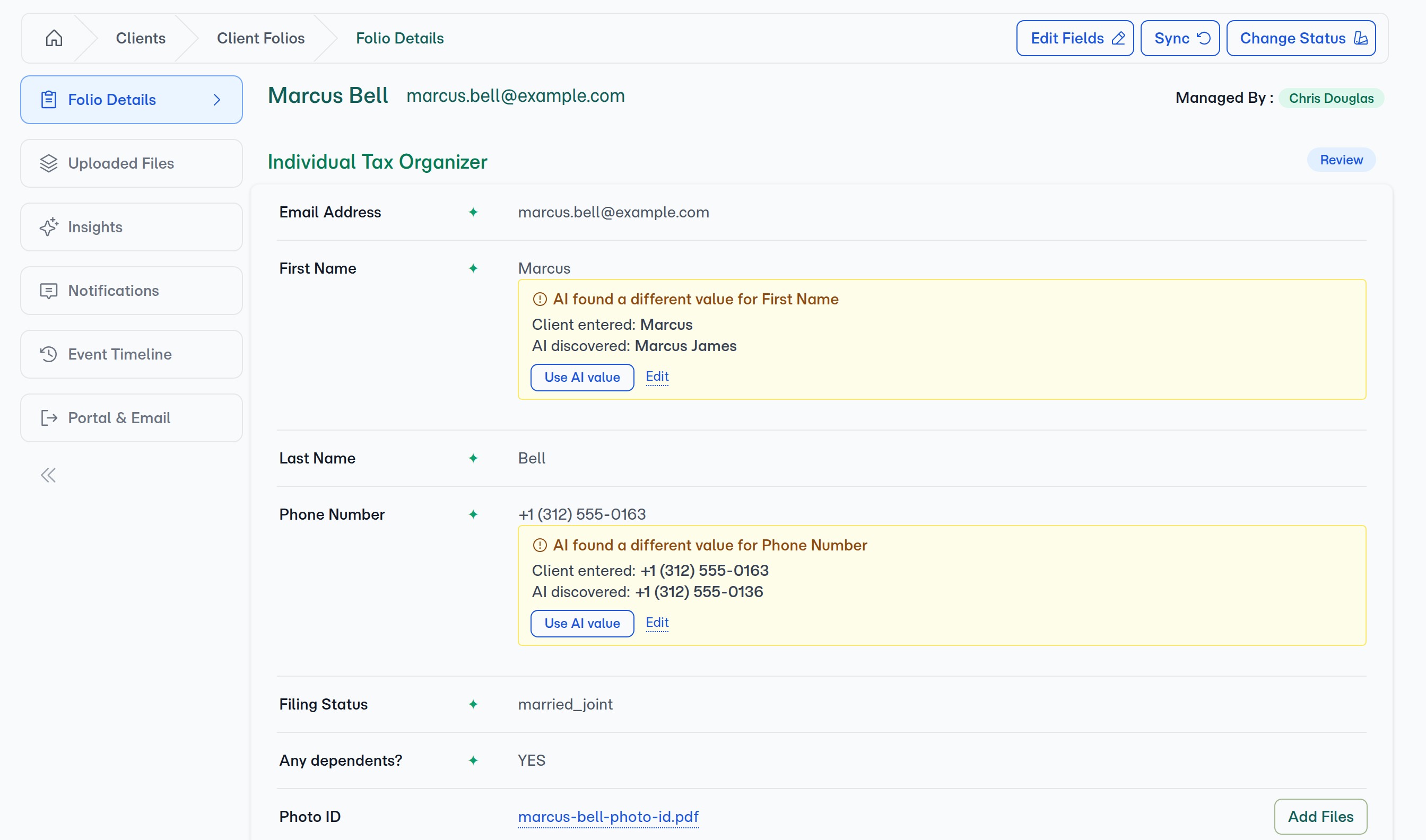
Editing a field clears the mismatch panel even if your edit doesn't exactly match either the client's original answer or the AI's discovery. FolioReady trusts your latest decision — if you've touched the field manually, the mismatch is considered resolved.
Connecting...
AI Now Catches Client Typos Against the Source Documents
Until this release, the moment a client typed an answer into a folio field, the AI went quiet on that field — extraction skipped anything already filled. A typo against the source policy PDF or bank statement was invisible unless somebody noticed it manually. With AI Value Reconcile, the AI now reads every data-entry field every time and records its discovery alongside the client's answer. If the two disagree, the folio detail view flags it inline — one click reconciles it, and the corrected value goes to your CRM on its own.
What's New
An inline mismatch indicator on every AI field
Open any folio's detail view and AI fields whose client value and AI discovery disagree now show a panel directly under the field: the value the client typed and the value the AI pulled from the documents, side by side. Matching values stay clean — the indicator only appears when there's an actual difference to look at.
A one-click "Use AI value" action
Each mismatch panel carries a Use AI value button. Click it and the AI's discovery copies into the field, the mismatch indicator disappears, and the field is yours to sync onward — no opening the source document, no copy-paste. The accompanying Edit link still works for the cases where neither value is quite right.
Accepting a value sends it onward by itself
Clicking Use AI value doesn't leave you with a second step to remember. The corrected value reaches your CRM the same way any other field change does — nothing to push, nothing to confirm. Whether field values go out at all is a company-level setting: Company → Integrations carries Sync Field Values, alongside Sync Document Synopses for the AI Reader's summaries.
Client intent stays the source of truth
The AI never overwrites what the client typed. Its discovery sits next to the client's answer as a second opinion, not a replacement. The value the folio exports, sends to a CRM, or merges into a document is still whatever the client typed — until you explicitly accept the AI's value. You decide per field whether the typo is worth fixing.
Works on every existing folio without a migration
Folios you completed before this release see no change — fields with only a client answer behave exactly as they always have. The mismatch panel only renders where the AI actually has a discovery to compare against, so the manager UI stays uncluttered on historical work.
How to Use It
- Upload documents to a folio section the way you always have — via the client portal, the manager upload modal, or by email.
- Open the folio's detail view once AI has processed the files. Look for the inline mismatch panel beneath any AI field where the client's answer and the AI's discovery differ.
- Click Use AI value to accept the AI's discovery, or click Edit to type a corrected value of your own.
- That's the whole flow — accepting an AI value writes the field and sends it to your CRM in the same step, so there's nothing left to push once the section reads the way you want it.
💡
Worth knowing
What's Improved
- Re-extractions now reflect the latest discovery. Adding a new file or editing a template prompt re-runs AI extraction across the section. Each field's AI value is replaced — including being cleared back to nothing if the new pass can't find it. You won't see stale AI suggestions sitting next to fresh evidence.
- Display, export, and CRM sync all use the same rule. The value that shows on the manager UI, exports to PDF, and gets pushed to your CRM is always the client's answer if they typed one, falling back to the AI's discovery otherwise. One coalesce rule, used everywhere, so there's no scenario where the CRM sees a different value than the manager sees.
Related
- AI Value Reconcile — Full feature overview with screenshots and configuration reference
- Document AI Reader — How every uploaded file is parsed before AI extraction runs
- AI Automation — Automatic field extraction from uploaded documents