A Title on Every Form, Always at the Top
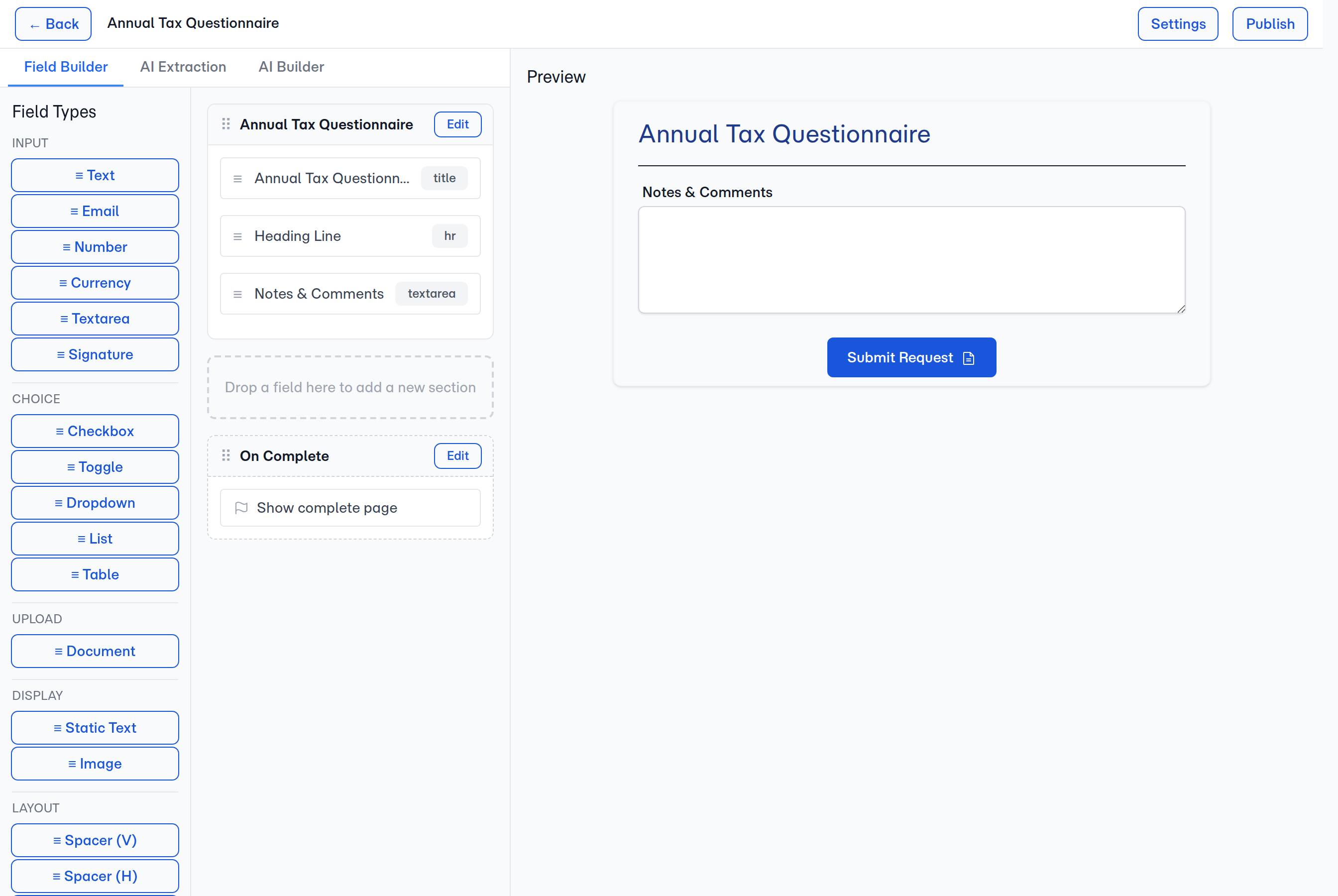
A form without a heading is a form your client opens and asks "what is this?". The name you gave the template — Annual Tax Questionnaire, New Client Intake, Loan Pre-Approval — used to live in your manager view and nowhere else. Now every template carries a protected title field at the very top of the first section. It mirrors the template's name in real time, the AI builder can't lose it, drag-and-drop can't move it, and you can hide it on the form if you don't want it shown. One field. One place. Always there.
Why Use This?
Your client always sees what they're filling in
A form heading is the smallest thing that says "you're in the right place". When the template name and the form heading are the same field, you can't accidentally show a client Untitled or a stale heading from a previous draft. Rename the template and the form's title rewrites itself. Send the link with confidence.
The AI builder can't accidentally delete it
Letting the AI rebuild a template from a prompt used to come with one quiet risk: it might restructure the sections and drop the heading you wanted. Now the title field is part of the contract. The AI builder treats it as system-managed — it stays at position one of section one no matter what prompt you give it, no matter how aggressively you ask it to restructure. If the AI omits it, FolioReady puts it back. If the AI moves it, FolioReady relocates it.
Drag-and-drop can't push it down the page
In the manual builder, the title row sits above every drop zone. The drag handle is greyed out. The Up button on the second field is disabled — there's nothing above the title for it to go. You can rearrange every other field in the template freely; the title just stays put.
Hide it on the form when you don't want it shown
Some templates are casual enough that the heading would feel heavy — a one-question follow-up, a quick attachment request. Toggle "Show on form" off in the title's edit modal and the title disappears from the client's view of the form. The field stays in the template (so your manager view still knows what it is); the client just doesn't see it.
AI-generated templates start lean
When you click Build with AI on the home screen and give it a prompt, the AI doesn't get a pre-stuffed canvas to argue with. The starter now skips the generic Notes and Comments sections so the AI builds from a clean foundation — your prompt drives the structure, not a leftover scaffolding. Click Skip instead of typing a prompt and you get the full default with Notes and Comments included, the same as before.
How It Works
1. Every new template ships with a title
Create a template — from a starter, from the AI builder, or by hand from the new-template modal — and the title field is already there. Its name mirrors the template's name; if you renamed the template Quarterly Compliance Review, the title field's display reads Quarterly Compliance Review.
2. Edit the title to rename the template
Click the title row in the builder canvas. The edit modal opens with Title, Text Size, Align, and Width — the visual controls you'd expect for a heading. Type in Title and the canvas card, the page top bar, and the form preview all update live as you type. Save and the template's name updates with it; cancel and everything reverts.
The Field Name input you'd see on other fields is hidden here — the name is the template's name, full stop. The Remove button is also hidden — there's no path to delete the title from the template.
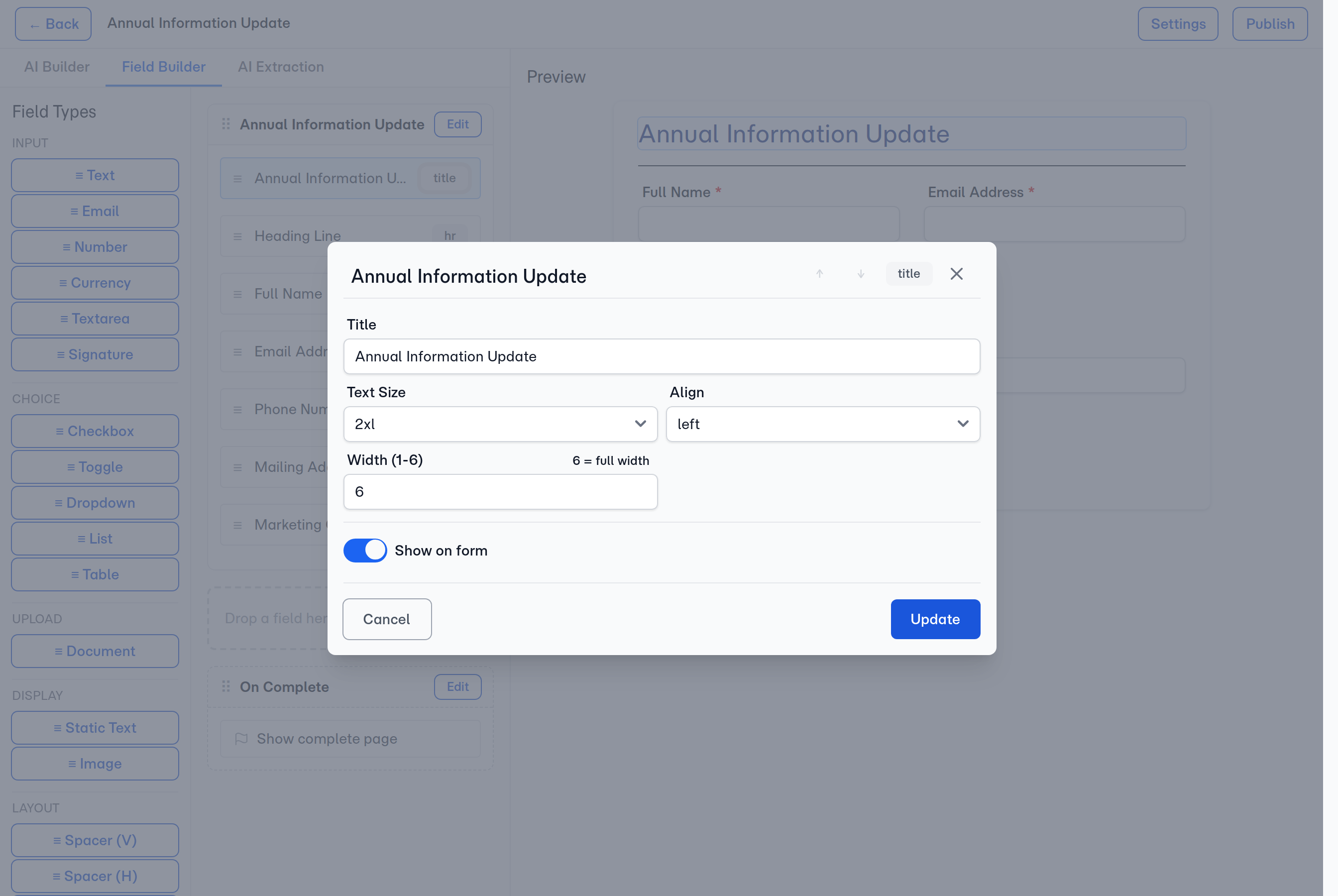
3. Hide it on the client-facing form
In the same edit modal, toggle Show on form off. The title row stays in the builder canvas (so you still see what the template is) but the form your client opens skips rendering it. Switch the toggle back on and it returns.
4. The AI builder respects the lock
When you use the AI builder panel to restructure a template — "split this into two sections", "reorder these fields by importance", "start over with a fresh client intake" — every output keeps the title at position one of section one. If the AI emits a design without it, FolioReady injects it. If the AI puts it in the third section, FolioReady moves it back. The check runs on every AI turn.
5. Existing templates pick up the title automatically
When FolioReady upgrades a template that pre-dates the title field, the upgrade replaces the first heading-style field in the first section with the new protected title. Your existing labels stay intact for the rest of the template — only the very first field changes, and only when it was already serving as the heading. Re-running the upgrade is safe; it detects the title and skips.
Configuration
There's nothing to switch on. The protected title field is part of every template automatically — new ones get it on creation, existing ones got it on upgrade.
| Setting | What it controls |
|---|---|
| Title | The heading shown on the form and used as the template name |
| Text Size | The visual scale of the heading on the form (S/M/L/XL, same as other static text) |
| Align | Left, centre, or right alignment of the heading |
| Width | Half, third, two-thirds, or full width on the form |
| Show on form | Whether the title renders on the client-facing form (it always shows in the builder canvas) |
Tips
- Rename the template, the title follows. You don't need to open the edit modal to rename — type in the page top bar's name field and the title row updates live. It's faster than two separate edits.
- Hide the title on tiny follow-up forms. A one-question "send me your latest pay stub" form usually reads better without a heading. Hide it; keep the form clean.
- Let the AI focus on structure. Because the title is locked, you can prompt the AI freely — "rebuild this for a small-business loan application" — without watching for whether the heading survived the rebuild.
- Start a "Build with AI" template from a real prompt. The lean-default behaviour only kicks in when you type a prompt in the modal. If you'd prefer the full default (with Notes and Comments pre-included), click Skip instead.
- Don't fight the lock. If you really need a heading lower in the template, add a separate static field — the protected title stays where it is, and the second heading goes wherever you drop it.
Related
- AI Builder Panel — Restructure templates from a plain-English prompt without losing the title
- Industry Starter Templates — Every starter ships with the protected title in place
- Designing Your First Template — How to think about sections, fields, and headings when you build from scratch