AI Builder Panel
Template building is the single biggest reason a new user bounces. Getting the sections right, the field types right, the conditional rules right — it's a lot of decisions before you see anything useful. The new AI tab in the template builder lets you describe what you want in plain English and watch the design build itself. You still own every field; the AI just does the typing.
What's New
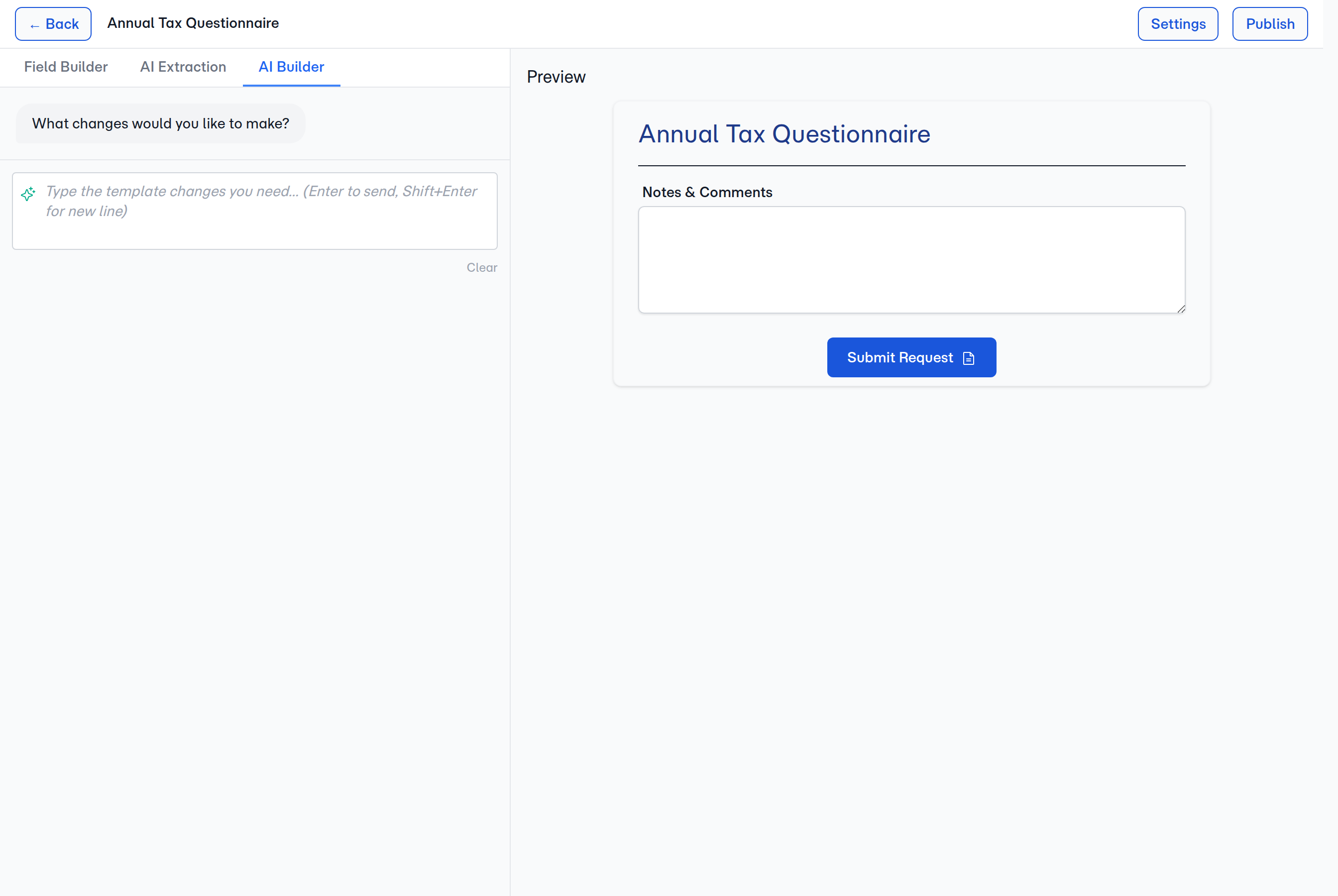
AI tab inside the builder
The builder now has a tab bar above the canvas with AI Builder and Field Builder tabs. Switch to AI Builder to chat with a design assistant; switch to Field Builder for the familiar drag-and-drop palette. Both operate on the same draft, so you can describe a section in chat, switch to Field Builder to fine-tune, and switch back to ask for more.
Chat that edits the design
Every AI message that proposes changes is mapped to concrete design actions — add field, rename section, change type, add conditional rule — and applied to the draft. You see the design update in the preview as messages stream in. Nothing is saved until you click Save Draft, so experimentation is free.
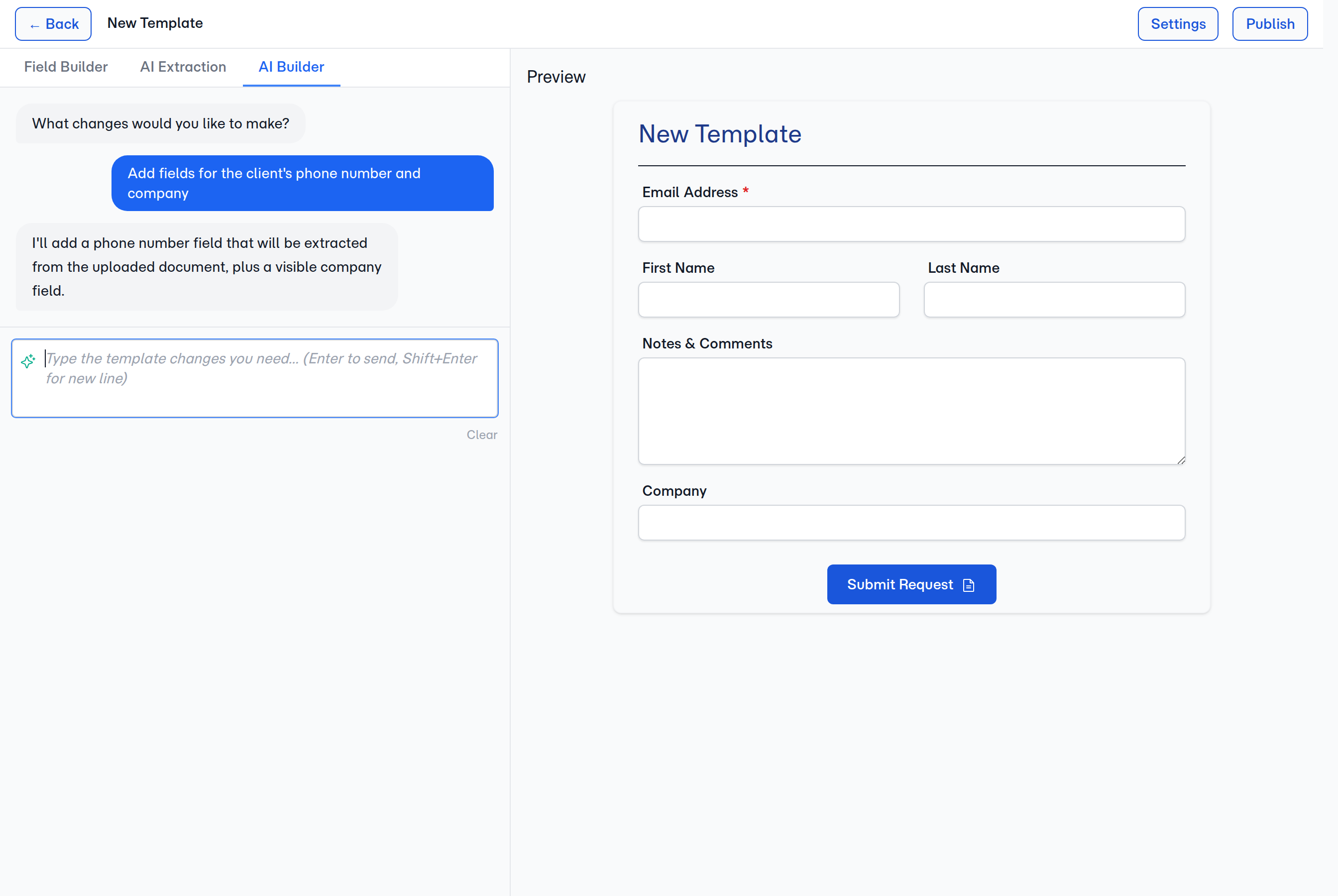
Awareness of the existing design
The welcome message changes based on what's already there. A blank draft gets a suggested starting point ("tell me what kind of information you collect and I'll scaffold it"). A partial draft gets a follow-up prompt ("want me to add validation to these fields? rename anything?"). The AI always reads the current design before responding, so it won't suggest adding a field that already exists.
Streaming responses with visible typing
Messages stream in word-by-word so you can see the AI thinking. A typing indicator shows when it's still working. If something goes wrong mid-reply, the partial message stays and a retry is one click away.
Protected field rules
The core client-identity fields — email, first name, last name, and phone — are protected from removal by any edit, AI-driven or manual. The AI is told about these rules up front, so when you ask for a design that would strip them out, it keeps them in place and works around them instead.
How to Use It
- Open a template in the Builder
- Click the AI Builder tab above the canvas
- Describe what you want — "a template for collecting tax documents with prior-year returns and W-2s" or "add a dependents section with name, DOB, relationship"
- Watch the preview update as the AI responds
- Fine-tune with the Field Builder tab when you want pixel-level control
- Click Save Draft when you're happy, then publish
What's Improved
AI edits are just edits
Anything the AI Builder does is an ordinary builder change — there's no hidden AI-only mode. You can always jump back to the Field Builder tab and fine-tune whatever the AI produced, and your template looks the same whether it was built by hand or by chat.
Flexible AI under the hood
FolioReady can now pair each AI-powered feature with the best model for the job. Our support team can tune which model powers the builder without affecting the rest of the product.
Related
- Per-Action AI Model Configuration — Configure which model powers the builder independently from other AI actions