If you belong to more than one Zoho organization, the consent screen picks one for you unless you switch. The confirmation names the organization it connected. If it's the wrong one, press Delete Connection, press Connect again, and choose the right organization from Zoho's account switcher.
Connecting...
Zoho CRM Integration: Folio Data on the Deal or the Contact
Zoho CRM is our seventh CRM connection, and it files against whichever record the work actually belongs to. Point a template at the Contact and every folio from it writes to that person's record; point it at the Deal and the same folio files against the deal instead. Field values, document summaries and, if you want them there, the documents themselves all land on the one record your team already opens.
Connecting takes a redirect and a consent screen. The organization you grant is the organization we write to, and we name it back to you the moment you land.
What's New
Connect a Zoho organization
Open Settings → Integrations, find Zoho CRM, and press Connect. Zoho's own consent screen asks which organization to authorize, and you make that choice there. Approve it and you come straight back, with the confirmation naming the organization you just connected.
⚠️
Check the organization you granted
Import contacts from the Clients page
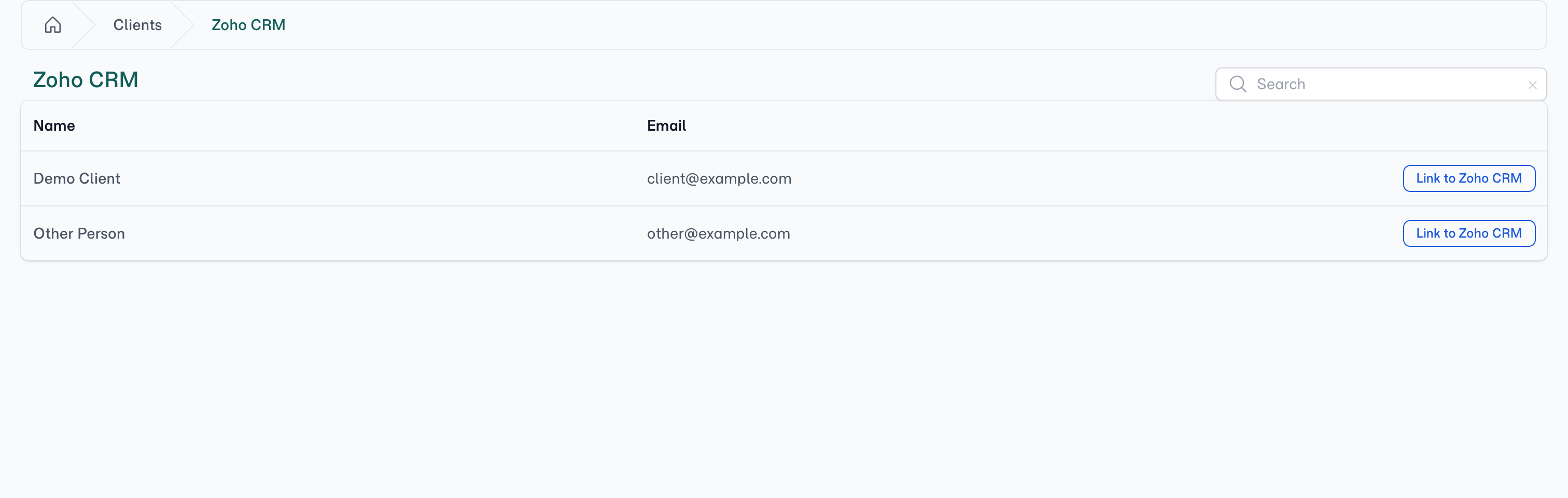
Once connected, an Import from Zoho CRM button appears on the Clients page. The import page opens on your existing Zoho contacts, so you see them before typing anything, and searching by name or email narrows the list. Press Link to Zoho CRM on the right row and the contact becomes a FolioReady client with their name and email already filled in.
💡
No duplicates
Importing someone you already have opens the client you already have and links them. That includes a client you added by hand under the same email address.
Choose the Deal or the Contact, per template
A Contact answers "who is this?". A Deal answers "what are we working on?", and for a lot of teams that's where the paperwork belongs. Open a template in the builder, go to Settings, and set the Document Target to Contact or Deal. That choice covers the whole template: its field values and its document summaries both land on the same record.
Templates start on No CRM sync and write nothing to Zoho until you make that choice.
Deals come from what's already in Zoho
FolioReady only uses a Deal that already exists, and it doesn't guess between them. When you create a folio from a Deal-targeted template, it reads the Deals already associated with that contact in Zoho:
| Deals on the contact | What happens |
|---|---|
| One | Selected automatically, and named on the folio's Target step |
| Several | You pick the right one before the folio goes out |
| None | The request is refused, and the Target step says why |
That last row is deliberate. A Deal-targeted folio for a contact with no Deals could only ever collect documents and sync them nowhere, so FolioReady stops rather than inventing a record in your CRM. Create the Deal in Zoho, or send a template that files against the Contact.
Map folio fields to Zoho fields
On any canvas field in the builder, open the sync settings and pick the field on the Deal or Contact its value should be written to. FolioReady reads the field list from your own Zoho organization, so what you see is what your CRM actually has. When a client completes the folio, the values are written across.
Create a custom field without leaving the builder
If the field you need doesn't exist yet, press Create field. FolioReady creates it on the selected module in Zoho and selects it for you. You don't need to switch tabs or ask an admin.
Document summaries arrive as notes
FolioReady's AI reads each collected document and writes a short plain-language summary. That summary is posted as a note on the folio's linked record (the Contact, or the Deal if the folio targets one), so the Zoho timeline carries both what arrived and what it said.
The documents themselves can live there too
Set Store Files to Zoho CRM under Settings → Integrations and every document a client uploads is attached to the same record its values and summaries already reach. The file itself sits on the record your team already opens.
📎
The file lives on the record
Once a document is stored to Zoho, the attachment on your Zoho record is where it lives. FolioReady doesn't keep a separate original beside it.
Two things worth knowing. Zoho caps a single file at 20 MB. And every document stored this way counts toward your organization's own Zoho file storage. That's the same allotment your team already shares for everything else kept on your records.
Stays connected on its own
Zoho's access tokens expire on a schedule and FolioReady refreshes them in the background, so you won't see it happen. If access is genuinely revoked, say because someone removed FolioReady from the Zoho side, the integration turns red and shows a Reconnect prompt.
Zoho also throttles accounts that send a lot of traffic at once, and FolioReady retries through a short burst on its own. Zoho's separate 24-hour allowance is the one worth knowing about: if you exhaust it, the syncs waiting at that moment stop instead of retrying. Support re-runs them once the allowance resets.
How to Use It
- Go to Settings → Integrations → Zoho CRM and press Connect
- Choose the organization on Zoho's consent screen and approve access
- Check the organization named in the confirmation
- From Clients, press Import from Zoho CRM and link a contact
- Open a template in the builder, go to Settings, and set Document Target to Contact or Deal
- Map canvas fields to the fields on that record
- To keep the documents there too, set Store Files to Zoho CRM on the same Integrations page
- Send the folio. Values, summaries and documents file against the record as they arrive
⚠️
Set a target before anything syncs
A new template starts on No CRM sync and writes nothing until you point it somewhere. If you've connected Zoho and nothing is arriving, that's the first thing to check.
What's Improved
The connection belongs to the organization
FolioReady identifies your Zoho connection by the organization you granted rather than the person who granted it. One login can belong to several organizations, so naming the organization is what keeps two FolioReady companies from claiming the same Zoho data. It's also why the confirmation tells you which one you connected.
A consistent experience across CRMs
Zoho joins Pipedrive, Salesforce, Intercom, HubSpot, Attio, and Less Annoying CRM on the same pattern: a company-wide connection, contact search and import from the Clients page, and field mapping in the template builder. Improvements to one flow carry across to the others.
Related
- Zoho CRM Integration: Full setup guide with the org handshake, field mapping, Deal targets, and troubleshooting
- HubSpot Integration: Contact and Deal property mapping on the same field-sync mechanism
- Less Annoying CRM Integration: The CRM before this one, connected with a pasted key instead of a redirect