The portal link is emailed to the address on the Intercom contact, so it reaches your client the same trusted way as every other FolioReady request. A contact with no email address can't be sent a request — the panel will tell you when that's the case.
Connecting...
Request Documents Without Leaving Intercom
You're mid-conversation with a client in Intercom and you need a signed form or a missing document. Until now that meant stopping, opening FolioReady, finding the client, and starting a request — a detour away from the person you're actually talking to. Now you can do the whole thing from inside the conversation.
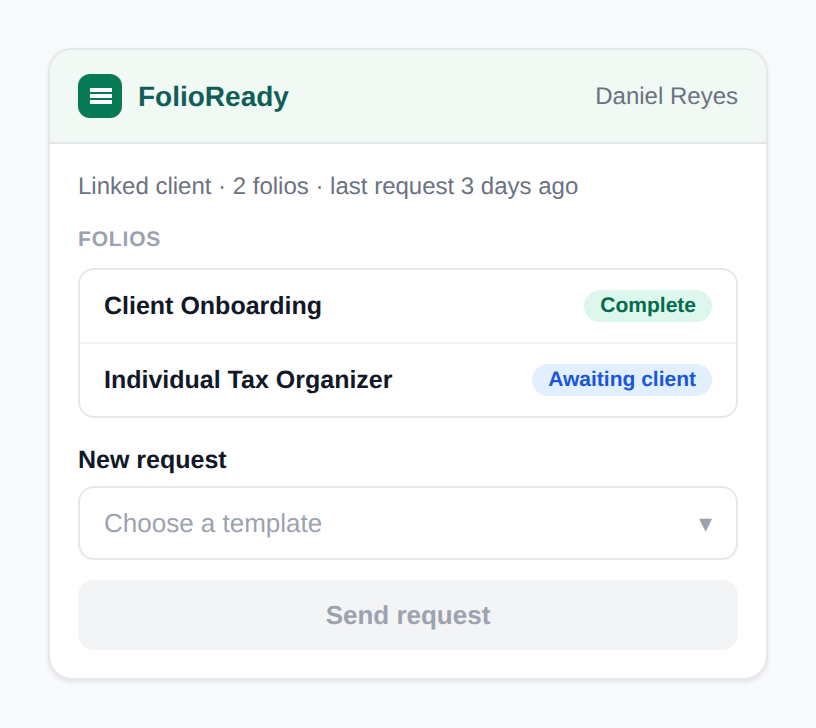
The FolioReady panel sits in your Intercom inbox. Open a conversation, and it shows you that contact's folios and lets you send a new document request from one of your templates — without switching tabs.
What's New
FolioReady, inside the Intercom inbox
Open any conversation and the FolioReady panel shows what you already have on file for that contact — their existing folios and where each one stands. No searching, no second tab: the person in the conversation and their document history are on the same screen.
Send a request from a template
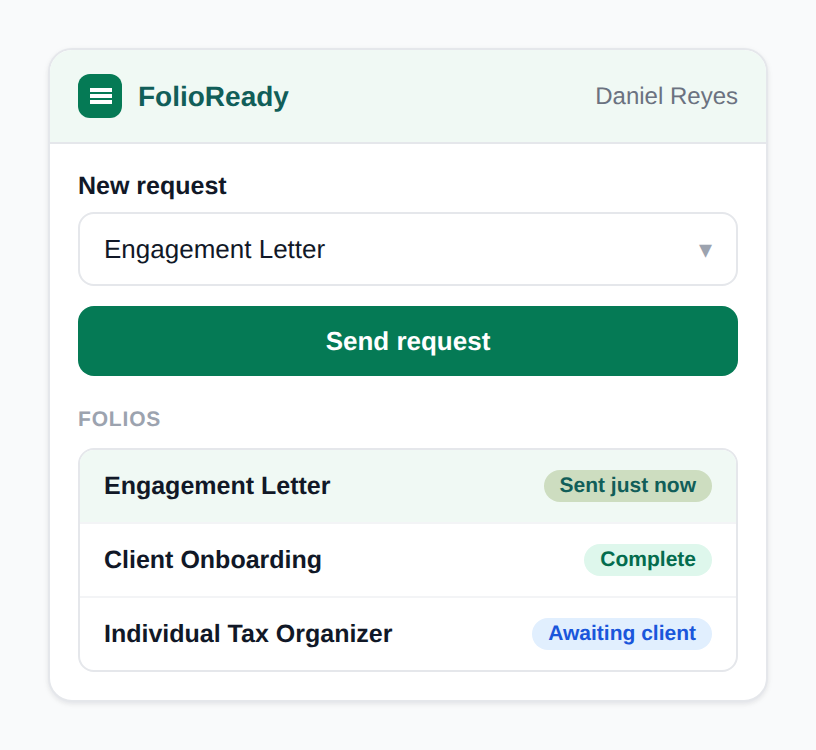
Pick one of your published request templates, hit Request Documents, and FolioReady creates the folio and emails your client a secure link to their portal — the same trusted request email you send from FolioReady today. If you keep a single template, there's nothing to pick; it's one button.
New contacts become clients automatically
If the person you're talking to isn't a FolioReady client yet, you don't have to add them first. Sending a request creates the client for you — using the name and email already on the Intercom contact — so a support conversation turns into a document request in one step. Contacts you only ever chat with never clutter your client list; a client record is created the moment you actually request something.
Nothing new to install
The panel uses the Intercom connection you already have. If your workspace is connected to FolioReady, the inbox app is there — no separate app to add, no extra permissions to approve.
How to Use It
- Open a conversation in your Intercom inbox.
- Find the FolioReady panel alongside the conversation.
- Pick the request template you need (or just press Request Documents if you have one).
- FolioReady creates the folio and emails your client their portal link. The new request appears in the panel's list straight away.
📧
The request goes to the contact's email
What's Improved
- No double requests. If a request for the same template is already waiting on that client in the conversation, the panel tells you rather than sending a second email — so a stray extra click won't chase your client twice.
- Only your ready templates. The panel offers your published request templates, so you won't accidentally send a client a draft you were still working on.
- Your existing request flow, unchanged. Requests sent from Intercom are the same folios, the same portal, and the same reminders as everything else in FolioReady — just started from a different place.
Related
- Document Requests in the Intercom Inbox — The full feature, with how it works and what to know
- Intercom Integration: Pull Contacts from Your Support Tool — The companion integration: bring Intercom contacts into FolioReady as clients
- Intercom Integration — Full setup and permissions guide