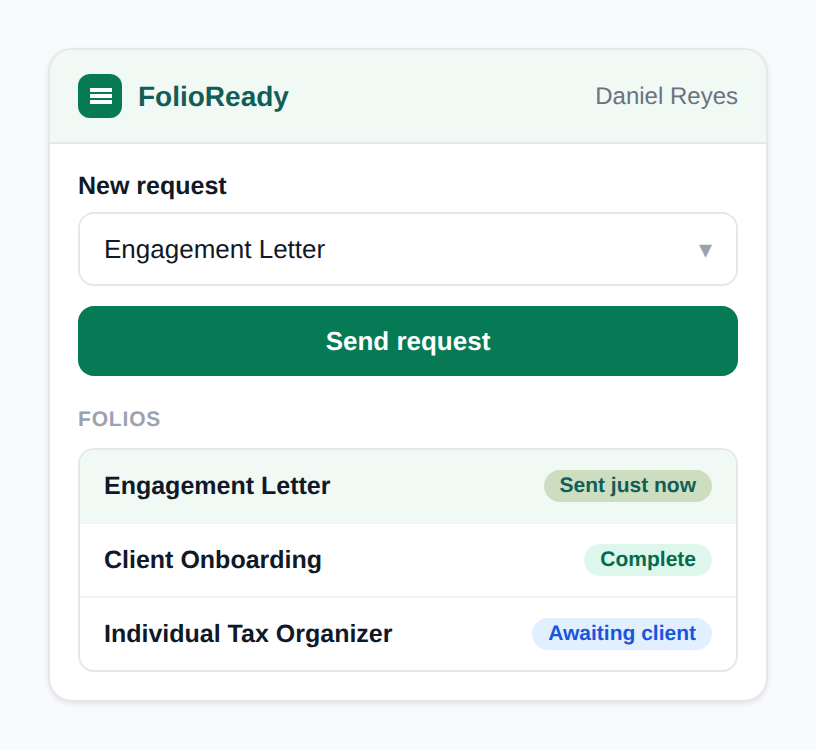
The request is emailed to the address on the Intercom contact, so a contact with no email address can't be sent one — the panel tells you when that's the case. Nothing is sent from the panel itself: it opens the request in FolioReady, where you review it before your client hears anything.
Connecting...
Document Requests in the Intercom Inbox
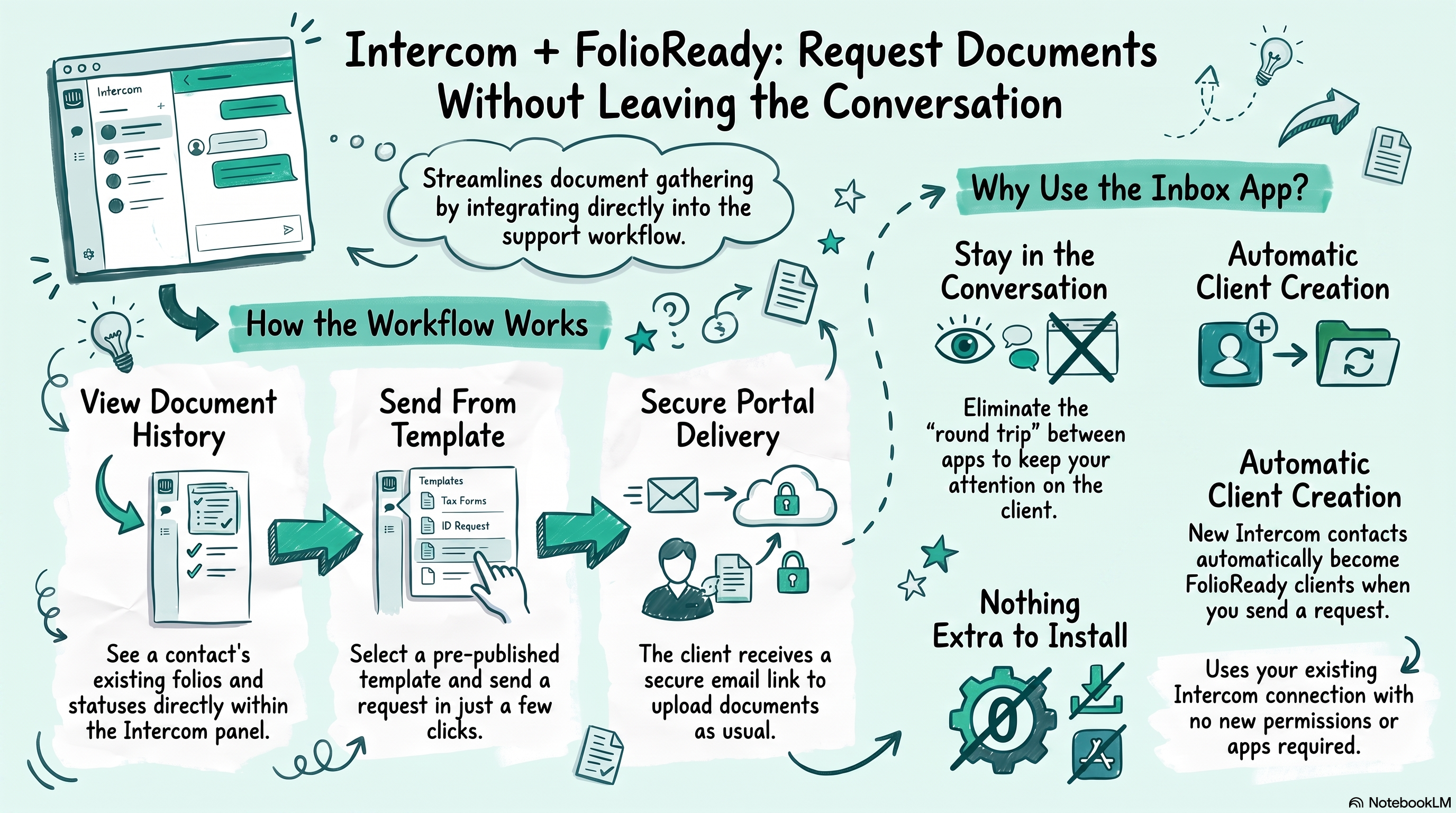
If your client conversations happen in Intercom, the moment you need a document is usually mid-conversation — a client asks a question, and the answer depends on a form they haven't sent yet. FolioReady's Intercom Inbox app is the way into that request. The panel lives inside your Intercom inbox, shows you what you already hold for the person you're talking to, and opens FolioReady with the client and the conversation already chosen.
Why Use the Inbox App?
No hunting for the client
Requesting a document used to mean opening FolioReady, searching for the client, working out which conversation you meant, and starting from scratch. The Inbox app removes that. One press takes you straight to a new request with the client and the conversation already filled in — and signs you in on the way.
The contact's document history, right there
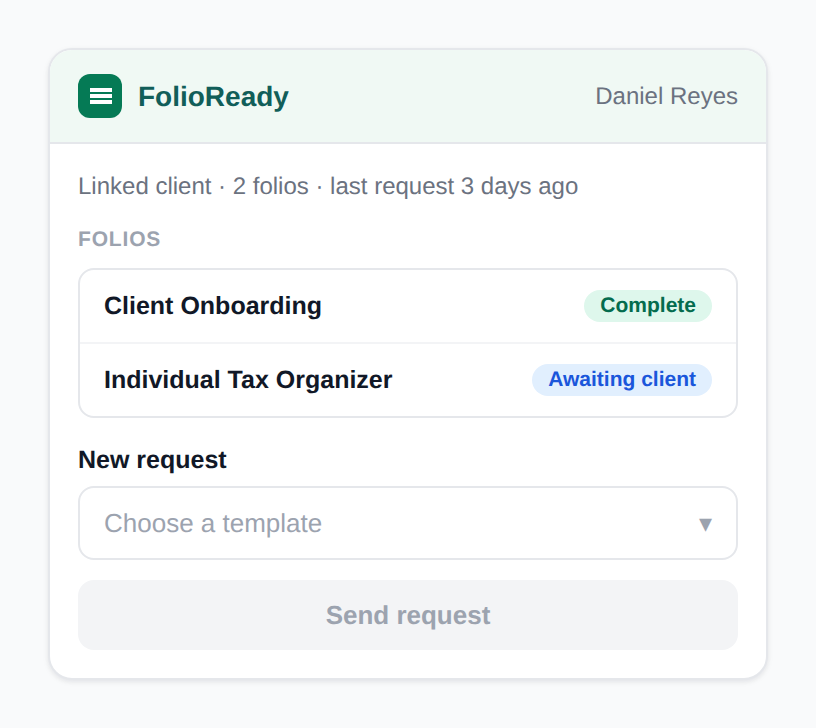
Open a conversation and the panel shows that contact's folios and where each one stands. Before you ask for anything, you can see what's already been requested and what's still outstanding. Press any one of them to open it in FolioReady — to read what's come in, accept it, or ask the client for changes.
New contacts become clients automatically
Not everyone you talk to in support is a FolioReady client yet. You don't have to add them first. Starting a request creates the client for you from the contact's name and email, and the agent who started it becomes their manager — while contacts you only ever chat with never clutter your client list.
Nothing extra to install
The panel uses the Intercom connection you already have. Connect Intercom to FolioReady once, and the Inbox app is simply there — no separate app to add and no new permissions to approve.
How It Works
See what's on file
Open a conversation. The FolioReady panel lists the contact's folios with their current status, so you know at a glance what you've already asked for.
Start the request
Press Request Documents. FolioReady opens on a new request for that client, with the conversation already set as what the folio files against — you choose the template, check the details, and send it from there. Any template works, including ones that file against a ticket, because FolioReady can ask you which record to use.
The client responds as usual
Your client gets the email, opens their portal, and uploads what you asked for — exactly the same experience as a request sent from anywhere else in FolioReady, with the same reminders and the same portal. The request you started from Intercom is an ordinary folio; it just began in a different place. It appears in the panel next time you open the conversation.
Getting Started
- Connect Intercom to FolioReady under Settings → Integrations (if you haven't already).
- Open a conversation in your Intercom inbox and find the FolioReady panel.
- Press Request Documents, or press any folio already listed to open it.
- Finish the request in FolioReady — pick the template, check the details, and send.
💡
A few things worth knowing
Related
- Request Documents Without Leaving Intercom — The release announcement for this capability
- Intercom Integration — Connect Intercom and manage permissions
- Intercom Integration: Pull Contacts from Your Support Tool — The companion feature: bring Intercom contacts into FolioReady as clients