Signing in with Google or Microsoft only confirms your identity — it never touches your data. Connecting Google Drive or Gmail to store files or send email is a separate step that asks for explicit permission.
Connecting...
Sign In with Google or Microsoft
You already sign in to Google or Microsoft every day. Now you can use that same account to sign in to FolioReady — no separate password to create, remember, or reset.
What's New
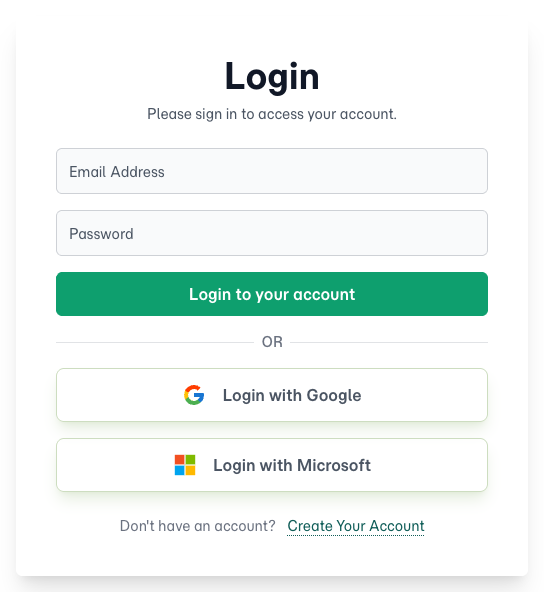
Login with Google, or Login with Microsoft
The sign-in screen now offers two new options alongside email and password. Choose Login with Google or Login with Microsoft, confirm your account in their secure window, and you're signed straight back into FolioReady. There's nothing to set up — it's ready to use.
Your existing security, built in
Because you're signing in through Google or Microsoft, whatever already protects that account — two-factor authentication, your firm's security policies, a hardware key — now protects your FolioReady sign-in too. Enterprise-grade login, with no extra setup.
It's sign-in only — your data stays private
This new option verifies who you are and nothing else. It never reads your email, opens your files, or looks at your contacts, and FolioReady stores no Google or Microsoft password or token. It's completely separate from connecting Google Drive or Gmail as an integration, which you set up yourself and which ask for explicit permission.
How to Use It
- Go to the FolioReady sign-in screen.
- Choose Login with Google or Login with Microsoft.
- Confirm your account in Google or Microsoft's secure window.
- You're signed straight back into FolioReady.
Prefer your email and password? They still work exactly as before — the new buttons are simply a faster option.
🔒
Signing in vs. connecting a service
Related
- File Storage Integrations — Connect Google Drive or Dropbox to save client files (a separate, permission-based connection)