Move Folios Between Clients
Sometimes a folio ends up under the wrong client. Maybe an email came in from an address you hadn't seen before and the system created a new contact, or maybe a client sent documents on behalf of someone else. Whatever the reason, you shouldn't have to delete the folio and start over. Client move lets you reassign a folio to a different client in a few clicks — keeping all the files, data, and history intact.

Why Use Client Move?
Fix misassignments without losing work
When a folio lands under the wrong client, the files are already uploaded, AI extraction may have already run, and fields may already be filled in. Deleting and recreating would throw all of that away. Client move reassigns the folio as-is — every file, every extracted value, every notification stays with it.
Essential for email ingestion workflows
Email ingestion creates folios automatically based on the sender's address. But clients don't always send from the address you have on file. A spouse sends from a shared account, an assistant forwards on behalf of a client, or someone uses their personal email instead of their work one. Client move lets you quickly correct these mismatches once you know who the documents actually belong to.
Everything follows the folio
When you move a folio, everything moves with it. Uploaded files, extracted data, processing events, notification history — none of it is lost or duplicated. The folio simply appears under the new client as if it had always been there.
How It Works
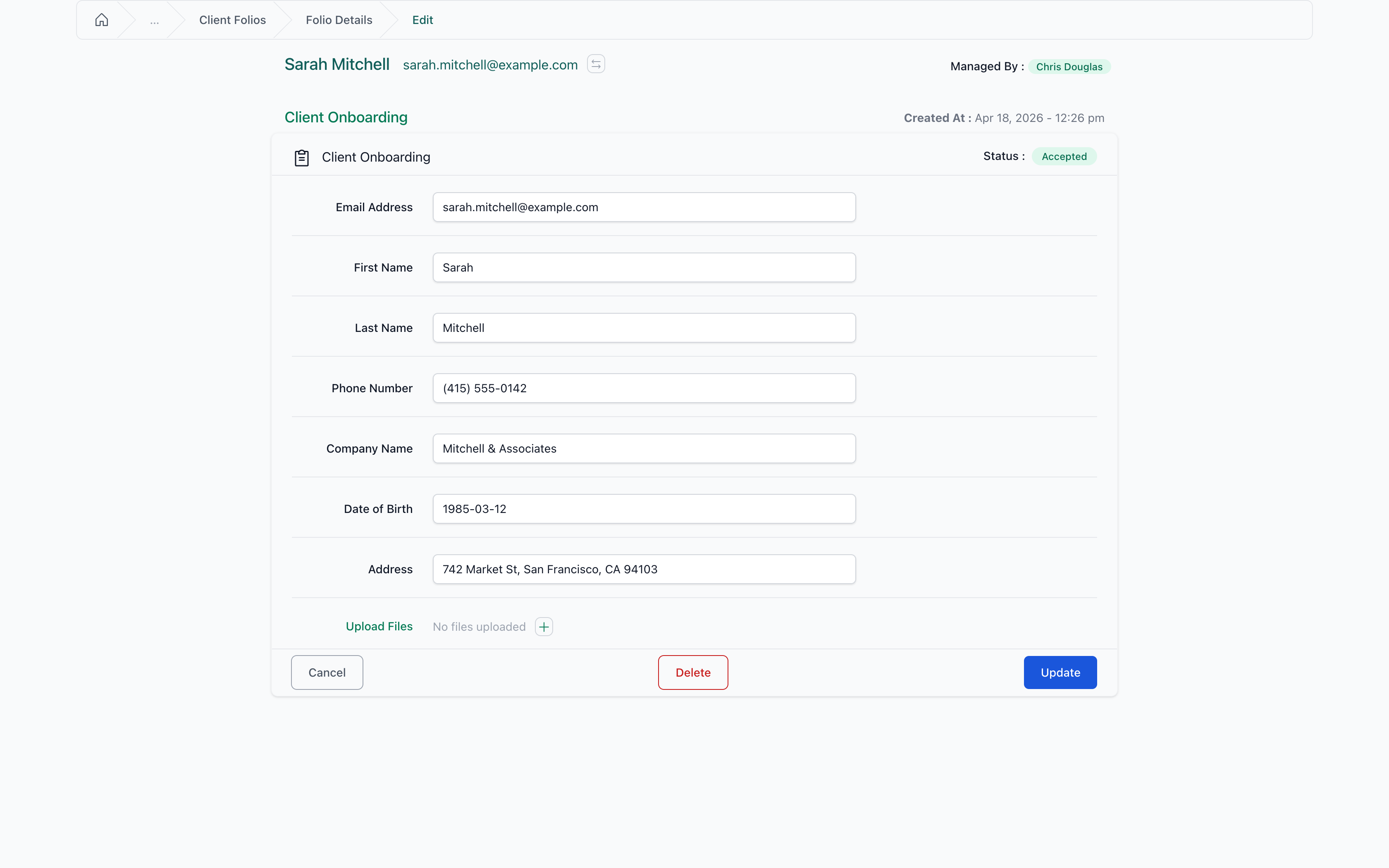
1. Open the folio edit page
Navigate to the folio you want to move. Next to the client's name at the top of the edit page, you'll see a move button.
2. Confirm you want to move
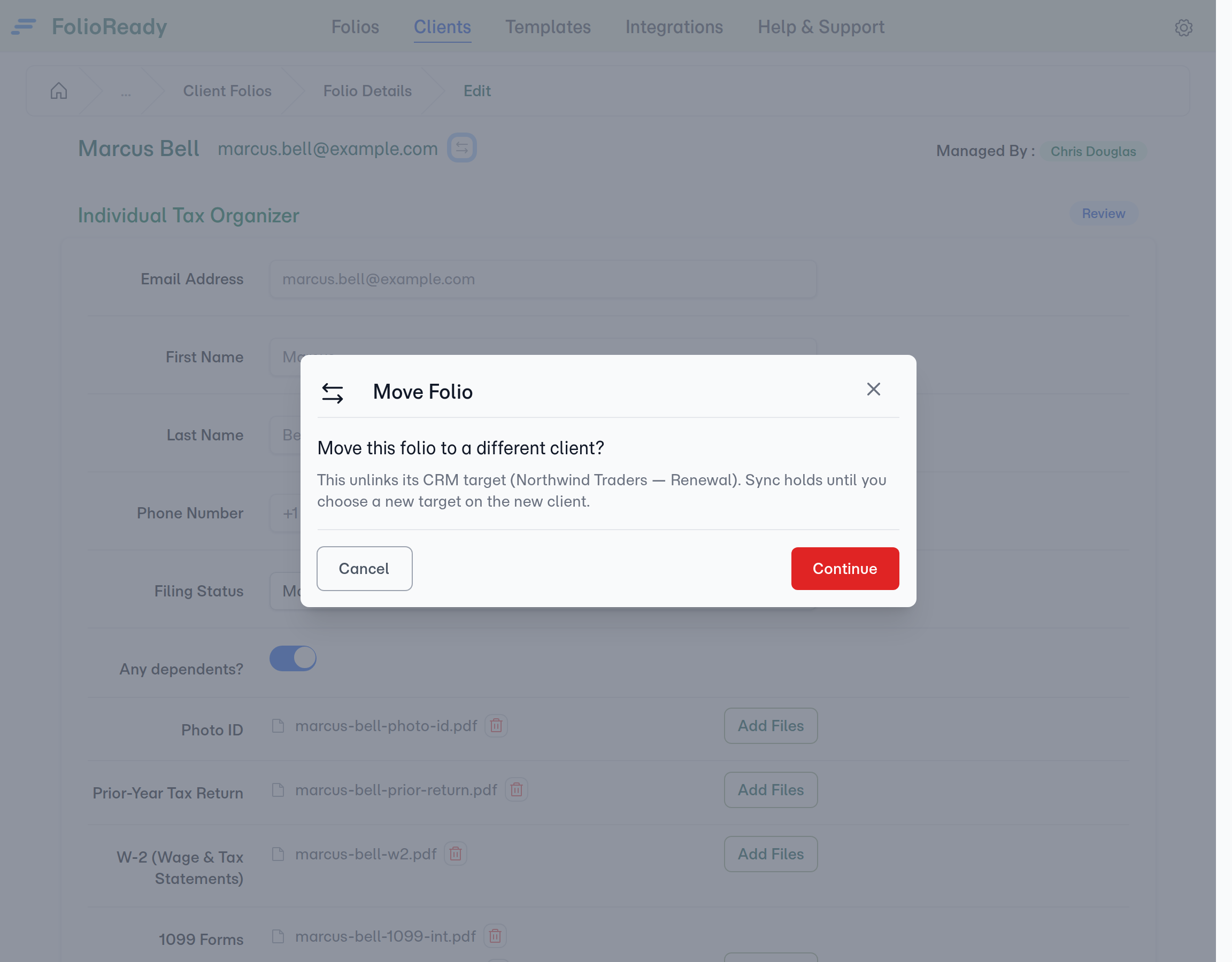
Click the move button and a confirmation dialog appears. This is a safety step — moving a folio changes which client it belongs to, so you want to be sure.
3. Search and select the new client
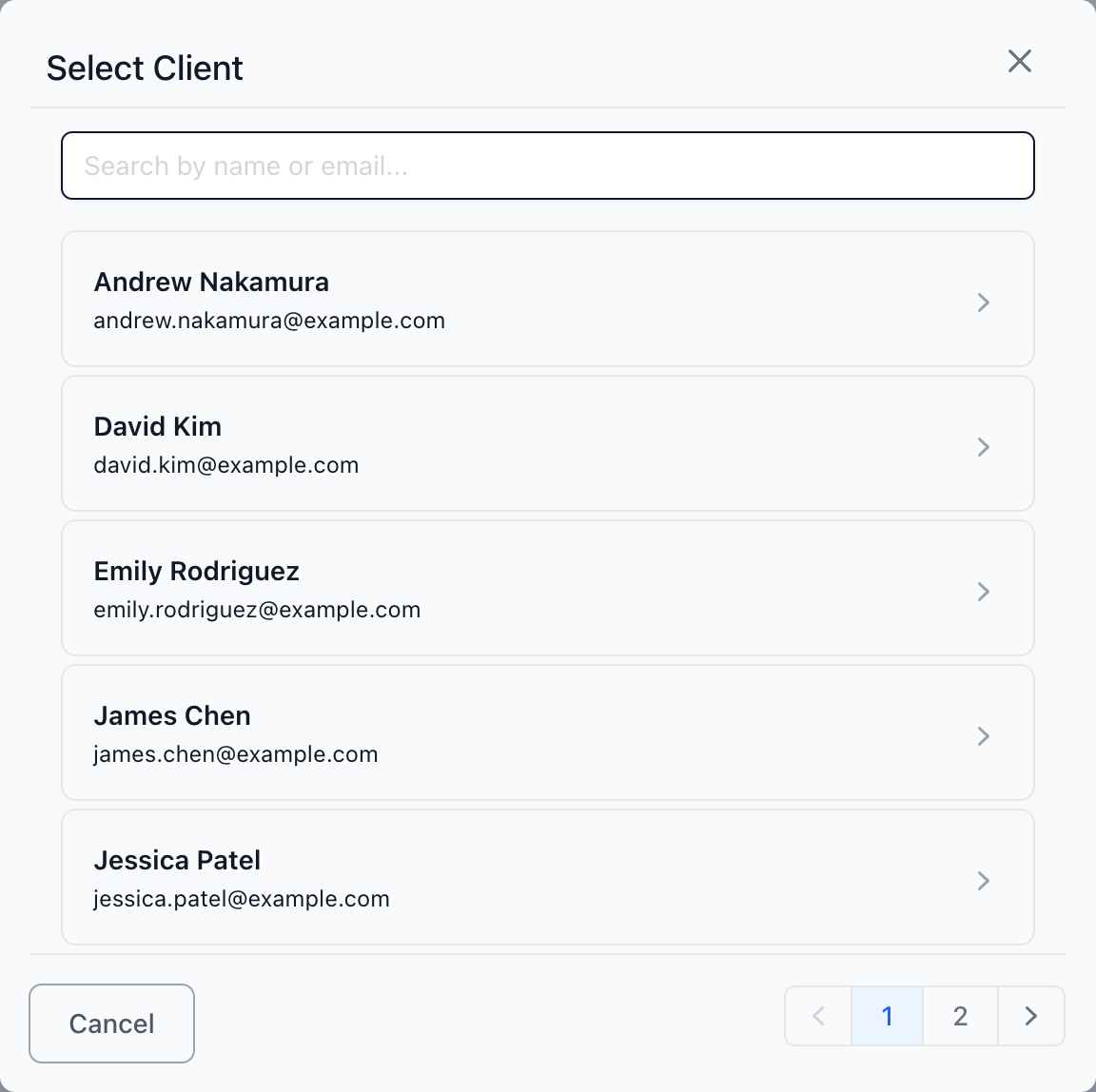
A searchable list of your clients appears. You can browse the list or type a name or email to filter. Select the client you want to move the folio to.
4. Confirm the move
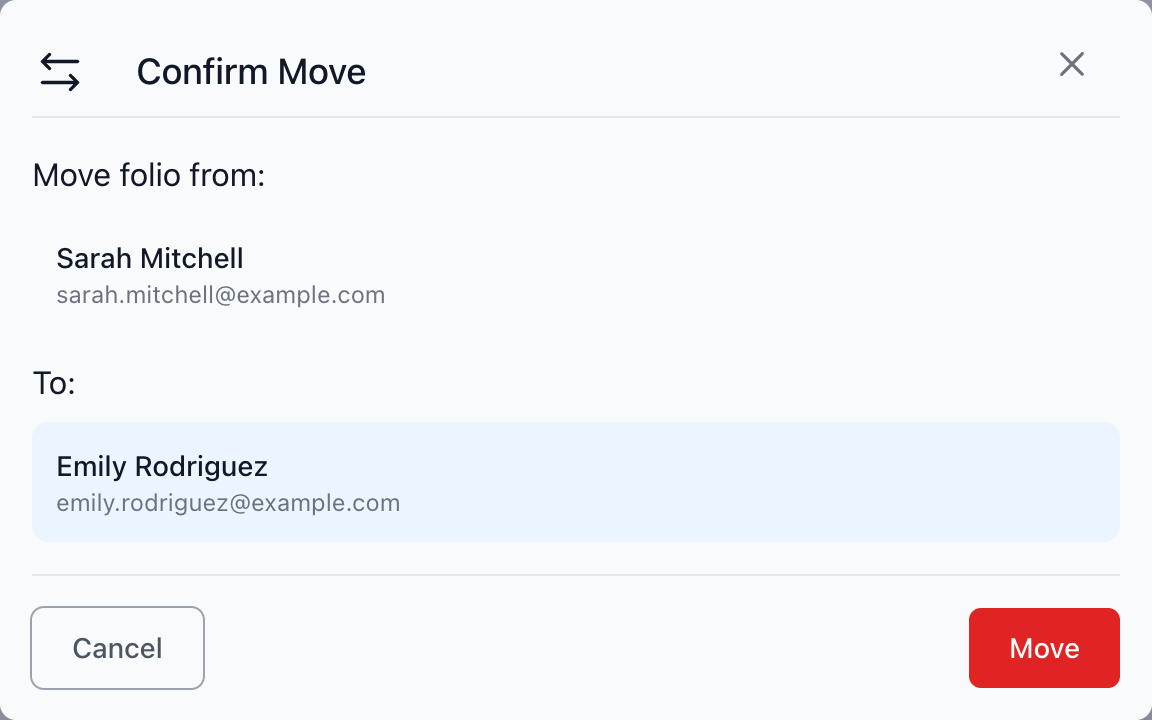
A final confirmation shows who the folio is moving from and to. Review the details and confirm.
5. Done
The folio is reassigned and you're taken to the folio under its new client. A success message confirms the move.
Things to Know
- Same company only — You can move folios between clients within your company. You can't move a folio to a client that belongs to a different company.
- Nothing is deleted — The move is a reassignment, not a copy. The original folio with all its data simply moves to the new client.
- Notifications stay attached — Any emails that were sent about this folio remain in the notification history. They aren't re-sent to the new client.
- Available on the edit page — The move action is available from the folio edit page, accessible to anyone who can edit folios.
Related
- Email Ingestion — Collect client documents by email with automatic folio creation
- AI Automation — Automatically extract data from uploaded documents with AI