AI Assistants
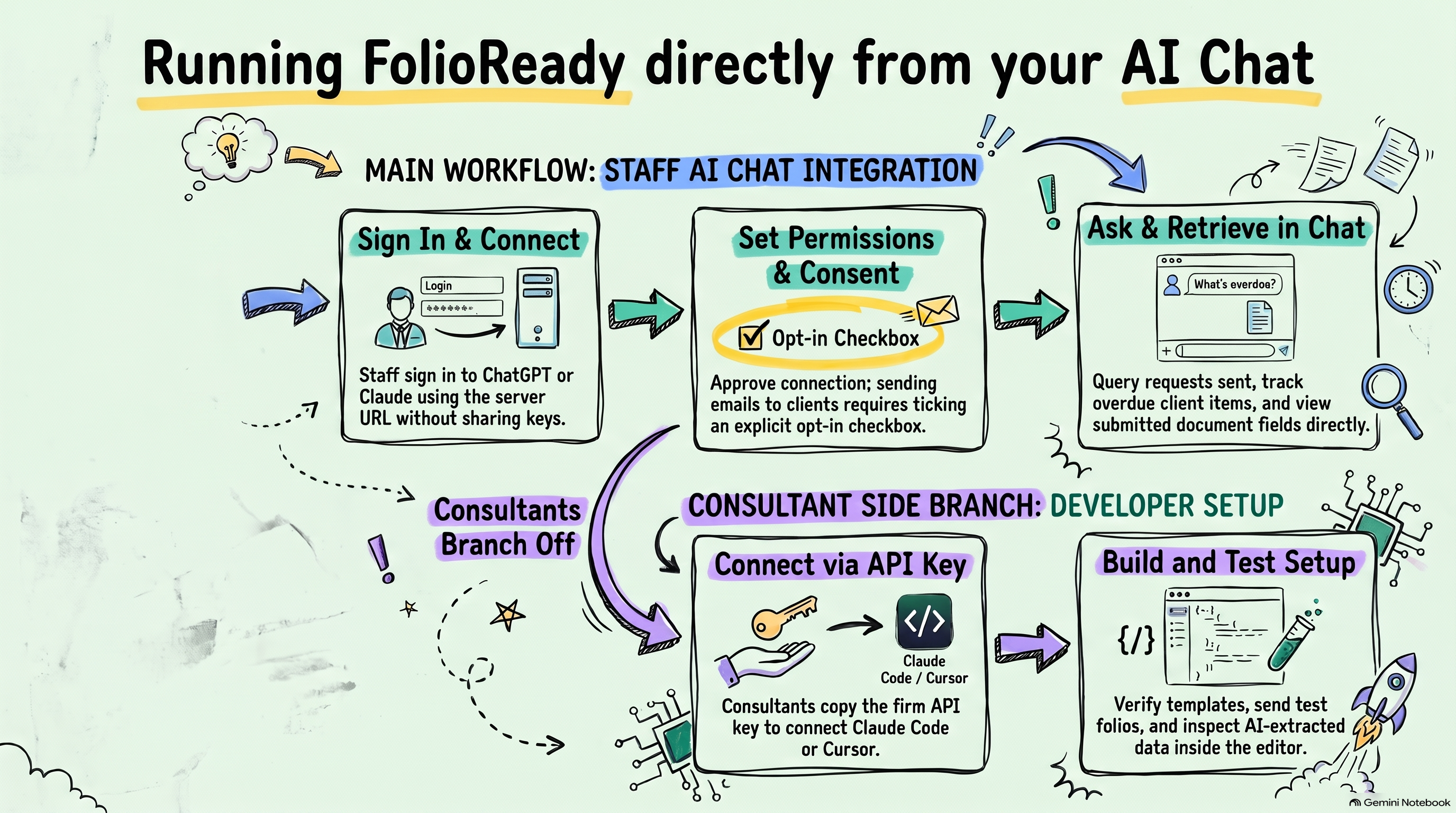
The firms you work with already have ChatGPT or Claude open all day. FolioReady connects to it, so the firm's staff can send a document request, see who still owes what, and read what a client submitted by asking in the chat. You can do the same from Claude Code or Cursor while you set a firm up. The connection uses MCP, the Model Context Protocol, and there's nothing to build.
Why Connect an Assistant?
The firm's staff stay in the tool they use
A preparer who wants to know which clients haven't returned their organizer asks ChatGPT. They don't have to open another app or learn a new screen, and the answer comes from the firm's live folios.
Each person signs in as themselves
ChatGPT and Claude connect by signing in to FolioReady, with no key to share. The assistant acts as the person who connected it and can do no more than they can in the app. A manager sees every connection on the team and can revoke any of them.
Sending stays under the firm's control
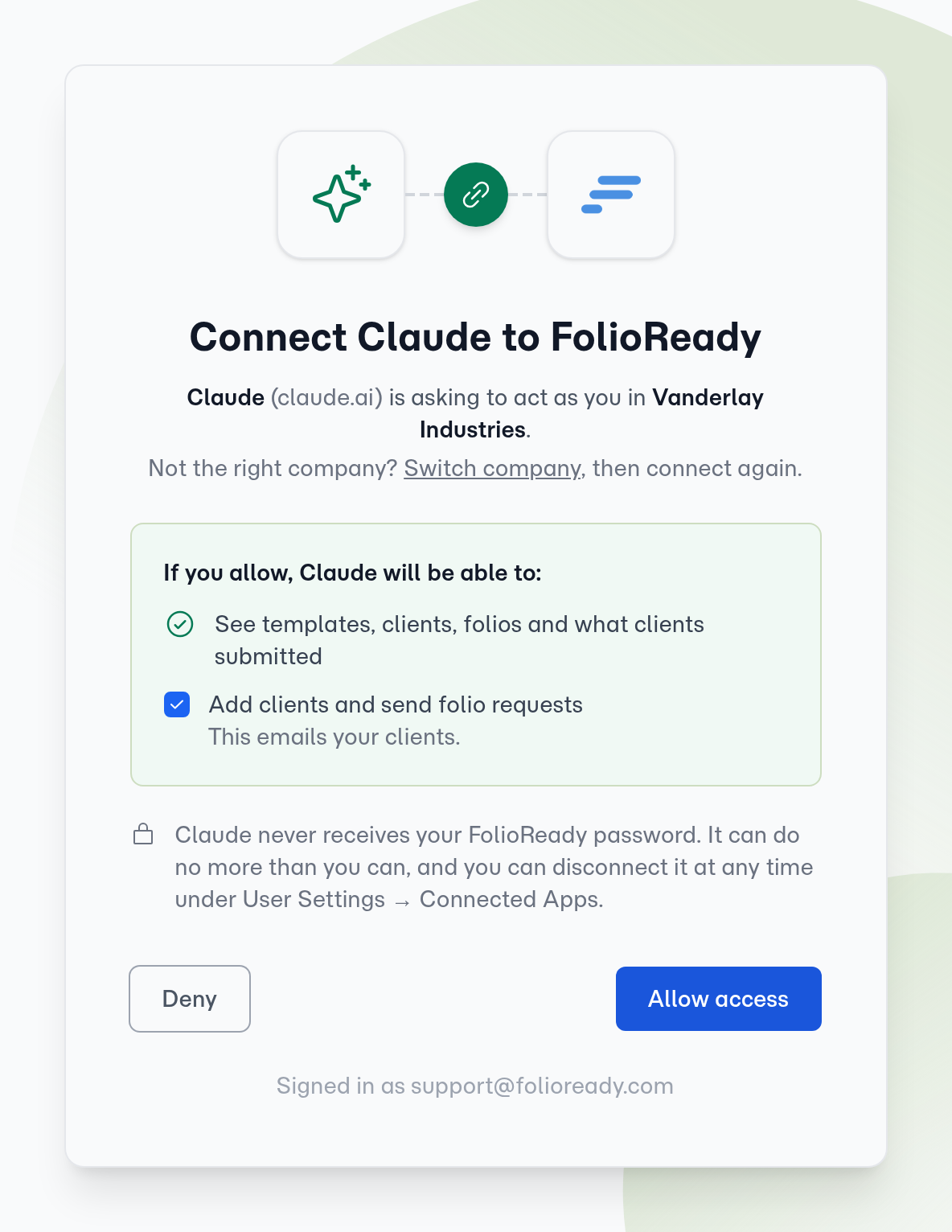
The approval screen puts adding clients and sending requests behind one checkbox. Leave it unticked and the assistant can look things up but can't email a client.
You can work from your own tools
While you build and test a firm's setup, connect Claude Code or Cursor with the company API key. You can check templates, send a test folio and read back what the AI extracted from inside your editor.
How It Works
1. Find the setup on Company Details → API Key
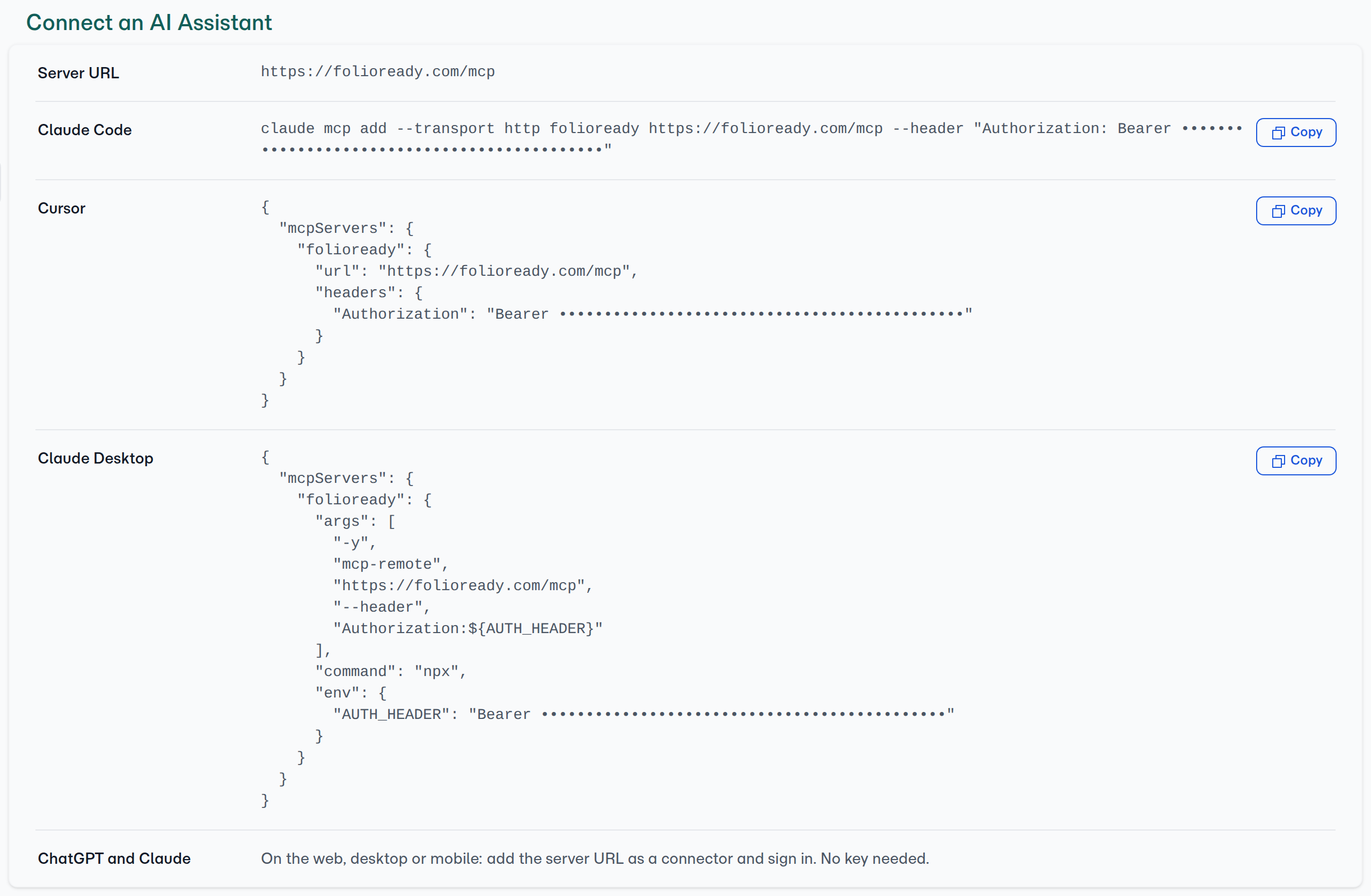
A manager opens Company Details → API Key. The page shows the server URL and a ready-to-copy setup for Claude Code, Cursor and Claude Desktop, with the firm's key already filled in.
2. Connect ChatGPT or Claude by signing in
In Claude, add a custom connector with the server URL. In ChatGPT, add it as a connector in developer mode. Either one sends the person to FolioReady to sign in and approve.
3. Ask
Once connected, the assistant can list templates, find or add a client, send a folio, check its status and history, and read each field a client filled in or AI extracted.
4. Review connections
Each person sees their connected apps under User Settings → Connected Apps, and a manager sees each team member's on their team page.

Tips
- Hand it over in the last hour. Connecting each person's assistant is a good final step of a setup day. Staff leave with something they can use straight away.
- Use the API key for yourself, sign-in for the firm. The API key reaches the whole company, so keep it for your own build work and let staff sign in.
- Test sending on a client who's agreed to go first. Sending a folio emails a real client.
Related
- AI Assistants setup: Step-by-step setup for each assistant
- Deliver the Implementation in a Day: Where connecting the firm's assistant fits in a setup day
- Bring Your Own AI Keys: Run FolioReady's AI on the firm's own Anthropic or OpenAI account