Start FolioReady From Claude or ChatGPT
You no longer need a FolioReady account before you connect your AI. Add FolioReady to Claude or ChatGPT, create your account on the sign-in page it opens, and ask it to collect documents from a client. A few minutes later your first request is in your own inbox, so you see what your client will see.
What's New
Create your account from your assistant
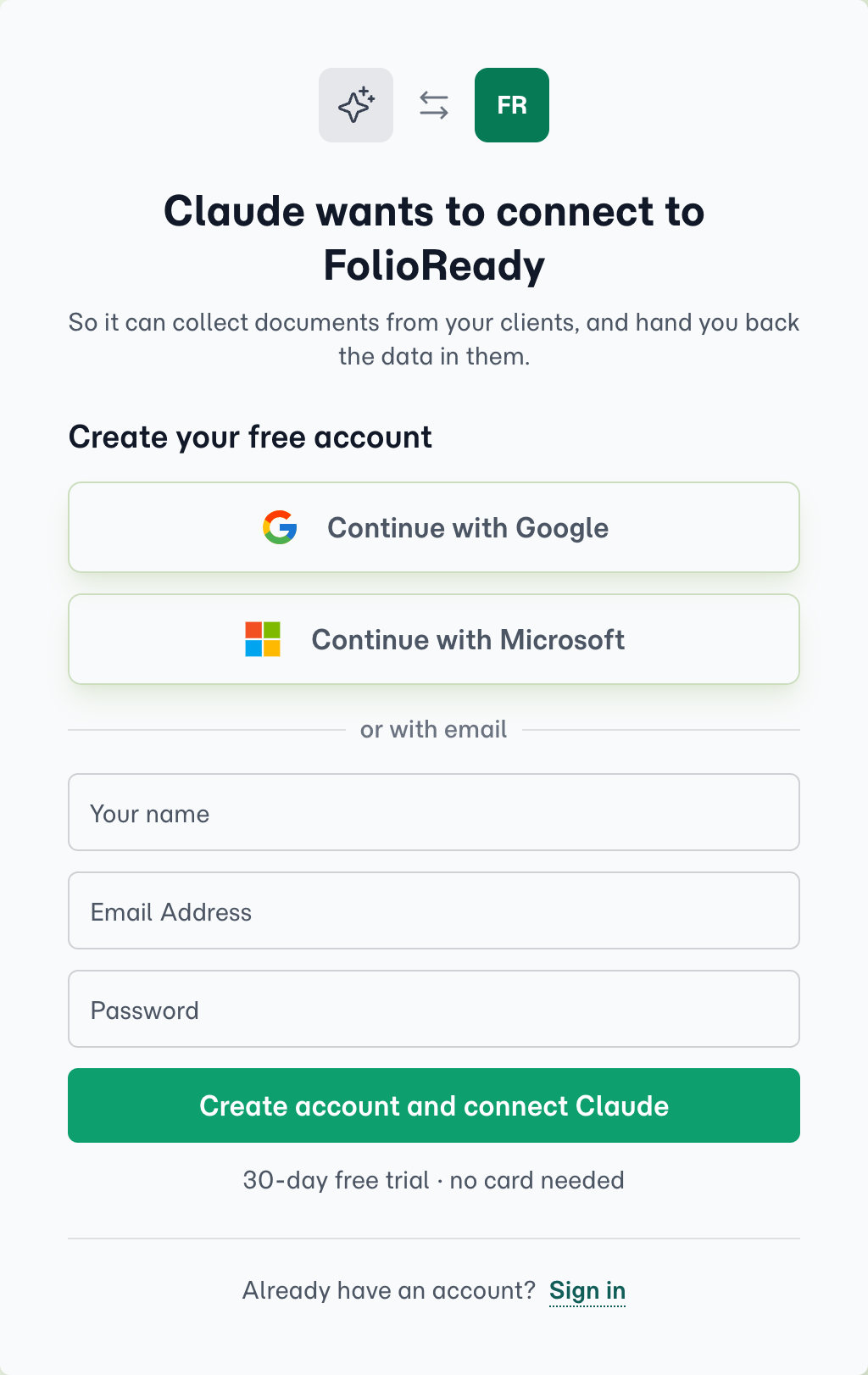
Add https://folioready.com/mcp as a connector in Claude or ChatGPT. When it asks you to sign in, FolioReady's sign-in page names your assistant and starts with Create your free account: Google, Microsoft or your email, right on the page. It's a 30-day trial, and no card is needed. Approve the connection and you're back in your assistant, connected.
Already have an account? Sign in sits just below, and it works as it always has.
Collect first, in three questions
Ask your assistant to collect something, such as "Collect a photo ID, business registration and financial statement from my new client." In a new account it asks you at most three questions:
- Who are you collecting from, and what for?
- What do you ask them for today? Name it, or paste or attach the checklist or email you send now.
- Where should the data go? Your CRM, if you've connected one.
Then it starts from the closest ready-made template, or builds one, and shows it to you with the company name your client will see. It publishes it and sends the first request to you.
Connect your AI from the dashboard
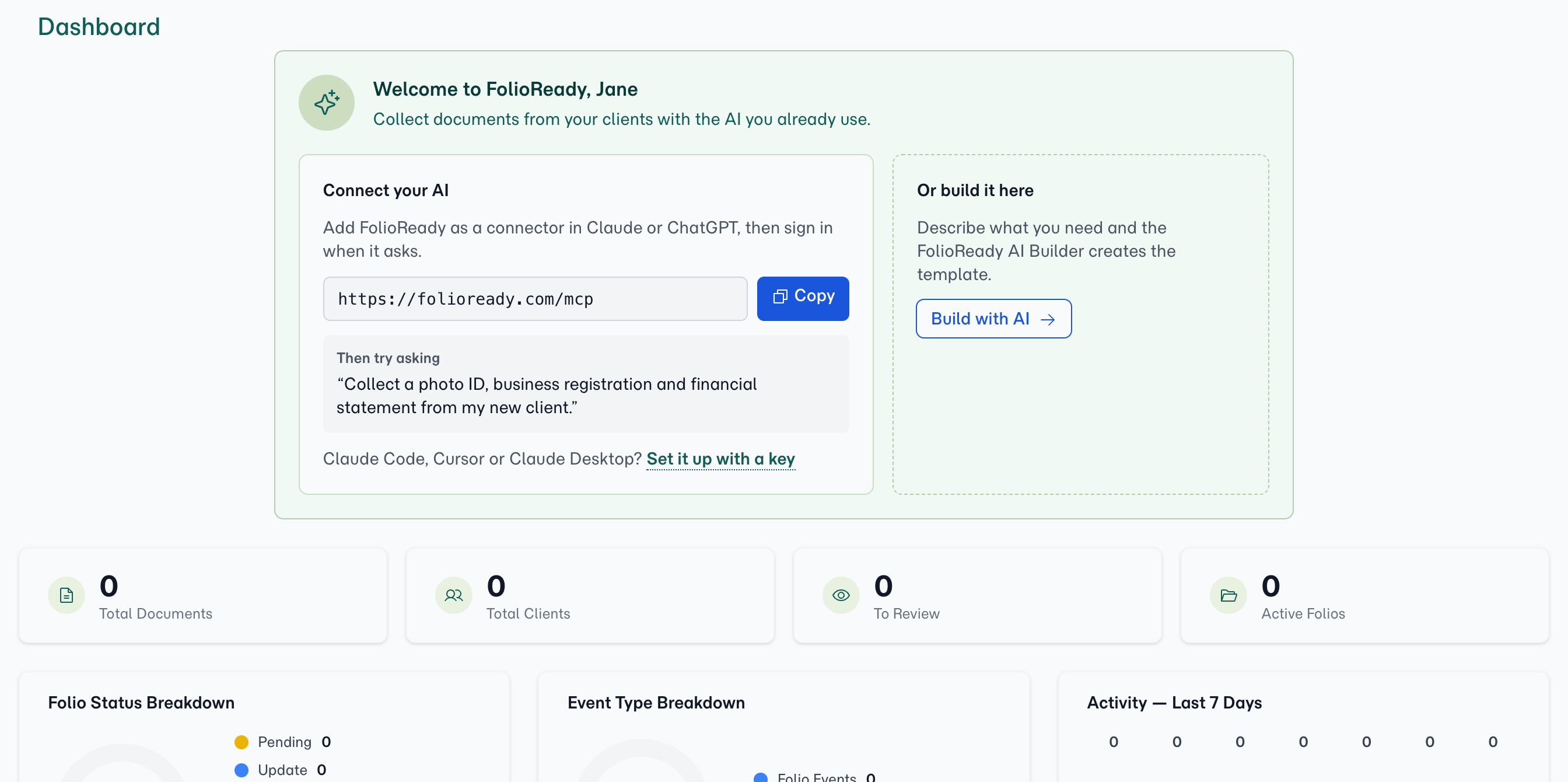
Signed up on the website instead? A new account's dashboard now starts with Connect your AI: the connector address with a Copy button, and a first request to try asking. Building a template with the AI Builder is still there, just below.
Claude Code, Cursor and Claude Desktop with a key
The card's key link takes you to your agent keys. Make one with setup allowed and FolioReady shows the Claude Code, Cursor and Claude Desktop setup with your new key already filled in, ready to paste.
How to Use It
- In Claude or ChatGPT, add a connector with the address
https://folioready.com/mcp. - When it asks you to sign in, create your free account, or sign in if you have one.
- Approve the connection.
- Ask it to collect documents from a client, and answer its questions.
- Open the request it sends you, to see your client's side.
Already connected? Nothing changes for you. Your connection and your templates carry on as they are.
Related
- AI Assistants: connecting each assistant, what it can do, and keeping it secure
- AI Assistants: Run FolioReady From Claude, ChatGPT, Cursor or Claude Code: the original release