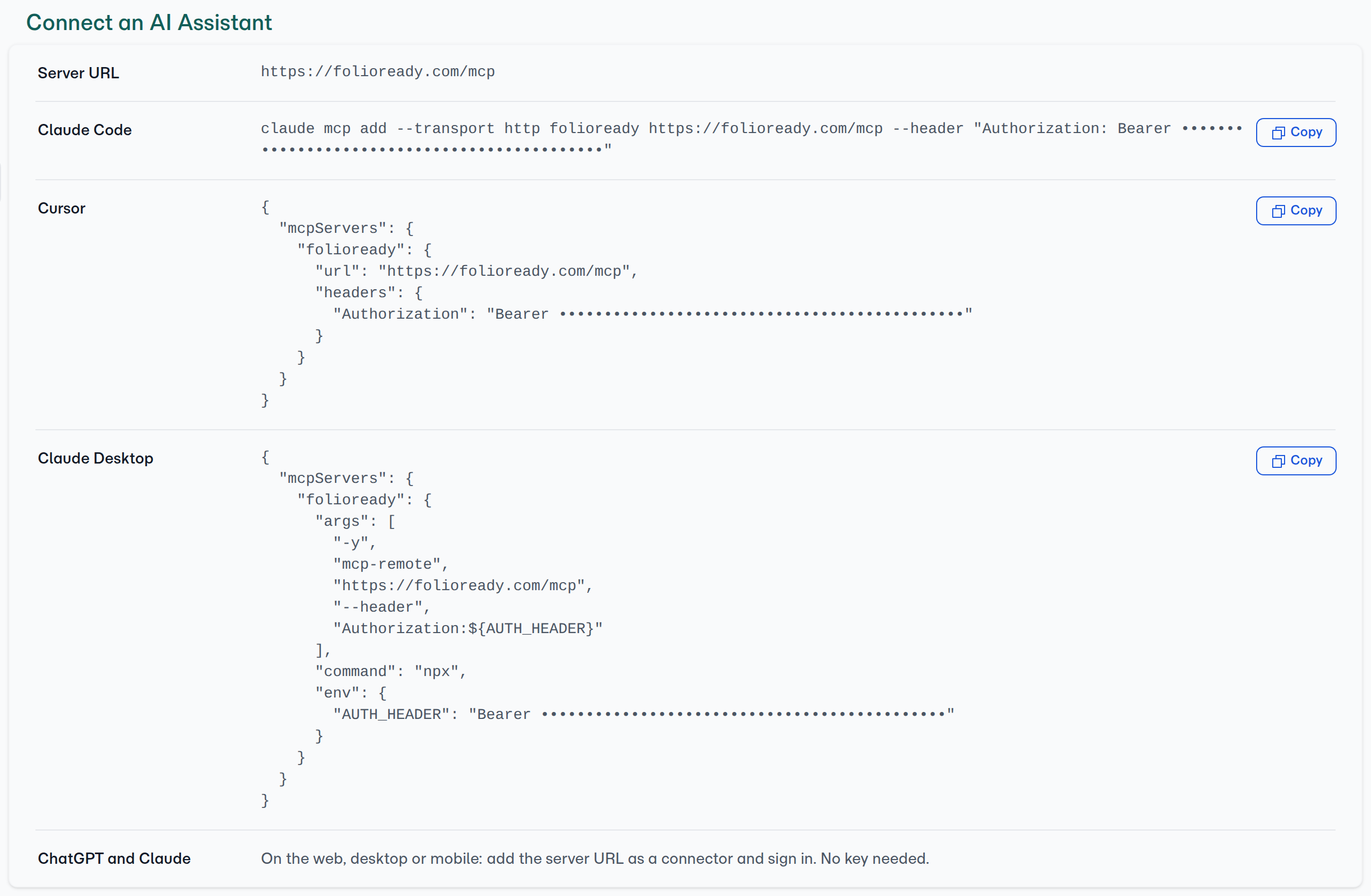

An assistant set up with the API key can do everything listed above for your whole company. Keep the key out of shared files. If it leaks, regenerate it on Company Details → API Key; that disconnects every assistant set up with it, and leaves the ones connected by signing in alone.
Connecting...
AI Assistants: Run FolioReady From Claude, ChatGPT, Cursor or Claude Code
You can now work in FolioReady from the AI assistant you already have open. Ask it to send Jane Smith the onboarding pack, to find out who hasn't returned their tax organizer, or to read back the EIN Acme gave you, and it does the work in FolioReady and answers in the same conversation.
ChatGPT and Claude, on the web, desktop and mobile, connect by signing in to FolioReady. Claude Code and Cursor connect with your company API key, and so does Claude Desktop when you set it up through its config file. Either way, the assistant reaches the same templates, clients and folios you see in the app.
What's New
Ask in plain words
Your assistant can list your templates, find and add clients, send folios, follow their progress and history, and read back what each client submitted. The AI Assistants page lists each one and what it does.
Sign in from ChatGPT and Claude
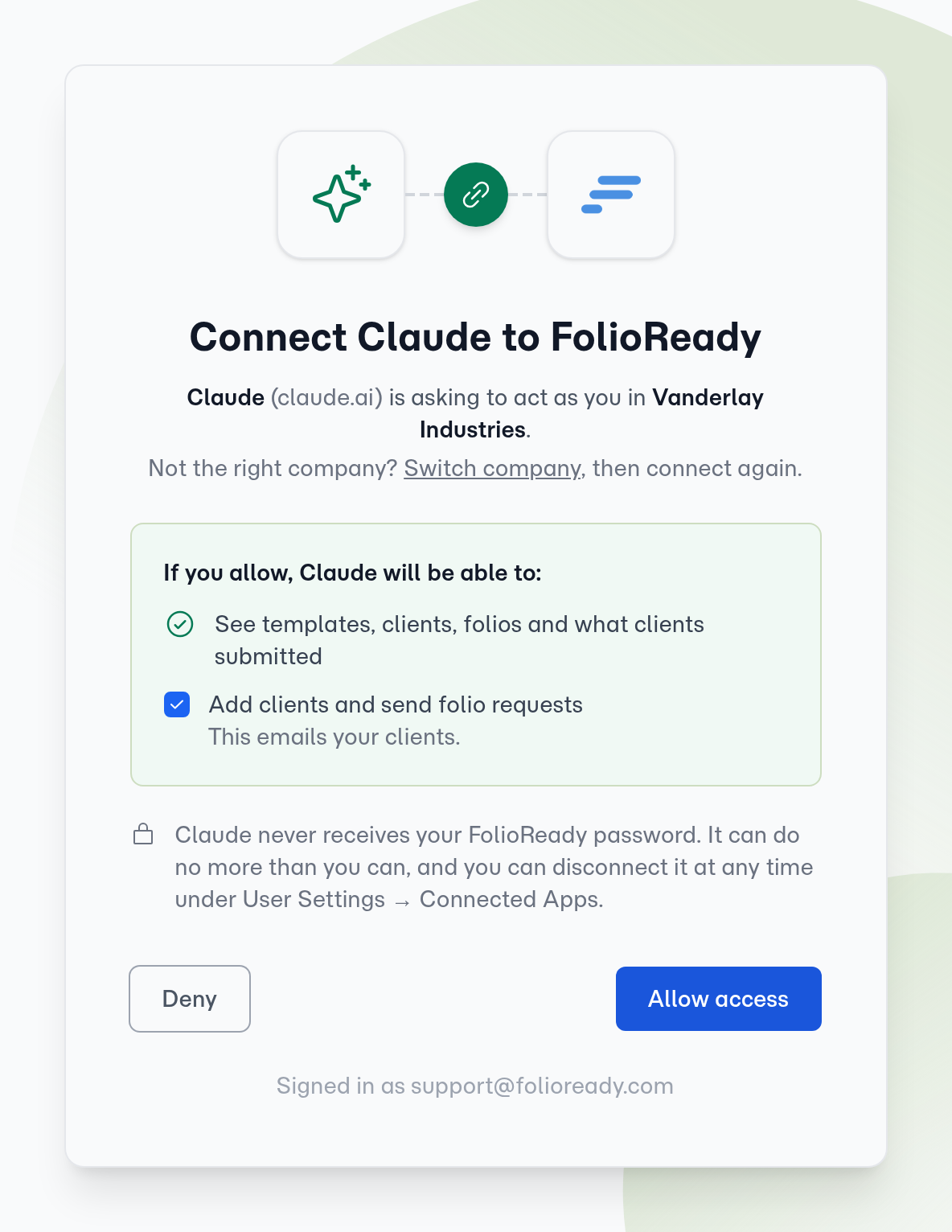
In Claude, open Customize → Connectors, choose Add custom connector, and enter https://folioready.com/mcp. In ChatGPT, turn on developer mode and add a connector with the same URL. Each one sends you to FolioReady to sign in and approve, and you never paste a key.
The approval screen names the app, the company it will reach, and the account you're signed in with. Reading your templates, clients and folios comes with connecting. Adding clients and sending folio requests share a separate checkbox. Untick it and the assistant can look things up but can't add a client or email anyone.
Any member of your team can connect their own assistant. It acts as them, so it can do no more than they can in FolioReady.
Connect Claude Code, Cursor and Claude Desktop with your API key
A manager will find a new Connect an AI Assistant card on Company Details → API Key. It shows the server URL and a ready-to-copy setup for Claude Code, Cursor and Claude Desktop, with your key already filled in.
See and revoke what's connected
User Settings → Connected Apps lists every assistant you've signed in from: the app, the company, what it may do, when you connected it and when it was last used. Revoke cuts it off straight away. A manager can see and revoke each team member's connected apps from their page under Team Members.
⚠️
The API key acts for the whole company
How to Use It
- In Claude or ChatGPT, add
https://folioready.com/mcpas a connector - Sign in to FolioReady when it asks, check the company named on the approval screen, and choose whether the assistant may send
- Ask for something in plain words: "which folios are still waiting on the client?"
- For Claude Code, Cursor or Claude Desktop, a manager copies the setup from Company Details → API Key instead
- To disconnect, open User Settings → Connected Apps and press Revoke
What's Improved
Field labels in the API and webhooks
Folio fields returned by the REST API and in webhook payloads now carry the label you gave them in the builder, such as "Business EIN", so an integration can tell each field by name.
Related
- AI Assistants: Setup for each assistant, what it can do, and keeping it secure
- Webhooks: Get notified when something happens in a folio