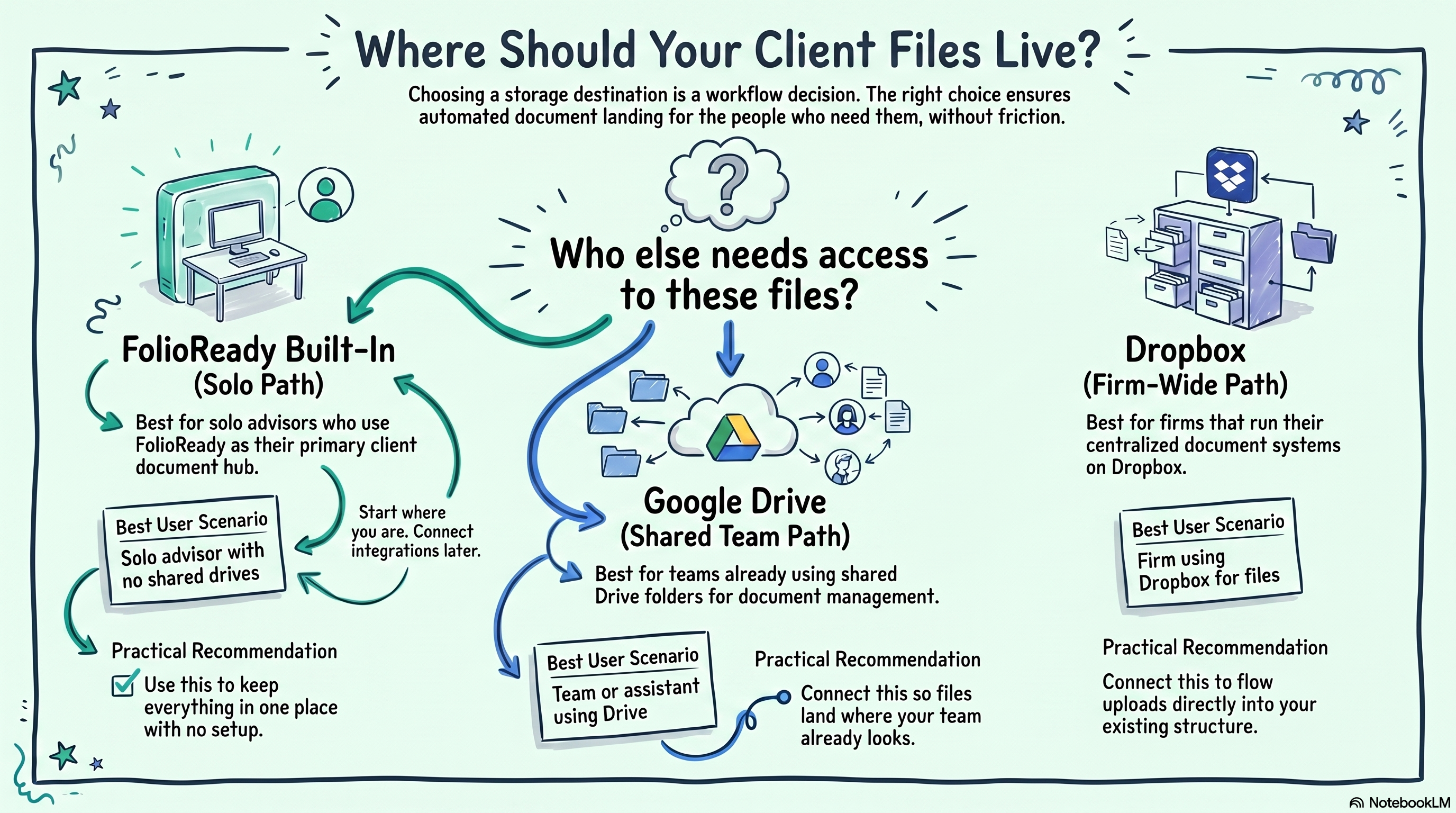
Solo advisor who just needs files collected? Built-in storage is fine — no setup required. Team that works from a shared Google Drive or Dropbox? Connect that integration first, before you send your first folio. Files will land where your team already looks for them.
Connecting...
Where Should My Files Live?
When you set up FolioReady, one of the first decisions you'll face isn't about features or pricing — it's about files. Specifically: when a client uploads a document, where does it actually go? The answer shapes how you and anyone else on your team will interact with those files every day.
This isn't a complicated decision, but it's worth thinking through before you send your first folio. The right answer depends almost entirely on how your practice already works — not on any preference FolioReady has for one approach over another.
Why It Matters
Storage sounds like a backend detail, but it's really a workflow decision. It determines whether files end up somewhere you already check regularly or somewhere new you'll need to build a habit around. It determines whether a colleague or assistant can find a client's documents without asking you. And it determines whether your files are part of your existing folder structure or organized separately inside a platform they may not have access to.
Getting this right early means less reorganization later. Getting it wrong just means an extra step every time you need a file — not a disaster, but an unnecessary friction that compounds over time.
The Options
FolioReady Built-In Storage
By default, every file a client uploads lives inside FolioReady. You can view, download, and organize files directly from the platform. No external accounts to connect, no OAuth flow to complete — it just works.
This is the right choice if FolioReady is your primary point of reference for client documents, and you don't need those files to show up anywhere else automatically.
The practical limitation is access. Files stored inside FolioReady are only accessible through FolioReady. If an assistant needs a document, they need to log into FolioReady. If you want to attach a client file to an email from your desktop, you'll need to download it first. That extra step isn't a dealbreaker for everyone — but it's worth knowing it's there.
Google Drive Integration
Connect FolioReady to your Google Drive account and every uploaded file is automatically delivered to a FolioReady/ folder, organized by client email:
FolioReady/
  alice@example.com/
    tax-return-2025.pdf
  bob@company.com/
    w2-2024.pdf
This is especially useful if your team already works from a shared Google Drive. Files land in Drive automatically — no downloads, no manual moves. Anyone with access to that Drive folder can find them immediately.
One thing worth knowing: FolioReady's Google Drive connection uses a scoped permission that only lets it access files it creates. Your existing Drive files stay private.
Dropbox Integration
Dropbox works similarly — files are delivered automatically as clients upload them, organized into folders by client. The setup requires a brief onboarding step through FolioReady support to configure access correctly, but once connected, the flow is the same: client uploads, file appears in Dropbox.
If your team runs on Dropbox rather than Drive, this is the path.
Who Actually Needs These Files?
The most useful question to ask is: who else needs access to client documents, and where do they expect to find them?
If you're a solo practitioner and FolioReady is where you manage client relationships, built-in storage is probably sufficient. Everything stays in one place, and you're the only one who needs it.
If you have an assistant, a paraplanner, or an operations person who handles documents on your behalf, they likely aren't spending their day inside FolioReady. They're working from shared drives, shared folders, or shared inboxes. Dropping files into Drive or Dropbox means they show up exactly where those people are already looking — without anyone needing to download and re-upload anything.
If your firm has a centralized document management system that lives on Google Drive or Dropbox, connecting FolioReady to that system means client uploads flow directly into your existing structure. The alternative — downloading files from FolioReady and re-uploading them somewhere else — is the kind of manual step that gets skipped under pressure.
Practical Recommendations
You're a solo advisor who doesn't use shared drives. Built-in storage is fine. You'll access everything through FolioReady, which you're already in daily. No extra setup needed.
You have a team or assistant who works from Google Drive. Connect the Google Drive integration before you send your first folio. Files will land in a shared location automatically from the start, and you won't need to backfill anything.
Your firm uses Dropbox as its shared drive. Same logic — connect Dropbox and let uploads flow there directly. Reach out to FolioReady support to get the integration configured.
You're not sure yet. Start with built-in storage. You can connect a cloud storage integration at any time, and future uploads will route there automatically. Files already in FolioReady stay where they are, so there's no forced migration.
💡
Quick answer
Setting Up a Storage Integration
If you decide to connect Google Drive or Dropbox, the setup takes a few minutes:
- Go to Settings > Integrations
- Find Google Drive or Dropbox
- Click Connect and authorize FolioReady with your cloud storage account
- That's it — uploads from that point forward are delivered automatically
You don't need to change anything about how you send folios or request documents. The storage destination changes in the background, and everything else stays the same.
- Google Drive Integration — Automatically store client files in your Google Drive
- Dropbox Integration — Store client files in your Dropbox with managed access