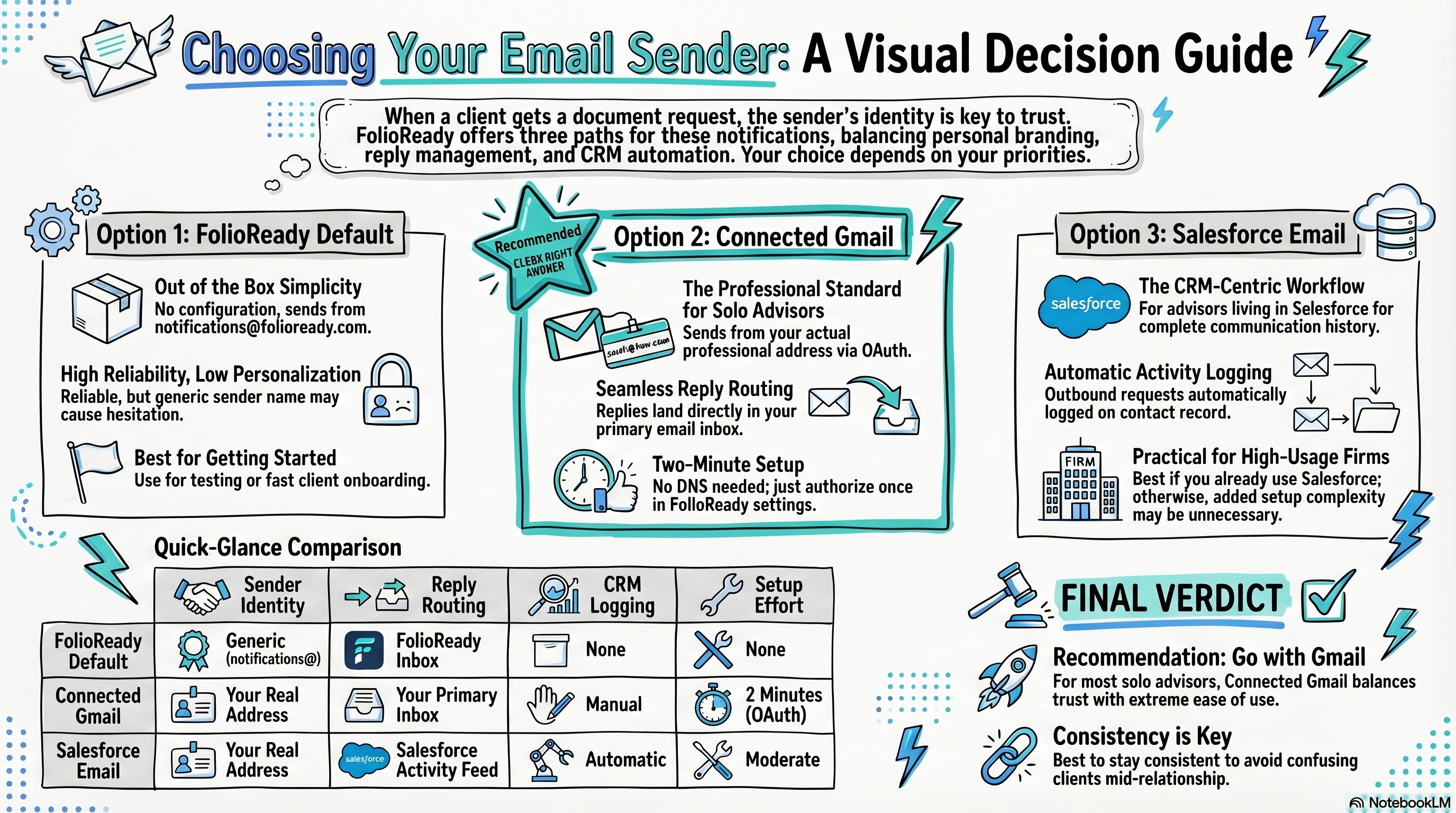
Most solo advisors should connect Gmail. It takes about two minutes, your clients see your real email address in the From field, and replies come directly to your inbox. Go to Account Settings > Email Sender and connect your Google account.
Connecting...
How Should I Set Up Email Notifications?
When a client receives a document request from you, the first thing they see isn't your logo or your firm name — it's the sender. That moment shapes whether they open the email or let it sit. Getting your email setup right is one of those small decisions that quietly affects every client interaction you have on FolioReady.
Most advisors don't think about this until something goes wrong: a client says they didn't see the request, or worse, they thought it was spam. The good news is there's a clear right answer for most solo practices, and it takes about two minutes to set up.
Why This Actually Matters
FolioReady sends emails on your behalf — document requests, reminders, completion confirmations. The email your client receives has a sender name and a reply-to address. Those two things carry more weight than most people realize.
When clients see a message from notifications@folioready.com, they have to pause and think: "Is this legit? Did my advisor send this?" That hesitation costs you credibility before the email is even opened. When they see a message from sarah@sarahwilsonwealth.com, there's no question. They know who it's from, they trust it, and they're more likely to act on it.
The reply-to address matters just as much. If a client hits reply to ask a question — and clients often do, even when you'd prefer they didn't — where does that message land? With some setups it goes to a FolioReady inbox you might not check. With others it comes directly to you. One of those creates friction; the other just works.
If you're using a CRM like Salesforce, there's a third dimension: whether outbound emails get logged to the contact record automatically. For advisors who run tight CRM hygiene, that's a real consideration.
The Three Options
FolioReady Default
This is what you get out of the box, no configuration needed. Emails go out from FolioReady's shared sending domain. It works, it's reliable, and if you're just getting started and want to move fast, it'll get the job done.
The tradeoff is that clients see a generic sender, not your name or your firm. For some advisors — particularly those whose clients are used to getting automated messages from various platforms — this is fine. For advisors who've built their practice on personal relationships and white-glove service, it can feel like a step backward.
Use the default if you're testing the platform, onboarding your first few clients, or if your client base is accustomed to fintech workflows and won't be thrown by an unfamiliar sender.
Connected Gmail (Recommended for Most)
When you connect your Gmail account, FolioReady sends emails using your actual address. Clients see your name in the From field. Replies come directly to your inbox. There's no ambiguity about who sent the request.
This works with personal Gmail addresses (@gmail.com) and Google Workspace accounts (@yourfirm.com). The setup is an OAuth connection — you authorize FolioReady once and it handles the rest. You don't need to touch DNS records or configure anything technical.
For solo advisors, this is almost always the right call. It keeps your client communication feeling personal, it routes replies where you'll actually see them, and it takes the friction out of the trust question entirely.
Salesforce Email
If you're running Salesforce as your CRM, connecting your Salesforce email account means outbound document requests get logged as activities on the contact record. For advisors who live in Salesforce and want a complete communication history, this is valuable.
The practical experience for clients is similar to connected Gmail — they see a real sender address rather than a generic one. The main benefit is on your end: everything lives in one place, and you don't have to manually log that you sent a document request.
This option makes the most sense if you're already doing most of your client communication through Salesforce and you care about having FolioReady activity visible alongside your other touchpoints. If you're not a Salesforce shop, or if your Salesforce usage is light, the added complexity isn't worth it.
Figuring Out What Matters to You
Before you pick an option, it's worth thinking through a few questions:
How important is trust and recognition with your clients? If your clients are used to receiving things directly from you and you've built a reputation around personal service, a generic sender undermines that. Connected Gmail or Salesforce email is the right move.
Do you want replies to come to you directly? If a client hits reply on a document request, where do you want that message? If the answer is "my inbox," connect Gmail. If the answer is "my Salesforce activity feed," connect Salesforce.
How much do you rely on CRM logging? If your compliance workflow or your own practice management depends on a complete record of client communications, Salesforce email gives you that automatically. If you log things manually or not at all, this isn't a deciding factor.
How much do you want to configure? The default requires nothing. Gmail requires a two-minute OAuth connection. Salesforce requires a bit more depending on your org setup. If you're onboarding quickly and want to get to your first client invite, start with the default and upgrade later — it's not a permanent decision.
What Most Solo Advisors Should Do
Connect Gmail. It's the right balance of personal feel and practical simplicity. Your clients see your real address, replies come to you, and there's no technical overhead. If you're using Google Workspace for your firm email (@yourfirm.com), even better — it looks completely seamless to clients.
The Salesforce option is excellent if it fits how you already work, but most solo advisors don't need the CRM logging badly enough to justify the extra setup. And the default sender is a perfectly reasonable starting point if you're still exploring the platform and haven't committed to your full workflow yet.
You can change this setting at any time from your account settings, so there's no pressure to get it perfect on day one. That said, once clients start receiving requests from a particular address, consistency matters — changing your sender address mid-relationship can create the same kind of "wait, is this legit?" confusion you were trying to avoid in the first place.
💡
Quick Answer